Creating a Purchase Order
Some shop owners order inventory by picking up the phone, rattling off a list from memory, and hoping for the best. That works — until it doesn't. Purchase orders give you a paper trail, keep your costs accurate, and make receiving shipments dramatically easier. Even if your vendor doesn't require a formal PO, you should be creating one anyway.
Before You Start
A purchase order needs three things in place first: the vendor you're ordering from, a sales rep to send the order to, and the brands you buy from that vendor (so the right items come up). If you've already got them set up, skip ahead. If not, it's a five-minute, one-time setup per vendor — walk through Quick Start: Set Up a New Vendor, or read the full detail in Setting Up a Vendor Company, Adding Vendor Sales Reps, and Linking Brands to Vendors.
Building a Purchase Order
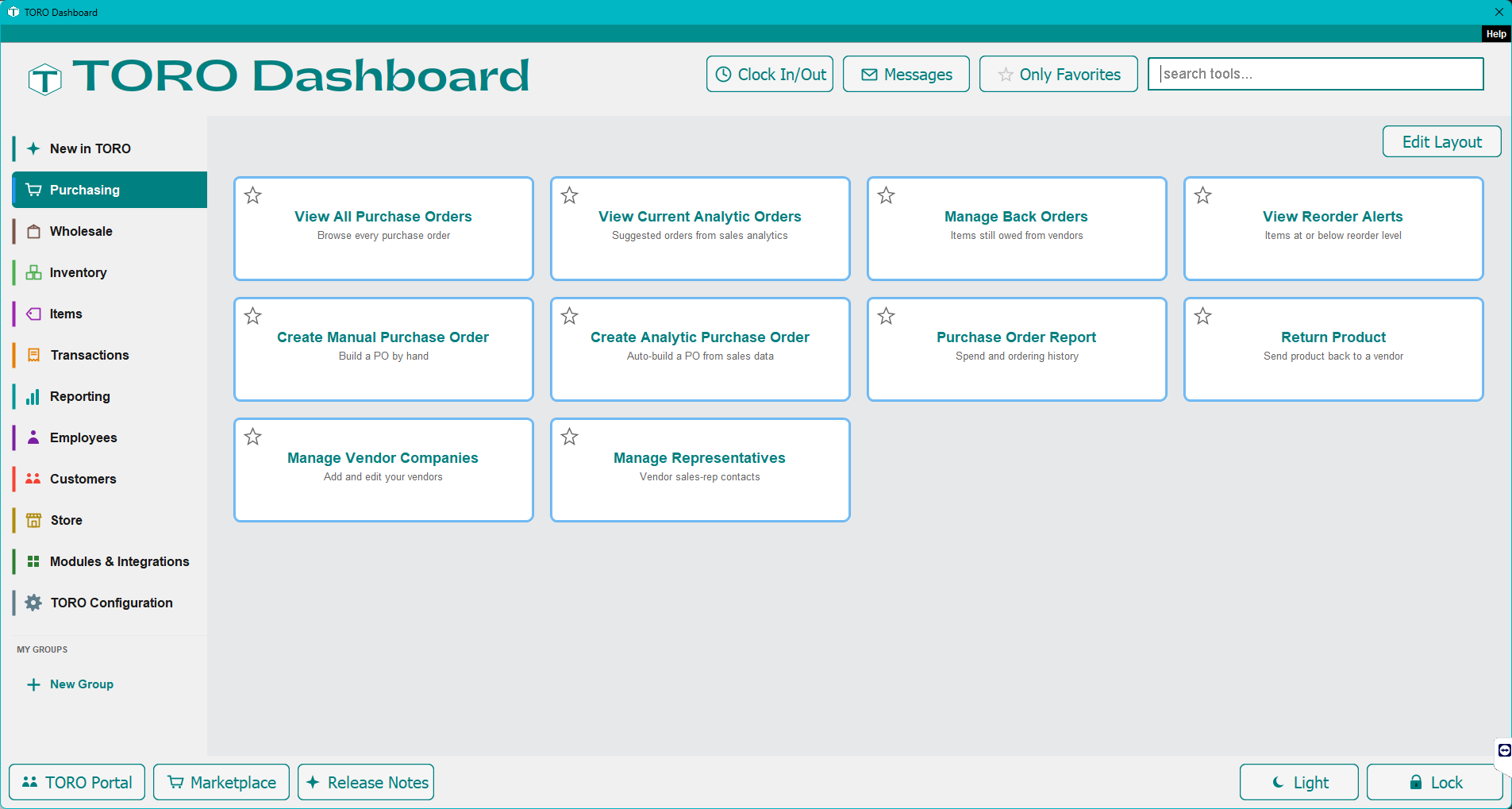
Open the Dashboard, click the Purchasing tab on the left, and click the Create Manual Purchase Order card. (Can't find it? Type "create po" in the search box at the top right.) A blank purchase order opens, ready to fill in.
First, select the vendor you're ordering from. Then start adding items — you can search by name, item ID, or barcode. For each item, enter the quantity you want and verify the cost. If the vendor's price has changed since your last order, update it here. This is how TORO keeps your cost data accurate.
Once everything looks right, save or submit the PO. It's now tracked as outstanding, meaning you and your staff can see exactly what's on order and hasn't arrived yet. No more guessing whether you already ordered those lighters or not.
Let TORO Suggest What to Order
You don't have to build every PO from scratch. On the same Purchasing tab, the Create Analytic Purchase Order card lets TORO build the order for you — it looks at your sales history and stock levels and suggests what to reorder, which you can review and adjust before saving it as a real PO. And the View Reorder Alerts card simply lists every item at or below its reorder level, so you can see at a glance what's running low.
This is incredibly useful for routine reordering. Instead of walking the floor with a notepad, let the data tell you what you need, review it, and turn it into a PO. You'll catch things you might have missed and avoid ordering things you don't actually need yet.
Tracking PO Status
Once a PO is created, TORO tracks its lifecycle. You can see at a glance which orders are open and waiting, which have been partially received (some items arrived, others haven't), and which are fully received and closed out.
This matters more than you'd think. When a customer asks "Did you order those?" you'll have an answer in seconds instead of digging through emails or trying to remember a phone conversation.
Emailing POs to Vendors
TORO can email purchase orders directly to your vendors. No printing, no faxing, no copying into a separate email. Select the PO, hit send, and it goes out as a clean, branded email — modern card-style layout with your store info, a clear item table showing both wholesale and store cost, and a bold total at the bottom. It looks professional because it is. For vendors who accept orders by email, this saves a surprising amount of time over the course of a year.
Every PO email also includes two attachments: a simple HTML version of the order (just the table, no fancy formatting — great for printing or forwarding), and a CSV file of the order that can be imported into a spreadsheet or ordering system. The CSV includes item IDs and any available manufacturer barcodes, so your vendor has everything they need to match items on their end.
Tagging Items from a Purchase Order
Need to tag a batch of items — say, everything from a seasonal order or a specific promotion? The PO editor has a Tag Items button that does exactly that. Click it, pick one or more item tags from the list, and every item on the PO gets tagged in one shot. Shipping, discount, and tax lines are skipped automatically.
This is handy when you want to group items for reporting, filtering, or tracking without tagging them one by one from the item editor. If a tag doesn't exist yet, you can create one right from the tag selector.
Why This Matters
Purchase orders aren't just paperwork for the sake of paperwork. They serve real purposes:
Cost accuracy. When you record costs on the PO and then receive against it, TORO updates your average cost automatically. That flows into your margin calculations, your profit reports, everything. Without POs, your cost data slowly drifts from reality.
Accountability. A PO is a record of what you ordered, when, and at what price. If a vendor charges you differently than what was agreed, you have documentation. If something goes missing between ordering and receiving, you can trace where the breakdown happened.
Easier receiving. When that shipment shows up, your staff opens the PO and checks items off against it instead of trying to figure out what's in the boxes. It's faster, more accurate, and much less stressful during a busy day.
Matching vendor invoices. When the bill comes, compare it against the PO. Did they charge you the right prices? Did they bill you for items you didn't receive? POs make this a five-minute task instead of a headache.
All your purchase orders are saved in TORO for reference and auditing. You can go back months or years later and see exactly what you ordered, from whom, and what it cost.