Receiving Inventory
The shipment's here. Boxes are stacked by the back door. Now what? This is the moment where your inventory numbers either stay accurate or start to drift — and once they drift, every report you pull and every reorder decision you make gets a little less reliable. Receiving properly takes a few extra minutes, but it pays for itself many times over.
Receiving Against a Purchase Order
If you created a PO (and you should have), receiving is straightforward. Open the Dashboard, click the Purchasing tab on the left, and click the View All Purchase Orders card. (Can't find it? Type "purchase order" in the search box at the top right.) Find the order for the shipment that arrived, select it, and click Edit Purchase Order to open it.
TORO shows you everything that was ordered. Go through each item, verify it's actually in the boxes, and adjust the quantity to match what you received. Sometimes it matches perfectly. Sometimes it doesn't — you might get short-shipped, find damaged items, or receive substitutions you didn't expect.
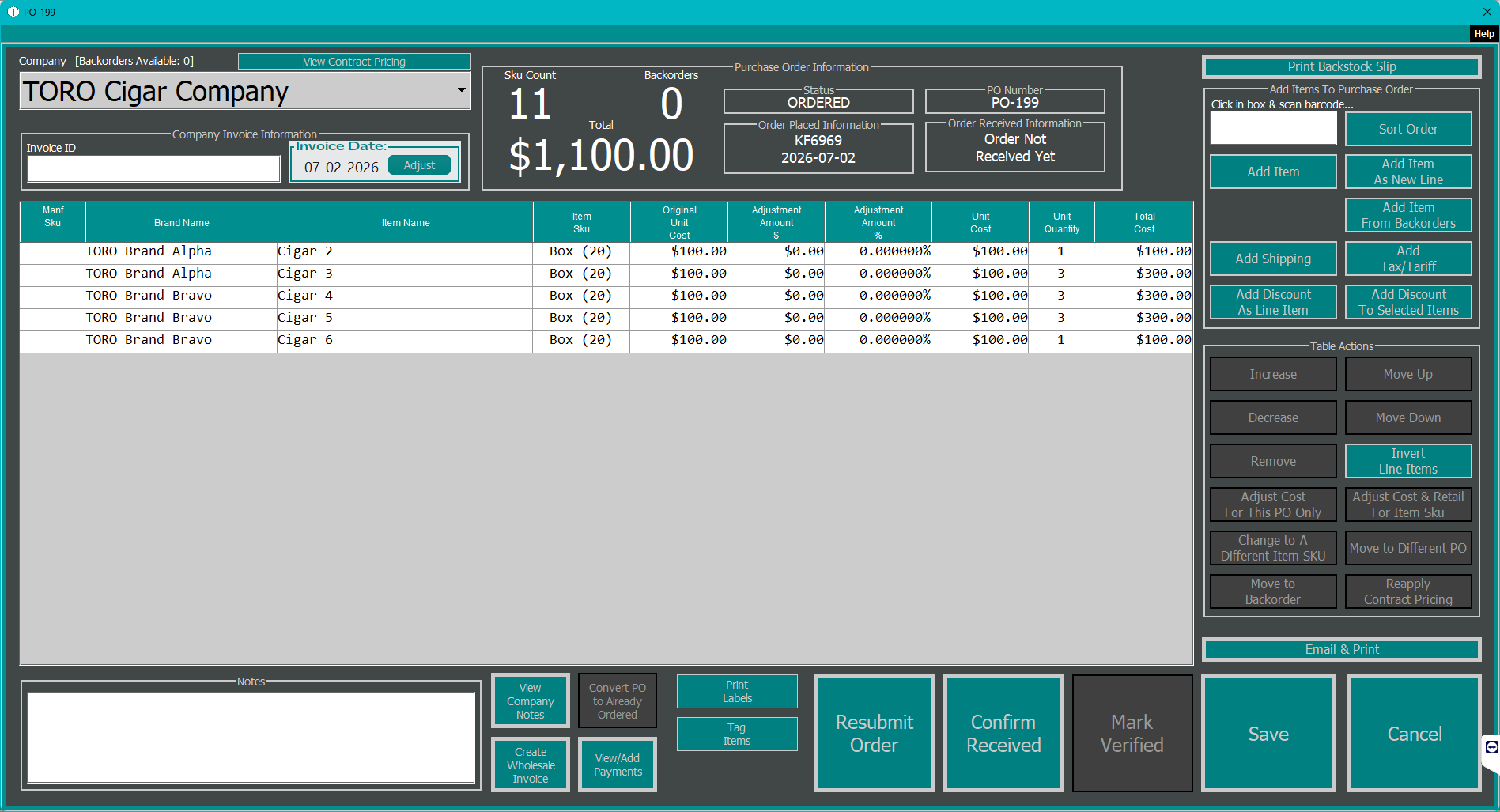
Note any discrepancies as you go. When you're done, click Confirm Received. TORO updates your quantity on hand automatically for everything you received. No manual QOH adjustments needed.
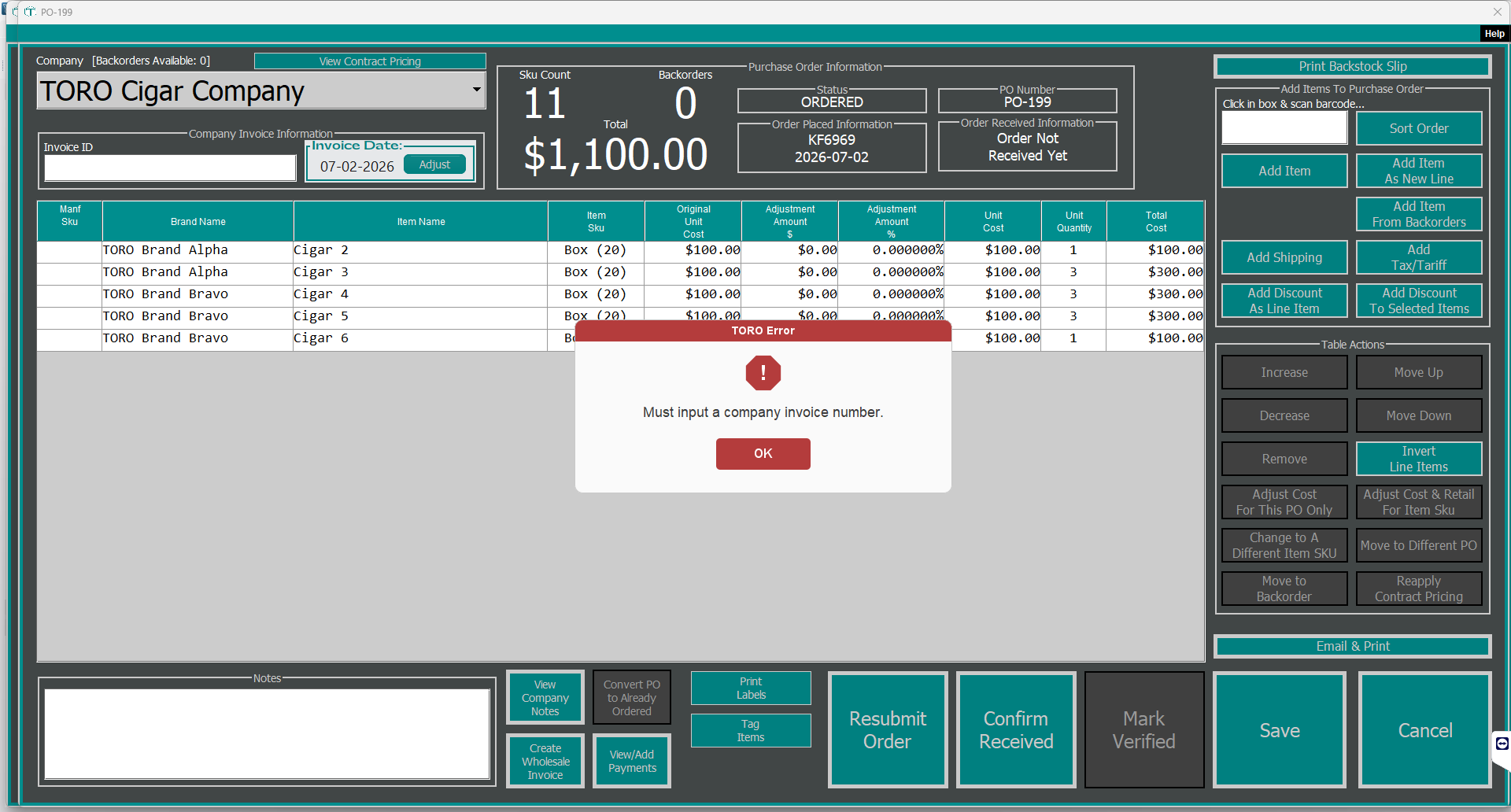
Receiving asks you for the vendor's invoice number and the invoice total before it finishes — that's TORO's way of making sure the bill and the order actually agree. If you skip the invoice number, it stops you until you enter it.
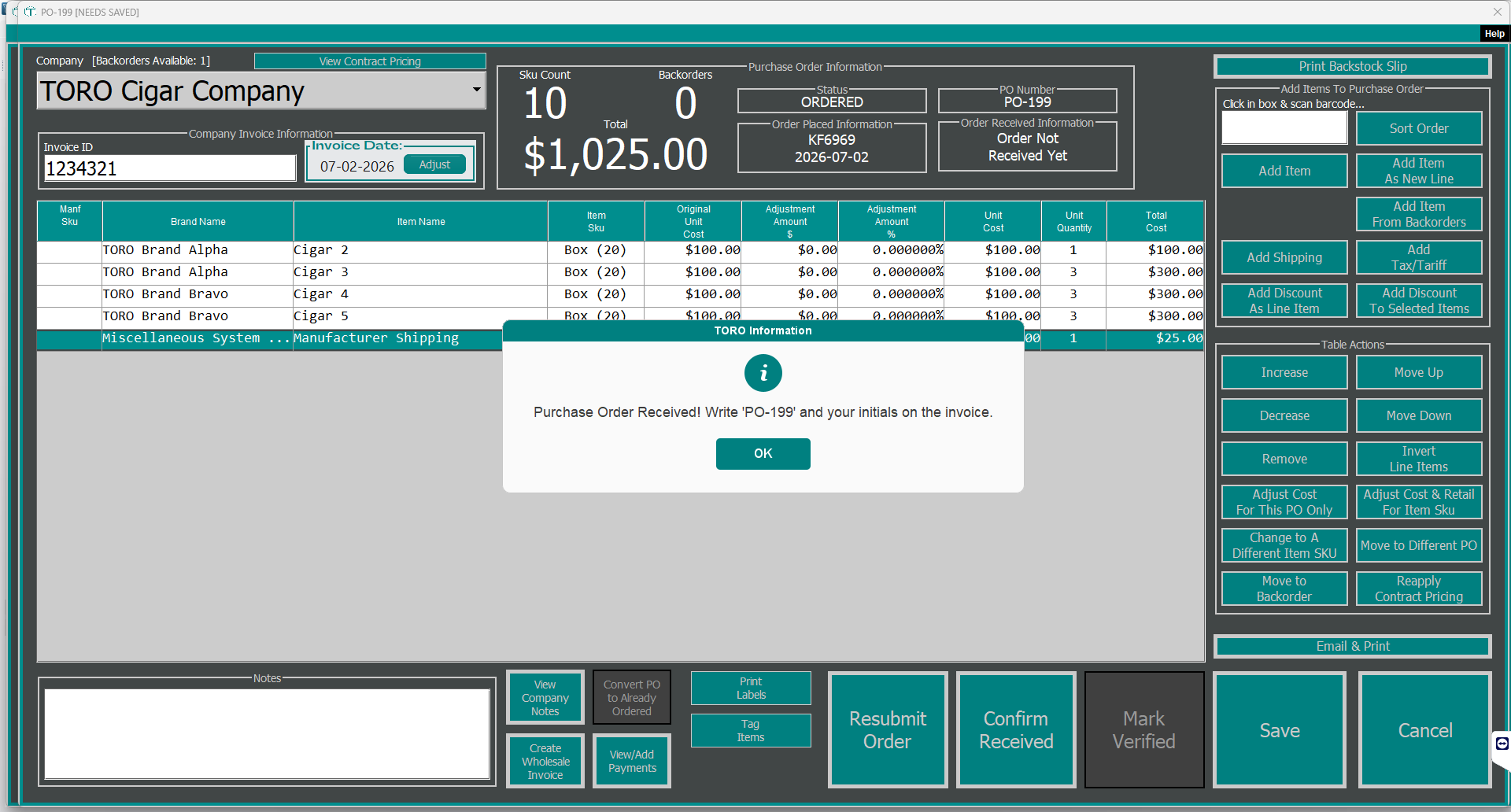
Once it's done, TORO confirms the receipt and reminds you to write the PO number and your initials on the paper invoice — a small habit that makes matching things up later painless.
When Only Part of the Order Shows Up
It happens all the time. You ordered 10 cases and only 6 arrived. Don't wait for the rest — receive what came in now. The items you received get added to your inventory immediately, and the remaining items stay open on the PO.
When the rest of the shipment arrives days or weeks later, you receive against that same PO. TORO keeps track of what's been received and what's still outstanding, so nothing falls through the cracks.
How Receiving Affects Your Costs
Here's something that's easy to overlook: receiving doesn't just update quantities — it updates costs too. If the vendor's price changed from what was on the original PO, TORO recalculates your average cost for that item automatically.
This matters because your average cost drives your margin and profit reports. If costs went up and you don't adjust, your reports will overstate your margins. If costs went down, you might be leaving money on the table with your pricing. Either way, accurate cost data starts with accurate receiving.
Best Practices
Count everything. Don't just glance at the packing slip and assume it's right. Open the boxes, count the items, and compare to what the PO says. Packing slips have errors more often than you'd expect.
Check for damage before you accept anything. Once you've received items into the system, dealing with damaged goods gets more complicated. Catch it at the door.
Match three things: the PO, the physical shipment, and the vendor invoice. If all three agree, you're golden. If they don't, you need to figure out which one is wrong before it becomes your problem.
If something is wrong or damaged, note it and contact the vendor right away. The longer you wait, the harder it is to get credits or replacements.
Don't skip receiving. This is the big one. Every time someone puts new stock on the shelf without receiving it in TORO, your inventory numbers become a little less trustworthy. Over weeks and months, those small gaps add up to big problems — stockouts you didn't see coming, overorders because the system thought you were low, and inventory counts that don't make any sense. Receiving is what keeps your data honest.
Review your retail prices after receiving. Especially if costs went up. Your margins might have just shrunk without you realizing it. A quick check after each receiving session ensures your pricing still makes sense for your business.
Verify Before You Close It Out
Confirming received gets the boxes into your system. The next step — verifying — is where you scan the shipment and reconcile it against the vendor's invoice, catching short-shipments and surprise extras before the order is closed for good. It's worth doing every time: Verifying a Received Purchase Order.
If your shop recounts stock as shipments arrive, TORO can prompt you to count received items right after you confirm — see Rolling Inventory.