Linking Brands to Vendors
A brand in TORO is the manufacturer or line an item belongs to — Padrón, Oliva, your house lighters, whatever. Linking a brand to the vendor you order it from is the third and final piece of getting ready to write purchase orders. It's also the one that's easiest to forget, and the one that quietly breaks reordering when you do.
Here's the chain: you order a brand from a vendor. If TORO doesn't know which vendor you use for a brand, it can't suggest reorders for it, and it can't neatly group that brand's items when you build an order. Linking the two closes that gap.
The Red Background Is Telling You Something
Open the Dashboard, click the Items tab on the left, and click the Manage Brands card. (Can't find it? Type "brand" in the search box at the top right.) This opens Brand Management.
Look for any brand with a red background. That's TORO's flag for a brand that isn't linked to a vendor company. The screen even spells it out at the bottom: brands shown in red aren't linked to a vendor, and to get automatic reorder suggestions you need to edit the brand and pick the company you order it from. If you take one thing from this article, it's this — red means "I don't know where you buy this."
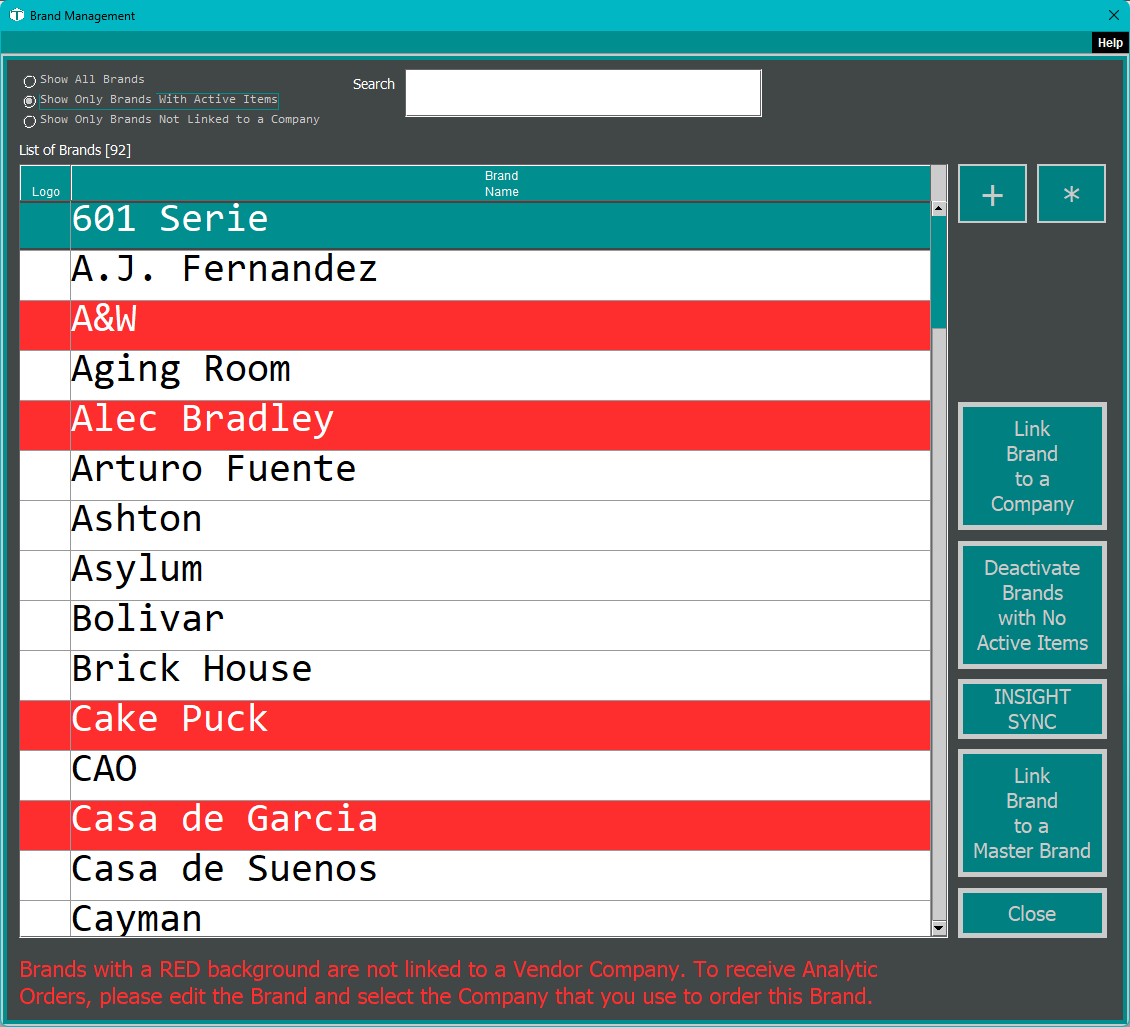
Brand Management also gives you filters to make this easy: Show All Brands, Show Only Brands With Active Items, and — most useful here — Show Only Brands Not Linked to a Company. Flip that last one on and you get a clean punch list of everything still needing a vendor.
Two Ways to Link
Both paths write the same connection; use whichever is in front of you.
From the brand: In Brand Management, select the brand and click Link Brand to a Company, or click * to open the full Brand Editor and use its Companies table. In the editor, click the +, choose the vendor, and it's attached. A brand can be linked to more than one vendor if you buy it from a couple of sources — just add each one.
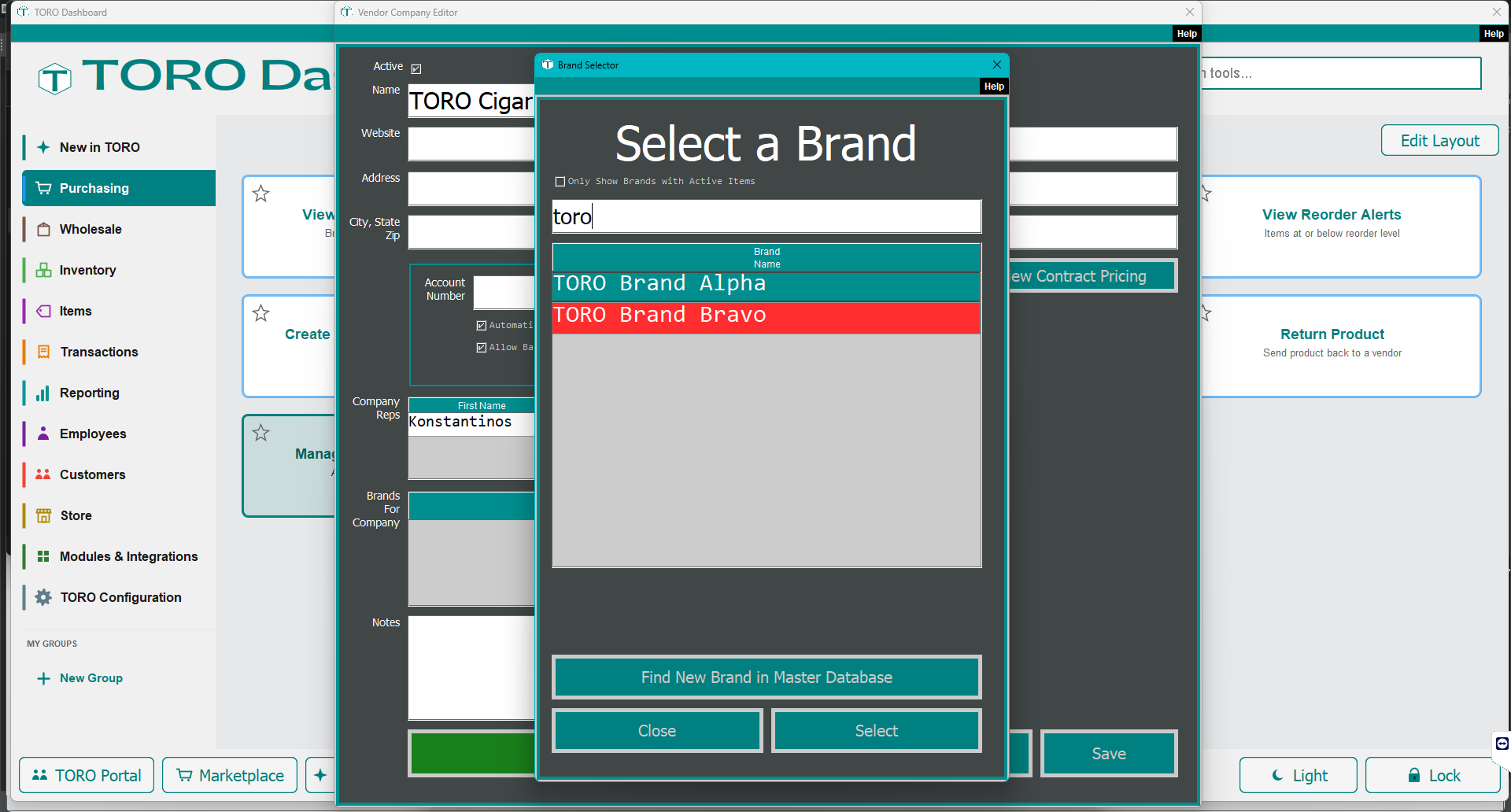
From the vendor: Open the Vendor Company window (Purchasing → Manage Vendor Companies → Edit Vendor) and use its Brands For This Vendor table. Click Add, pick the brands you buy from that vendor, and save. This is the fast way when you're setting up a new vendor and want to attach a whole stable of brands at once.
While You're in the Brand Editor
The Brand Editor does a bit more than the vendor link, and it's worth knowing what's there:
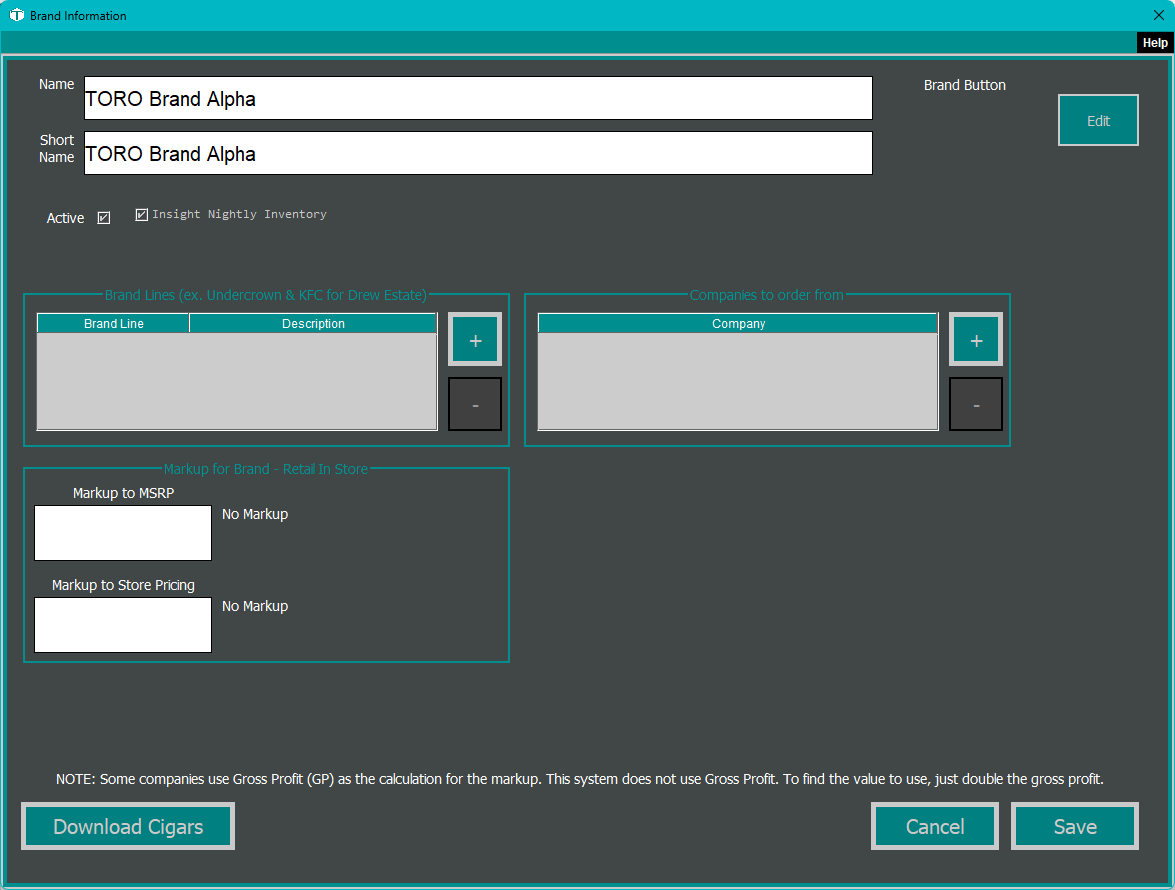
- Name and Short Name — the full brand name, and the shorter version that fits on a receipt.
- Active — retire a brand you no longer carry without deleting its history.
- Markup fields — Markup to MSRP, Markup to Store Pricing, Master Sku Markup, and All Skus Markup. These set default pricing math for the brand. (A note in the editor reminds you that some vendors quote you in gross profit — to convert GP to the markup number TORO wants, double it. There's a deeper explanation in Setting Markups.)
- Brand Button — the register button's look. Customizing that is its own topic: Customizing Brand Buttons.
- Companies — the vendor link, covered above.
For linking purposes, the only field you must touch is the vendor link. The rest you can set now or later.
How This Powers Purchase Orders
Once a brand is linked to a vendor, three things start working:
- Analytic (suggested) orders. If the vendor has Automatic Build Analytic Orders turned on, TORO can look at your sales history and stock, and build a suggested reorder — but only for brands it knows you buy from that vendor. Unlinked brands get skipped, which is exactly why they show up red.
- Cleaner manual orders. When you build a PO by hand, the vendor's brands are the natural set of items to reach for. The link keeps your ordering organized around the vendor you're actually buying from.
- Meaningful vendor reporting. Your Vendor Report Card can only credit a vendor for the brands tied to it.
Why This Matters
Unlinked brands are the silent leak in a lot of inventory setups. Everything looks fine — items ring up, sales happen — but reorder suggestions quietly ignore those brands, and you find out you're out of a top seller the hard way. Spending ten minutes clearing every red row in Brand Management is one of the highest-payoff things you can do for your ordering. Do it once, keep an eye out for new red rows when you add brands, and TORO's reordering does its job.