Adding Vendor Sales Reps
Your vendor company is the what — the distributor you buy from. Your sales rep is the who — the actual person who takes your order. TORO keeps them separate on purpose, because the rep is who your purchase order gets emailed or texted to. No rep on the vendor, and TORO has nobody to send the order to. That's why setting up the rep is the second step of getting a vendor ready to order from.
A rep can cover more than one vendor, and a vendor can have more than one rep. TORO handles all of that by linking reps and vendors together, which we'll walk through below.
Two Ways In
You can manage reps from either direction:
- From the vendor: open the Vendor Company window, find the Company Reps table, and click Add. (When a vendor has no rep, that Add button is green — a hint that you're not ready to order yet.)
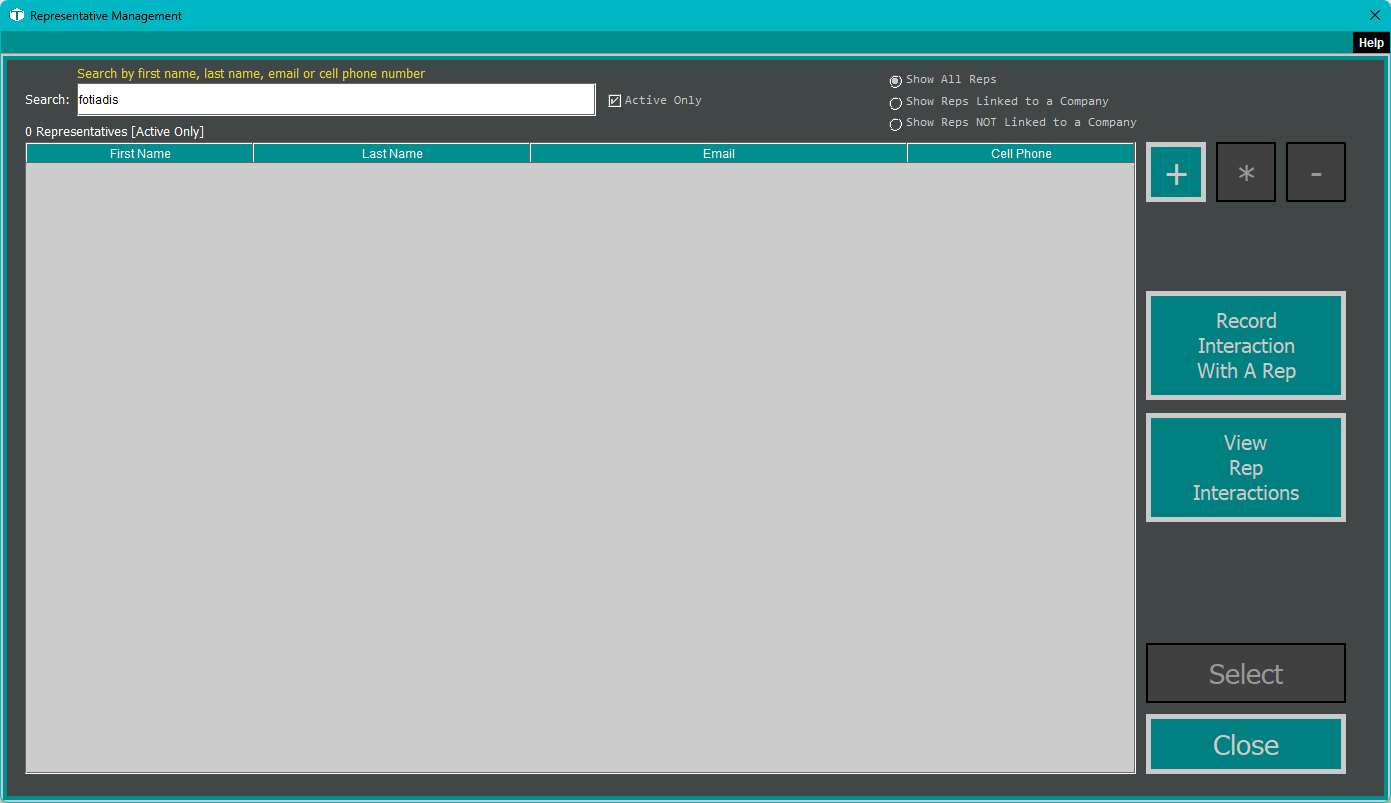
- On their own: open the Dashboard, click the Purchasing tab, and click the Manage Representatives card. (Can't find it? Type "rep" in the search box at the top right.) This opens the Representatives list, where you can filter by Show All Reps, Not Linked to a Company, or Linked to a Company — handy for spotting a rep you added but never attached to a vendor.
Either path opens the Representative window. (From the list, that is Add a Rep for a new one, or Edit Rep for an existing one.)
Filling In the Rep
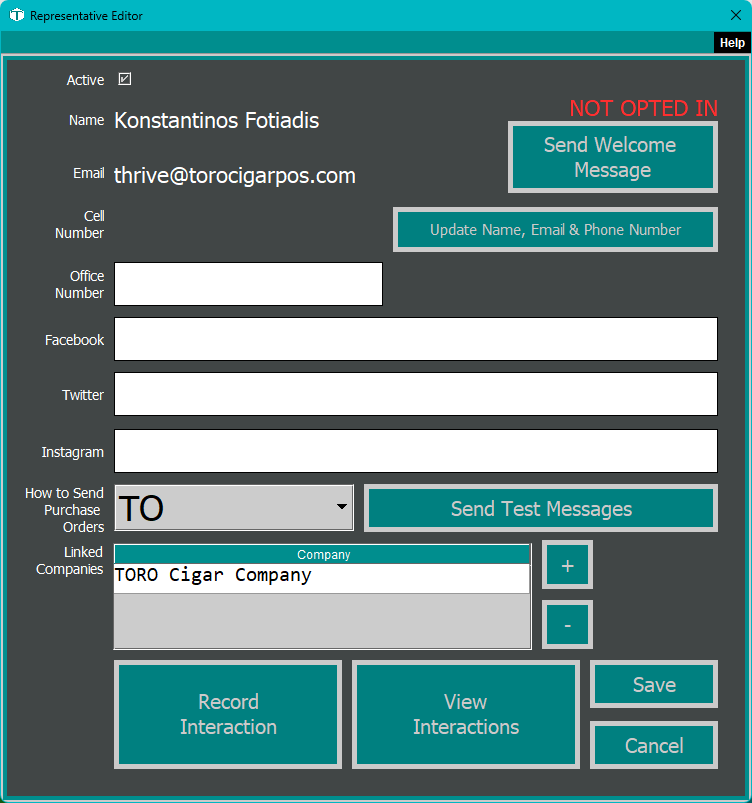
- Name — first and last. Required.
- Email — required, and it matters: this is where emailed purchase orders go.
- Cell Number — used for texting orders and opt-in invites.
- Office Number
- Facebook, Twitter, Instagram — optional social handles, if you keep in touch that way.
- Active — uncheck to retire a rep who's moved on without losing the history of orders you sent them.
Send Purchase Orders
This dropdown, in the How to Reach Them panel, is the one setting people miss, and TORO won't let you save the rep until you pick something other than None. Your choices:
- To — the rep is the main recipient of the order email.
- CC — the rep is copied.
- BCC — the rep is copied quietly.
- None — no email goes to this rep (TORO blocks saving on this, so choose one of the above).
There's a Send Test Messages button right there so you can fire off a test and confirm the order actually lands in their inbox before you rely on it.
Emailing a Rep Directly
Purchase orders aren't the only thing you can send. The Email Rep button (to the right of the Linked Companies table) opens a small compose window — type a subject and a message, click Send Email, and the rep gets a clean, branded email: your store name up top, your message, your contact info, and the TORO logo at the bottom. Handy for chasing a backorder ETA or asking about this month's specials without leaving TORO. The rep needs a saved email address first — if the field is blank, save the rep with an email before sending. (The same compose window is available from the Purchase Order Editor as Message Rep.)
The Key Step: Link the Rep to a Vendor
This is the part that ties everything together. In the Representative window there's a Linked Companies table. Click Add, pick the vendor company (or companies) this rep covers, and they're linked.
Here's why it matters: a rep isn't linked to brands directly. The connection runs rep → vendor company → brands. When you build a purchase order for a vendor, TORO looks up that vendor's reps (to know who to send the order to) and that vendor's brands (to know which items to offer). Both hang off the vendor company. So the way you "link a rep to the brands they sell" is simply to link the rep and those brands to the same vendor company. Set the rep's Linked Companies here, link the brands over in the brand editor, and the whole chain connects.
Saving
Click Save. TORO stores the rep, and if this is a brand-new rep with an email address, it can send them a friendly welcome message so they know you'll be ordering through the system.
A Quick Note on Text-Message Reps
Some reps prefer to get orders by text. When you set a rep up that way, TORO tracks whether they've opted in to receive messages — you'll see a status like OPTED IN, NOT OPTED IN, or NEED CELL NUMBER, along with a button to send them a welcome/opt-in invite. Until a rep opts in, orders fall back to email, so it's worth making sure the email is right regardless.
Why This Matters
The rep is the difference between "TORO built a perfect order and then it sat there" and "the order is already in your rep's inbox before you've finished stacking the empty boxes." It's a thirty-second setup that turns purchase orders from a document you have to do something with into one that sends itself.