Verifying a Received Purchase Order
Receiving gets the boxes into your system. Verifying is the moment you prove that what the invoice promised is actually what showed up. It's the last checkpoint before a purchase order is closed out for good — and it's where a quiet short-shipment or a surprise extra box gets caught instead of quietly throwing off your counts.
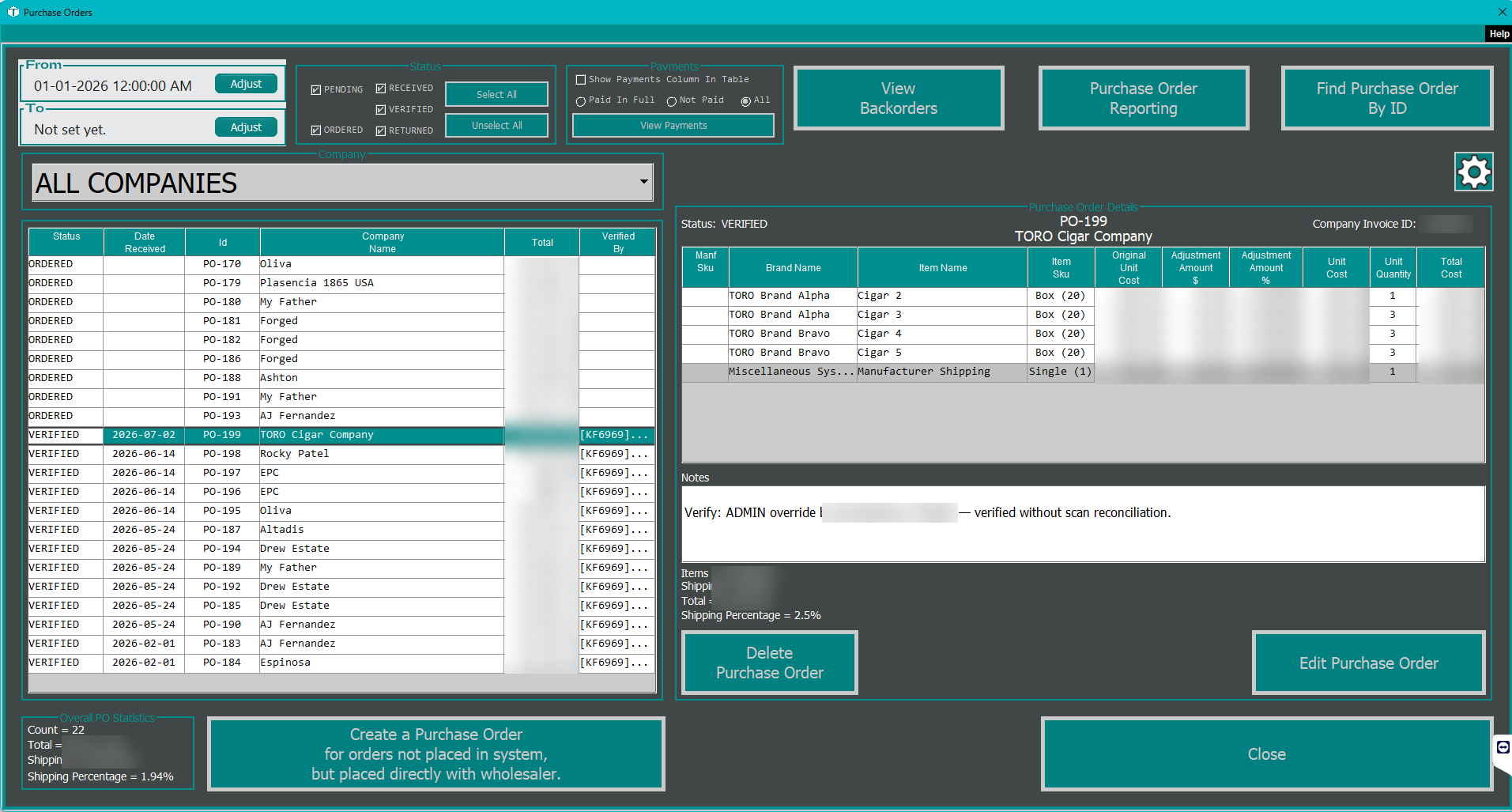
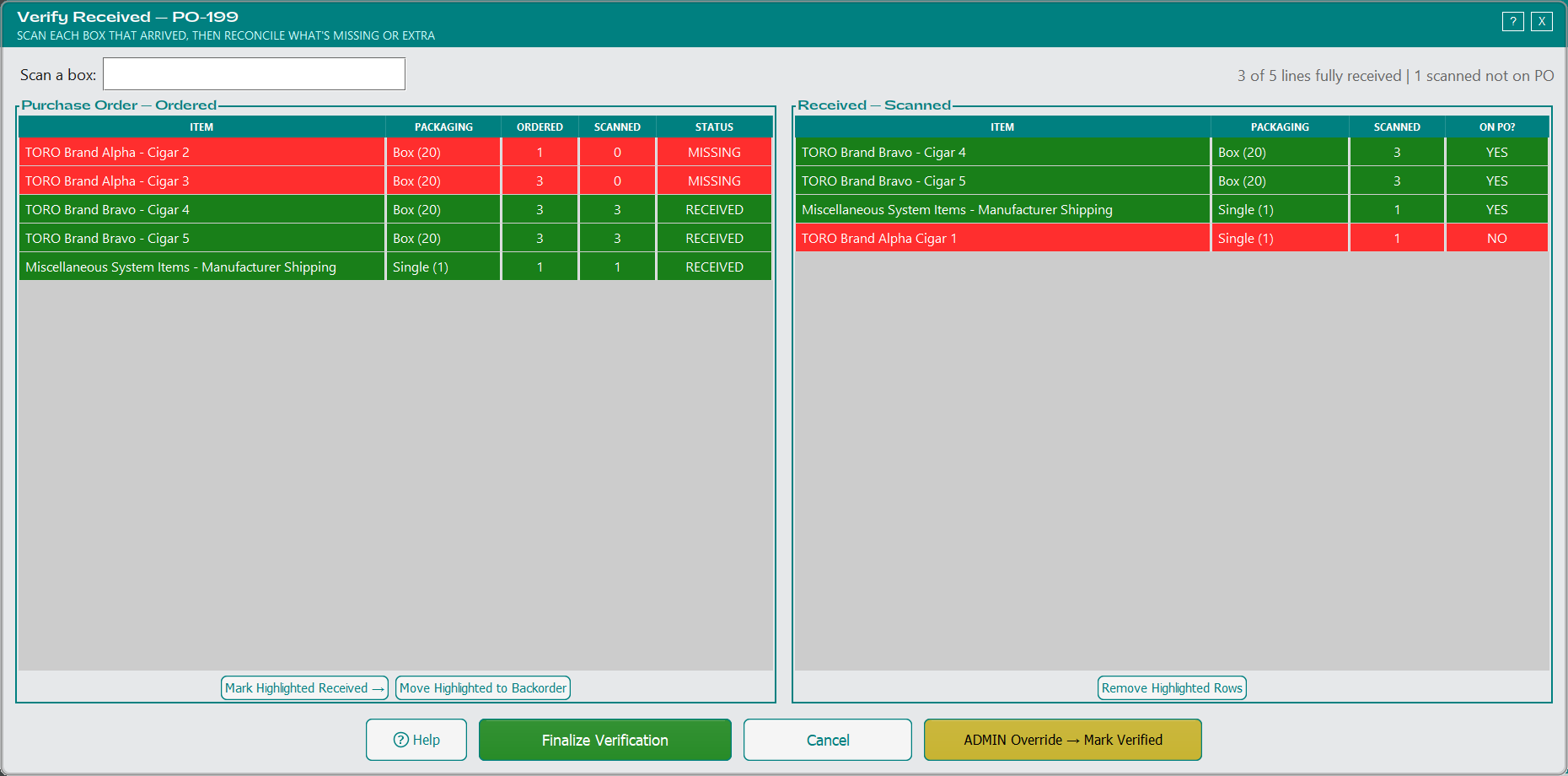
When you mark a received purchase order as Verified, TORO opens a scan-and-reconcile window. You scan each box that physically arrived, and the screen shows you at a glance what matched, what's missing, and what's extra. Then it walks you through fixing the differences. When you finish, the PO is verified.
The two sides of the screen
The window is split in two, and the colors do the talking.
| Side | What it shows | Color states |
|---|---|---|
| Left — the order | Every item you ordered, with its quantity and a running scanned count | Red = nothing scanned · Amber = partially received · Green = fully received |
| Right — what arrived | Every item you've scanned, with its total count | Green = it's on the order · Red = not on the order (a "no match") |
Scan four of six and the line stays amber, showing PARTIAL 4/6. The rule worth remembering: a line goes green only when the full quantity is accounted for. Partial is amber, not green, on purpose — so a half-received line can never masquerade as complete.
Scanning the shipment
Click into the scan box at the top and scan the barcode on each box as you unpack it. Every scan counts as one package. The matching line fills in on the left and shows up green on the right, and the focus stays in the scan box so you can keep going without reaching for the mouse.
If a barcode doesn't come up, TORO tells you — try a different barcode on the box, or handle that item by hand (more on that below).
When an item is on the order twice
Sometimes the same item sits on a purchase order across more than one line. You don't have to think about which one to fill. TORO tops off the first line that still has room, and once it's full the next scan flows to the next line for that item. Only when every line for that item is complete does an extra scan get flagged as OVER. Just keep scanning — it sorts itself out.
Doing it by hand
Scanning is fastest, but you're never stuck without it. Select a row — or hold Ctrl or Shift to grab several — and use the buttons under each table:
| Button | Where | What it does |
|---|---|---|
| Mark Highlighted Received | Under the left table | Marks the selected line(s) fully received without scanning, and mirrors them to the received side |
| Move Highlighted to Backorder | Under the left table | Pulls the selected line(s) off the order entirely and onto backorder — for when you already know it isn't coming on this shipment |
| Remove Highlighted Rows | Under the right table | Clears a scanned row you didn't mean to add, and resets the matching order line back to red |
Finishing up
When everything that arrived has been scanned, click Finalize Verification. TORO walks you through anything that doesn't line up.
For a line that didn't fully arrive, you choose to move the missing amount to backorder (so you can receive it on a future order) or delete it if it's simply not coming. Either way, your inventory counts get corrected so you're never credited for boxes that never showed up.
The order remembers what you originally ordered. The line shows what actually arrived, but the amount you asked for is kept alongside it, so a shipment that came up short leaves a record instead of the order quietly reading as though you'd ordered less all along. If nothing at all arrived for a line, it stays on the order showing zero received rather than disappearing — and the order's total updates to reflect what actually turned up.
For something that arrived but wasn't on the order, you choose to add it to the PO — TORO asks for the quantity and cost, then adds it and makes the item active so it can be sold — or leave it, which keeps it off the order and just records it as a discrepancy for your records.
And if you scanned more of an item than you ordered? The line stays at the ordered quantity and the extra is noted, so an honest miscount never quietly rewrites the order.
A couple of things worth knowing
Nothing saves until you finalize. If you close the window or hit Cancel, the purchase order is left exactly as it was — still received, untouched. You can back out any time.
Administrators have an override. An admin can skip the scan and mark the PO verified as-is, with no backorders or quantity changes. It's there for the times a physical scan isn't practical, and it's recorded in the order's notes so there's always a trail.
There's a Help button right on the window. If anyone gets stuck mid-shipment, it opens a quick guide without leaving the screen.
A typical run, start to finish
- The shipment arrives. Open the purchase order and click Mark Verified — the window opens with every line red.
- Scan each box as you unpack. Lines turn green as they complete.
- Anything you know isn't coming, highlight and Move to Backorder.
- Anything that showed up but wasn't ordered, scan it — it lands red on the right.
- Click Finalize Verification and answer the prompts for the leftovers.
- The purchase order is verified. Done.