Analytic Purchase Orders: Let TORO Build Your Reorder
An analytic purchase order is a reorder that TORO works out for you. Pick a vendor and TORO looks at how fast each of that vendor's items has been selling, what you have on hand, and what's already on the way, then suggests how many boxes of each to order. You look it over, add or take away anything you like, and turn it into a real purchase order with one click.
It's the quickest way to do routine reordering, and it catches the items you'd forget about on a walk around the humidor.
There are two screens:
- Create Analytic Purchase Order builds a suggested order for one vendor, right now, and is where you'll do most of the work.
- View Current Analytic Orders lists suggested orders TORO has already built and saved for your vendors, so you can review them and convert the ones you want.
Before You Start
A vendor only shows up here when it is active and has Automatic Build Analytic Orders ticked in its Vendor Company window. The vendor also needs its brands linked to it, because that is how TORO knows which items to look at. If you pick a vendor with no brands, TORO tells you "No Brands are linked to this company." See Setting Up a Vendor Company and Linking Brands to Vendors.
To turn a suggestion into a purchase order you'll also need a sales rep with an email address on the vendor (Adding Vendor Sales Reps).
Finding It
Open the Dashboard
Click the Purchasing tab on the left, then click the Create Analytic Purchase Order card. (Can't find it? Type "analytic" in the search box at the top right.)
The View Current Analytic Orders card is on the same tab.
Building a Suggested Order
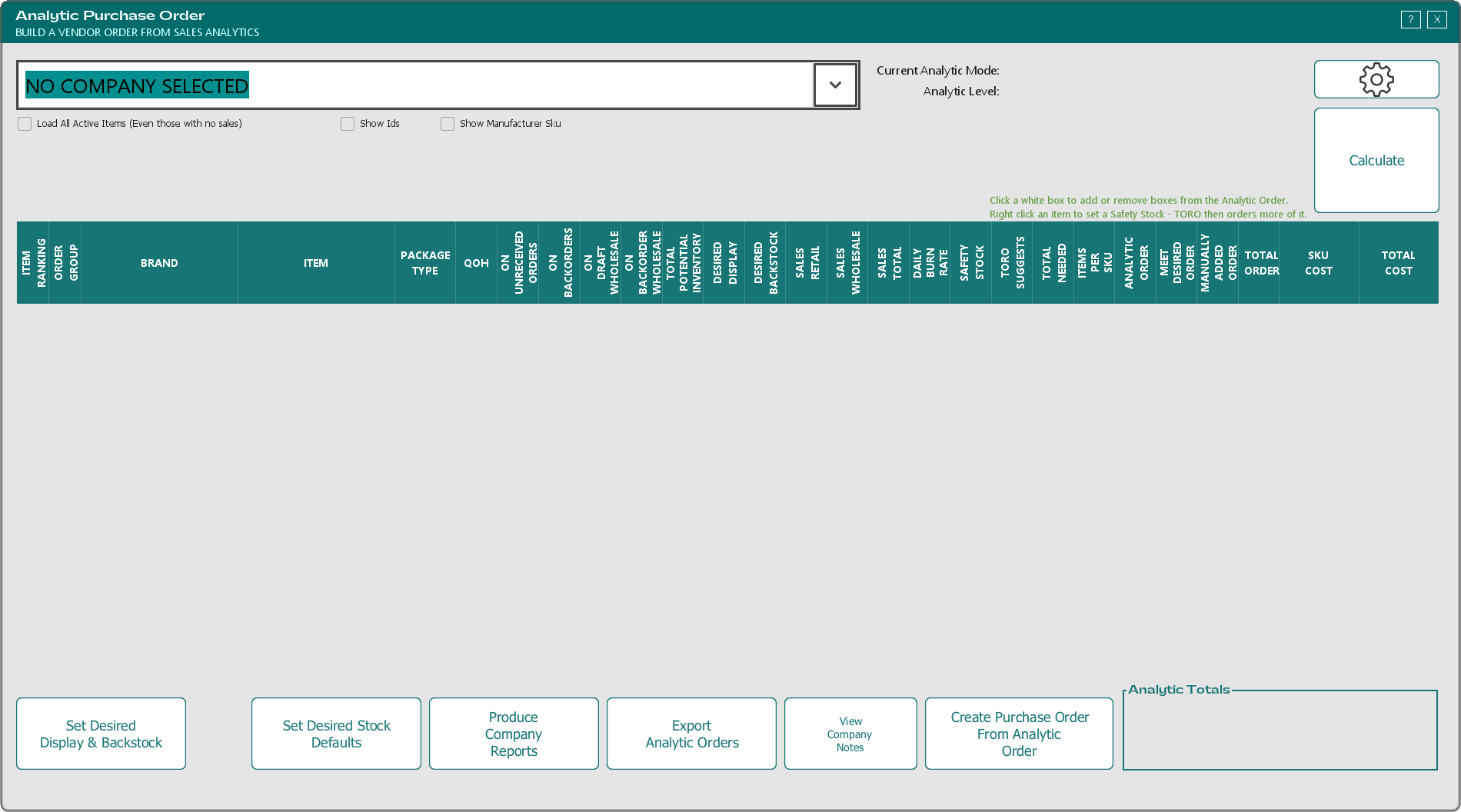
Pick the vendor in the big box at the top. You can type a few letters of the name to jump to it.
If the vendor has notes on file, TORO asks "This company has some notes attached. Do you want to view them?" The View Company Notes button turns green for vendors that have notes, so you can open them again any time.
TORO calculates the order as soon as you pick the vendor. A progress ring shows while it works. If the Calculate button turns red instead, click it to run the numbers.
When it's done, the count of items loaded shows above the grid, and the grid lists the vendor's items with your best sellers first.
The options above the grid
Load All Active Items (Even those with no sales) — TORO already lists every active item from the vendor's brands, including ones that haven't sold, so ticking or unticking this just runs the numbers again.
Show Ids adds the item and SKU ID columns.
Show Manufacturer Sku adds the vendor's own SKU for each item, which helps when you're working from a supplier's order form.
TORO remembers how you leave Show Ids and Show Manufacturer Sku. Anything you've typed into the grid stays put when you tick or untick any of the three.
On the right, Current Analytic Mode and Analytic Level show which ordering method TORO is using (see Settings: How TORO Works It Out below). The three coloured bars under the vendor box show how your items are split into Group 1 (green, your top sellers), Group 2 (yellow) and Group 3 (red, the slowest sellers plus items with no sales), with the item rankings that fall in each group.
Reading the grid
Each row is one item. The columns, left to right:
Item Ranking and Order Group — where the item ranks in your sales, and which of the three groups that puts it in.
Brand, Item and Package Type — what it is and how it comes.
QOH — what you have on hand now.
On Unreceived Orders, On Backorders, On Draft Wholesale and On Backorder Wholesale — stock already on its way in, and stock promised to wholesale accounts.
Total Potential Inventory — TORO's starting point, built from the stock and order columns to its left. A negative QOH counts as zero here, so a bad count doesn't make TORO over-order.
Desired Display and Desired Backstock — how many you want on the shelf and in the back. A gold outline means the numbers were typed in by hand (see below).
Sales Retail, Sales Wholesale and Sales Total — how many sold in the period TORO is looking at.
Daily Burn Rate — how many sell per day, on average.
Safety Stock and TORO Suggests — an extra cushion for items your vendor often short-ships. Safety Stock on Analytic Orders explains both.
Total Needed — how many singles TORO thinks you need: enough to cover the days you're ordering for at the item's burn rate, plus any safety stock, minus your Total Potential Inventory.
Items Per Sku — how many singles are in the box or pack TORO orders.
Analytic Order — the boxes TORO suggests, from Total Needed. A part box is only rounded up when it reaches the threshold set for that group.
Meet Desired Order — extra boxes to bring you up to your desired display and backstock, when your settings say to always meet them.
Manually Added Order — your own changes (see the next section).
Total Order — the boxes that will go on the purchase order: Analytic Order plus Meet Desired Order plus your Manually Added Order. It never goes below zero.
Sku Cost and Total Cost — what the order will cost.
The Analytic Totals box at the bottom right shows how many boxes are on the order and what they cost.
Rows in red need attention: either the item's count is below zero or its box size isn't set up. When any items are below zero, a red line above the grid says how many "have negative inventory and need inventoried." Count those items before you trust their suggestions.
Double-click a row to open that item.
Adding or taking away boxes
The hint above the grid says it: "Click a white box to add or remove boxes from the Analytic Order." Click the item's Manually Added Order cell, type a number of boxes and press Enter. Type a negative number to order fewer than TORO suggests. The Total Order, Total Cost and the Analytic Totals box update straight away.
What you type here only affects this order. It's cleared when you pick a different vendor.
The right-click menu
Right-click an item for three choices:
Set Safety Stock for this Item... and Clear Safety Stock for this Item — see Safety Stock on Analytic Orders.
Ignore Item when doing Analytics — takes the item out of analytic ordering for good. It disappears from the grid right away and won't come back on future analytic orders. There's no confirmation, so be sure before you click it. Call TORO support if you need an item put back.
Turning It Into a Purchase Order
When the grid looks right, click Create Purchase Order From Analytic Order.
If the vendor doesn't have a rep with an email address, TORO says "To do a Purchase Order, we must have a representative and their email" and asks "Would you like to assign a representative?" Click Yes to open the vendor and add one.
TORO then opens a new purchase order in the Purchase Order editor with every item whose Total Order is above zero, and the note "TORO Automatic Analytic Order". Nothing is saved until you save it there. From the editor you can adjust lines, save, and send the order to your rep as usual. See Inside the Purchase Order Editor.
Setting Your Desired Stock
Desired Display and Desired Backstock are how many of an item you always want on hand. Depending on your settings, TORO can top you up to these numbers even when sales alone wouldn't call for it. Two buttons set them.
One item: Set Desired Display & Backstock
Select an item in the grid, then click Set Desired Display & Backstock. (Nothing selected? TORO says "Must select a row.")
A small window lists each of the item's SKUs with its Items/Sku. Type how many you want in Backstock and On Display for each SKU; the Total adds them up.
These save as you type. Each number is saved to the item as soon as you move out of the cell, and Cancel does not undo it.
Once you've typed numbers in, the window says SET BY HAND - TORO WILL NOT CHANGE THESE, and the item gets a gold outline in the grid. Your numbers then win over any automatic rule. To hand the item back to TORO, open the same window and click Let TORO Manage. The numbers stay as they are until an analytic order is calculated with a desired profile that sets them (see Update Desired Backstock & Display Profile under Smart Settings below).
Many items at once: Set Desired Stock Defaults
Calculate a vendor first, then click Set Desired Stock Defaults. (With an empty grid TORO says "Must select a company.")
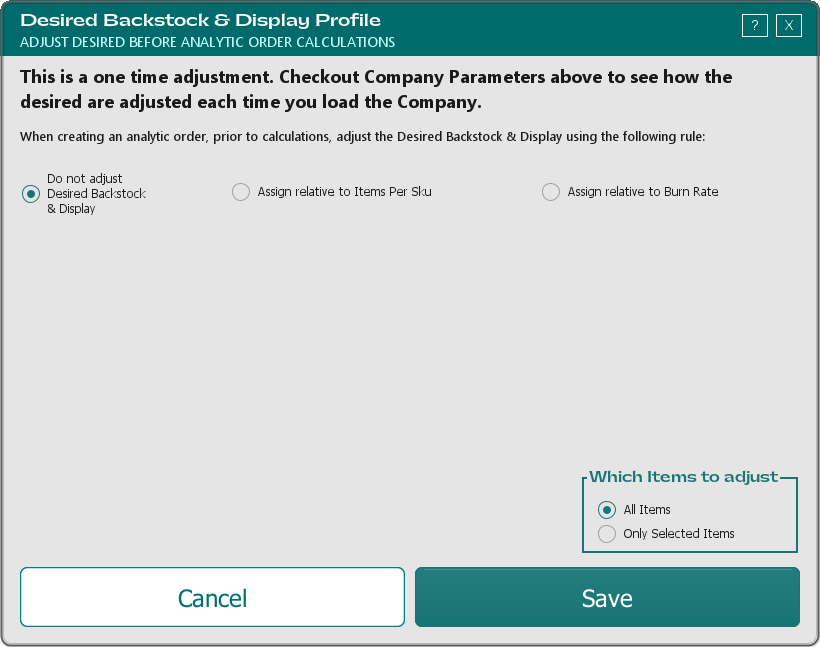
Pick a rule:
Do not adjust Desired Backstock & Display — leaves everything as it is.
Assign relative to Items Per Sku — sets the numbers from the box size, using a Desired Display Rule and a Desired Backstock Rule you choose with the Set buttons. TORO's own example: for a box of 10, a backstock rule of 1.5 boxes gives 15, and a display rule of a box minus two gives 8.
Assign relative to Burn Rate — answers "How many days of supply do you want?" TORO multiplies each item's daily burn rate by that number. An item selling 7.5 a day with 30 days of supply gets 225. This rule puts the whole amount into Desired Display.
Then choose:
If Item Already Has a Value — Leave Current Values only fills in items that have none yet; Replace Existing Values overwrites them.
Which Items to adjust — All Items in the grid, or Only Selected Items.
Click Save. TORO updates the items and recalculates the order. Items whose numbers were typed in by hand are left alone, and TORO tells you how many it skipped.
This changes the items themselves. The new desired numbers are saved to each item and stay after you close the window. As the window says, it's a one-time adjustment, not a rule that keeps running.
When you're using the Smart Ordering Mode and some items that sell have no desired numbers, TORO reminds you each time you calculate: "There are N items without Desired Backstock and Desired Display values." Set Desired Stock Defaults is the quick fix.
Reports and Exports
Produce Company Reports
Click Produce Company Reports to open the Company Reports window. Select one or more vendors in the list (hold CTRL to pick several, or SHIFT to pick a run of them). The vendor you were working on is already selected.
Start and End — the date range. It starts on the current month.
Sort By — By Name, By QOH, By Quantity Sold, By Total Retail, By Total Profit or By Profit Percentage.
Active Items Only — ticked to start.
Include Quantity On Hand — this is worked out as the report runs, so it takes longer.
Generate Company Comparison Report — available when two or more vendors are selected.
Click Generate Reports. TORO builds one report per vendor as a web page, saves them in a new folder on this computer and opens that folder for you.
Export Analytic Orders
Click Export Analytic Orders to save suggested orders as web pages you can open, print or send. TORO asks you to pick a folder (it starts on the Desktop), then asks "Which Analytics do you want to export?" Choose All Companies or Select Companies (hold CTRL to pick several). TORO makes a new folder inside the one you picked, writes one page per vendor, and opens the folder.
Settings: How TORO Works It Out
Click the gear button at the top right to open Company Analytic Ordering Mode Settings. It offers two ways of working out orders. The one you click takes effect straight away for the whole store.
SMART ORDERING MODE [ORIGINAL METHOD] — each vendor has its own settings. Click Smart Settings to change them for the vendor you've picked (pick one first, or TORO says "Must select a company.").
ARTIFICIAL INTELLIGENCE LEARNING MODE [ADVANCED METHOD] — TORO uses ordering modes that apply across vendors. Click AI Learning Settings to manage them.
Smart Settings
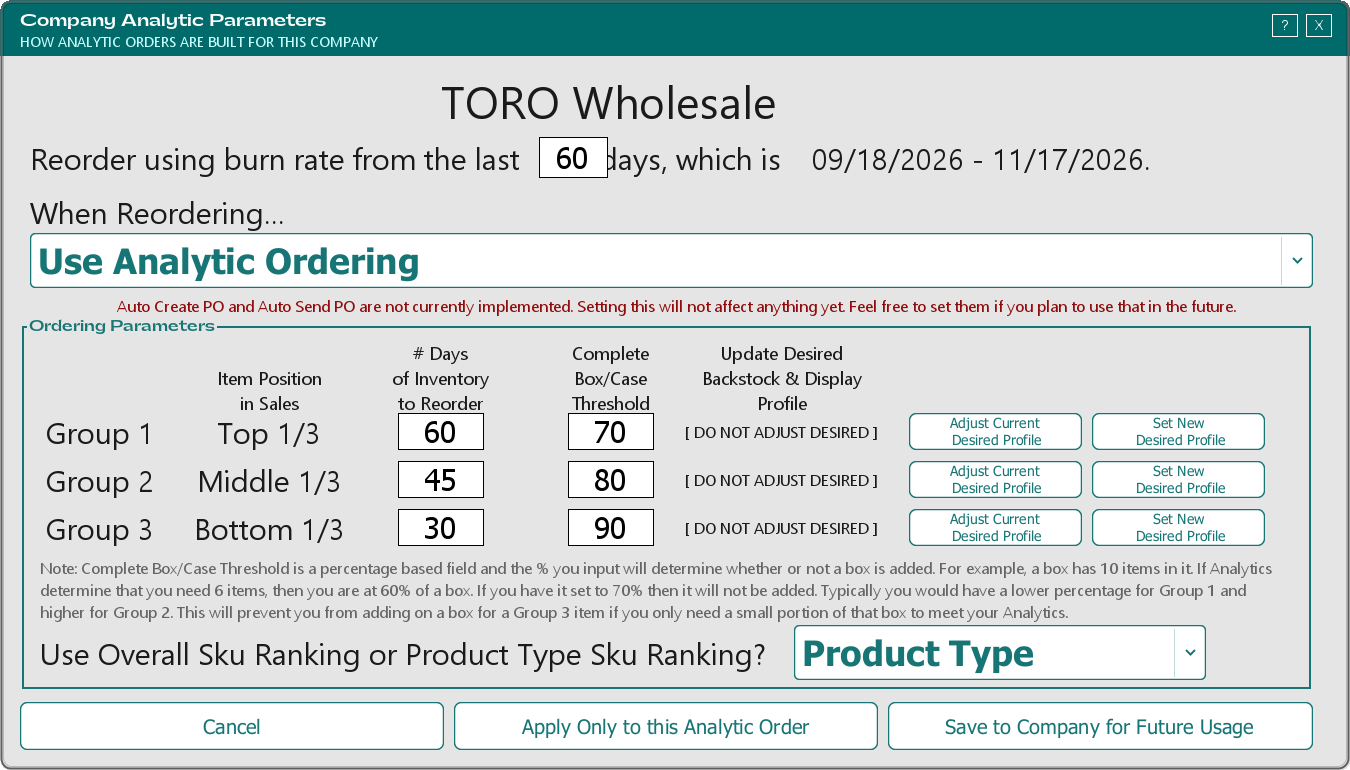
The Company Analytic Parameters window holds one vendor's settings:
Reorder using burn rate from the last ___ days — how much sales history TORO averages. The dates it covers show beside it.
When Reordering... — what to base the order on:
- Use Analytic Ordering — order from sales only.
- Use Analytic Ordering & Always Meet Desired — order from sales, and also top up to your desired display and backstock.
- Ignore Analytics & Just Meet Desired — ignore sales and only top up to your desired numbers.
Each also comes with | Auto Create PO and | Auto Create PO | Auto Send PO versions. As the red note on the window says, those two parts aren't in use yet, so choosing them changes nothing today.
Ordering Parameters — one row per group. The window labels them Top 1/3, Middle 1/3 and Bottom 1/3; the coloured bars on the Analytic Purchase Order screen show exactly which item rankings fall in each group.
- # Days of Inventory to Reorder — how many days of sales to order for.
- Complete Box/Case Threshold — when TORO needs part of a box, the percentage it has to reach before TORO rounds up to a whole box. TORO's example: if a box holds 10 and you need 6, that's 60%; with the threshold at 70% the box isn't added. A lower number for Group 1 and a higher one for the slower groups keeps you from buying a whole box of a slow seller to cover a few cigars.
- Update Desired Backstock & Display Profile — an optional rule that sets the group's desired numbers each time the vendor is calculated. Use Adjust Current Desired Profile or Set New Desired Profile to choose one.
Use Overall Sku Ranking or Product Type Sku Ranking? — rank items against everything you sell (Overall) or only against items of the same product type.
Then click one of:
- Apply Only to this Analytic Order — use these settings for the order on screen without saving them.
- Save to Company for Future Usage — save them to the vendor.
- Cancel — change nothing.
AI Learning Settings
AI Learning Settings opens the Company Analytic Ordering Mode Viewer, a list of Ordering Modes. One mode is the default, and that's the one TORO uses.
- + adds a new mode (TORO asks for a name of at least 3 letters), and * opens the selected mode to change it. You can also double-click a mode.
- Set Default makes the selected mode the one TORO uses.
- Make Copy copies a mode. The modes TORO provides can't be deleted; to change one, make a copy and change the copy.
- - deletes a mode you added.
Inside a mode you set its name, what percentage of your items count as Group 1, 2 and 3 (the three must total 100), the ranking to use, the smallest dollar amount an automatic order must reach before TORO saves it, the rules for each group, and any vendor-specific rules.
If you choose the AI Learning Mode, a default mode has to be set. Until one is, TORO won't let you close the settings window, and the screens show NOT SET YET.
View Current Analytic Orders
Open the Dashboard
Click the Purchasing tab on the left, then click the View Current Analytic Orders card. (Can't find it? Type "analytic" in the search box at the top right.)
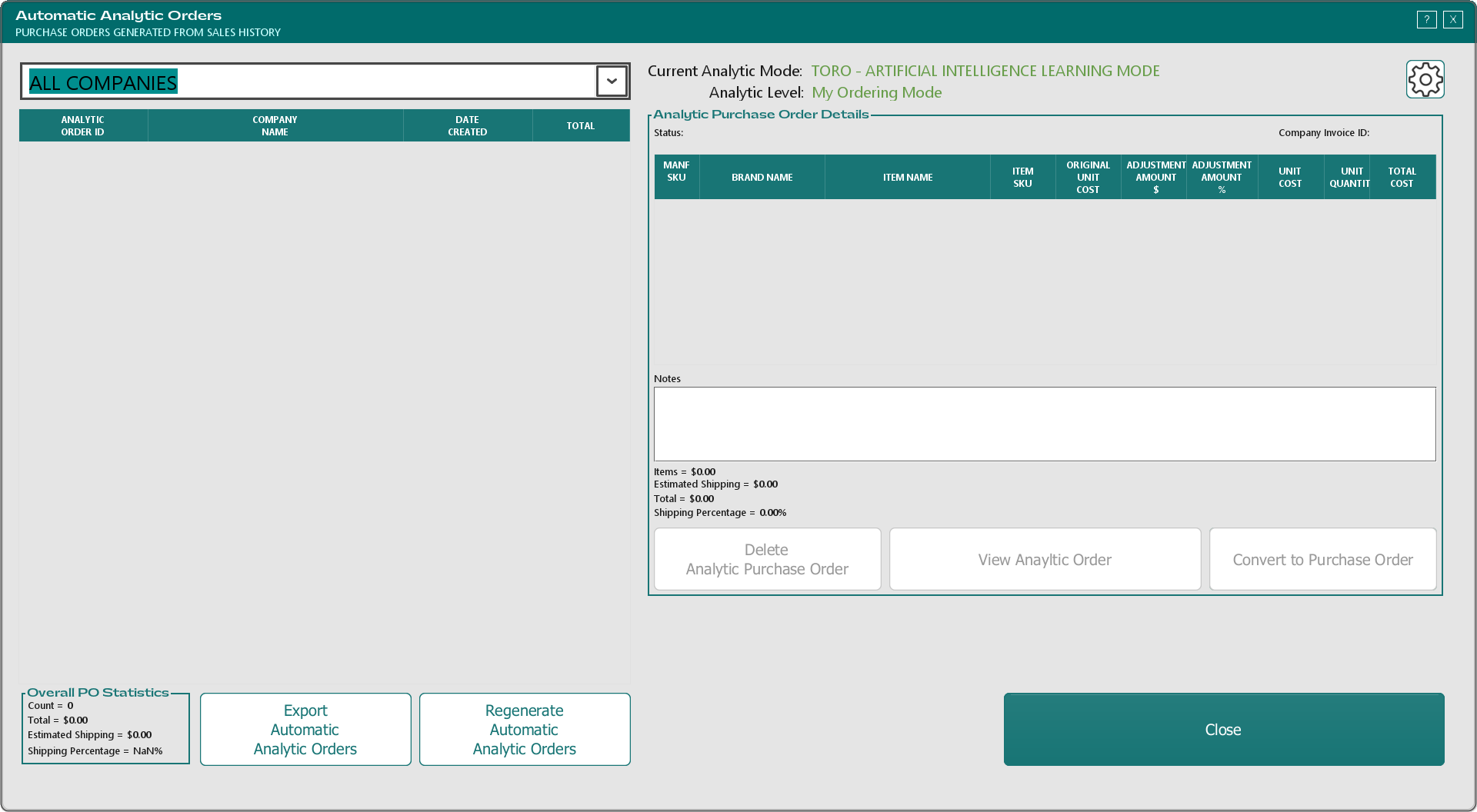
The Automatic Analytic Orders window lists suggested orders TORO has saved, one per vendor, for vendors with Automatic Build Analytic Orders ticked. Use the box at the top to see ALL COMPANIES or just one vendor. Overall PO Statistics at the bottom left counts the orders and totals them, with an estimate of shipping.
When you use the AI Learning Mode, the main station rebuilds these orders when it closes out at the end of the day. You can rebuild them any time with Regenerate Automatic Analytic Orders. With ALL COMPANIES showing and some orders selected, TORO asks whether to rebuild All Companies or Selected Companies Only; then it asks you to confirm.
Click an order to see its items, notes and totals on the right. Then:
Convert to Purchase Order — turns it into a real purchase order (double-clicking the order does the same). If anything has sold or been received for those items since the suggestion was built, TORO tells you how many and asks "Would you like to update the Analytic Order before converting it?" TORO then saves it straight away as a new PENDING purchase order and opens it in the editor, so it is on your purchase order list even if you close the editor without changing anything. When you save and close the purchase order, the suggestion is removed from this list. If it's still listed afterwards, remove it with Delete Analytic Purchase Order so you don't convert it twice.
View Anayltic Order — opens the vendor on the Analytic Purchase Order screen to work on it in detail.
Delete Analytic Purchase Order — removes the suggestion after you confirm.
Turn Off Automatic Analytic Orders (appears with the vendor's name once an order is selected) — unticks Automatic Build Analytic Orders for that vendor and removes its suggestion. TORO confirms the vendor "will no longer have Automatic Analytic Orders generated." Tick the box again in the vendor's Vendor Company window to turn it back on.
Export Automatic Analytic Orders — saves All Companies in Table or Selected Companies in Table as web pages, the same way as on the other screen.
The gear button opens the same Company Analytic Ordering Mode Settings described above.
Common Questions
Why isn't my vendor in the list? It has to be active and have Automatic Build Analytic Orders ticked in its Vendor Company window.
Why did TORO suggest so little after a slow week? TORO works from your recent sales. Tag unusual days so they're left out; see Day Tags.
An item I always carry isn't being reordered. Check its count first (a red row means a negative count or a missing box size). Then give it desired display and backstock numbers and use a Meet Desired option, or add boxes in Manually Added Order.