Managing Back Orders
When a shipment comes in short and the vendor says the rest is coming later, you move the missing items to back order while you receive. TORO then keeps them on a list of what each vendor still owes you, so nothing falls through the cracks.
The Back Orders window is that list for your whole store. Use it to see what's still outstanding from every vendor, to put back-ordered items on a new purchase order, or to clear out items a vendor is never going to send.
Back orders are created while you receive or verify a purchase order, with Move to Backorder. See Receiving Inventory and Verifying a Received Purchase Order.
Finding It
Open the Dashboard
Click the Purchasing tab on the left, then click the Manage Back Orders card. (Can't find it? Type "backorder" in the search box at the top right.)
The same card is on the Reporting tab, under Companies. You can also open it from the Purchase Orders screen with View Backorders, which starts on the vendor you have selected there.
Reading the Window
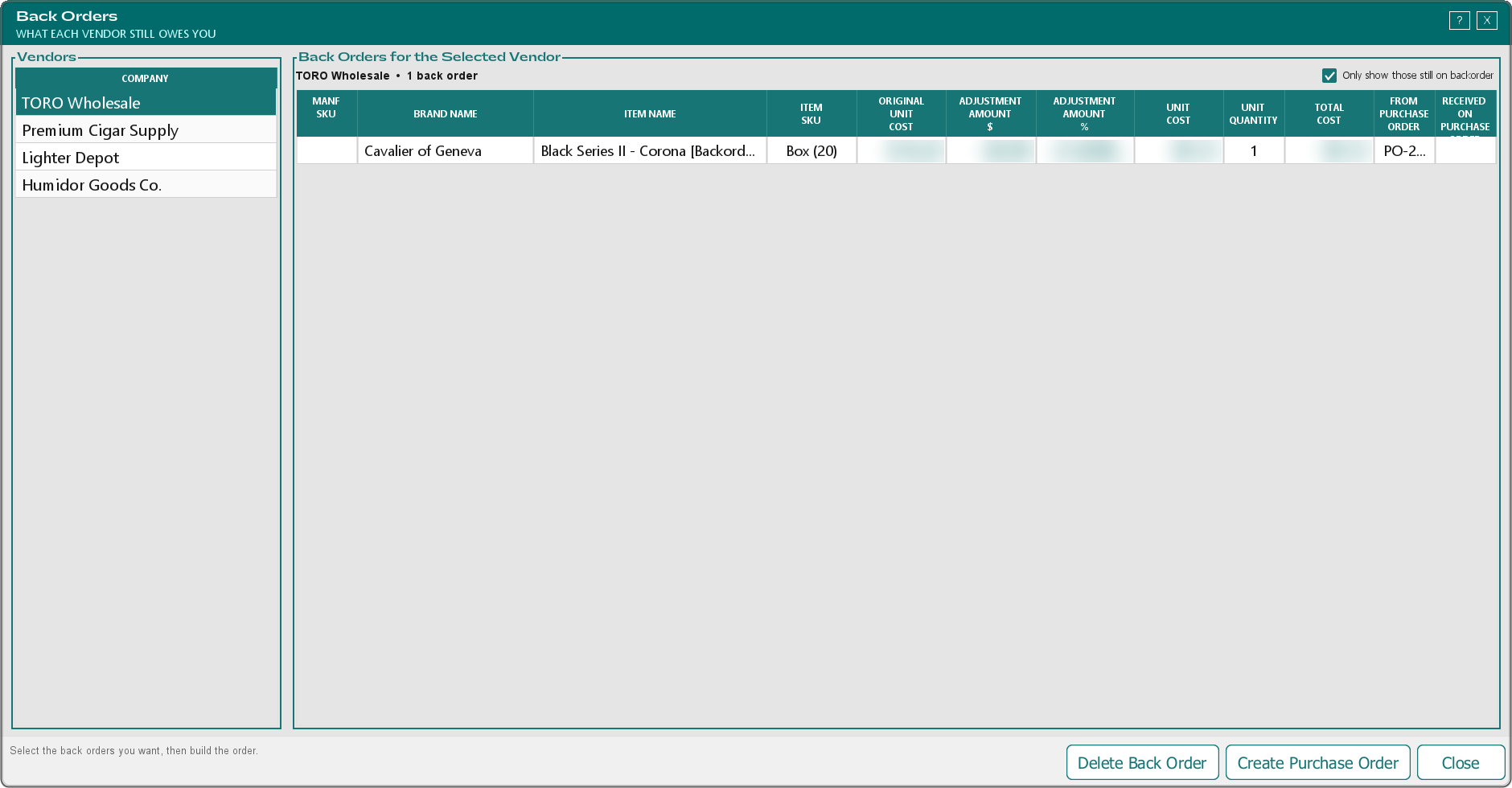
Vendors on the left lists every vendor with something on back order. Click one to see its back orders on the right. The line above the table shows the vendor's name and how many back orders it has. If nothing is on back order at all, it says "Nothing is on back order right now."
Each back order shows the item (Manf Sku, Brand Name, Item Name and Item Sku), its cost, the Unit Quantity still owed, and two purchase order numbers:
- From Purchase Order — the order it was short on.
- Received on Purchase Order — the later order it was moved onto. This is blank while it's still owed.
Only show those still on backorder is ticked to start. Untick it to also see back orders that have already been put on a later purchase order.
Ordering What's Still Owed
Click the vendor on the left.
Select the back orders you want on the order. Hold CTRL to pick several, or SHIFT to pick a run of them.
Click Create Purchase Order.
TORO creates the purchase order straight away, puts the selected items on it, and opens it in the Purchase Order editor so you can check it, add anything else, save and send it. The back orders you picked are now tied to that order: they show its number under Received on Purchase Order and drop off the "still on backorder" list. Closing the editor without saving doesn't undo this: the purchase order stays on your list.
If you haven't picked a vendor or any back orders, TORO tells you to select them first.
You can also pull back orders onto an order you're already building, with Add Item From Backorders in the editor. See Inside the Purchase Order Editor.
Removing a Back Order
When a vendor tells you an item isn't coming, select it (or several) and click Delete Back Order. TORO asks you to confirm and reminds you: "This does not cancel them with the Company. Just removes them from TORO." So let your rep know as well.
Deleting can't be undone.
Why It Matters
Back-ordered items count as stock on its way to you. Analytic purchase orders include them in the On Backorders column, so TORO won't suggest ordering something the vendor already owes you. Clearing out back orders that will never arrive keeps those suggestions honest.