Transaction & Tab Settings
The Setup Transactions & Tabs window controls how a sale rings up at the register and how tabs behave: forcing staff to scan barcodes, the "for here or to go?" question, adding a single search match automatically, who gets credit for cigar sales, the gift card balance reminder, tab checks at closing and clock-out, the card buttons used on tabs, and how the sale list looks. This guide explains every setting in the window and when you'd change it.
Where to find it: on the main screen, tap Admin in the side bar, then Dashboard, then the TORO Configuration tab, then Set Up System, then the Setup tab, then Set Up Transactions & Tabs.
Opening the window
- Go to the main screen of TORO.
- On the side bar, select the Admin menu item.
- Select the Dashboard menu item. (Need help with this part?)
- On the side bar of the Dashboard, select TORO Configuration.
- Select the Set Up System tile. (Need help with this part?)
- On the side bar of the Setup window, select the Setup tab.
- Select the Set Up Transactions & Tabs tile.
You should now see a window called Setup Transactions & Tabs. It has four boxes: Transactions (top left), Tabs (top right), Held Items On Account (bottom left) and Sale Item List (bottom right), with a Save button across the bottom.
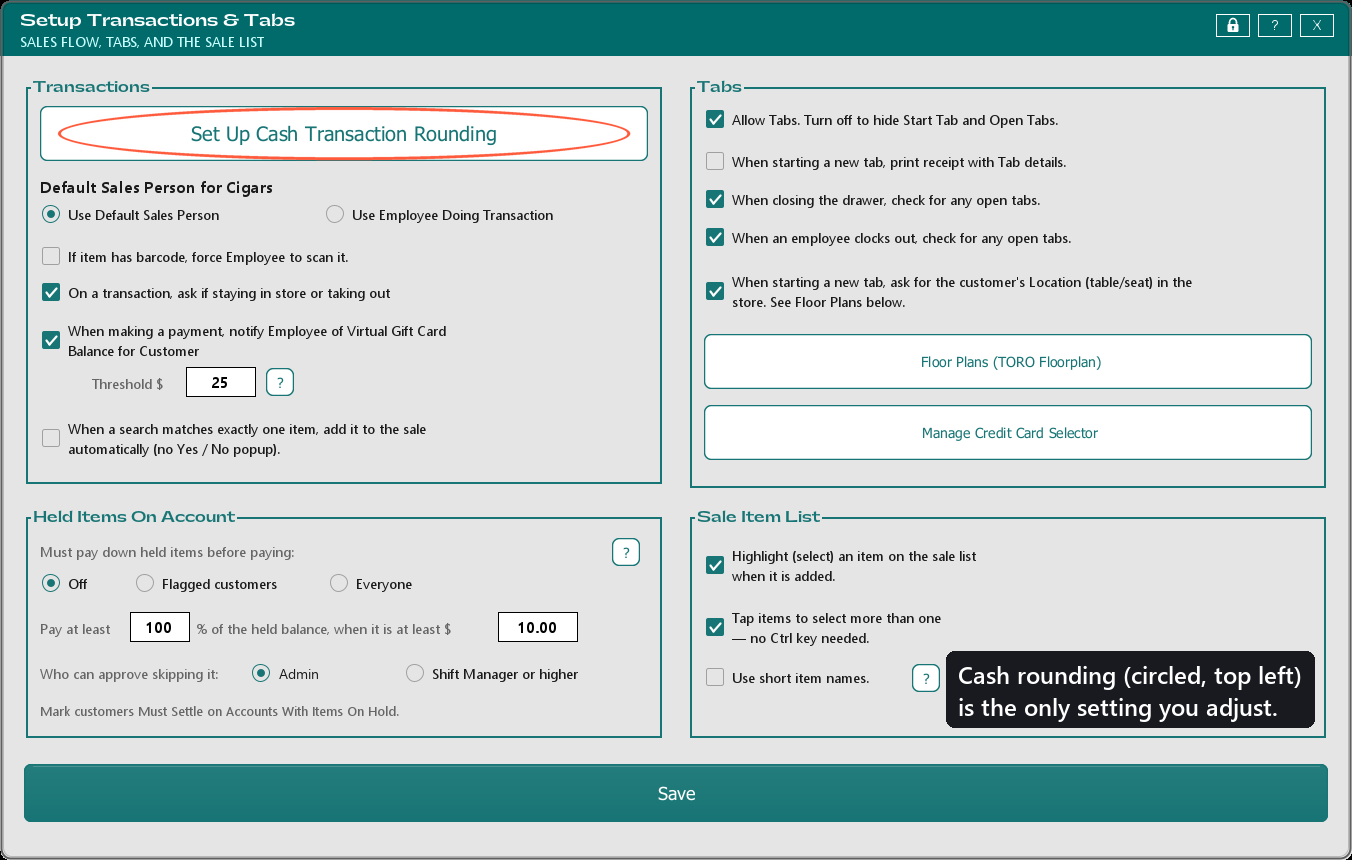
How saving works here: every tick box and the two Default Sales Person for Cigars choices save themselves the moment you tap them. The Save button stores only the Threshold $ box and the Held Items On Account settings, then closes the window. So if you changed either of those, always finish with Save.
Transactions box
Set Up Cash Transaction Rounding
Opens the cash rounding window, where you choose whether cash sales round to the nearest nickel (or more) and where the extra cents go. It's explained step by step in Cash Rounding.
Default Sales Person for Cigars
Decides who gets credit for cigar sales:
- Use Employee Doing Transaction — credits whoever rings the sale. Pick this if you track sales by staff or pay any commission (most shops).
- Use Default Sales Person — credits a chosen "humidor sales person" on each register instead, for example whoever is working the humidor. TORO asks you to pick that person the first time a sale needs one.
How each choice works at the register, and how to change the humidor sales person, is in Running Your First Sale.
If item has barcode, force Employee to scan it.
This stops wrong-item rings. With it on, when a cashier taps an item from a list (instead of scanning it) and that item has a barcode, TORO opens a window asking them to scan the barcode. Scanning adds the item as normal.
If they close that window without scanning:
- A cashier whose access level doesn't allow it sees "You don't have access to add an item that has a barcode without scanning the barcode." and someone with a higher access level has to enter their PIN to OK it.
- Once it's OK'd, TORO shows the item's name (and the length and ring gauge for a cigar) with "Please ensure this is the correct item.", adds it, and sends an ITEM ADDED WITHOUT BARCODE message to the staff who get that alert.
Items with no barcode are never affected. Who may add a barcoded item without scanning is a permission you can change per access level; see Access Levels and Permissions.
Turn it on if wrong items get rung up from the list. Leave it off if you sell lots of loose items that staff pick from the list, or if your barcode labels aren't on everything yet.
On a transaction, ask if staying in store or taking out
Off by default. With it on, once a sale is fully paid TORO asks For here or to go? ("Is the customer staying or taking out?") with two buttons, Staying and Take Out. The answer is saved with the sale and shows when you look the sale up later, and the customer reports can split sales by it.
Turn it on if you run a lounge and want to know how much is smoked on-site versus taken home. Leave it off to skip the extra tap on every sale.
When making a payment, notify Employee of Virtual Gift Card Balance for Customer
On by default. When a customer with store credit on a Virtual Gift Card is on the sale, a popup at the payment screen reminds the cashier of their balance so it isn't forgotten.
- Threshold $ — the smallest balance that triggers the popup. Leave it blank to be told about any balance; type
25to be told only about $25 or more. TORO keeps whole dollars: if you type cents (like 25.50), it saves 25. The ? button next to it explains your current setting.
The full details are in Virtual Gift Card Notifications.
When a search matches exactly one item, add it to the sale automatically (no Yes / No popup).
Off by default. When a cashier types a search and exactly one item matches:
- Off: TORO asks Add Item? ("Only one item matched … Add it to the sale?") and the cashier taps Yes or No. Safer, because the cashier always confirms it's the right item.
- On: TORO drops the item straight into the sale with no question. Faster for experienced staff.
Turn it on if your staff know the catalog well and the extra Yes gets in the way.
Tabs box
How tabs work day to day is in Tabs and Placing Items on an Account. These are the switches behind them:
- Allow Tabs. Turn off to hide Start Tab and Open Tabs. — on by default. This is the master switch. Turn it off and the Start Tab button and the Open Tabs list disappear from the main screen, for a cleaner register if you never run tabs. TORO won't let you turn it off while any tab is open: it says "Close Open Tabs First", so close them and try again. Tick it again and everything comes right back.
- When starting a new tab, print receipt with Tab details. — off by default. Prints a slip with the tab's details each time a tab is started. Turn it on if you clip a slip to the customer's card or keep a paper record of open tabs.
- When closing the drawer, check for any open tabs. — on by default. When someone closes the drawer and tabs are still open, TORO asks "There are 2 Open Tabs. Do you want to close the Tabs before closing the Drawer?" Choosing yes stops the drawer close so you can settle them first. Leave it on: it stops money walking out the door overnight.
- When an employee clocks out, check for any open tabs. — on by default. When an employee clocks out with a tab still open in their name, TORO reminds them: "All tabs should be closed out daily." Leave it on.
- When starting a new tab, ask for the customer's Location (table/seat) in the store. — asks where the customer is sitting each time a tab starts. Turn it on if you have a lounge and use a floor plan, so staff can find the right customer; leave it off otherwise.
- Floor Plans (TORO Floorplan) — opens TORO Floorplan, where you draw your own lounge so cashiers tap a table to seat a tab. It's a paid add-on; see TORO Floorplan.
- Manage Credit Card Selector — see the next section.
Manage Credit Card Selector
When a customer leaves a card with you while a tab is open, the cashier starting the tab sees a Card Selector window ("Select a card for this tab") with a picture of a card for each brand and color, so they can note which card they're holding. Manage Credit Card Selector is where you set up those card pictures. It doesn't charge anything or change your card terminal.
- In the Tabs box, select Manage Credit Card Selector.
You should now see a window called Card Manager, showing every card exactly as staff see it on a tab.
- Drag a card to move it. The order here is the order staff see, so put your most common cards first.
- Tap a card to edit it: its Card Brand, Card Color and an optional Description (for example "Alex's Visa"), with a Preview. Untick Show this card on tabs to hide a card you no longer want offered.
- ADD NEW CARD makes a new card picture.
- View Inactive Cards shows the cards you've hidden, so you can bring one back.
- Close when you're done. Changes are kept as you make them.
Held Items On Account box
Off by default. This is for customers who take items now and leave them unpaid on their account. Turn it on to make them pay some of that down before you can take payment for a new sale.
- Must pay down held items before paying: Off (never enforced; a reminder banner still shows), Flagged customers (only customers marked Must Settle on the Accounts With Items On Hold screen), or Everyone (every customer whose held balance is at or above the minimum).
- Pay at least __ % of the held balance, when it is at least $ __ — how much of the held balance must go on the sale (starts at 100%), and the smallest held balance that's enforced (starts at $10.00).
- Who can approve skipping it: Admin, or Shift Manager or higher. A reason is always required and every approval is logged.
Refunds and membership-only sales are never blocked. The ? button explains it on screen, and Tabs and Placing Items on an Account walks through it with examples. Select Save after changing anything in this box.
Sale Item List box
These change how the list of items on the current sale looks and behaves. All are fine at their defaults.
- Highlight (select) an item on the sale list when it is added. — on by default. The item you just added is highlighted on the sale list. Turn it off if you'd rather nothing be selected until you tap it.
- Tap items to select more than one — no Ctrl key needed. — on by default. Each tap adds a line to the selection, which suits a touch screen. Turn it off and a tap selects just that line, and you hold Ctrl to pick more than one.
- Use short item names. — off by default. Every item can have a second, shorter name (its Receipt Name). Turn this on and the sale list shows the short name, so long names don't run off the screen; items without one show their full name. This only changes the screen. What prints on the receipt is a separate setting in Setting Up Your Receipt. The ? button explains it on screen.
Looking for something else?
- New Items settings (how new items are created) are in their own window, Setup Items, on the same Setup tab. See Setup Items.
- The clock-out hours slip is in Payroll Settings.
- The Receipt Method for New Guests choices are in Set Up Receipts. See Setting Up Your Receipt.
Something not working the way you expect? Message TORO support in your store's WhatsApp group.