Setup Items
Some things in your shop should land on a tidy price and some shouldn't. Accessories look right at $12.50; a cigar priced off the manufacturer's list probably shouldn't be bumped at all. Setup Items is where you tell TORO how to round your prices: one rule for the whole store, and a different rule for any product type that needs one. It's also where TORO's two New Items settings live.
Finding It
- Open the Dashboard and click the TORO Configuration tab on the left
- Click the Set Up System card
- On the Setup tab, click Setup Items (right next to Manage Product Types)
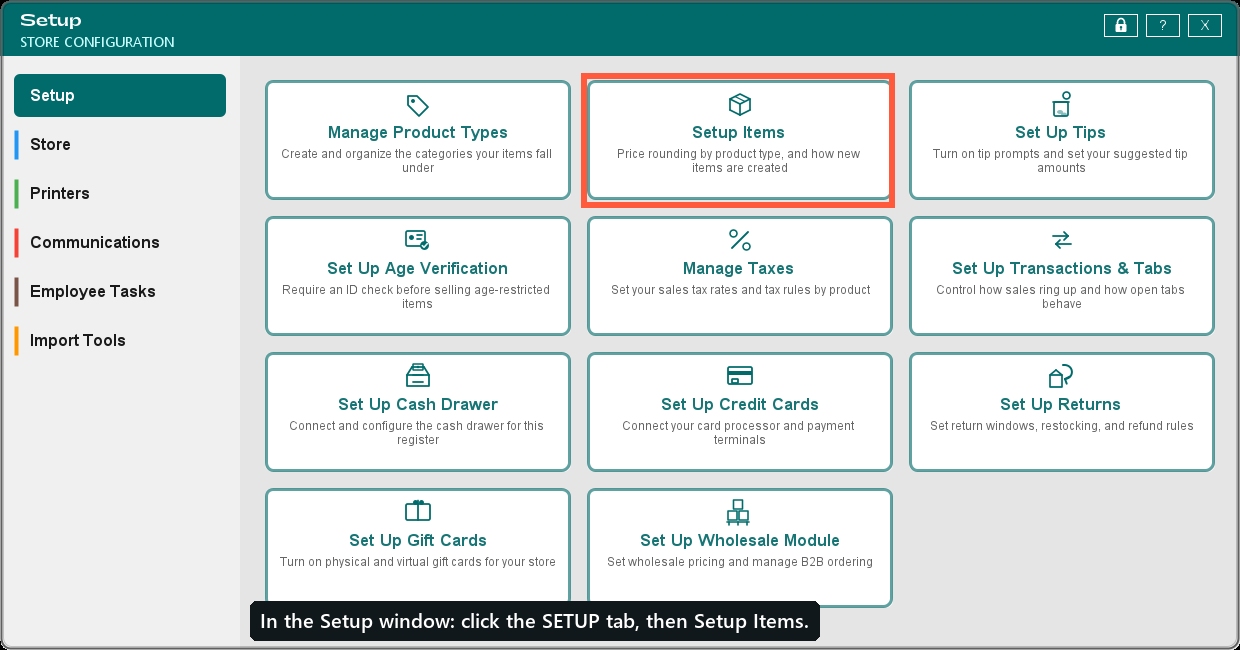
Only owner/admin users can open it.
Your Store's Rounding
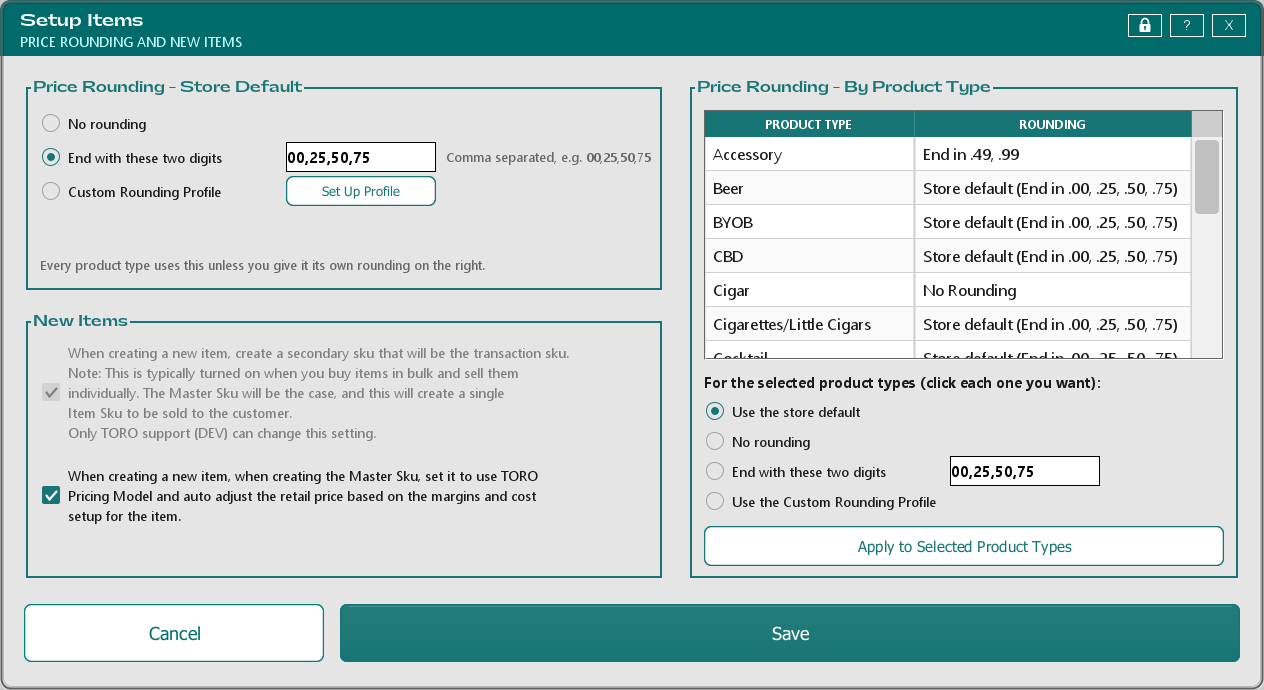
The Price Rounding - Store Default box on the left is the rule every product type uses unless you give it its own.
- No rounding: prices stay exactly where your cost and markup put them.
- End with these two digits: TORO rounds each price up to the next price ending in one of the numbers you type. Separate them with commas.
00,25,50,75rounds to the next quarter, so $12.37 becomes $12.50.99makes everything end in .99. - Custom Rounding Profile: you decide what happens to each last digit of a price. Click Set Up Profile (see below).
Two-digit rounding never lowers a price, and it only touches package sizes whose retail TORO calculates for you. If you typed an item's retail by hand, it's left alone.
Setting Up Your Custom Rounding Profile
Click Set Up Profile and you get one line for each last digit, 0 through 9. For each one, pick what TORO should do: Do nothing, Increase to next or Decrease to previous, and the digit the price should end in. For example, "If a price ends in a 7, then Decrease to previous to end in a 5" turns $12.37 into $12.35. Click Save when you're done.
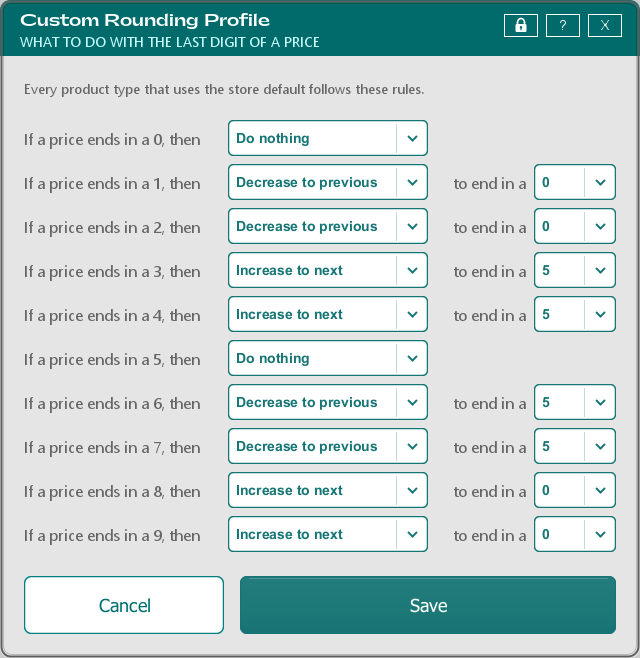
The profile applies to every product type that uses the store default, plus any product type you set to Use the Custom Rounding Profile below. Set Up Profile works whichever store default you pick.
A Different Rule for Some Product Types
The Price Rounding - By Product Type box lists your product types and the rounding each one uses. Most say Store default with the store's rule in brackets, so you can see exactly what they get.
To change one:
- Click each product type you want to change. Each click adds it to your selection; click it again to take it back out. No Ctrl key needed.
- Under For the selected product types, pick:
- Use the store default: go back to the store's rule.
- No rounding: leave these prices exactly as calculated.
- End with these two digits: type the endings for just these product types, like
49,99. - Use the Custom Rounding Profile: follow your last-digit rules (see above), even if the rest of the store doesn't.
- Click Apply to Selected Product Types. TORO shows the product types it's about to change and asks you to confirm. The list then updates so you can check it.
- Click Save when you're done. Nothing is saved until you do, and Cancel throws your changes away.
In the picture above, Cigars aren't rounded at all, Accessories end in .49 or .99, and everything else follows the store's quarter rounding.
After You Save
Changing how prices round doesn't move the prices already on your items. When you save a change, TORO asks if you want to review the prices on all items now. Say yes and the Bulk Pricing Updater opens with every price that would change, old and new side by side, so you can check them before anything is applied. See Updating Prices in Bulk for how that window works.
Your other registers pick up the new rounding the next time they restart.
New Items
The New Items box holds two settings for items you create from now on. Most shops leave both as they are.
- Create a secondary sku that will be the transaction sku: when you add an item you buy by the box, TORO also creates the single that you sell. This one is locked; only TORO support can change it, because turning it off means cigars you add or download come in with no single to sell.
- Set the Master Sku to use TORO Pricing: new items get their retail price calculated from your cost and markups, and kept up to date when those change.
These used to be on the Setup Transactions & Tabs window.