The TORO Marketplace and Your TORO Bill
The TORO Marketplace is where you do business with TORO itself: set up how you pay your TORO bill, check and pay invoices, order supplies like labels, receipt paper and gift cards, and turn on add-on modules. Next to it sits TORO Balance, a quick look at what your store owes TORO right now.
You'll reach for these when an invoice email arrives, when you're running low on receipt paper, or when you just want to make sure your account is in good standing.
Finding It
Open the Dashboard
Click the TORO Configuration tab on the left, then click the TORO Marketplace card. (Can't find it? Type "marketplace" in the search box at the top right.)
It's in a few other places too, all opening the same window:
- The Marketplace button in the bar along the bottom of the Dashboard
- The TORO Marketplace card on the Modules & Integrations tab
- On the main screen, tap Help in the left sidebar, then TORO Marketplace
The Marketplace needs an internet connection. Without one, its Dashboard cards are greyed out.
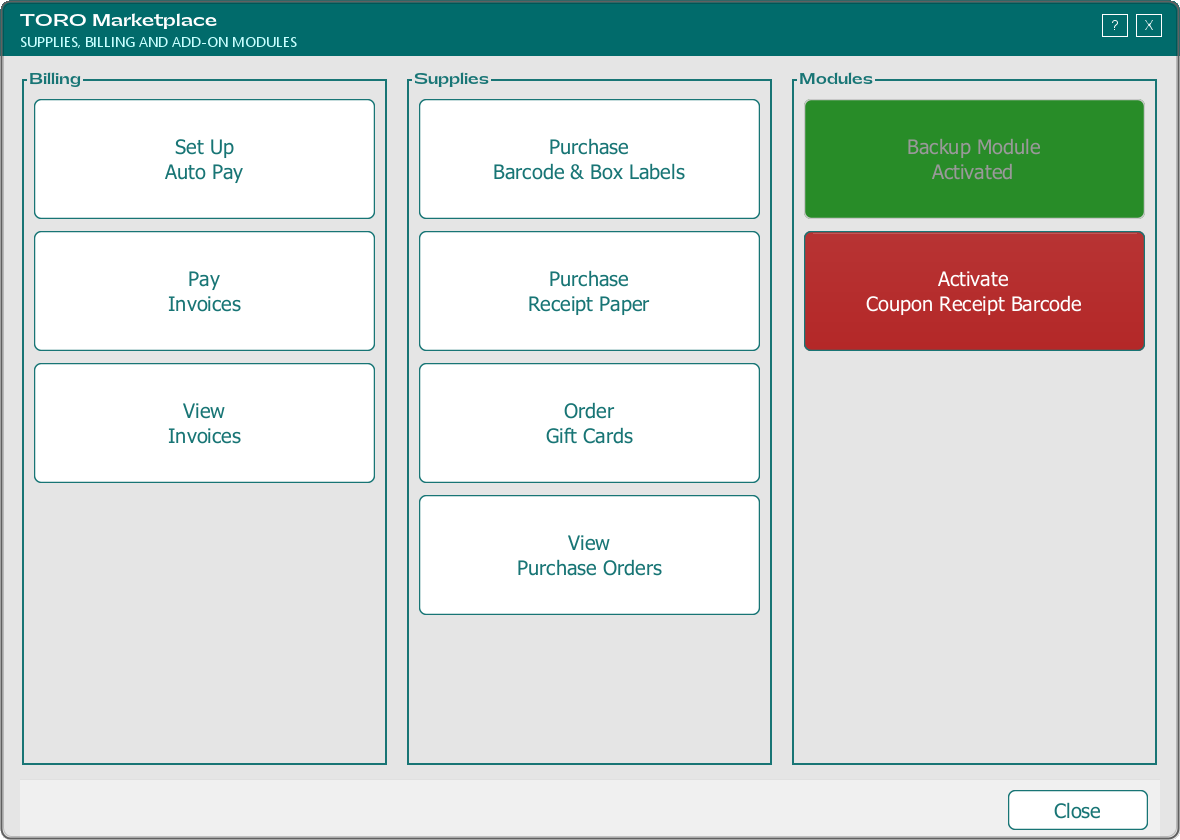
What's in the Marketplace
The window has three columns.
Billing
- Set Up Auto Pay (admins only) opens the TORO Auto Pay window, where you set up the account and payment method TORO bills automatically. The full walkthrough is in TORO Onboarding Set Up (step 2).
- Pay Invoices opens TORO Balance (explained below).
- View Invoices opens your full list of TORO invoices and payments.
Supplies
- Purchase Barcode & Box Labels and Purchase Receipt Paper order supplies from TORO. Both are walked through in TORO Onboarding Set Up.
- Order Gift Cards designs and orders custom printed gift cards. See Ordering Custom Gift Cards.
- View Purchase Orders lists the supply orders you've placed with TORO, so you can check on one.
Modules
Each module tile is green when it's already on for your store and red when it isn't.
- Backup Module is on for every store, so this tile always reads Backup Module Activated and can't be clicked. See Backup Module.
- Coupon Receipt Barcode reads Activate Coupon Receipt Barcode until you turn it on. Clicking it walks you through signing up. See Coupon Receipt Barcode for what it does and what it costs.
Checking Your Balance
TORO Balance shows what your store owes TORO and any automatic payments already lined up. Open it either way:
- In the Marketplace, click Pay Invoices
- On the main screen, tap Help in the left sidebar, then View Balance
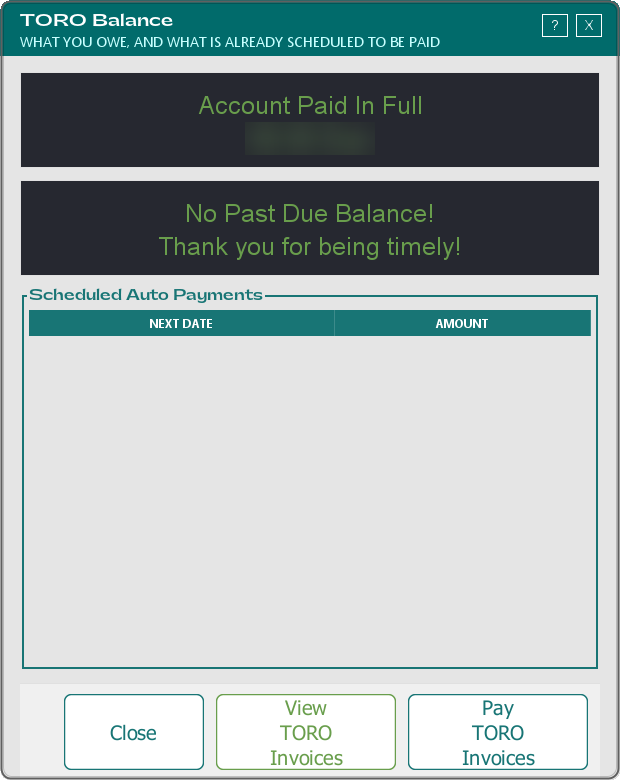
Only admins and employees with Send Toro Billing Invoices turned on can open it. Anyone else sees "Sorry, you do not have access to do this." and TORO offers to show who can. (That setting is explained in Employee Settings.)
The window has two boxes at the top:
- The total box shows your whole balance. It reads Account Paid In Full when you owe nothing, Account Credit when you've paid ahead, or Total Balance with the amount and due date. If automatic payments are already scheduled, it shows the Total Due, the Scheduled Payments and the Final Balance after they go through.
- The past-due box reads No Past Due Balance! Thank you for being timely! when you're current, or Balance Past Due with the amount when you're not.
If either box says UNKNOWN and No Connection!, TORO couldn't reach the billing system. Check your internet and open the window again.
The total box and the View TORO Invoices button only appear for people with Send Toro Billing Invoices turned on. An admin without that setting sees the past-due box and the Pay TORO Invoices button only.
Underneath, Scheduled Auto Payments lists each payment that's already lined up, with its Next Date and Amount.
Paying
Click Pay TORO Invoices:
- If you're set up on Auto Pay, there's nothing to pay by hand. TORO tells you one of three things: "No payment is needed. Account is in good standing!"; how many payments are already scheduled and that another automatic payment will be scheduled soon; or, if nothing is scheduled yet, "No automatic payments have been scheduled yet." with a note to check back in a couple of days and contact billing if it persists.
- If you're not on Auto Pay, TORO opens the TORO payment page in your web browser so you can pay there.
Viewing Your Invoices
View Invoices in the Marketplace (or View TORO Invoices in TORO Balance) opens TORO Invoices & Payments, a list of every invoice and payment on your account.
- Use Types To Show to narrow the list to one kind of invoice, or to Payments only. Everything shows it all.
- Select a row and click View Invoice (or double-click it) to see that invoice's line items. On a payment row the button reads View Payment and shows the payment's date, amount and notes.
- Preview Next Month Invoice builds a preview of the text-message charges your store has run up so far this month.
- Pay Invoices opens TORO Balance (above).