Ordering Custom Gift Cards
TL;DR
On the home screen, tap HELP, choose TORO Marketplace, then click Order Gift Cards. Upload your logo and place it on the front, pick a front color, check the three lines printed on the back, choose how many cards you want, confirm where they ship, and click Place Order. A live preview shows both sides of the card the whole time, and what you see is what gets printed. You can follow the order afterwards under View Purchase Orders.
Physical gift cards with your own logo on them look great at the counter and in a customer's wallet. You can design and order them yourself, right inside TORO. The cards work exactly like any other TORO gift card: you scan one, load it, and it's ready to use (see Working with Gift Cards).
Opening the Order Screen
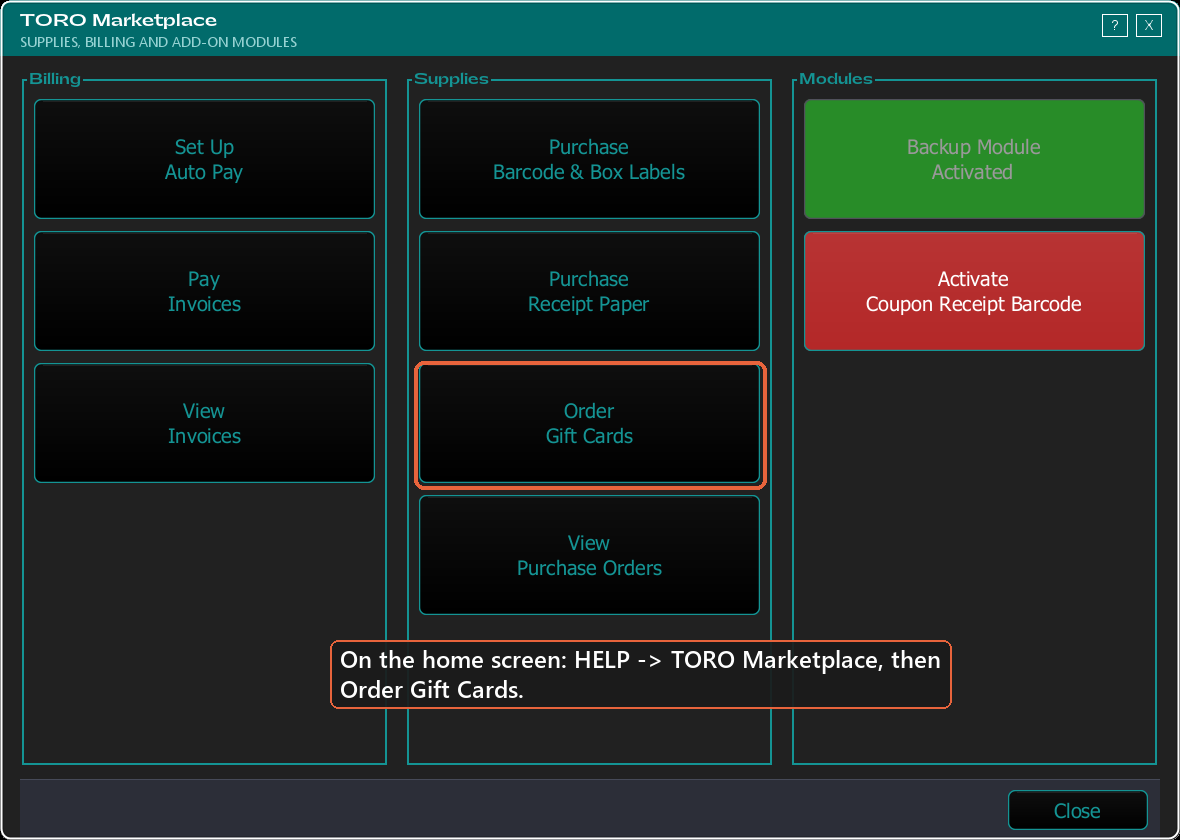
- On the home screen, tap HELP in the left sidebar, then choose TORO Marketplace.
- Under Supplies, click Order Gift Cards.
The Order Gift Cards window opens. The left side is where you set things up (Your Card, Ship To, and Your Order), and the right side is the Preview, with the Front of the card on top and the Back underneath.
Designing the Front
The front of the card is your logo on a solid background color.
Adding your logo:
- In the Your Card section, click Upload Logo.
- Pick your logo file. PNG, JPG, GIF and BMP pictures all work, up to 8 MB.
The file name appears next to the button, and the logo shows up in the middle of the front preview, sized to fit the card. Use the best-quality copy of your logo you have, since this is what the printer works from.
Placing and sizing the logo:
- Drag it. Click on the front preview and drag the logo wherever you want it.
- Nudge it. Use the arrow buttons under Move Logo (beside the front preview) to move it a small step at a time.
- Resize it. Use the magnifier buttons under Logo Size to make it bigger or smaller. If your mouse has a scroll wheel, scrolling over the front preview does the same thing.
- Start over. Click Center Logo to put it back in the middle of the card.
Anything you push past the edge of the card gets trimmed off, just as the preview shows.
Picking the front color: next to Front Color, click one of the color squares. The one you've picked gets a highlighted border. If none of them is right, click More Colors to choose any color you like.
You don't have to use a logo. If you place an order without one, TORO asks you to confirm, and the front of the card will be the plain color.
Checking the Back
The back of the card has three lines of your store's information, printed in the order they're listed:
- Store Name
- Address (the whole address on one line)
- Phone
TORO fills these in from your store's details, but you can type over any of them. Only Store Name is required. The back preview updates as you type, and a long line shrinks to fit the card.
The rest of the back is the same on every TORO gift card: the standard gift card terms, the card's barcode (the preview shows a sample; each real card gets its own number), and the TORO mark.
Choosing How Many
In the Your Order section, choose 100, 250, 500 or 1,000 cards. The price for each size is shown right next to it.
Need them fast? Tick Rush order. The extra charge is shown next to the checkbox.
Below that, TORO adds everything up for you: the cards, the rush charge (if any), a shipping estimate, and the Estimated Total. Two things to know about that total:
- Shipping is an estimate. The actual shipping cost goes on your invoice once the cards ship.
- Handling isn't included yet. Any handling the printer charges is billed when the cards ship, so it shows as Billed when shipped.
Where the Cards Ship
The Ship To section starts out filled in with your store's name and address. If you'd rather have the cards sent somewhere else, such as your home or a second location, just change it. Name, Address 1, City, State and Zip are all required; Address 2 is optional.
This only changes where this order goes. It doesn't change your store's address anywhere else in TORO.
Placing the Order
- Look over both sides of the preview one more time. The cards are printed exactly as shown.
- Click Place Order.
- TORO shows a summary: how many cards, whether it's a rush, the ship-to address, and the estimated total. Click Yes to confirm.
- You'll see ORDER PLACED with your Purchase Order number. Jot that number down.
That's it. TORO sends your cards to the printer and will email you if anything needs a second look.
Following Your Order
Your order shows up in the Marketplace under View Purchase Orders. Click it in the list to see its details. Once the cards ship, the Tracking # appears there, and the invoice (with the actual shipping) is ready to open with View Invoice.
By default the list only shows orders that haven't been invoiced yet. To see older ones, untick Only Show Purchase Orders Without Invoice.
Reordering
When you open Order Gift Cards again, TORO loads the design from your last order: the logo, where you placed it and how big it was, the front color, and the three lines on the back. A note under the design tells you which purchase order it came from. Change whatever you like, or leave it as is and order the same cards again.
The Ship To address always starts from your store's address, even if your last order went somewhere else, so double-check it before you place the order.
Things Worth Knowing
"Gift card ordering is not available yet. Please call support to order." If you see this under your design and the Place Order button is greyed out, TORO couldn't reach the part of the system that saves your card design, so it won't take the order from this screen. Call support and we'll place the order for you.
The total says "Unavailable". TORO couldn't load the current prices, so it won't let you order blind. Close the window and try again in a moment; if it keeps happening, reach out to support.
"That file could not be opened as a picture." The file you picked isn't an image TORO can read. Save your logo as a PNG or JPG and upload that instead.
Already have your own gift cards? You don't need to order new ones. TORO can be set up to recognize cards you already use. See the note at the bottom of Working with Gift Cards.