Rolling Inventory
Rolling inventory — sometimes called rolling constant inventory — is a way of keeping your counts honest by recounting stock every time a shipment comes in. Instead of shutting the store down twice a year for a big physical count, you count a little at a time: whenever a purchase order is received, TORO offers to jump you straight into a physical count of the items that just arrived and that you already carry. Over time, your whole store gets recounted naturally, in the normal flow of receiving.
It's off by default, and it's tucked away in the purchase order settings rather than out on a main menu — which is exactly why it trips people up. This article explains what it does, when it's worth turning on, and precisely how to flip it on or off.
What It Actually Does
When rolling inventory is on, receiving a purchase order (clicking Confirm Received in the editor) pops a prompt: "Rolling Constant Inventory?" It explains that all the items are about to be set active, and asks whether you'd like to open the inventory screen to do a physical count on the items you just received that you already have in stock. Say Yes and you go straight into counting those items; say No and the order just receives normally.
When rolling inventory is off (the default), that prompt never appears. Receiving works exactly as it always does — counts go up, items get activated — with no extra questions.
That's the whole feature. It's not a background process or a separate mode; it's a single, opt-in prompt at receiving time that saves you the step of navigating to the count screen yourself.
How to Turn It On or Off
The switch lives inside the Purchase Order Settings, which you reach through the purchase order screen:
- Open the Dashboard, click the Purchasing tab, and click the View All Purchase Orders card. (Can't find it? Type "purchase order" in the search box.)
- In the top-right corner of that screen, click the gear / settings button (it's an icon with no label).
- In the settings window, find the checkbox labeled "Ask about rolling inventory when receiving a Purchase Order."
- Check it to turn rolling inventory on. Uncheck it to turn it off. The setting saves the moment you click it — there's nothing else to confirm.
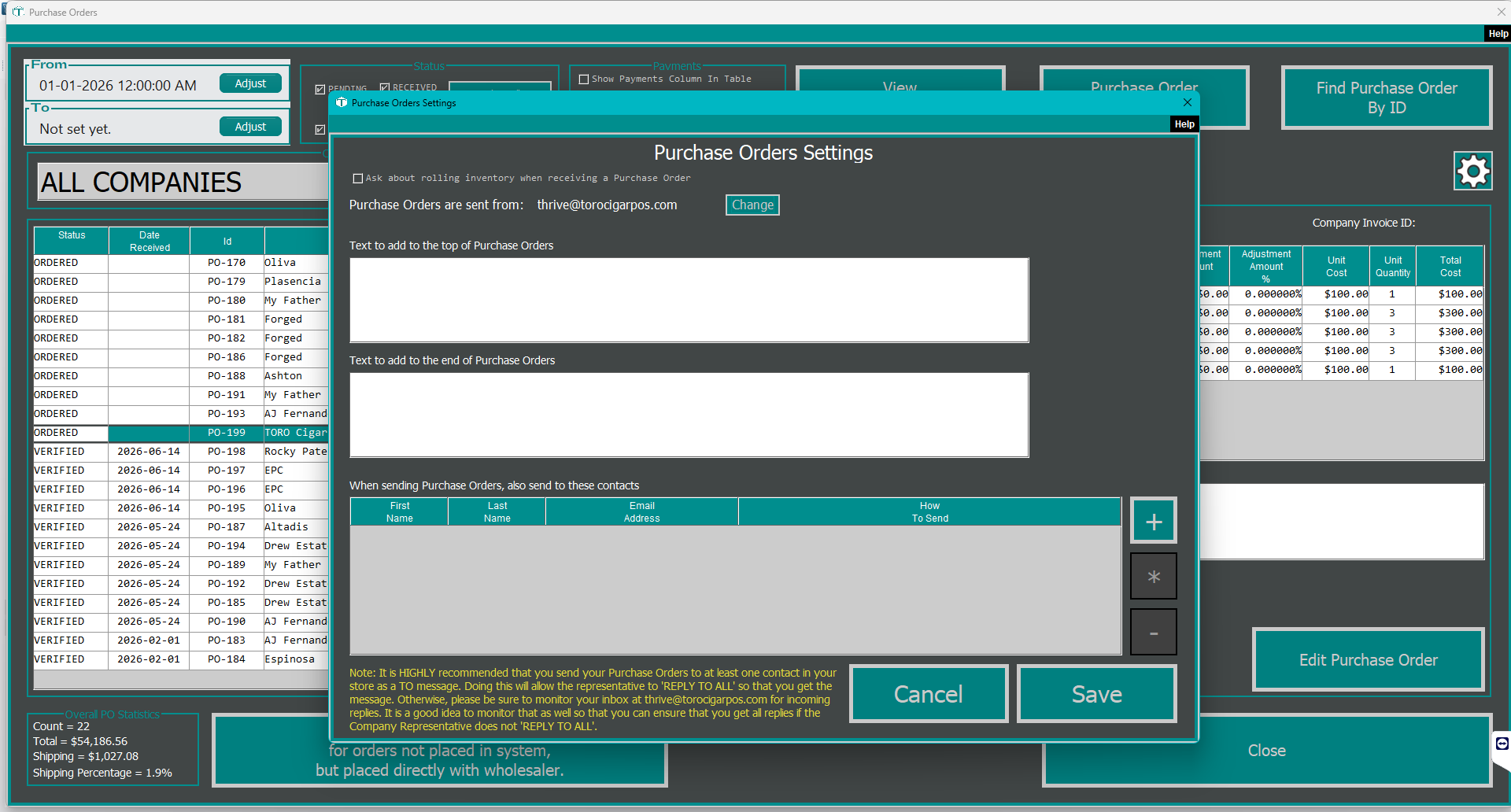
That's the only place this setting lives, and it applies to your whole store.
Should You Turn It On?
It comes down to how you'd rather handle counting:
Turn it on if you like keeping counts tight as you go and you don't mind pausing to count the freshly-arrived, already-stocked items each time a shipment lands. Shops that run true rolling counts love it — the store's numbers stay accurate without ever scheduling a big count.
Leave it off if you receive a lot of orders, or you'd rather not be asked to count every single time a box arrives. Most shops don't run rolling counts, and the prompt on every receive just becomes one more thing to click "No" to — which is exactly why it ships turned off.
You can change your mind anytime. It's one checkbox.
Rolling Inventory Is Not Auto-Reordering
It's easy to hear "rolling inventory" and think it means automatic reordering. It doesn't. Rolling inventory is only about counting at receiving time. The features that decide what to reorder are separate:
- Analytic Purchase Orders build suggested reorders from your sales history and stock levels. See Creating a Purchase Order.
- Item Reorder Alerts warn you when a specific item drops to its threshold. See Item Reorder Alerts.
If what you actually want is TORO telling you when to reorder, those are the tools — not this checkbox.
Why This Matters
Accurate inventory is the foundation everything else rests on: your reorder suggestions, your profit reports, your shrink numbers. Rolling inventory is one way to keep that foundation solid without ever closing for a count. It won't fit every shop — and TORO doesn't assume it does, which is why it's off until you ask for it — but for the stores it suits, it turns counting from a dreaded event into a quiet habit.