Ordering Labels and Receipt Paper from TORO
Running low on barcode labels, box labels or receipt paper? You can reorder them from TORO right inside TORO, in the TORO Marketplace. Type how many you want, check the total, and press Purchase. TORO ships them to your store and the cost goes on your TORO bill.
Where to find it: on the main screen, tap Help in the side bar, then TORO Marketplace, then Purchase Barcode & Box Labels or Purchase Receipt Paper. Each step below says where to tap.
These place a real order, and the store pays for it. There is no "are you sure?" question: pressing Purchase sends the order to TORO straight away. Check the quantities first.
Ordering Barcode and Box Labels
- Go to the main screen of TORO.
- On the side bar, select the Help menu item.
- Select the TORO Marketplace menu item.
- Select the Purchase Barcode & Box Labels tile.
You should now see a window called Label Ordering.
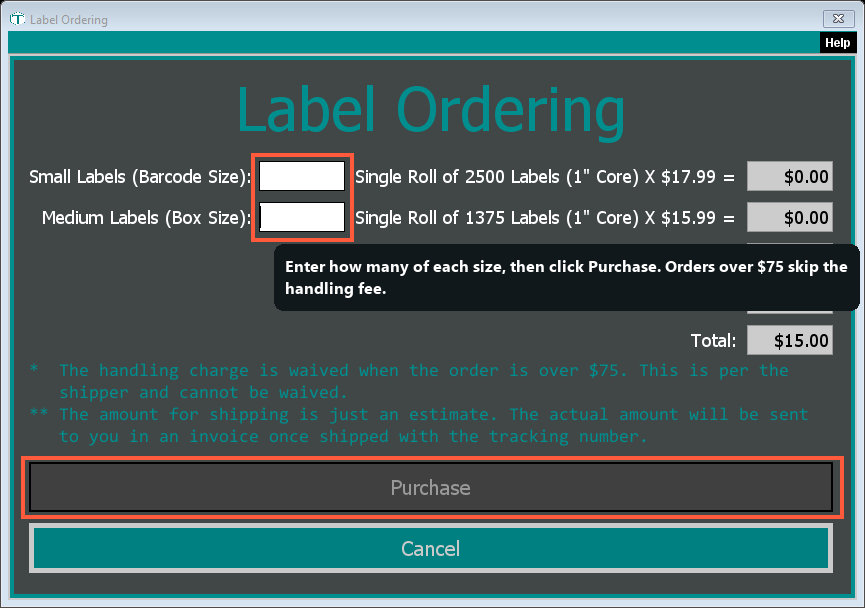
- In the box next to Small Labels (Barcode Size), type how many you want. These are the little price and barcode stickers for single items.
- In the box next to Medium Labels (Box Size), type how many you want. These are the larger labels for boxes.
- Check the Total, then select Purchase.
TORO says "Purchase Order #… was placed with TORO." Select OK. That's it.
What the window shows. Next to each box, TORO says what one unit is (for example, a single roll of labels) and its price. As you type, TORO fills in each line's cost, a Handling Charge, a Shipping Estimate and the Total. Leave a box empty if you don't want that size. Purchase stays grey until you type a quantity.
Good to know:
- Handling is waived on orders over $75. It's the shipper's fee, not TORO's, so it can't be waived any other way. Worth ordering enough to cross $75.
- Shipping is an estimate. The exact amount comes on your invoice once the order ships, with the tracking number.
- Which printer uses which label: small labels go in the printer set as the Small Label Printer, box labels in the Medium Label Printer. Most shops use the same label printer for both. See Choosing Your Printers.
Ordering Receipt Paper
- Go to the main screen of TORO.
- On the side bar, select the Help menu item.
- Select the TORO Marketplace menu item.
- Select the Purchase Receipt Paper tile.
You should now see a window called Receipt Paper Ordering.
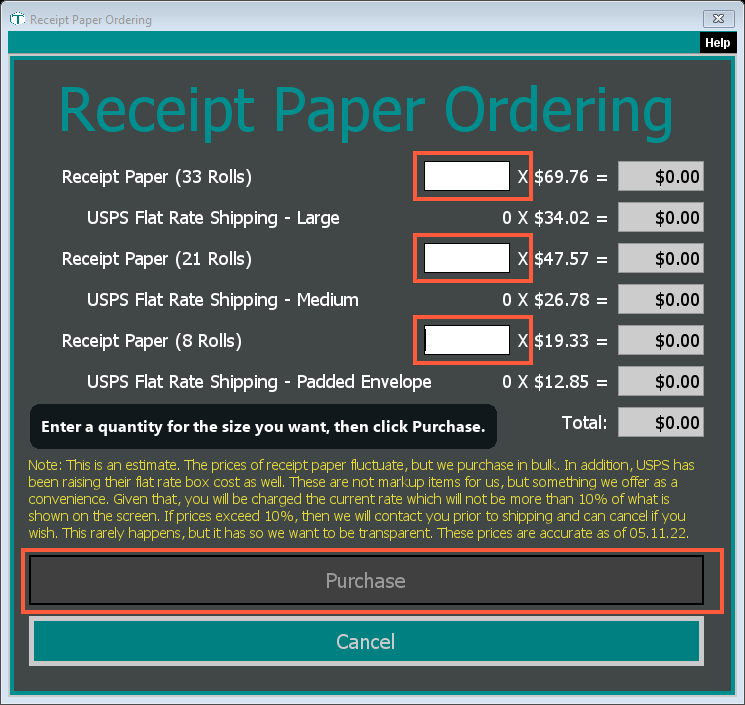
- In the box on the Receipt Paper line, type how many cases you want. A case is 33 rolls.
- Check the Total, then select Purchase.
TORO says "Purchase Order #… was placed with TORO. Write this number down for your records." Write the number down, then select OK.
What the window shows. The case price, the USPS flat rate shipping for each case (one box per case), and the Total. The 33-roll case is the only size TORO sells: it works out cheapest per roll, and smaller cases cost nearly as much to ship.
A note on price: receipt paper and postage prices move around, so you're charged the current rate. It won't be more than 10% above what's on screen, and if it ever would be, TORO contacts you before shipping so you can cancel. This rarely happens; we just want to be upfront.
Checking on an Order
- Go to the main screen of TORO.
- On the side bar, select the Help menu item.
- Select the TORO Marketplace menu item.
- Select the View Purchase Orders tile.
You should now see a window called All Purchase Orders, listing the supply orders you've placed with TORO. Select one to see what's on it.
How You Pay
The order goes on your TORO account. Once it ships, you get an invoice with the exact shipping and the tracking number. If your store is on AutoPay, the invoice is paid automatically 5 days after it's sent. See The TORO Marketplace and Your TORO Bill to check your balance or your invoices.
Questions about an order? Message TORO support in your store's WhatsApp group with the Purchase Order number.