Choosing Your Printers
Got a new receipt printer or label printer, moved a printer to a different register, or receipts suddenly printing on the wrong machine? The Printer Setup window is where you tell TORO which printer does which job: customer receipts, online order tickets, barcode labels and box labels. It can also install the TORO printer drivers for you.
Where to find it: on the main screen, tap Admin in the side bar, then Dashboard, then the TORO Configuration tab, then Set Up System, then the Printers tab, then Set Up Printer. The steps below say exactly where to tap.
Printers are set per register. What you save here is for the register you're standing at. If your store has more than one register, set up each one at its own screen.
Open Printer Setup
- Go to the main screen of TORO.
- On the side bar, select the Admin menu item.
- Select the Dashboard menu item. (Need help with this part?)
- On the side bar of the Dashboard, select TORO Configuration.
- Select the Set Up System tile. (Need help with this part?)
- On the side bar of the Setup window, select the Printers tab.
- Select the Set Up Printer tile.
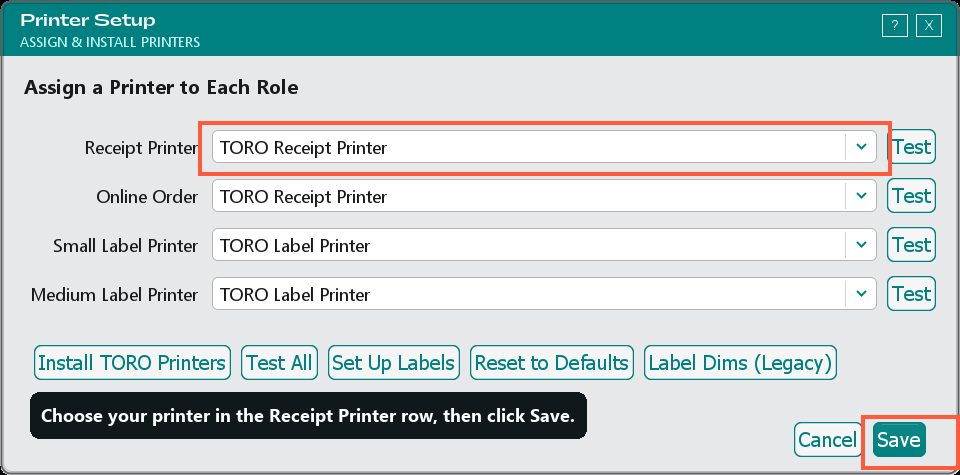
You should now see a window called Printer Setup.
TORO can also bring you here. If TORO tries to print and can't find the printer, it shows a window called Fix Printer? that asks "Do you want to view printer settings?" Select Yes and this same window opens.
Pick Your Printers
Under Assign a Printer to Each Role there is one row for each job. Each row has a dropdown (a list that opens when you tap it) with every printer this computer can see, and a Test button.
- In the Receipt Printer dropdown, choose your receipt printer.
- Select Test on that row. A short page prints that names the printer, so you can walk over and check the right machine printed.
- Do the same for the other rows you use (see below).
- Select Save.
That's it. TORO uses these printers from now on, on this register. Nothing changes until you select Save, and Cancel closes the window without changing anything.
What each row is for
- Receipt Printer: the small printer for customer receipts. Every register that rings sales needs this one.
- Online Order: where a ticket prints when an order comes in from your website. Most shops pick the same printer as the receipt printer.
- Small Label Printer: the printer for the little price and barcode stickers.
- Medium Label Printer: the printer for the larger box labels. Most shops pick the same label printer for both rows.
A row you don't use? Choose — Not set — at the top of its list.
TORO's own printer names. When a row is empty, TORO fills it in for you: TORO Receipt Printer for the receipt and online order rows, TORO Label Printer for the label rows. Those are the names the Install TORO Printers button gives your printers (below), so on a register set up by TORO you usually don't need to change anything.
Printer unplugged? A printer you saved earlier stays in its row even if the computer can't see it right now, so TORO never forgets your choice just because a cable came loose.
The Buttons Along the Bottom
- Install TORO Printers: the "set it all up for me" button. Use it after you unbox a new TORO printer, or when the dropdowns don't show your printer. TORO explains that it installs two printer drivers and names them: the STAR receipt printer becomes TORO Receipt Printer and the TSC label printer becomes TORO Label Printer. Select Yes. Windows then asks for permission to make changes: select Yes. The button says Installing… while it works, and it needs an internet connection. When it's done, TORO points every row at the new printer names; select Test to check, then Save.
- Test All: prints a test page on every printer at once.
- Set Up Labels: sets the size of your labels. Only needed if labels print off-center or cut off.
- Reset to Defaults: puts every row back to TORO Receipt Printer and TORO Label Printer. Select Save afterwards if you want to keep that.
If Something Goes Wrong
- "The installer did not finish": usually the Windows permission question was answered No, or the computer couldn't reach the internet to download the drivers. Check the internet, select Install TORO Printers again, and select Yes when Windows asks.
- "Pick a printer for … first.": you selected Test on a row set to — Not set —. Choose a printer in that row first.
- The test page doesn't print: check the printer is on, has paper, and isn't showing an error light. Turn it off, wait ten seconds, and turn it back on, then select Test again.
- Printing worked on one register but not another: printers are set per register. Open Printer Setup on the register that isn't printing.
Still stuck? Message TORO support in your store's WhatsApp group.