Customer Tags
A tag is a label you put on a customer's account: "Chess Club", "Cigar Collector", "Event Regulars", whatever groups make sense for your shop. Once customers are tagged, you can pull them up as a group, text them together, and set some rules by tag.
Manage Account Tags is where you create your tags and see or change who has each one.
Finding It
Open the Dashboard
Click the Customers tab on the left, then click the Manage Account Tags card. (Can't find it? Type "account tags" in the search box at the top right.)
The window is titled Bulk Tag Applier. It opens on Account Tags (the dropdown at the top left also offers Item Tags, for tagging products; see Tagging Items).
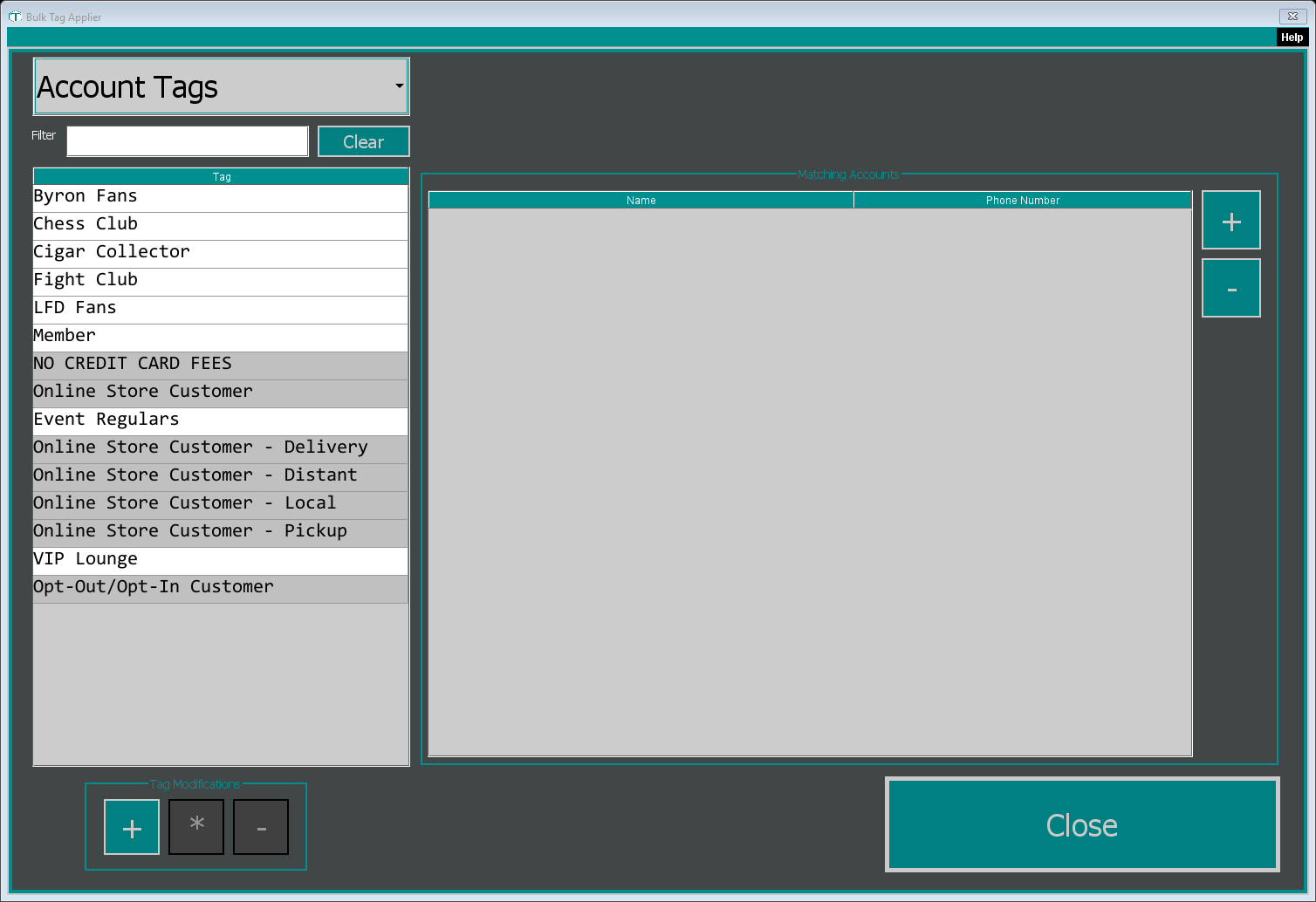
- The tag list on the left shows all your account tags. Type in Filter to narrow it; Clear empties the filter.
- Matching Accounts on the right shows every customer who has the tag you clicked, with their Name and Phone Number.
Creating, Renaming or Deleting a Tag
The three buttons under Tag Modifications work on the tags themselves:
- + creates a new tag. The Tag Editor opens: type the Name, add a Description if you like, and click Save. A tag needs a name.
- * opens the highlighted tag in the Tag Editor so you can change its name or description.
- - deletes the highlighted tag. If customers have it, TORO tells you how many and warns that deleting the tag removes it from all of them. Any special credit card fee rate you set for that tag is deleted too. This can't be undone.
Tagging and Untagging Customers
Click a tag in the list first, then use the buttons beside Matching Accounts:
- + opens the customer search. Pick a customer and they're tagged straight away. If they already have the tag, TORO tells you.
- - takes the tag off every customer you've highlighted in the list, after you confirm. The customers themselves aren't changed in any other way.
To tag a whole group in one go (for example everyone who spent over a certain amount last year), use Tag Accounts in Find Customers instead.
Other Ways Customers Get Tagged
- Find Customers can tag everyone in a search result, and can also search by tag (Include if tagged and Exclude if tagged).
- Store events can tag everyone who bought something during the event. See Store Events and Tagging Who Showed Up.
- Surveys can tag a customer based on their answer. See Customer Surveys.
Where Tags Make a Difference
- The credit card fee can be set to a different rate for a tag, and customers tagged NO CREDIT CARD FEES pay no fee at all. See Credit Card Fee Pass-Through.
- A rewards reset can be limited to customers with a certain tag. See Rewards Program Reset.