Customer Surveys
"How did you hear about us?" is worth asking, and worth writing down. A survey in TORO is one multiple-choice question that pops up at the register during a sale. The cashier asks the customer, taps the answer, and TORO keeps count. You can even tag the customer's account based on what they picked.
Finding It
Open the Dashboard
Click the Customers tab on the left, then click the Manage Surveys card. (Can't find it? Type "survey" in the search box at the top right.)
The window is titled Survey Management and lists your surveys with their Name, how many Options they have, and their Start and End dates.
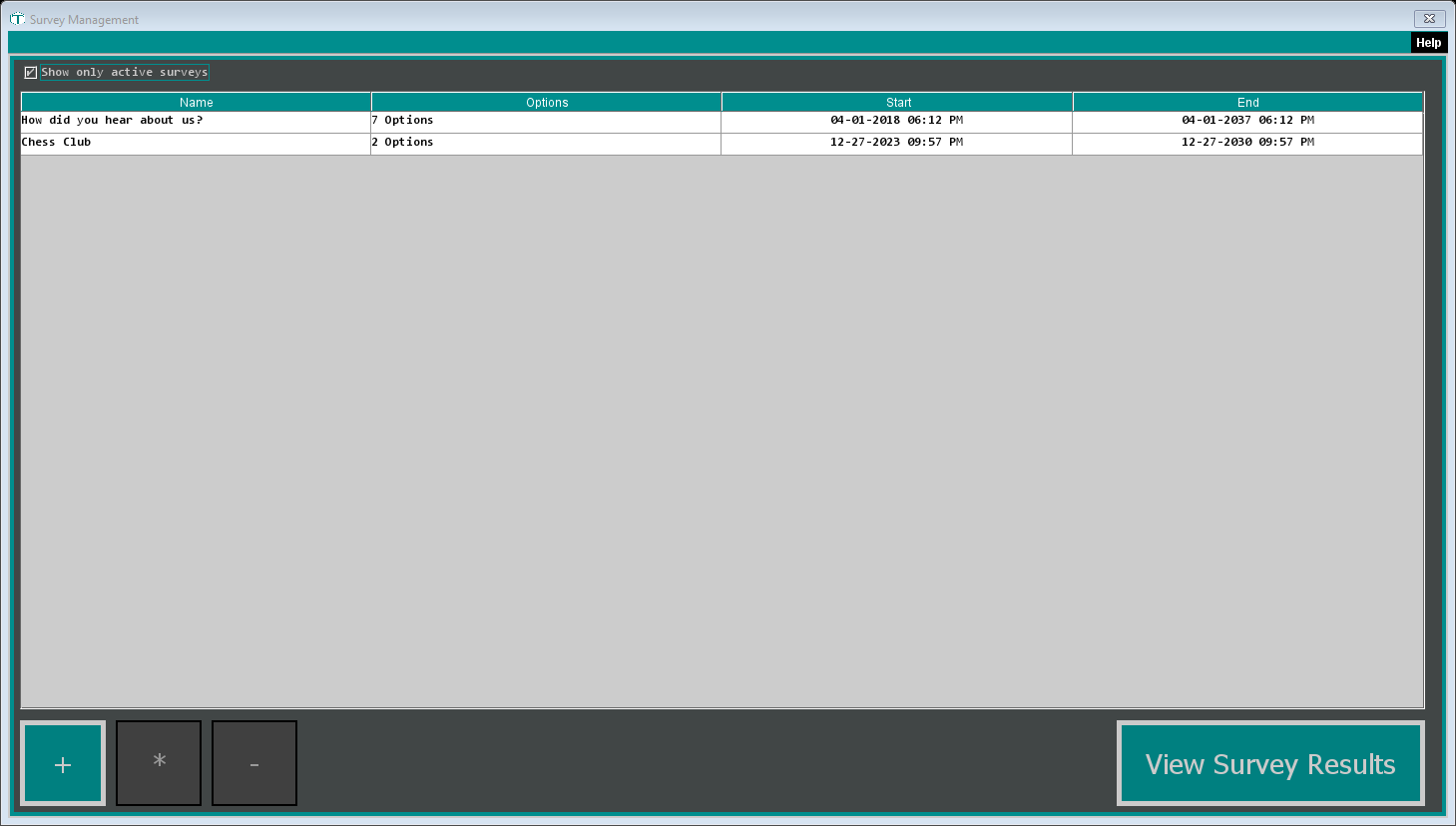
- Show only active surveys (ticked to start) hides surveys you've switched off.
- + creates a survey, and * (or double-click) edits the highlighted one.
- - doesn't delete anything: surveys can't be removed, so TORO suggests setting it to inactive instead.
- View Survey Results shows the answers to the highlighted survey.
Creating a Survey
Click + to open the Survey Question Editor.
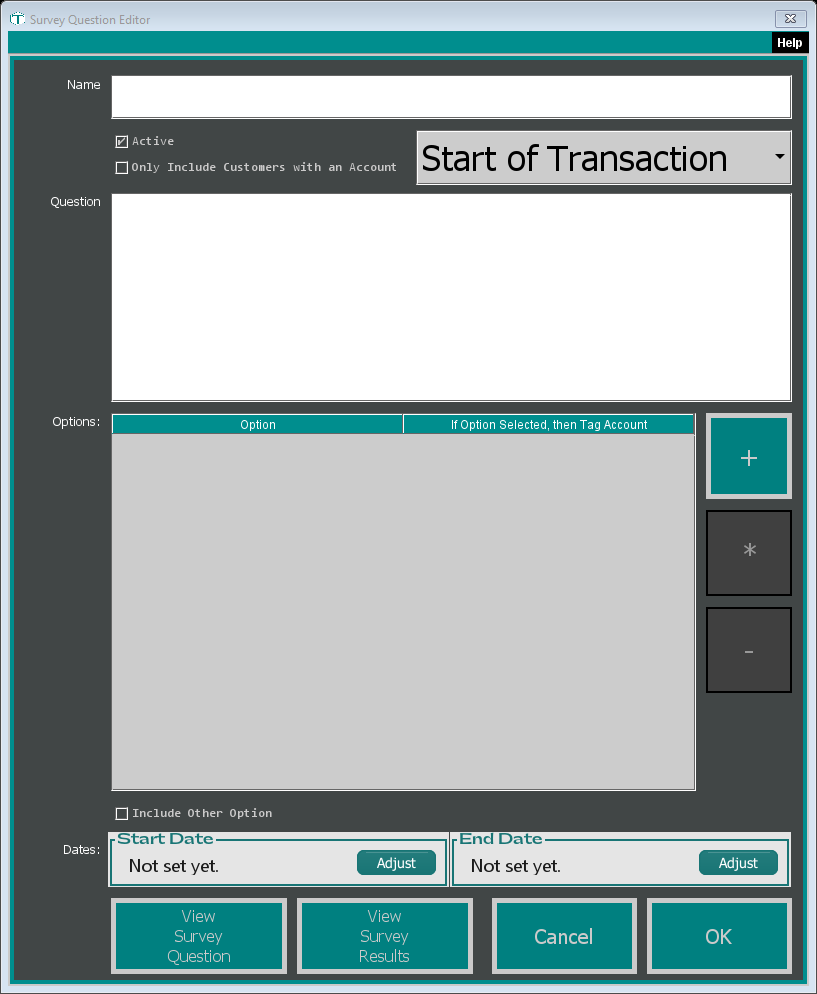
Name: a short name. It's also the title of the popup at the register.
Question: what the cashier will ask, for example "How did you hear about us?"
Choose when it pops up: Start of Transaction (the starting choice) or End of Transaction.
Only Include Customers with an Account: tick this to ask only when a customer has been looked up for the sale.
Set the Start Date and End Date with Adjust. The survey only runs between these dates.
Add the answers under Options: click +, type the answer and click OK. Repeat for each one. * edits the highlighted answer, and - removes it.
Tick Include Other Option to add an "Other" choice where the cashier can type in what the customer said.
Leave Active ticked, and click OK.
A survey needs a name, a question and both dates before it will save. Adding the first answer saves the survey for you, so fill those in before you click + under Options.
Tagging customers by their answer. When you add or edit an answer, use Set Tag next to If Option is Chosen, then Tag Account to pick a customer tag. Anyone who picks that answer and has an account on the sale gets that tag. Clear removes it. See Customer Tags.
View Survey Question shows you the popup exactly as the cashier will see it, so you can try it out. Nothing is recorded when you do.
Removing an answer deletes its results. If customers have already picked an answer, removing it deletes those responses too, straight away, even if you then click Cancel on the survey. Set the survey inactive and start a new one if you want to keep the old results.
What Happens at the Register
When a sale reaches the start or the end (whichever you picked), the survey pops up with your question and answers. The cashier taps what the customer says.
TORO doesn't keep asking the same people:
- A customer who has already answered a survey isn't asked it again.
- A tab is asked once.
- With Only Include Customers with an Account ticked, sales without a customer looked up are skipped.
Surveys are loaded when TORO starts, so a new or changed survey doesn't reach a register until TORO has been restarted there. The same goes for a survey whose start date arrives while TORO is already running.
Seeing the Results
Highlight the survey and click View Survey Results (in Survey Management or the editor). The Survey Question Results window shows your question and, for each answer, how many people picked it, split into Customers without Account and Customers with Account, plus a Total row.