The Analytic Selling Assistant
Every humidor has a few cigars that just sit there. The Analytic Selling Assistant finds them for you. It sorts your in-stock cigars into nine groups, three strengths by three price ranges, and picks one cigar from each group for your staff to talk up. Each pick comes with a plain-English reason and a suggested next step, and if it needs a price cut you can mark it down right from the card.
It's a good screen to glance at before a shift, and it's what feeds the Today's Focus strip at the top of your sale screen.
Finding It
Open the Dashboard
Click the Items tab on the left, then click the Analytic Selling Assistant card. (Can't find it? Type "slow sellers" in the search box at the top right.)
It's also in a few other places:
- The New in TORO tab on the Dashboard has the same card. That one can show a short reminder message before the window opens.
- On the sale screen, Sales Assistant in the sidebar's quick actions opens it. If nobody is signed in, TORO asks who you are first, and the window doesn't open if you cancel.
- In the sidebar's Employee menu, choose Analytic Selling Assistant - View Today's Recommended Items.
- Tap the Today's Focus strip at the top of the sale screen. TORO asks who you are first, so whatever you do in the window is done under your login.
Reading the Grid
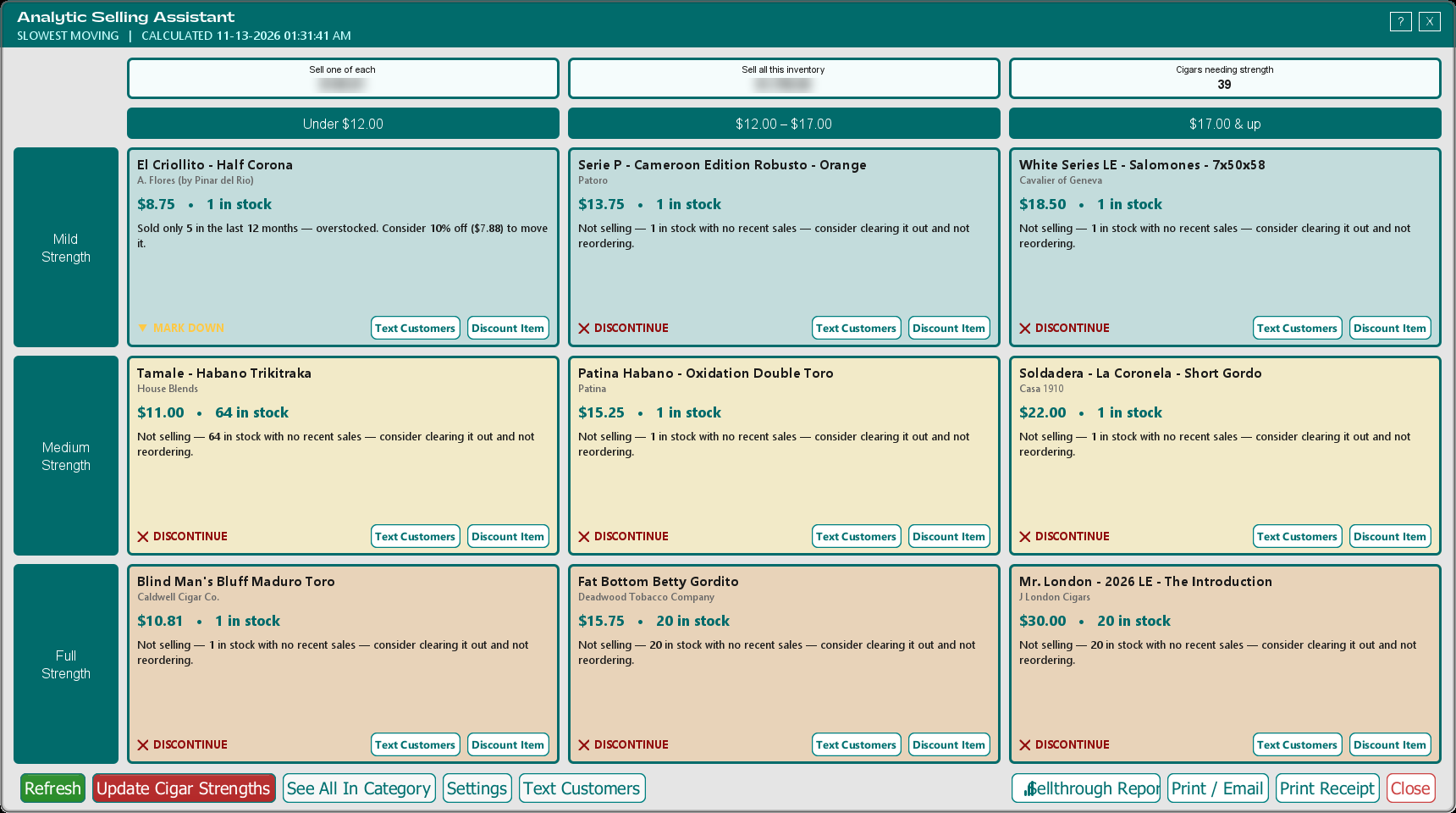
The line under the window title tells you which selling mode you're in and when the recommendations were last worked out, for example Slowest Moving | Calculated and the date and time.
The three tiles across the top:
- Sell one of each — what you'd take in at the single price if you sold one of each of the nine cigars on the grid.
- Sell all this inventory — what you'd take in at the single price if you sold every one of those nine cigars you have in stock.
- Cigars needing strength — how many of your active cigars don't have a strength set. More on that below.
The rows are Mild Strength, Medium Strength and Full Strength. The columns are price ranges based on each cigar's single price. The ranges come from your selling mode (see Settings and Selling Modes).
Each card shows the cigar, its brand, its single price and how many you have in stock, then a sentence explaining why it was picked. At the bottom left is what TORO suggests you do:
- PUSH — it's selling. Talk it up to free up shelf space and cash.
- MARK DOWN — you're overstocked on it. The reason line suggests a discount, for example "Consider 10% off ($7.88) to move it."
- DISCONTINUE — it isn't selling. Consider clearing it out and not reordering it.
- GIVE IT TIME — the numbers say it's slow, but it hasn't been on your shelves long. Feature it to get people trying it before you discount it.
- FEATURE — a cigar worth putting up front. You'll see this in the Maximize Profits mode, and on cards TORO filled in because there wasn't enough sales history to rank anything in that group.
TORO is careful with new arrivals. It won't suggest a markdown until a cigar has been in your store for six months, and it won't suggest discontinuing one until it's been there a year or has already been marked down once.
Suggested discounts are 10%, 15% or 20%, depending on how much supply you're sitting on.
If a card says "Already marked down 10% on" and a date, the Selling Assistant already cut that cigar's price. Click View next to it to see the item's pricing history.
A card that says "No cigar in this category yet" means TORO had nothing in stock to put there.
Which cigars are included
TORO ranks the cigars you have in stock whose single price falls between your selling mode's minimum and maximum. Infused cigars are left out unless your selling mode includes them. If a group still comes up empty, TORO fills it with another in-stock cigar that fits as closely as it can, marked FEATURE.
Cigars with no strength set can land in the wrong row. Depending on how the missing strength is stored, TORO puts them in the Full row or the Mild row. If a row looks odd, check the Cigars needing strength tile and set those strengths first. See Updating Cigar Strength.
Keeping It Up to Date
TORO rebuilds the recommendations on your main station when you close the drawer for the day. To rebuild them now, click Refresh. It looks at every cigar's sales and stock, so it can take a few minutes; you can cancel it, and if you do, the previous recommendations stay.
The Refresh button turns green when the recommendations are more than a day old.
Discounting a Cigar
Cards marked MARK DOWN, and DISCONTINUE cards that come with a suggested discount, have a Discount Item button.
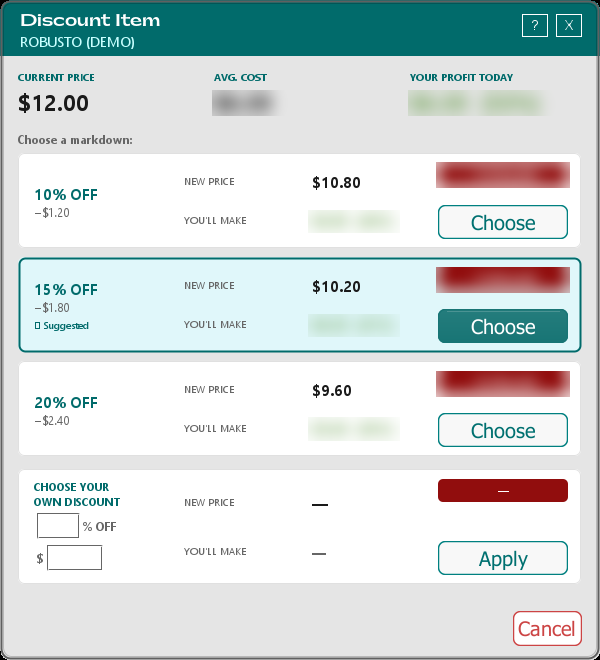
Click Discount Item on the card.
If the Selling Assistant already marked this cigar down in the last 30 days, TORO tells you when and by how much and asks "Discount it again anyway?"
The Discount Item window shows the current price, your average cost and your profit today. Below that are three markdowns, 10% OFF, 15% OFF and 20% OFF, each with the new price and what you'll still make. The one TORO recommends is marked Suggested.
Click Choose on the one you want. Or, under Choose Your Own Discount, type a percentage or a dollar amount off and click Apply. Cancel changes nothing.
TORO confirms the new price.
TORO asks whether to reprint the shelf label. Say Yes, then choose Yes for the single's label or No for the box label. It prints one medium label. The SKU needs a 13-digit barcode to print; if it doesn't have one, TORO tells you to generate one in Item Details first.
What this changes. The new price goes on the cigar's single right away. The box price isn't touched. That single is switched to a price you set by hand, so your markups and Check Item Pricing won't move it back. The change is recorded in the item's pricing history with a source like Selling Assistant - 15% Markdown.
There's no undo button. To put the price back, open the item in Item Details and change it there.
See All In Category
The grid shows one cigar per group. To see every cigar TORO sorted into a group, click See All In Category. Unless you've already clicked Refresh since opening the window, TORO rebuilds the recommendations first, which can take a few minutes.
The Selling Assistant — Categories window has a Price row (Low Retail, Medium Retail, High Retail) and a Strength row. Pick one of each to see that group's cigars with their Brand, Item, Retail and Strength. Right-click a row and choose View Item Details to open the item, for example to set a missing strength.
Settings and Selling Modes
Click Settings to open Selling Modes. A selling mode decides what the Selling Assistant is looking for and how it splits your cigars into price ranges.
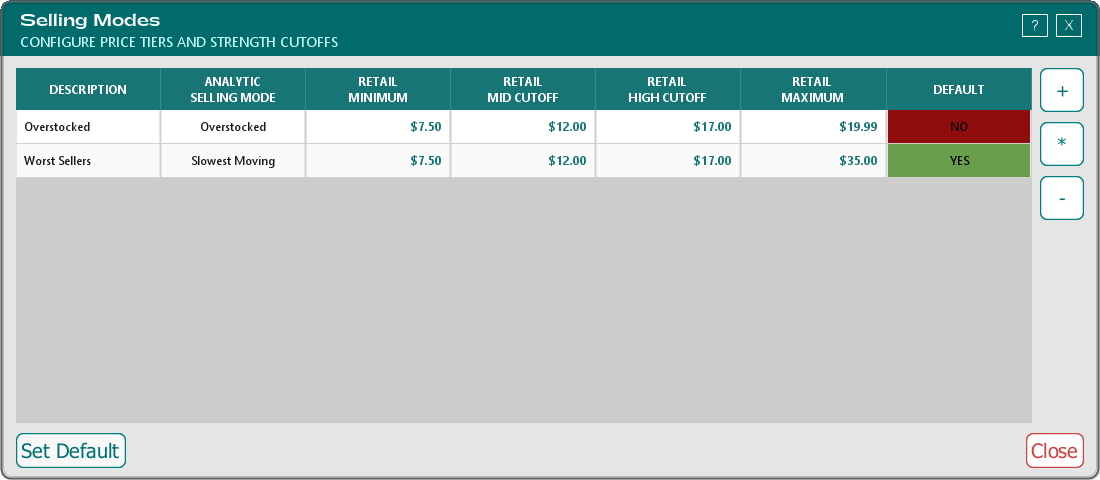
There are three kinds of mode:
- Overstocked — picks the cigar in each group with the most days of supply on hand.
- Slowest Moving — picks the cigar in each group that sold the fewest in the last 12 months.
- Maximize Profits — picks the cigar in each group that made you the most profit in the last 12 months, so you can feature your best earners. This mode never suggests a discount.
To use a different mode, highlight it and click Set Default. Click + to add a mode, * to edit the highlighted one (or double-click it), and - to remove one. If TORO says a mode can't be deleted, it's built in: edit it, or set another mode as the default instead. You can't close the window without a default mode.
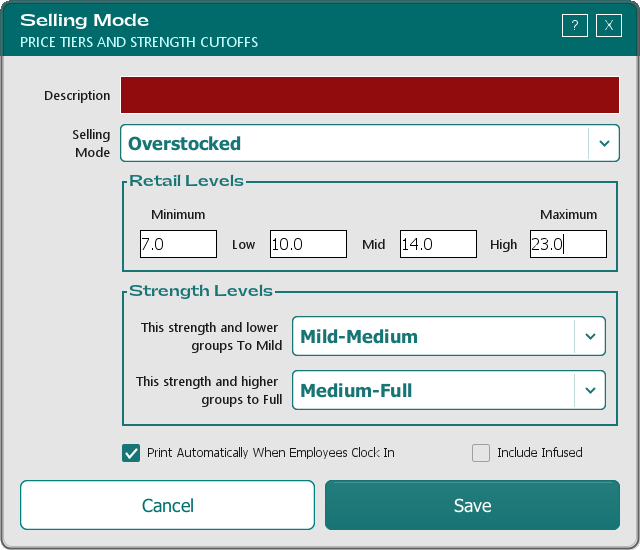
In the Selling Mode editor:
- Description — a name you'll recognize.
- Selling Mode — Overstocked, Maximize Profits or Slowest Moving.
- Retail Levels — four prices, left to right. Cigars whose single price is below the Minimum or above the Maximum are left out. The second box is where the middle price column starts and the third box is where the top price column starts. Each box has to be higher than the one before it.
- Strength Levels — This strength and lower groups To Mild and This strength and higher groups to Full. Everything in between is Medium. The second has to be stronger than the first.
- Print Automatically When Employees Clock In — while this mode is in use, prints the recommendations on the receipt printer each time an employee clocks in.
- Include Infused — counts infused cigars too.
Click Save. When you close Selling Modes after a change, TORO asks whether to rebuild the recommendations now.
Other Buttons
- Update Cigar Strengths — opens the strength screen. It turns red when cigars are missing a strength. See Updating Cigar Strength.
- Print / Email — prints or emails the nine recommendations as a report.
- Print Receipt — prints them on the receipt printer, handy to hand to whoever's on the floor.
- Sellthrough Report — opens a report in your web browser showing whether the Selling Assistant is working: which featured cigars sold faster in the 24 hours after they appeared (last 60 days), which salespeople sold the most featured cigars, and how each markdown from the last 30 days changed how fast that cigar sells. The same report is in the Advanced Reporting Module as Selling Assistant Sellthrough.
Texting customers about a cigar
This needs the SMS module, and the Text Customers buttons only show for admin logins. If you're signed in as an admin and don't see them, SMS just needs to be set up for your store — give us a call.
Click Text Customers on a card (or the Text Customers button at the bottom, then pick a cigar). TORO asks "Who should we text?": Just This Cigar finds customers who bought that cigar in the last 12 months, and The Whole Brand finds customers who bought anything from that brand. Only customers who've agreed to receive texts are included.
TORO then opens the SMS campaign editor with those customers and a message already written. If the Selling Assistant marked the cigar down, the message mentions the sale price; otherwise it just says you have a few left. Nothing is sent until you send it from the campaign editor. See Running SMS Campaigns.
Right-click a card
Right-click any card for View Item, View Pricing History, Text Interested Customers (with the SMS module), and Stop recommending.
Stop recommending takes that cigar out of the Selling Assistant for good, and TORO offers to rebuild the recommendations so another cigar takes its place. To bring it back, open the item in Item Details, tick Is Recommendable and save; it can be picked again the next time the recommendations are rebuilt.
Who Can Do What
Anyone who can open the window can see the grid, use See All In Category and print or email the recommendations. Refresh, Update Cigar Strengths, Discount Item, the right-click menu, Settings, Sellthrough Report and Text Customers are for admin logins only.
The Today's Focus Strip
The Today's Focus strip at the top of the sale screen cycles through the nine cigars on the grid, with each one's strength and price, so whoever's at the counter has something to recommend. It only shows once there are recommendations. Tap it to open the Selling Assistant.
To turn it off or back on, open the Config menu in the sidebar and choose Hide Today's Focus Tile (or Show Today's Focus Tile). The change takes effect the next time the sale screen loads, for example after you log out and back in.