The To-Do List
The To-Do List is the store's shared list of jobs: "restock the humidor", "order more lighter fluid", "call the Davidoff rep". Anyone can add a to-do, and you check one off with a single tap. Every register sees the same list, so the closing shift knows what the opening shift left for them.
Opening the To-Do List
There are three ways in:
- When you clock in. If you have anything late or due today, the clock-in message says so, for example "You have 2 late to-dos and 1 for today." Tap Show my to-dos, or OK to carry on.
- From the register. Open the Employee menu and choose To-Do List.
- From the dashboard. On the Employees tab, tap the To-Do List tile. The tile shows a red LATE or yellow TODAY badge when something needs doing, and a line like "Everyone's: 2 late - 1 for today - 5 open".
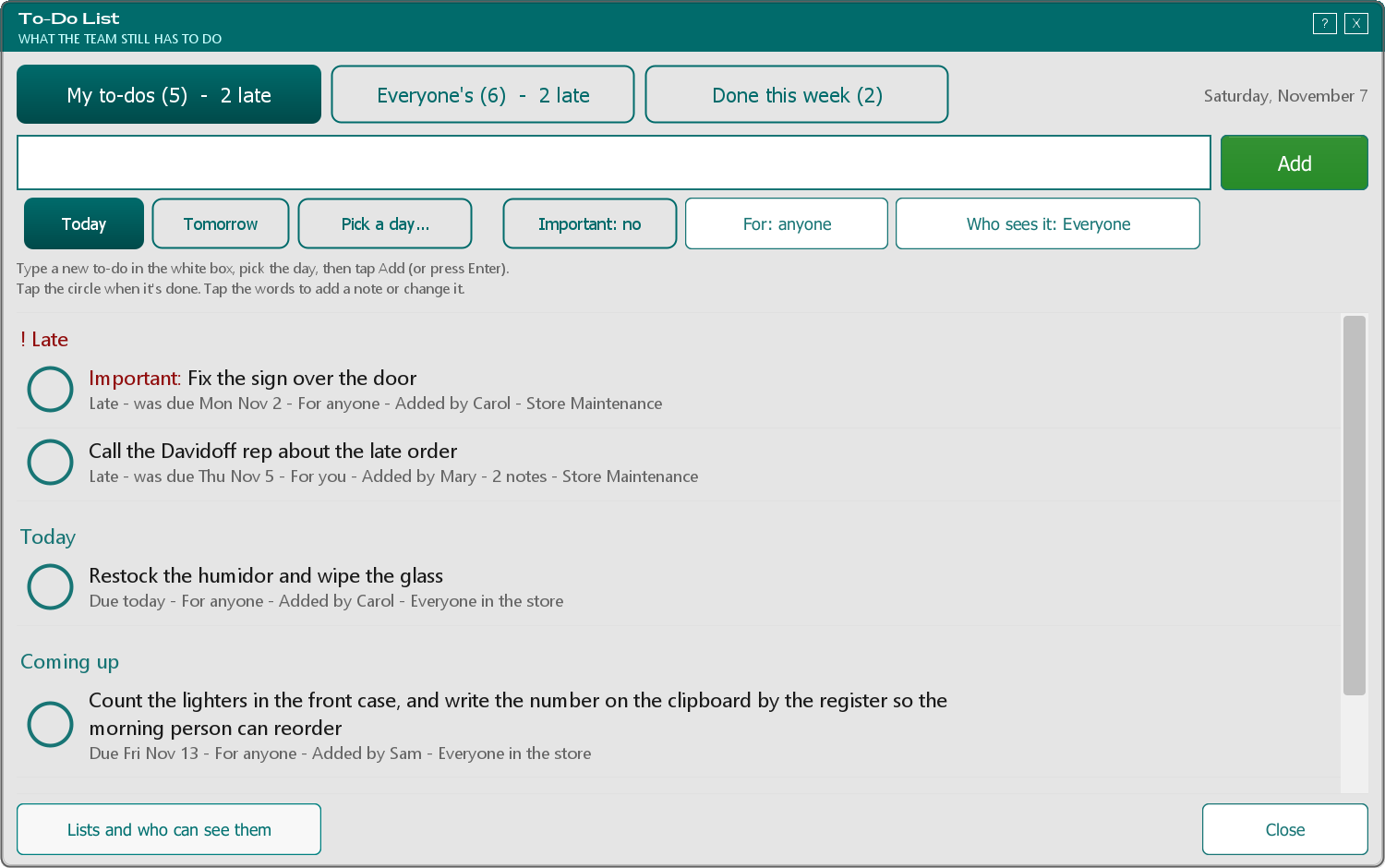
The three tabs
- My to-dos: the to-dos given to you, plus the ones that are for anyone.
- Everyone's: every open to-do in the store. The dashboard tile opens on this tab.
- Done this week: what was checked off in the last 7 days, and who did it.
To-dos are grouped by day. ! Late is at the top in red, then Today, Coming up and Any day. To-dos marked Important show a red Important: in front.
Checking a to-do off
Tap the round circle next to it. It turns green and the row shows Done with an Undo button that counts down for 8 seconds. Tapped the wrong one? Tap Undo.
If someone on another register already checked it off, TORO tells you who, for example "Carol already checked that one off at 3:10 PM."
To put back a to-do that's already done, go to Done this week and tap Put it back.
Adding a to-do
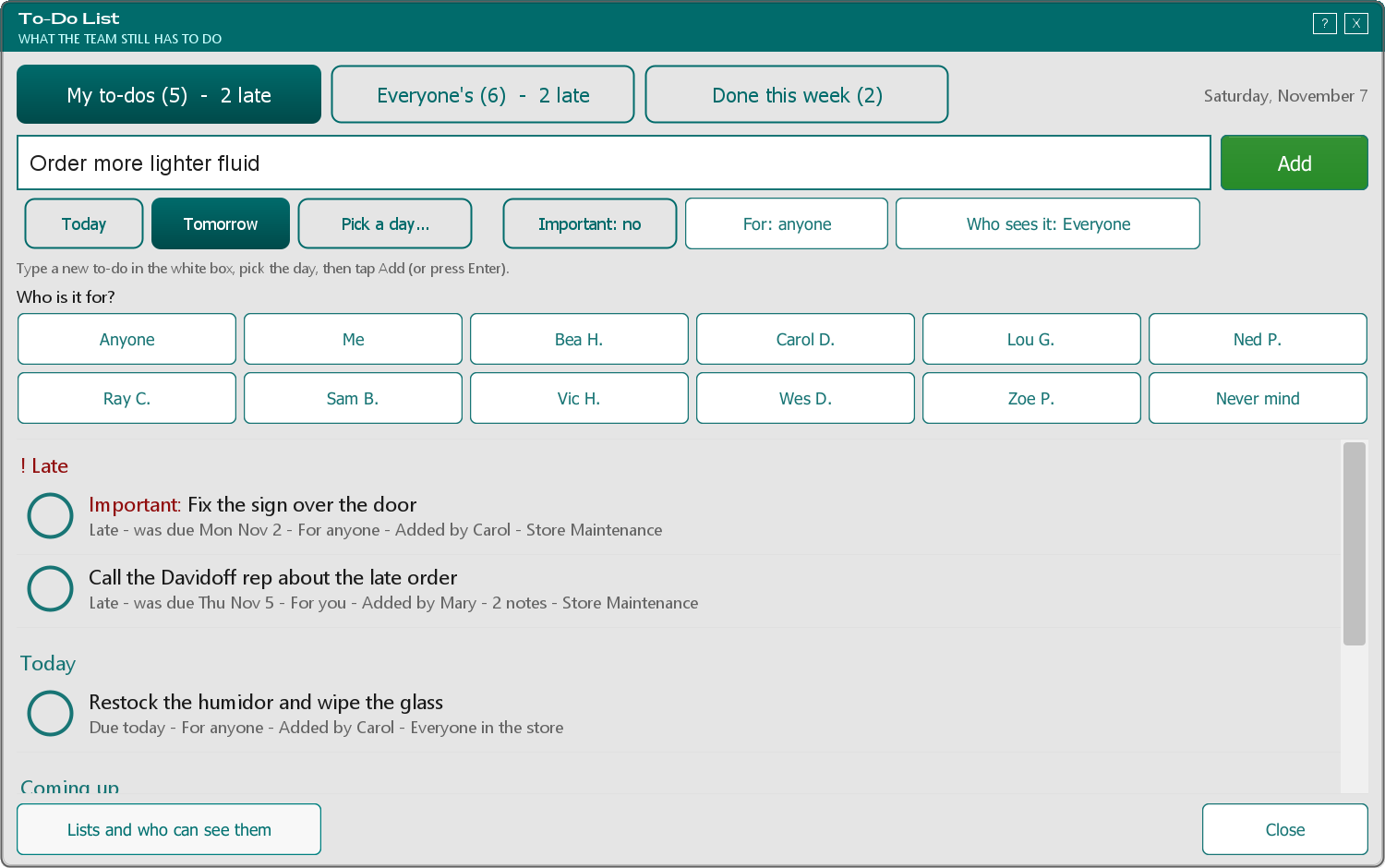
- Type what needs doing in the white box at the top.
- Pick the day: Today (already picked), Tomorrow, or Pick a day...
- If it matters, tap Important so it reads Important: yes.
- To give it to someone, tap For: anyone and tap their name. Leave it on anyone if anybody can do it.
- Tap the green Add button, or just press Enter.
Who sees it tells you where the to-do will go. Usually it's Everyone, the whole store's list. If your store has other lists you can add to, tap it to choose one. The For names only show people who can see that list.
Notes and changes
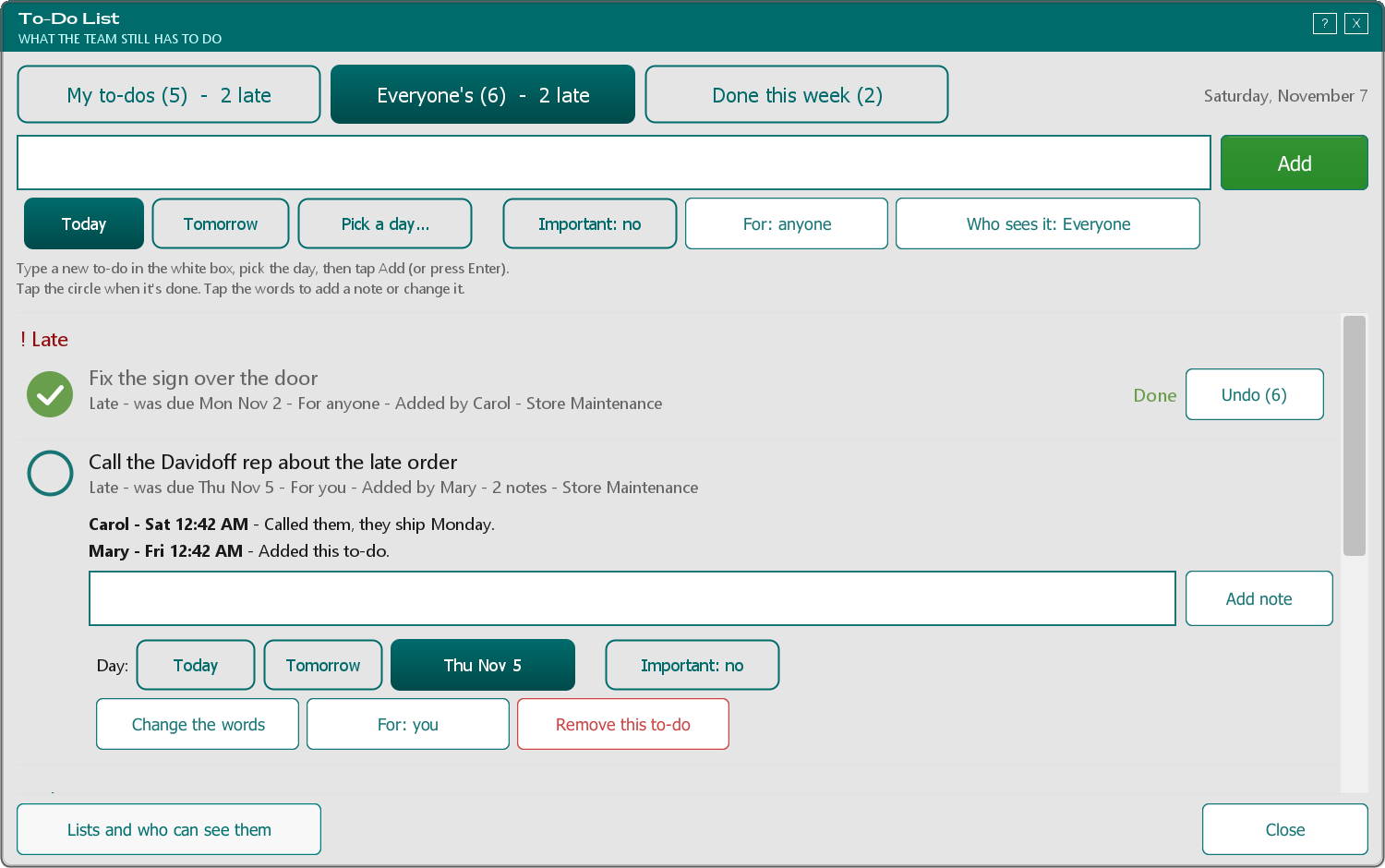
Tap the words of a to-do to open it. You'll see its notes, newest first, and a box to add your own, for example "Called them, they ship Monday." Type it and tap Add note. It saves right away. If you close the window while you're still typing a note, TORO asks whether to save it.
If you added the to-do, or you're a manager, you can also:
- change the day (the one it's set to is highlighted),
- turn Important on or off,
- change who it's For,
- tap Change the words,
- tap Remove this to-do (with an Undo, the same as checking off).
Tap the words again to close it.
Lists and who can see them (managers)
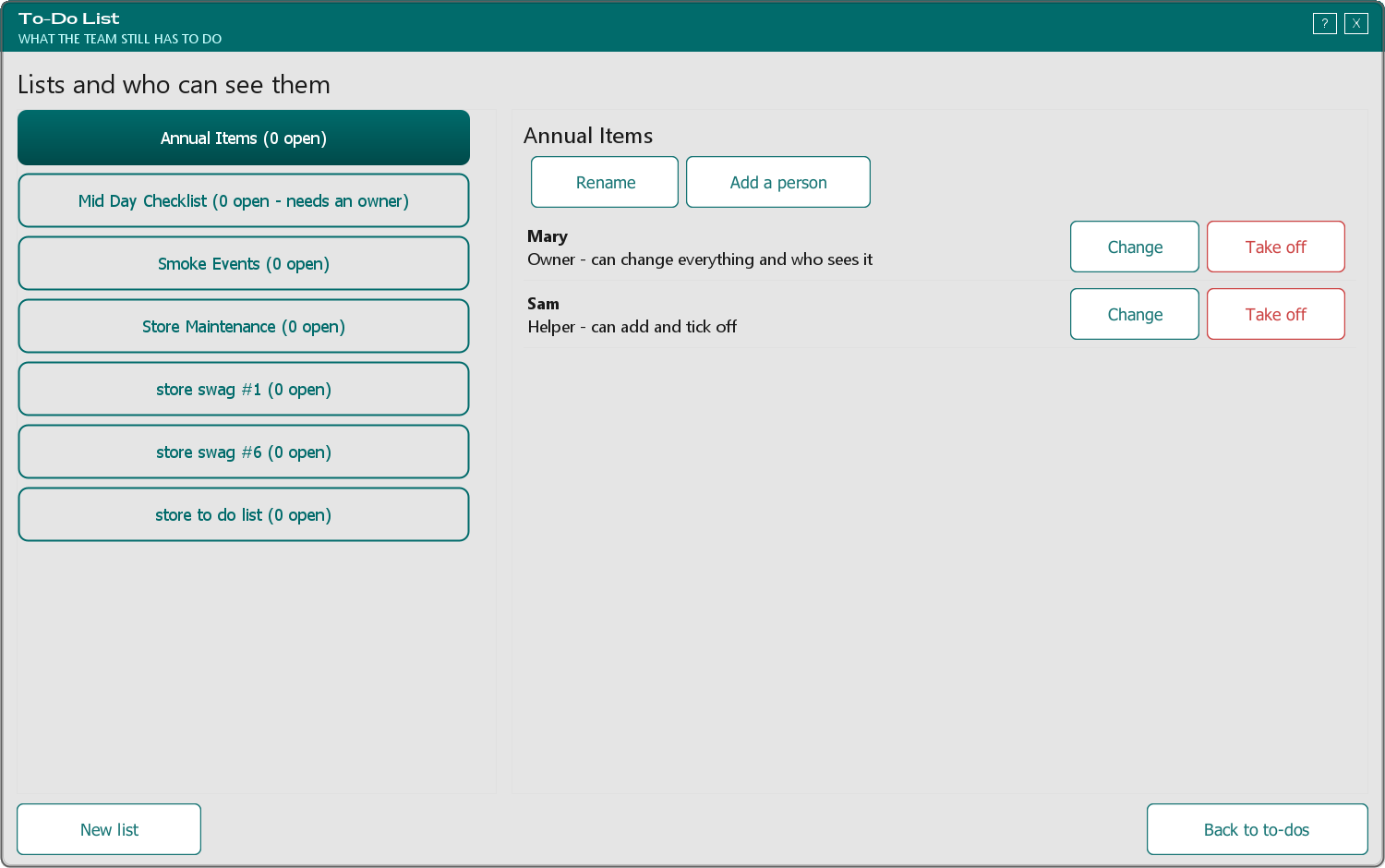
Most stores only need the one list everyone shares. Managers can make more lists (for example "Store Maintenance") from Lists and who can see them at the bottom of the window.
- Pick a list on the left to see who's on it.
- Add a person, then choose what they can do: Owner or Manager (can change everything), Can add and tick off, or Can only look.
- Change or Take off a person. TORO asks first, and No is the button that's already picked.
- Rename, or switch a list between "everyone in the store" and "just these people".
A list always keeps at least one owner. TORO won't let you take off the last one.
Things to Know
- Every register sees the same list. Checking off on one register shows on the others within a minute. Two people can't undo each other's check-offs.
- No pop-ups during a sale. The to-do reminder only appears when you clock in or out.
- Update every register the same day. A register still on an older version of TORO won't show the shared "Everyone in the store" list, and it can undo check-offs made on an updated register.
- If Remove says it isn't turned on yet, it turns on by itself after the next TORO update.
- If you can't open Employee > To-Do List, ask a manager. Some access levels reach their to-dos through the clock-in message instead.