Share Drive and Logging Settings
Two small settings on the Store tab of Set Up System that you'll rarely touch, but that matter when something isn't working: the Share Drive, which is the folder your TORO computers use to share pictures and other store files, and Logging, which controls how much detail TORO writes to its log for TORO Support.
Finding Them
Open the Dashboard
Click the TORO Configuration tab on the left, then click the Set Up System card. (Can't find it? Type "setup" in the search box at the top right.)
Click the Store tab on the left side of that window
Click Set Up Share Drive or Set Up Logging
The Share Drive
Some things in TORO are files rather than database records, such as item pictures and the pictures for your online store. So that every register shows the same pictures, TORO keeps those files in one shared folder that all of your TORO computers can reach. That folder is the share drive.
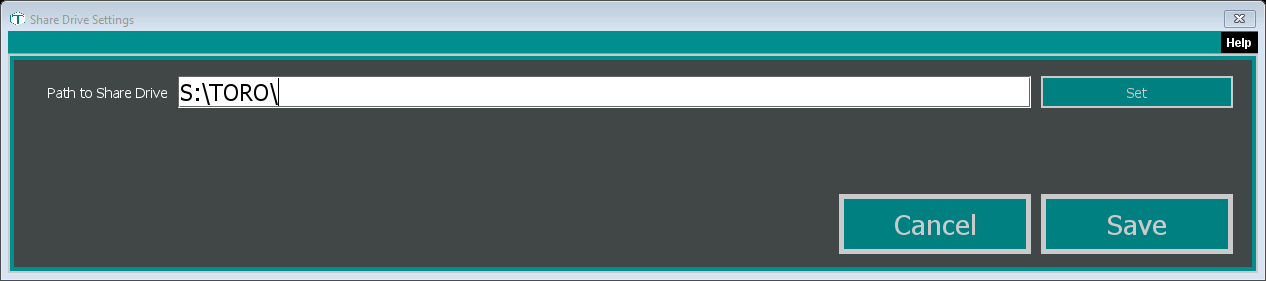
Setting the path
In Path to Share Drive, type the folder's location, or click Set and browse to it
Make sure the path ends with a backslash ( \ ). When you pick a folder with Set, TORO usually fills in the path without one, so add it yourself before saving.
Click Save
Close TORO and open it again on that computer so it starts using the new folder
TORO checks the path when you save:
- "Must provide a path." The box is empty.
- "Share Drive path does not exist." This computer can't reach that folder right now. Check that the computer holding it is on and the drive is connected, then try again.
- "Share Drive Path must end with a backslash." Add a \ at the end.
Set it on every register
The share drive is saved per computer. Set it on each register, pointing each one at the same shared folder.
If a register has no share drive set at all, TORO asks the first time it needs one: "Your share drive is not setup. Please select a folder that all of your TORO computers can access."
"Share Drive Offline"
If a register can't reach the folder when it needs it, TORO shows Share Drive Offline and keeps running. Until the folder is back, don't upload online store pictures from that computer, and some store pictures may not show. Usually the computer that holds the shared folder is off or asleep, or the network drive got disconnected. Reconnect it and restart TORO on that register.
Logging
TORO writes a log on each computer as it runs. When something goes wrong, TORO Support reads that log to see what happened. The Logging Level decides how much gets written.
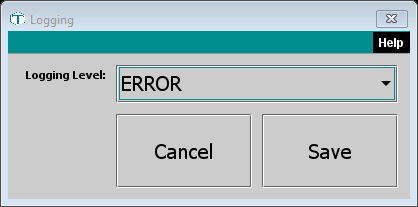
Leave it on ERROR, which is what TORO uses if it has never been changed, unless TORO Support asks you to change it. If they do, pick the level they give you from the dropdown and click Save. The change takes effect on this computer right away.