Printing Customer and Custom Labels
Besides price and barcode labels, your label printer can print two quick labels from the register's Customer menu:
- a bottle label with a customer's name on it, handy for a member's bottle or locker
- a custom label with any two lines you type, for a shelf, a box or a special order
Both print on the Small Label Printer set for the register you're using. To check which printer that is, go to Dashboard > TORO Configuration > Set Up System > Printers tab > Set Up Printer.
Finding It
On the main screen, open the Customer menu in the sidebar on the left
Choose Print labels..., then Print Bottle Label for Account or Print Custom Label - 2 Lines
Either one may ask an employee to sign in first, depending on your access levels.
Printing a Bottle Label
Choose Print Bottle Label for Account
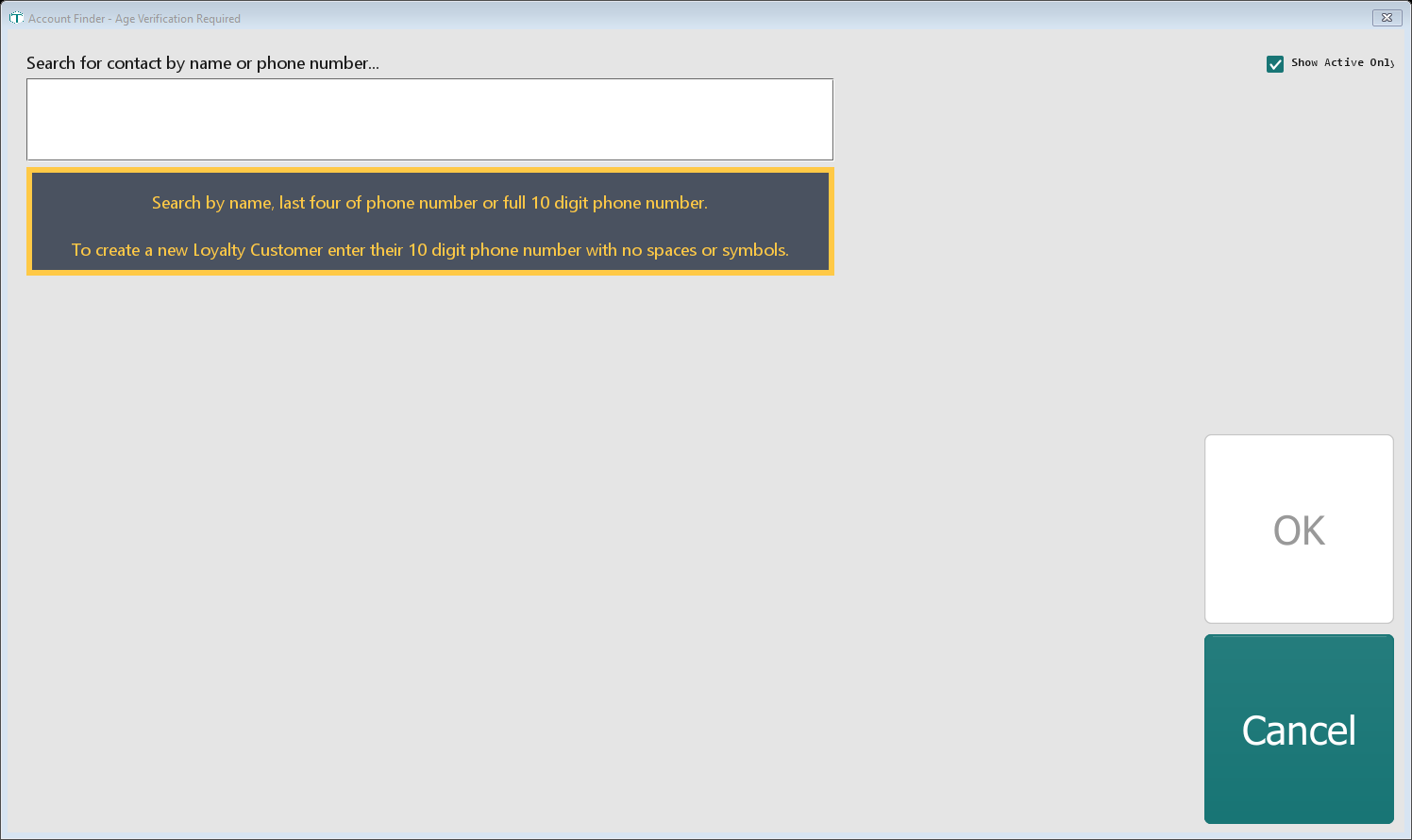
Search for the customer by name or phone number and pick them
One label prints with Member on the top line and the customer's first and last name underneath, in capitals. The label is small: a first name longer than 14 letters is cut short, and a last name longer than 12 letters doesn't print properly (the label shows the first name again in its place).
Printing a Custom Label
Choose Print Custom Label - 2 Lines
Type the First Line? and then the Second Line?
TORO shows both lines and asks Is this correct? Click Yes
Enter How many do you want to print?
The labels print with your store's name on the top line and your two lines underneath, in capitals. Keep the first line to 14 characters and the second to 12: a longer first line is cut short, and a longer second line doesn't print properly (the label repeats the first line in its place).
After It Prints
TORO reminds you: DO NOT TEAR LABEL OFF! Leave the backing paper intact and just peel the label off.