Purchase Order Report
The Purchase Order Report shows what you bought from your vendors over a month, a quarter or any dates you choose, broken down by product type. It lists every purchase order you received and every return you sent back in that time.
It's built with tax time in mind. Many states tax tobacco when you buy it, so you can narrow the report to the product types a particular tax covers, and the dates line up with that tax's monthly or quarterly filing period. It's just as useful for a plain "what did we spend on cigars last month?"
Finding It
Open the Dashboard
Click the Purchasing tab on the left, then click the Purchase Order Report card. (Can't find it? Type "po report" in the search box at the top right.)
The window is titled Purchase Order Reporting. It opens on the current month for All Product Types.
This isn't the same as the Purchase Order Reporting button on the Purchase Orders screen, which builds a different report for a date range and the vendors you choose. See The Purchase Order Screen.
Reading the Report
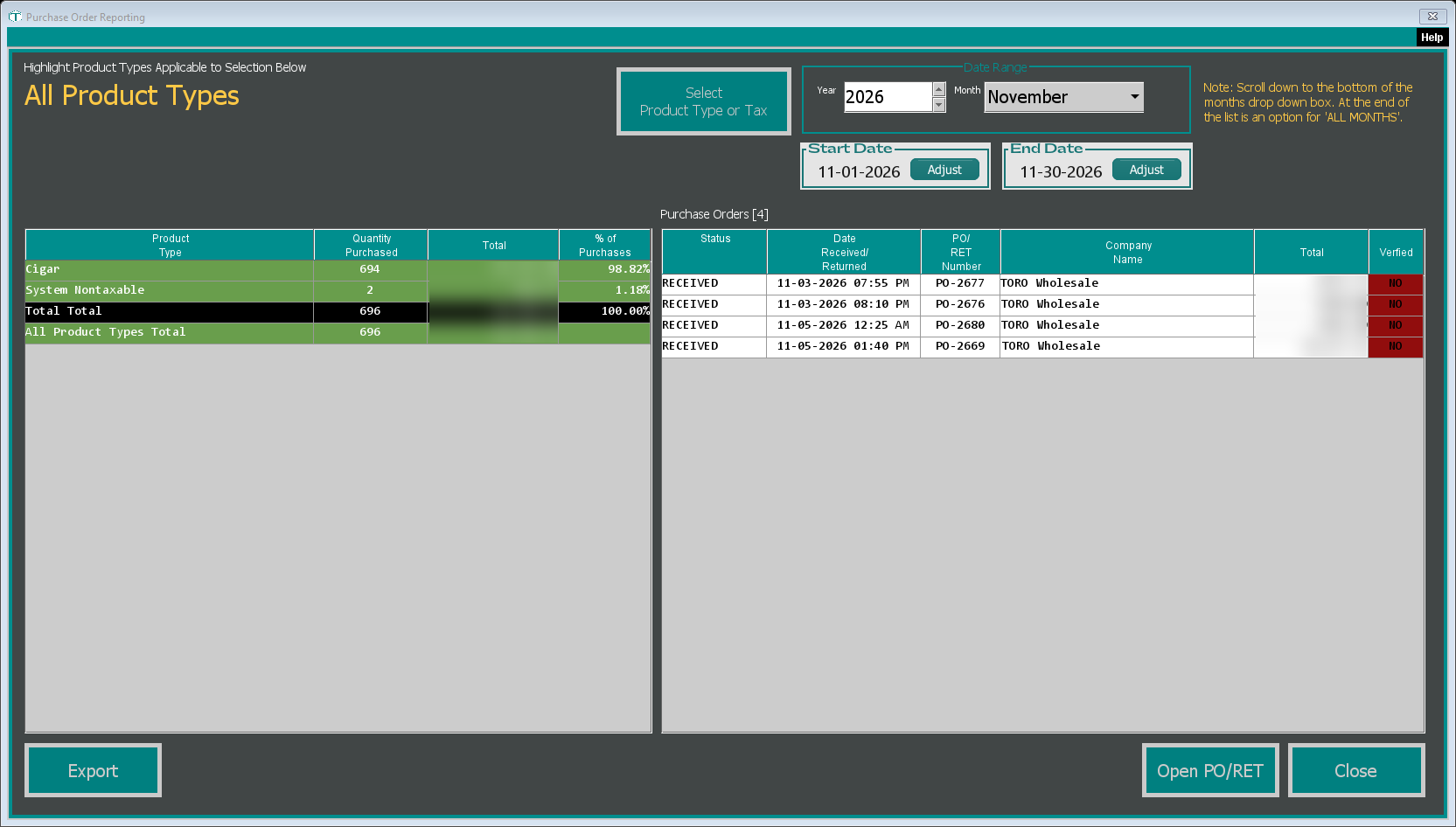
What it covers. The large yellow text at the top left shows what you're reporting on, such as All Product Types.
Purchases by Product Type (left) — for the dates you've picked, each product type with its Quantity Purchased, Total and % of Purchases, then a total row for everything and a total for what you've selected. The product types that match your selection are highlighted.
Purchase Orders (right) — the purchase orders received and the returns sent back in those dates, with a count in the heading. Each shows its Status, the Date Received/Returned, the PO/RET Number, the Company Name and the order's Total. Only orders that include something from the product types you've selected are listed.
To look at one, select it and click Open PO/RET, or double-click it. A purchase order opens in the purchase order editor with the matching product types highlighted; a return opens in the return window.
Choosing What to Report On
Click Select Product Type or Tax. Pick one of:
- Product Type — one product type, or all of them.
- Sales Tax — one of your sales taxes. The report covers the product types that tax applies to.
- Special Tax — one of your special taxes, such as a tobacco tax. The report covers the product types that tax applies to.
Pick the one you want and click Select.
When you pick a tax, the date choices switch to match how often that tax is filed: a Year and Month for a monthly tax, or a Year and Quarter 1 to Quarter 4 for a quarterly one. Picking a product type always uses months.
Choosing the Dates
Monthly — pick the Year and Month. To report on a whole year, scroll to the bottom of the month list: as the note on the window says, the last choice is ALL MONTHS.
Quarterly — pick the Year and the quarter.
Any other range — click Adjust under Start Date or End Date and choose the date.
The report refreshes each time you change something.
Exporting It
Click Export. A Save location... window opens first; click Save to carry on (cancelling it stops the export). TORO doesn't actually write a file to that location. TORO then builds the report as a web page with your store name, the dates, the product type table, the list of orders and returns, and every line item from the matching product types. When it's ready, the View, Email, or Print window opens so you can view and print it or email it.
Common Questions
A purchase order is missing. Only orders that have been received (or verified) count, and they're placed by the date they were received, not the date you ordered. An order still on its way won't show until you receive it. Also check what you've selected: an order with nothing from those product types isn't listed.
Why don't the two totals match? The left table counts all your purchases and returns in those dates. The list on the right only shows orders containing the product types you've selected, and each order's Total includes all of its lines.