Setting Up the Panic Alert
Nobody likes to think about it, but if someone ever forces one of your employees to open the cash drawer, the employee should be able to comply and call for help without anyone in the room noticing. That's what the panic alert is for.
It works like this: instead of signing in with their own PIN to open the drawer, the employee signs in with a special panic PIN. The drawer opens, and at the same moment TORO quietly sends a text and an email to the people on your Panic Alert Contacts list.
Setting it up takes two steps: create the panic login, then choose who gets the alert.
Step 1: Create the Panic Login
The panic login is simply an employee whose first name is PANIC, typed in capital letters exactly like that.
Create a new employee the usual way (see Setting Up a New Employee).
For the First Name, type PANIC in all capital letters. The last name can be anything.
Give it a PIN that's easy for your staff to remember under stress, but different from everyone's real PIN.
Tell your employees the panic PIN in person. Don't write it on anything near the register.
Step 2: Choose Who Gets the Alert
Finding It
Open the Dashboard
Click the TORO Configuration tab on the left, then click the Set Up System card. (Can't find it? Type "setup" in the search box at the top right.)
Click the Communications tab on the left side of that window
Click Panic Alert Contacts
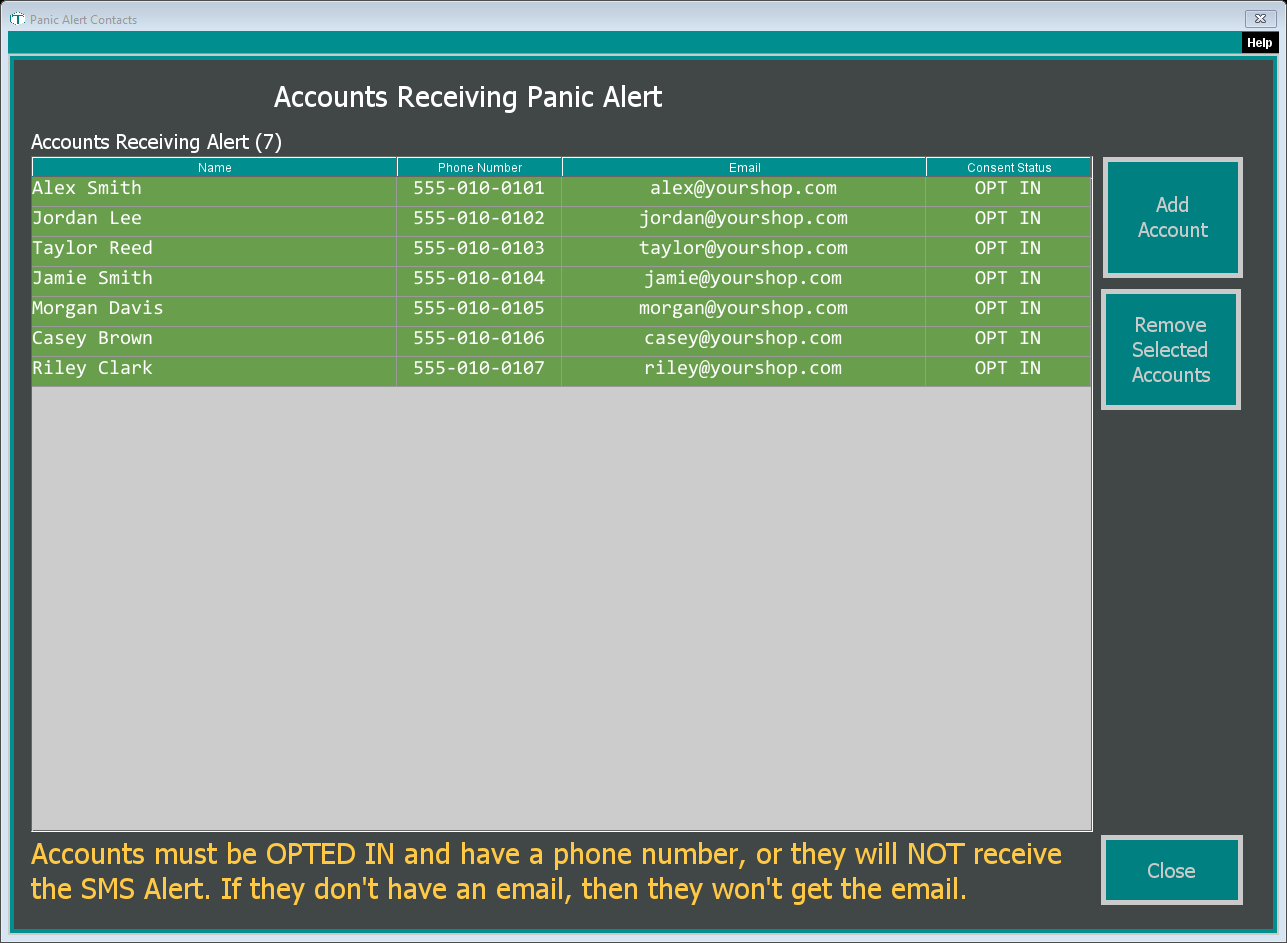
Adding someone
Click Add Account
Find the person in the account finder and select them. Panic contacts are customer accounts, so the person needs an account in TORO first.
TORO asks, "Do you want to send this person a message notifying them that they are on your list of Panic Contacts?" Click Yes and they get a short welcome text and email explaining what a panic alert means, followed by an example of what a real one looks like. It's a good idea to say yes so the first alert they ever see isn't a surprise.
Removing someone
Select one or more people in the list and click Remove Selected Accounts. TORO asks you to confirm.
Saving
There is no Save button. TORO saves the list when you click Close.
Who actually receives it
Read the yellow line at the bottom of the window. In practice:
The text goes to the phone number on their account, and only if your store uses TORO's text messaging (SMS). The yellow line asks that everyone be OPT IN in the Consent Status column, so make sure they are.
The email only goes to people with a valid email address on their account.
So a contact with no phone number and no email is on the list but will receive nothing. Check the Phone Number, Email and Consent Status columns for everyone.
What Happens When the Panic PIN Is Used
When an employee clicks Open Drawer in the sidebar and signs in with the panic PIN:
The cash drawer opens.
Everyone on your Panic Alert Contacts list gets a text that reads like "Panic Alert @ (your store name) @ (date and time) [FORCED TO OPEN CASH DRAWER]", and an email titled PANIC ALERT FROM (your store name)!
Any employee you've signed up for the Panic Alert message type also gets a message, in whatever way they've chosen to receive TORO's messages. See Choosing Who Gets Messages and Emails From TORO.
TORO only asks for a PIN if nobody is signed in at the register yet. If someone is already signed in, the Open Drawer button uses that person and opens the drawer normally, with no alert. Make sure your staff know the panic PIN only works at the moment TORO asks them to sign in.
Things Worth Knowing
If the list is empty, your admins get it. If you remove everyone and close the window, TORO falls back to sending the alert to the accounts of your admin employees.
TORO Support is always included. TORO's own support contact is always on the list. If you remove it, it comes back the next time the list loads.
Test it once. After you set it up, warn your contacts, then try the panic PIN at a quiet moment to make sure the drawer opens and the texts and emails arrive.