Customer Reports
Your regulars are the heart of the shop. TORO has six reports that look at your sales from the customer's side: who spends the most, who's gone quiet, whose birthday is coming up, who agreed to get texts, what people are wishing for, and who keeps buying your best sellers.
They all live in the same place, so this article walks through each one.
Finding Them
Open the Dashboard
Click the Reporting tab on the left, then click the Customer button across the top of the report area. (Can't find it? Type "customer" in the search box at the top right.)
You'll see six cards:
- Customer Statistics: spend, visits and your top customers
- Wish List Statistics: what customers are wishing for
- Account Consent Statistics: who agreed to receive text messages
- Upcoming Important Dates: birthdays and anniversaries coming up
- Customer Comparison Report: each customer's numbers for two periods, side by side
- Top Items with Top Purchasers: your best sellers and who's buying them
None of these reports change anything on their own. The only buttons that do something are the ones that send text messages, plus one clean-up button on the consent report, and each is called out below.
Customer Statistics
The window is titled Customer Report. It answers "how much of my business comes from customers I know, and who are my best ones?"
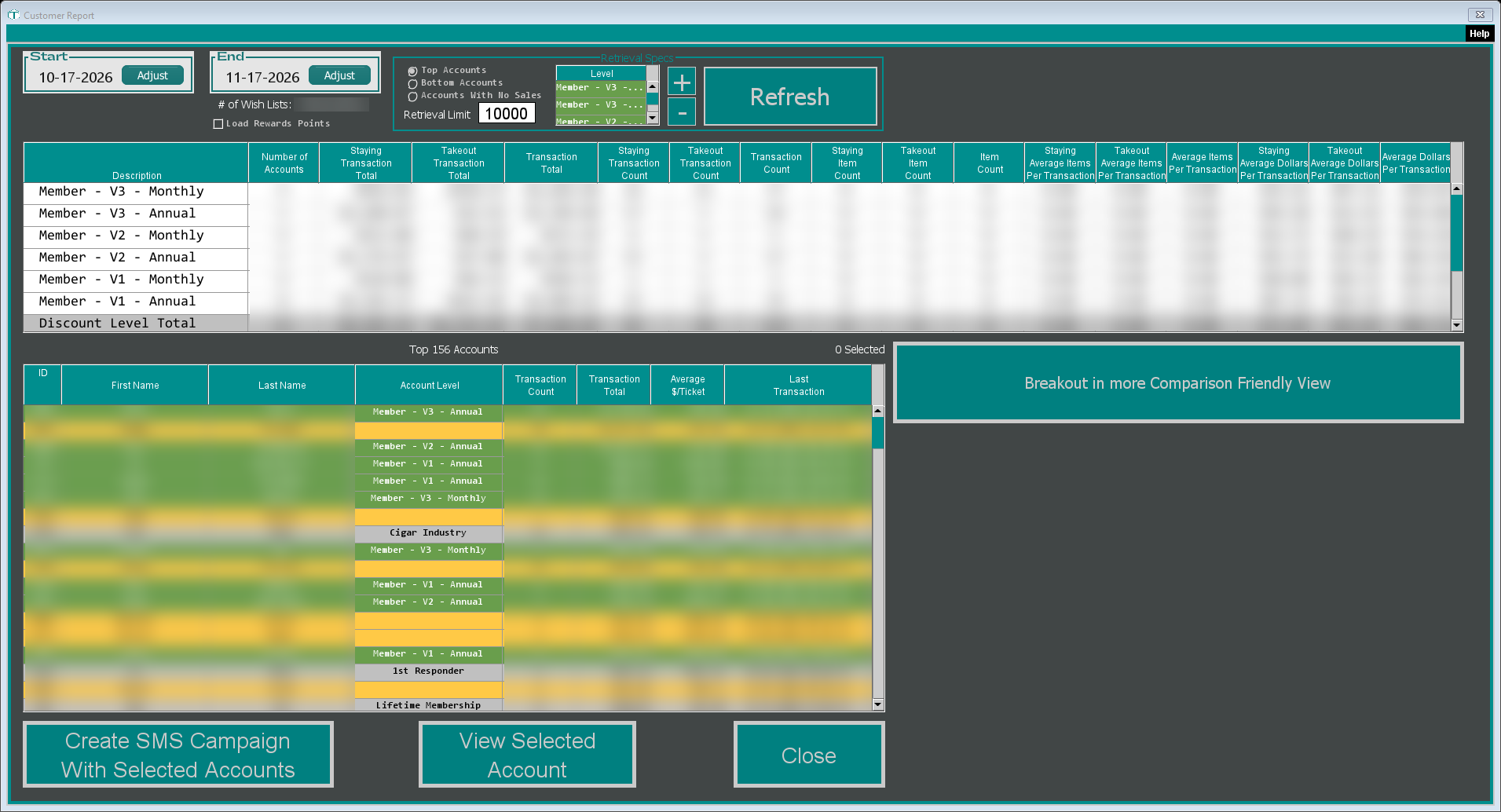
Start and End set the date range. It opens on the last month. Click Adjust on either one to change it.
The totals table splits your sales into groups. You get one row for each membership level, a Discount Level Total row (when there's more than one level), an Other Accounts row (customers who aren't in one of those levels), All Accounts, No Account (sales where nobody was looked up) and a grand Total. For each group you see the Number of Accounts, Transaction Total, Transaction Count, Item Count and the averages per transaction. If your store tracks staying versus takeout, each figure is also split into Staying and Takeout columns.
The levels in the little Level list inside Retrieval Specs decide which rows you get. TORO fills it with your active membership levels. Use + to add another level and - to take one out, then click Refresh (it turns red to remind you).
The customer list below shows individual customers: everyone at first, then just the group you click in the totals table. In Retrieval Specs, choose what you want to see:
- Top Accounts: biggest spenders first
- Bottom Accounts: smallest spenders first
- Accounts With No Sales: customers who bought nothing in the date range, which makes a good win-back list
Retrieval Limit caps how many customers load (it starts at 10000). Tick Load Rewards Points to add each customer's points balance as a column.
At the bottom:
- View Selected Account opens the customer's account
- Create SMS Campaign With Selected Accounts opens the text campaign editor for the customers you've highlighted, with a ready-made thank-you message you can change. Only customers who've opted in to texts are included (TORO tells you if some aren't), and nothing goes out until you send it from the campaign editor. See Running SMS Campaigns.
If your store tracks staying versus takeout, there's also a Breakout in more Comparison Friendly View button, which opens the same numbers laid out for comparing groups (Customer Report - Detailed Breakout).
Two numbers on this screen to ignore for now:
- The Item Count column, and the Average Items Per Transaction columns built from it, show 0 on every row, the Total row included. The transaction counts and dollar totals are fine.
- The percentage in brackets next to # of Wish Lists is out by a factor of 100. If it says 0.06%, it means about 6%. The count before it is correct.
Wish List Statistics
A small window that tells you how much your customers' wish lists are worth to you.
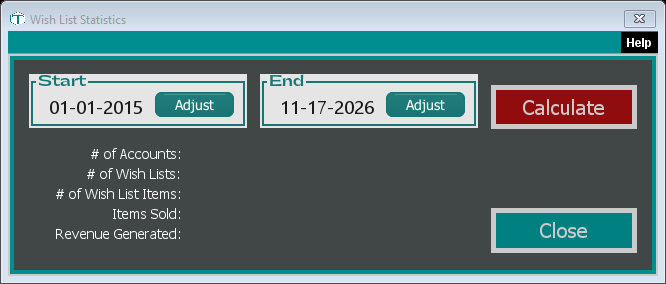
It opens with the dates set from your first day of sales to now, and nothing filled in. Click Calculate (it's red until you do, and turns red again whenever you change a date).
- # of Accounts: your active customers
- # of Wish Lists: how many customers have a wish list (the percentage in brackets has the same factor-of-100 problem described above)
- # of Wish List Items: how many items are on wish lists, counting those added up to the End date
- Items Sold: how many wish-listed items were bought in the date range
- Revenue Generated: what those wish-listed items brought in
Account Consent Statistics
The window is titled Account Consents. It counts your customers' text message consent answers.
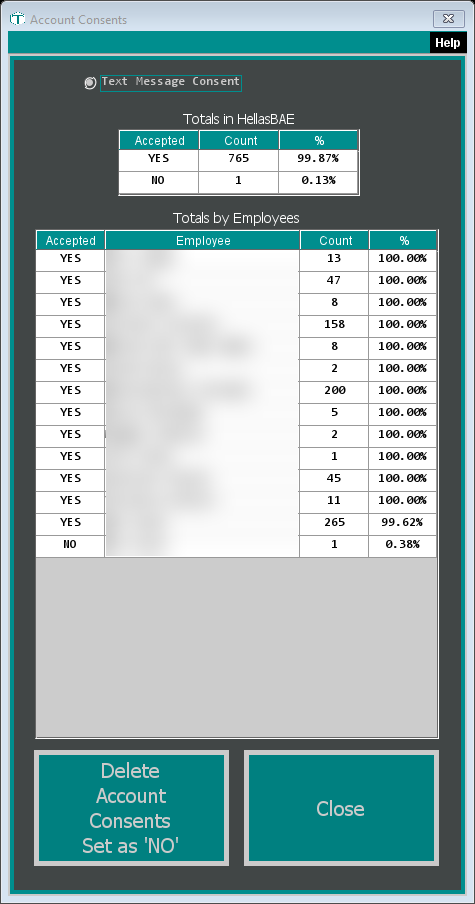
- Totals in HellasBAE shows how many customers answered YES and NO, with the percentage of each
- Totals by Employees shows the same thing for each employee who recorded the answer, so you can see who's asking and who isn't
Delete Account Consents Set as 'NO' removes recorded "no" answers. TORO asks you to confirm, then lets you pick a date, and every "no" recorded on or before that date is deleted. This changes your records and can't be undone, so only use it if you know why you want those answers gone.
Upcoming Important Dates
A list of customer birthdays, anniversaries and other dates around today.
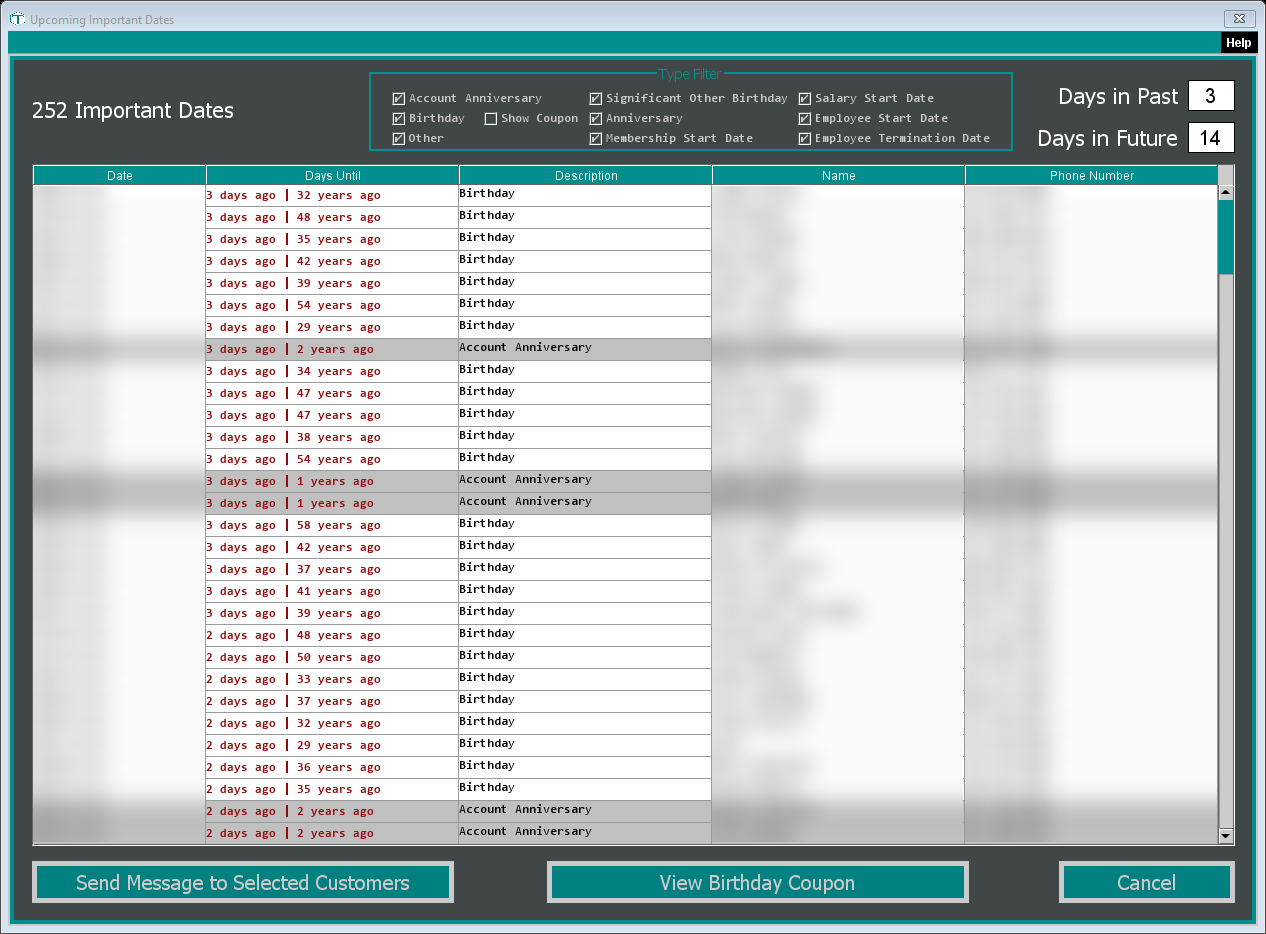
Days in Past (starts at 3) and Days in Future (starts at 14) set how far either side of today to look. The list updates as soon as you change them.
The Type Filter decides which kinds of dates show: Account Anniversary, Birthday, Significant Other Birthday, Anniversary, Membership Start Date, Salary Start Date, Employee Start Date, Employee Termination Date and Other. TORO remembers your ticks. Tick Show Coupon to add a Birthday Coupon column.
Each row shows the Date, Days Until (for example "3 days ago | 32 years ago"), what kind of date it is, the customer's Name and Phone Number.
Send Message to Selected Customers texts a birthday coupon to each customer you've highlighted. It only works for Birthday rows, and only when the station is online, your store has text messaging, your birthday reward program is turned on, and the customer has a mobile number and has opted in to texts. Each message creates a real "Happy Birthday" coupon on the customer's account, good for about two weeks. When it's done, TORO tells you how many went out and offers to show you the details.
When the count looks off: TORO counts every row that couldn't be sent as "not opted in", whatever the real reason was (a non-birthday row, the birthday program being off, no text messaging, no internet connection). And a customer whose spending doesn't fit any of your birthday tiers is counted as sent even though no coupon goes out. If the numbers don't match what you expected, check the details screen.
View Birthday Coupon shows what the highlighted customer's birthday coupon would be, without creating or sending anything. It only works for a customer whose spending fits one of your birthday tiers.
To set up the birthday reward itself, see Setting Up Your Rewards Program. For a printable list of everyone with a birthday in a month, see Customer Birthdays.
Customer Comparison Report
The window is titled Account Statistics. It puts each customer's numbers for two periods next to each other, so you can see who's buying more and who's slipping.
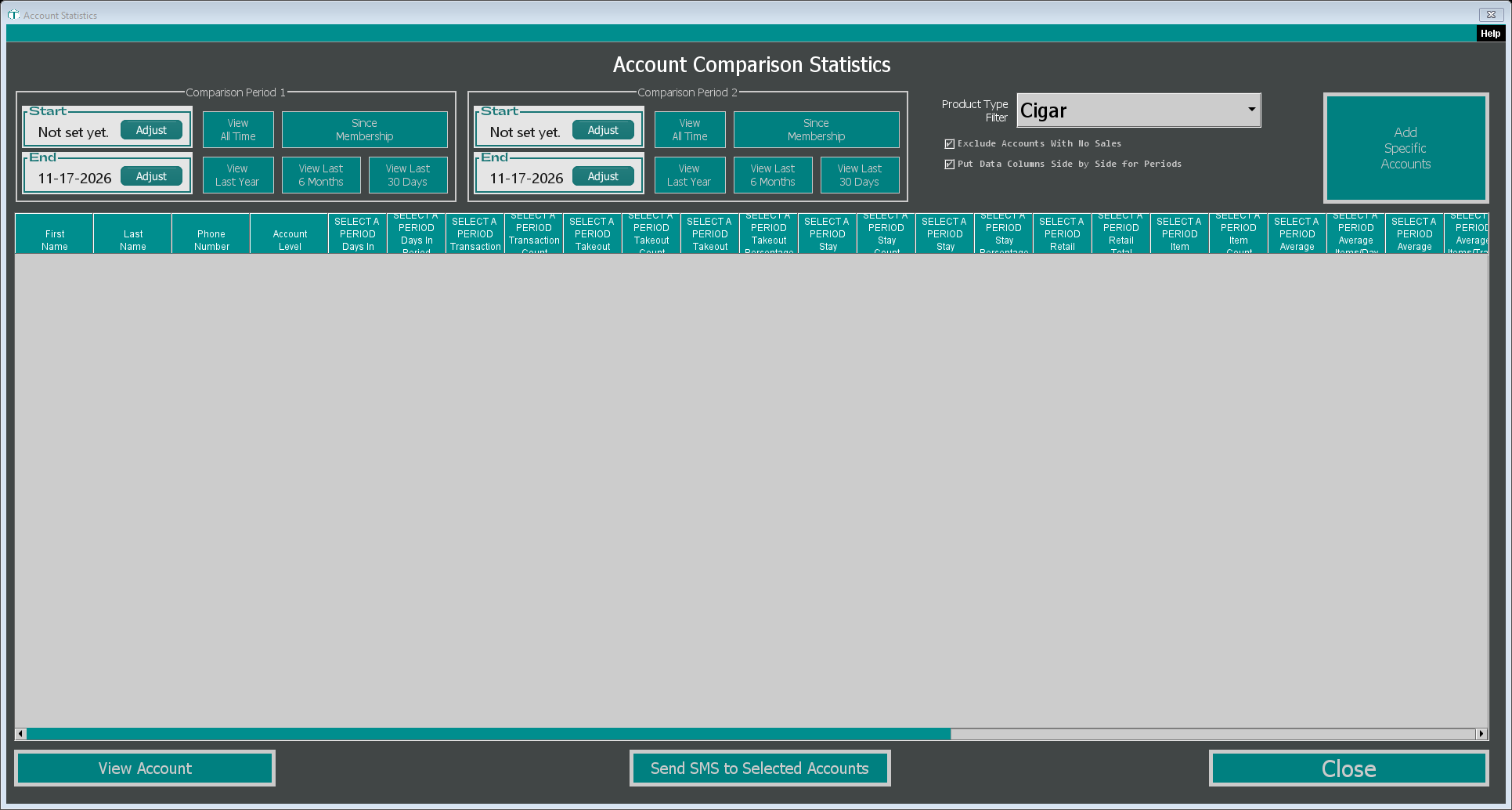
The table stays empty until you've picked both periods. For each of Comparison Period 1 and Comparison Period 2, either set Start and End yourself, or click one of the quick buttons:
- View All Time: from the customer's first visit
- Since Membership: from the day their membership started
- View Last Year, View Last 6 Months, View Last 30 Days
A progress bar shows while TORO works through your customers, which can take a while for a big list.
Each customer gets a row with their name, phone number and account level, then, for each period, the days in the period, transaction count, stay and takeout counts, retail total, item count, averages per day, per transaction and per item, coupons used and their value, and item and total discounts.
The options:
- Product Type Filter limits the numbers to one product type. It opens on Cigar. Pick All Product Types for everything.
- Exclude Accounts With No Sales (ticked to start) leaves out customers who bought nothing between the start of the earlier period and the end of the later one. It only applies when neither period is View All Time or Since Membership.
- Put Data Columns Side by Side for Periods (ticked to start) puts each period's figures next to each other, column by column, which makes comparing easier.
- Add Specific Accounts lets you narrow the report to customers you choose instead of everyone.
At the bottom, View Account opens the highlighted customer, and Send SMS to Selected Accounts opens the same text campaign editor for the customers you've highlighted (opted-in customers only, and nothing goes out until you send it).
Top Items with Top Purchasers
The window is titled Top Items with Top Supporting Customers. On the left are your best-selling items, and on the right are the customers who bought them.
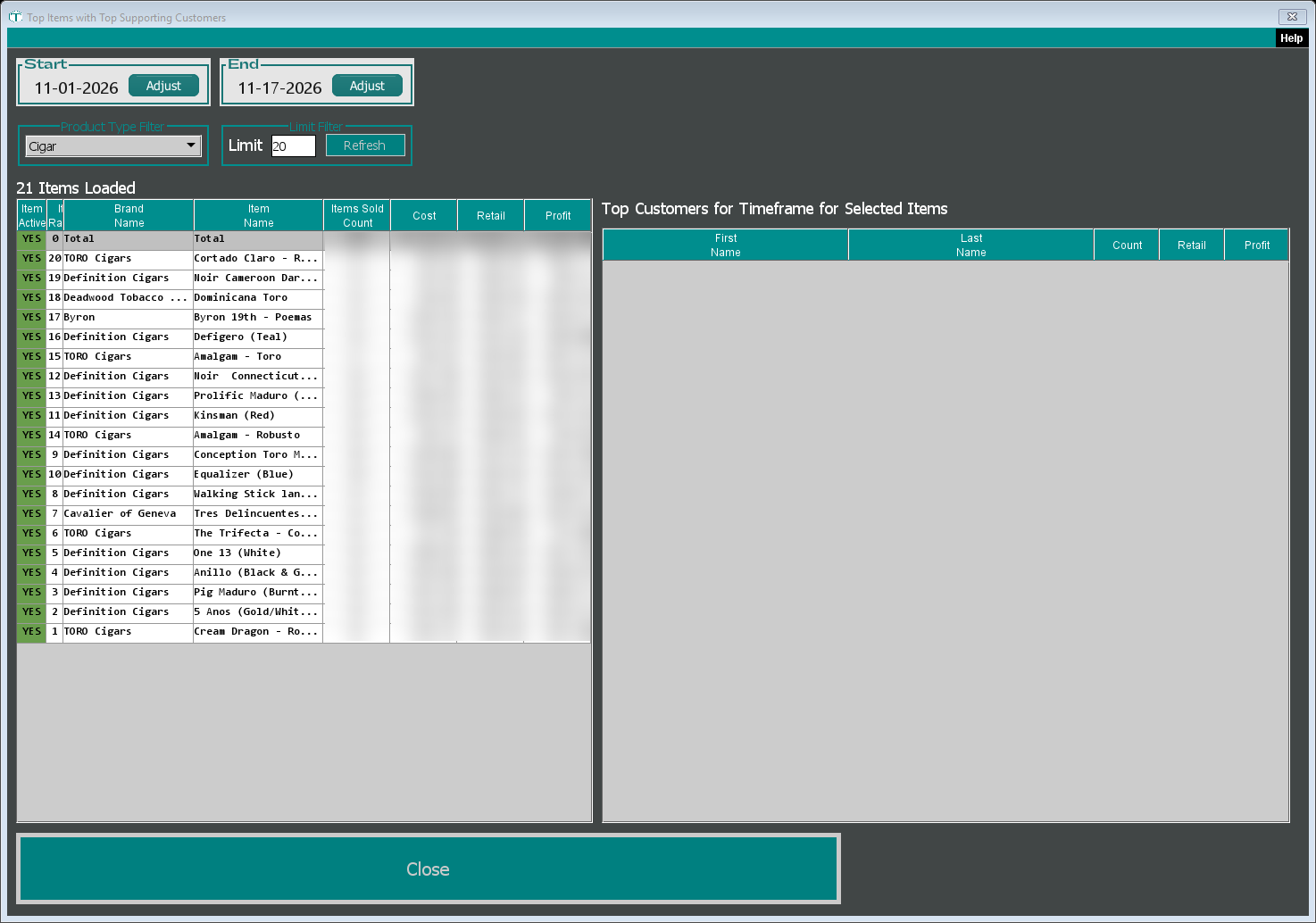
It opens on the current month, or on last month if it's the first six days of the month. Pick a Product Type Filter (it starts on your default product type), and set the Limit for how many items to rank (20 to start), then click Refresh. The first row is the Total.
The items table shows each item's ranking, brand, name, Items Sold Count, Cost, Retail and Profit.
Click an item, or hold Ctrl and click several, and Top Customers for Timeframe for Selected Items fills in with who bought them: First Name, Last Name, Count, Retail and Profit. That's your list of people to call when a new box of their favourite arrives.
Right-click for more:
- On an item, View Sales For Item lists every sale of that item in the date range
- On a customer, View Sales For Account lists that customer's sales in the date range