Credit Card Settings: Minimum and Protections
The Setup Credit Cards window is where you set a credit card minimum (the smallest amount a customer can put on a card), and where two safety switches live: Duplicate Charge Protection, which stops a customer being charged twice when a card reader hangs, and the check that warns you about expired or expiring cards on file. This guide explains each one and when you'd change it.
Where to find it: on the main screen, tap Admin in the side bar, then Dashboard, then the TORO Configuration tab, then Set Up System, then the Setup tab, then Set Up Credit Cards.
Connecting a card terminal is not done in this window. See Setting Up a Credit Card Terminal.
Opening the window
- Go to the main screen of TORO.
- On the side bar, select the Admin menu item.
- Select the Dashboard menu item. (Need help with this part?)
- On the side bar of the Dashboard, select TORO Configuration.
- Select the Set Up System tile. (Need help with this part?)
- On the side bar of the Setup window, select the Setup tab.
- Select the Set Up Credit Cards tile.
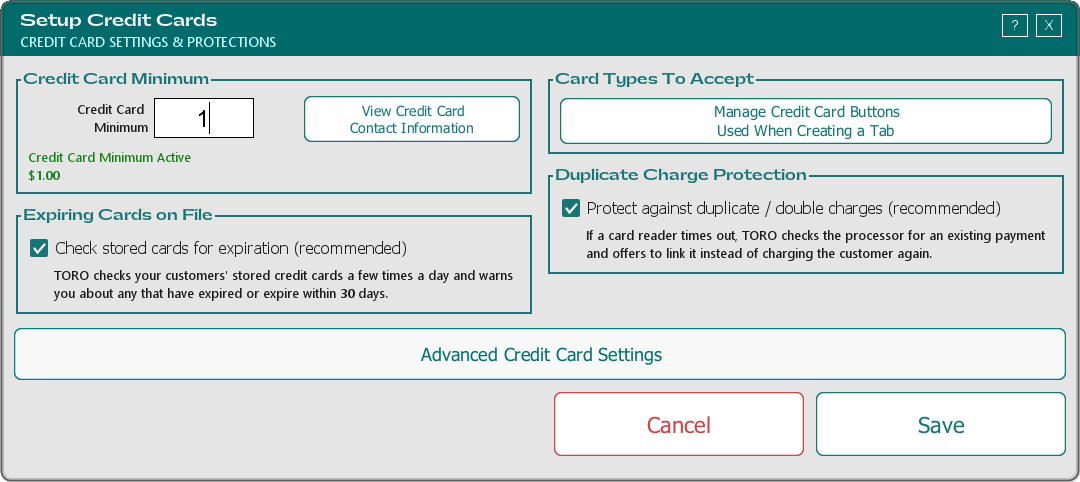
You should now see a window called Setup Credit Cards (Credit card settings & protections).
Setting or changing the credit card minimum
- In the Credit Card Minimum box, tap the box next to Credit Card Minimum.
- Type your minimum as a whole dollar amount, for example
10(not10.00). To have no minimum, delete what's there and leave it blank. - Check the line under the box. It turns green and says Credit Card Minimum Active with the amount (for example $10.00), or red No Credit Card Minimum Applied when it's blank.
- Select Save.
What it does at the register: when a cashier puts less than the minimum on a card, TORO says "Sorry, we have a $10.00 minimum for credit card transactions. Access Override?" Someone whose access level allows overriding the credit card minimum can OK it with their PIN, and the payment goes on. A payment of exactly the minimum is allowed. The check is on the amount going on the card, so on a split payment it's the card part that counts. Typing 0 works the same as leaving it blank: any amount can go on a card.
Pick a minimum if small card swipes cost you in fees and you'd rather steer tiny sales to cash (a $5 or $10 floor is common). Leave it blank if you're happy taking a card for any amount.
Duplicate Charge Protection
Protect against duplicate / double charges (recommended) — on by default. Leave this on. If your card reader hangs or times out in the middle of a payment, TORO checks the processor for a payment that already went through and offers to link it to the sale instead of charging the customer again.
There's almost never a reason to turn it off. If you think a customer was charged twice anyway, see Find & Fix Duplicate Charges.
Expiring Cards on File
Check stored cards for expiration (recommended) — on by default. Leave this on. TORO checks your customers' saved credit cards a few times a day and warns you about any that have already expired or expire within 30 days, so a card on file doesn't fail the first time you try to run it.
When it finds some, TORO shows Payment Methods need attention! with how many cards are expired or expiring. To see them:
- Go to the main screen of TORO.
- On the side bar, select the Admin menu item.
- Select the Dashboard menu item.
- On the side bar of the Dashboard, select Customers.
- Select the Expiring Cards on File tile.
More on what to do from there is in Cards on File and Recurring Billing.
These two tick boxes save the moment you tap them, even if you then press Cancel. The Save button is for the credit card minimum (and the fee pass-through settings, if your store has them).
The other buttons in this window
- View Credit Card Contact Information — opens Credit Card Contact Information, with your card processor's details (merchant ID, website, and similar). You'd mostly open it when TORO support asks you to.
- Advanced Credit Card Settings — the deeper card processor and terminal settings. Only Admins and TORO support can open it; anyone else sees "Only Admin Users and Support can access this window." Leave it alone unless TORO support asks you to change something.
- Credit Card Fee Pass-Through — this box only appears once fee pass-through has been switched on for your store. To get it, message TORO support in your store's WhatsApp group and complete the short application with them. Until then you won't see it, and that's normal. How to set the rate, the receipt wording and customer exemptions is in Credit Card Fee Pass-Through.
Saving
Select Save to store your changes and close the window, or Cancel to close without saving the minimum (or fee pass-through) changes.
Something not working the way you expect? Message TORO support in your store's WhatsApp group.