When TORO Says "You Need an OK for This"
Some things in TORO are kept for managers and owners, like changing inventory counts or voiding a big sale. If you tap one of them and your login isn't allowed to do it, TORO doesn't just say no. It opens a window called You need an OK for this with a few simple ways to keep going.
Nothing is lost when this window opens. Your sale is still there, right where you left it.
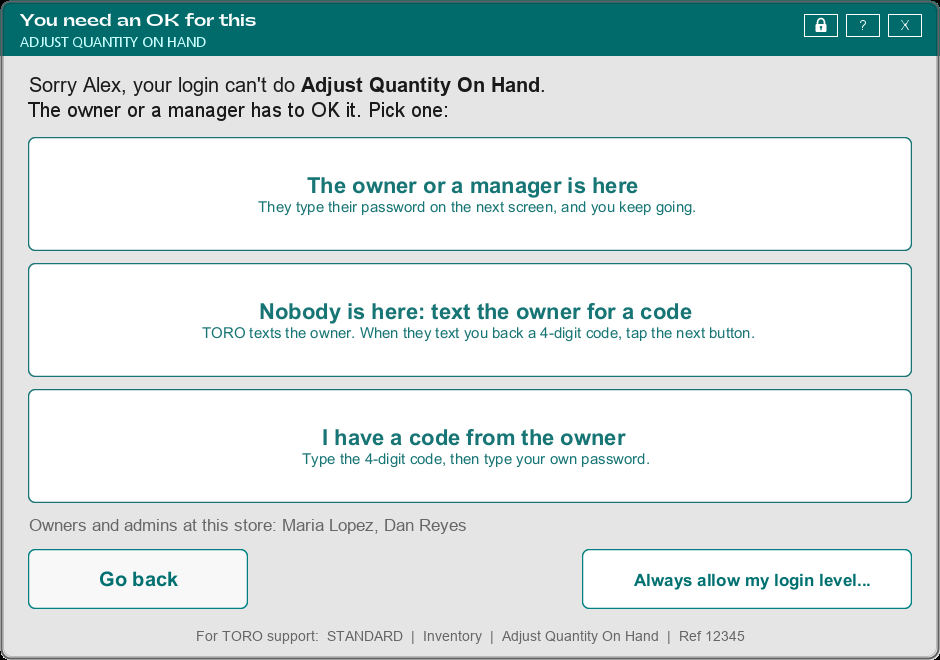
The top line tells you what you tried to do. Under the buttons, TORO lists the owners and admins at your store, so you know who to ask.
The Owner or a Manager Is Here
This is the quickest way. Tap The owner or a manager is here, and the login keypad opens. Hand it to them. They type their own 4-digit password, and you go right on with what you were doing.
It works for just this one time. Their password isn't saved, and next time you'll see this window again.
Nobody Is Here: Text the Owner for a Code
When you're on your own, tap Nobody is here: text the owner for a code. A short form opens:
- Type your own 4-digit password (so the owner knows who's asking).
- Type why you need it, like "customer wants to return a box". The owner sees this.
- Tap Send.
TORO texts the owners and admins a 4-digit code and shows you who it went to. When one of them sends or tells you that code, go on to the next part.
Some employees are set up to get their code right away on the receipt printer. If that's you, TORO says so after you tap Send, and the code prints right away.
I Have a Code From the Owner
Tap I have a code from the owner and the login keypad opens:
- Type the 4-digit code the owner sent you.
- TORO says Code accepted! Now type your own 4-digit password.
That's it, you're through. A few things to know about these codes:
- Each code works once, for the task you asked about, and only for the person who asked for it.
- A code runs out after 3 days if nobody uses it.
- The owner gets a message every time a code is used.
Always Allow My Login Level
The small Always allow my login level... button is for when this is something you'll need to do all the time. Maybe you were just put in charge of receiving, for example.
Saying yes here lets everyone with your login level do this task from now on, not just you. That's why only the owner or an admin can approve it. The window spells this out and lists who can say yes.
You get two choices:
- The owner or an admin is here. They type their password, and it's done.
- Nobody is here: text them a request. Type why you need it. TORO texts the owners and admins a code (a word and a number, like CIGAR-829). If they read it to you, tap I have the code and type it in.
Got the code later? Tap the same thing again, then Always allow my login level..., then Nobody is here. TORO remembers you already asked and gives you an I have the code button. You can also send a reminder from there.
If TORO says nobody is set up to get these texts, the owner needs to turn on Access Request texts in TORO Messages first.
Go Back
Changed your mind? Tap Go back. You'll be right back where you were. TORO lets the owner know someone tried, so they can decide whether your login level should have it.
Two Kinds of Codes
You might notice the codes look different. A code for just this once is 4 digits, like 4817. A code for always allow is a word and a number, like CIGAR-829. Type whichever one the owner sends you, in the place that asked for it.
For the Owner
At the bottom of the window, in small print, are the details TORO support may ask for: the login level, the area, the task name, and a reference number.
To change what each login level can do ahead of time, or to approve requests that are waiting, see Access Levels and Permissions.