Working with Gift Cards
Gift cards are one of the easiest ways to bring new customers through your door. Someone buys one for a friend, that friend walks in, browses your humidor, and suddenly you've got a new regular. TORO supports two types: Gift Cards (physical barcode cards) and Virtual Gift Cards (account-based store credit). Both work great — they just differ in how the customer presents them.
Gift Cards — Physical Cards
TORO Gift Cards are proprietary physical cards with a barcode. The customer hands you the card, you scan it, and the system handles the rest.
Selling one:
Start a transaction.
Search for Gift Card and add it to the transaction.
TORO will prompt you to scan a gift card — scan the barcode on the physical card.
Enter the dollar amount the buyer wants to load.
Add a payment and process the transaction like any other sale.
Redeeming one:
When the customer is ready to pay, select Gift Card as the payment method.
Scan the barcode on the physical card.
TORO shows the remaining balance so there are no surprises.
The purchase amount gets deducted, and whatever's left stays on the card for next time.
Virtual Gift Cards — Account-Based
Virtual Gift Cards are store credit tied directly to a customer's account via their phone number. There's no physical card — the balance lives electronically on their profile. When the customer is attached to a transaction, the employee can see their balance and apply it as payment right from the payment screen.
Selling one:
Start a transaction and attach the customer's account.
Add the Virtual Gift Card item to the transaction.
Enter the dollar amount to load.
Process payment — the credit is immediately available on the customer's account.
Redeeming one:
At payment, the Virtual Gift Card button shows the customer's balance.
Tap it to apply the balance toward the purchase.
If the balance doesn't cover the full amount, collect the rest via another payment method.
For the full deep dive — managing all VGC balances, handling negative accounts, notification settings, and more — see Managing Virtual Gift Cards.
Checking Balances
Customers will ask "how much is left on this?" — here's how to check.
For Gift Cards, go to the Customer menu on the main screen and click Find Gift Card. Scan the card — or type the number in — and you'll see the balance right away.
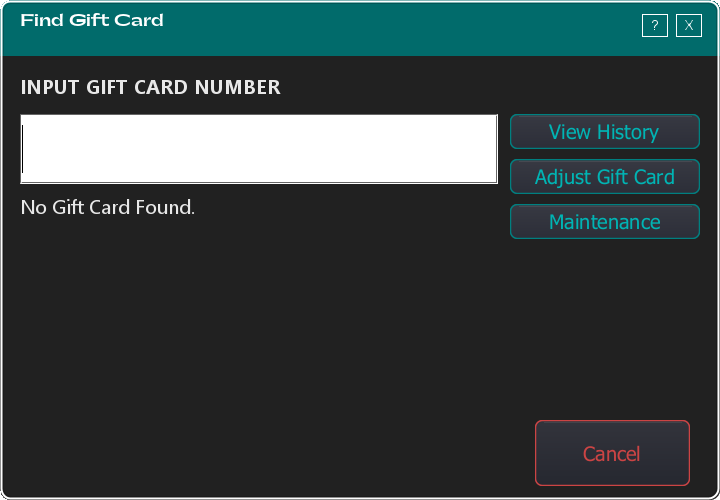
You don't need a special "swipe" step. Scanning or swiping a card types straight into the number box, and TORO cleans up whatever the reader sends.
For Virtual Gift Cards, go to the Customer menu on the main screen and click Find Account. Find the right account, then click View Account — the Virtual Gift Card balance is in the bottom left.
Seeing Where the Money Went
A balance tells you what's left. When a customer says "that can't be right, I've barely used it," you want the whole story — and that's what View History gives you.
Find the card (Customer → Find Gift Card), then click View History.
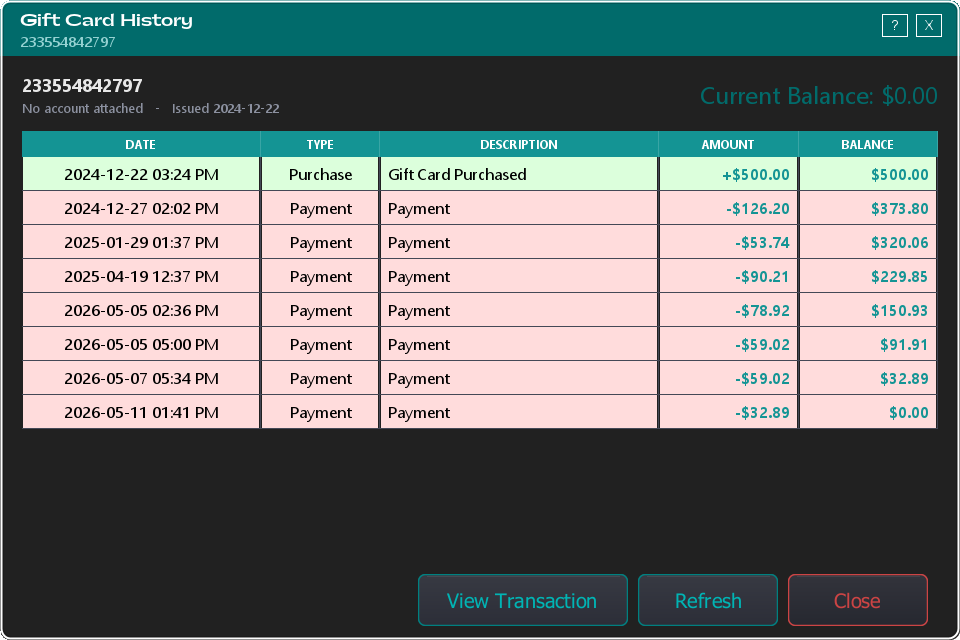
The history starts with the day the card was sold and the amount it was loaded with, then lists every purchase that drew off it, oldest first. The Balance column shows what was left after each one, so you can follow the money straight down the page to today's balance. Purchases are shaded green, payments red.
To see the actual sale behind any line, highlight the row and click View Transaction (or just double-click the row). That opens the full receipt — what was bought, by whom, and at which register.
A few things you'll run into:
- "Gift Card Issued" with no transaction. Cards brought over from an older system were loaded directly rather than sold at the register, so there's no sale to open. The starting amount is still correct.
- The last balance always matches the card. The history is built from the same records TORO uses to work out the balance, so the bottom row and the card's current value can never disagree.
- Voided sales disappear. If a sale that used the card was voided, the money went back on the card and that line drops out of the history.
Adjusting a Card
Managers can open a card's record with Adjust Gift Card on the same screen.
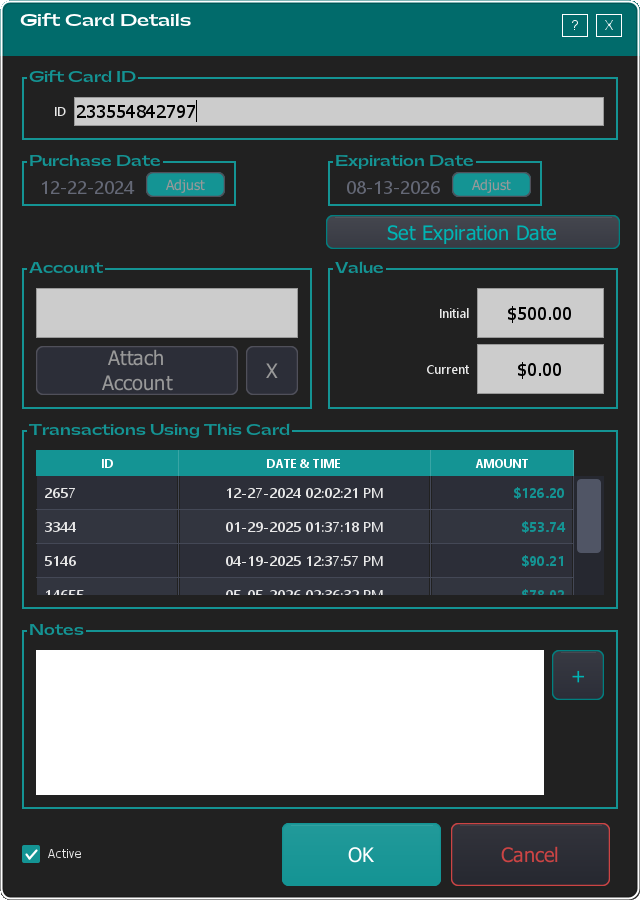
From here you can set or remove an expiration date, attach the card to a customer's account, add a note, and mark the card Active or inactive. Turning a card off asks you for a reason and writes it into the card's notes, so there's always a record of who did what and why. The card number and the dollar values are shown but can't be typed over — those come from the sale itself.
Below that, Transactions Using This Card lists the sales the card has paid for. For the full picture including the original purchase and a running balance, use View History instead.
Looking Across All Your Gift Cards
Everything above works on one card at a time. When the question is bigger than that — how much do we still owe on gift cards?, or the customer lost the card and only knows their phone number — use the Maintenance button on the Find Gift Card screen. It opens the Gift Card Lookup Tool.
Click Load All Gift Cards to pull the list, and TORO tells you how many it found. The Search Filter narrows it by Gift Card ID or Phone Number, and Find Account looks the customer up by account — which is how you find a card when the physical card is long gone.
Four checkboxes control what's counted: Active Only, Inactive Only, Ignore expired, and Ignore zero balance. That last pair matters more than it looks — a shop that's been running gift cards for years accumulates a lot of spent and expired cards, and leaving them in makes the list unreadable.
At the bottom sits the number most owners are actually after: Unspent Gift Card Total. That's money customers have already paid you and haven't collected on yet — a real liability, and worth knowing before you count a strong gift-card month as profit. Because the filters feed the total, ticking Ignore expired shows what you'd still expect to honour rather than everything ever sold.
Selecting a card and clicking View History opens the same history window described above, and picking a card here hands it back to the Find Gift Card screen so you can go straight on to adjusting it.
Things Worth Knowing
Gift Cards vs. Virtual Gift Cards — what's actually different? Gift Cards are physical barcode cards the customer hands you. Virtual Gift Cards are electronic store credit tied to the customer's account via their phone number. Both carry balances across multiple transactions, and both work the same way from an accounting perspective.
Gift Cards don't expire unless you set them to. In Set Up System, open Set Up Gift Cards and leave the years to expire field blank — gift cards then never expire, which is best for the many states that don't allow expiration. Enter a number of years only if you want an expiration policy. On an individual card, a manager can also use the No Expiration toggle in the card's editor to remove or set an expiration date.
You can issue a refund onto a Gift Card instead of giving cash back. It's a clean way to handle returns when you'd rather keep the money in-store as credit.
Already have your own gift cards? You don't have to switch to TORO card stock. If your shop already prints its own cards, send us a few sample numbers and we'll set TORO up to recognise them — several shops already run this way. Until that's done, scanning one of your cards when selling a gift card simply won't do anything, which is the usual sign it hasn't been set up yet. Redeeming is never affected. If you'd rather have TORO cards printed with your own logo, you can design and order them yourself: see Ordering Custom Gift Cards.
"This Gift Card has never been activated" means TORO recognises the card but no one ever rang up a sale for it — it's a blank card, not a lost balance. Sell it like any other gift card and it'll carry a balance from then on.
Gift Card and Virtual Gift Card sales are tracked separately in your reports. This matters for accounting because they represent deferred revenue — the money came in, but the goods haven't been delivered yet. Your reports will reflect this correctly.
TORO can also notify employees at the payment screen when a customer has a Virtual Gift Card balance above a configurable threshold. See Virtual Gift Card Notifications for details on setting that up.