TORO Customer Portal
The TORO Customer Portal is your owner-facing home base on the web — a single site at portal.torocigarpos.com where you can look over your billing history, review proposals from the TORO team, and submit ideas to the Think Tank. None of it requires opening the POS.
The fastest way to get someone in is to build their account right inside TORO. You set the username, email and password at the register, and they can sign in on their phone thirty seconds later. Two minutes, start to finish.
Quick Start — create the account in TORO
1. Open the TORO Portal screen
On the Dashboard, look at the bar along the very bottom. The first button on the left is TORO Portal. Click it.
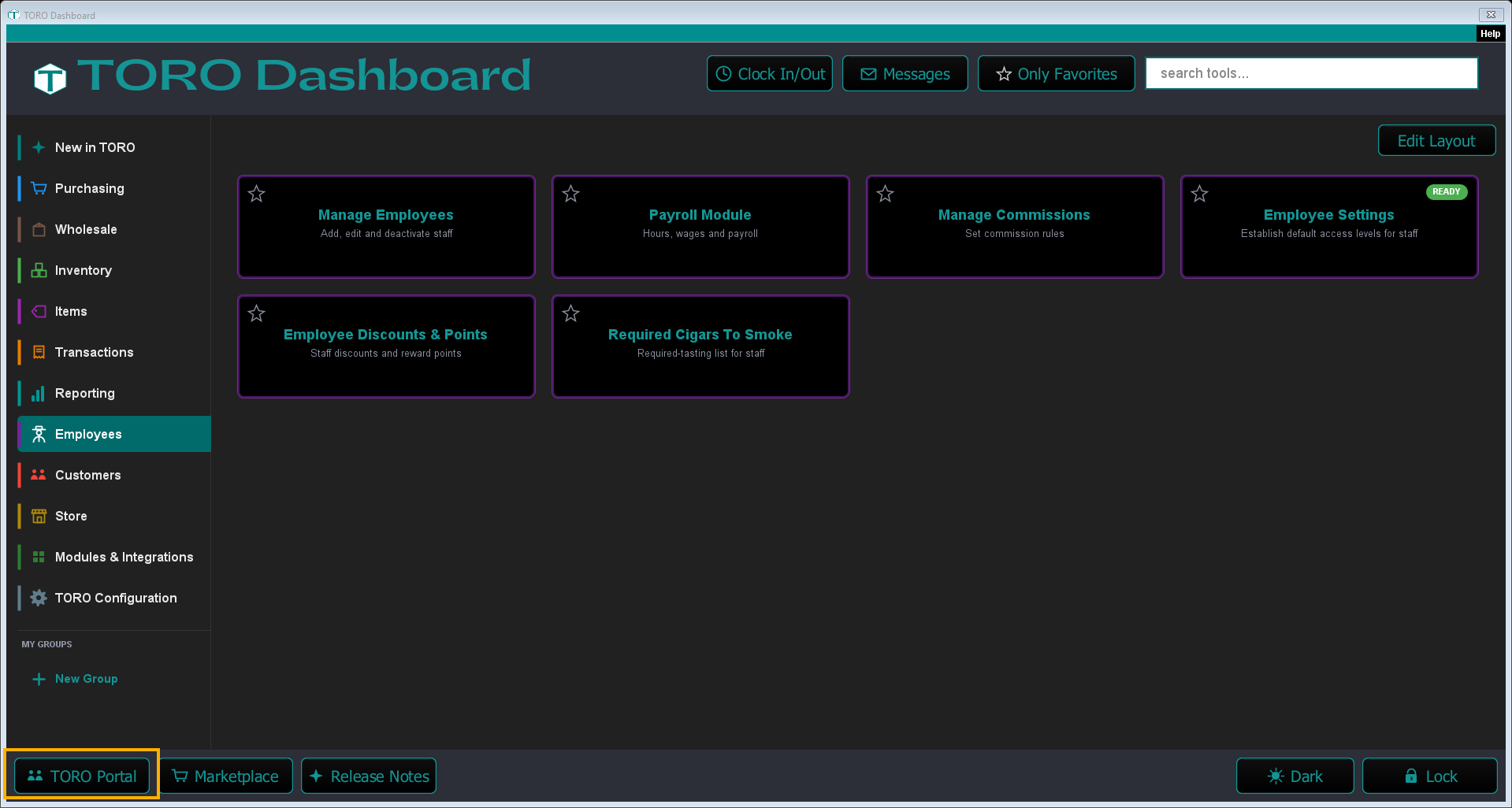
That opens TORO USER ACCESS — every TORO account attached to your store, one row each.
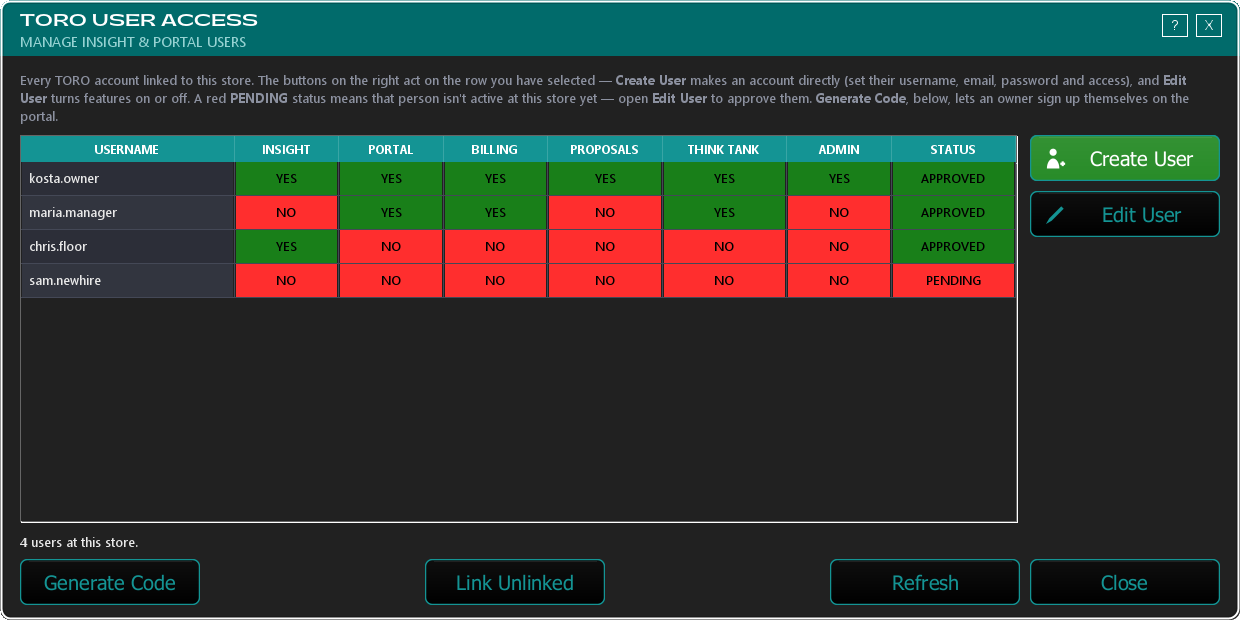
This screen is admin-only. Only admin users can open it, because it changes other people's access. If TORO asks for an approval when you click the button, an admin can approve it for you. Anyone else can set up their own login with SETUP SECURITY CODE ACCESS on their employee profile's Account Information screen.
2. Click Create User
Create User is the green button at the top of the strip on the right-hand side.
TORO first asks which employee the account is for. Only employees who don't already have a TORO account show up in that list — every person gets exactly one account, so nobody ends up with two logins.
3. Fill in the username, email and password
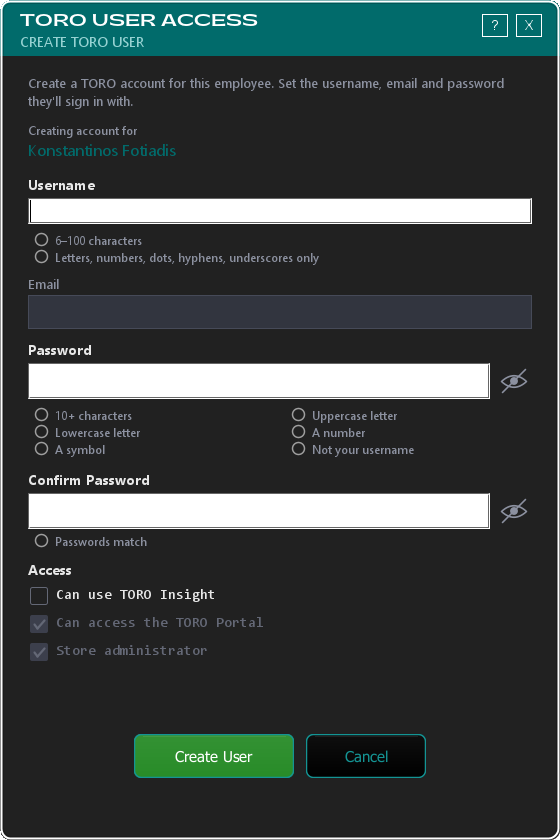
The employee's name sits at the top so you can be sure you're setting up the right person. Under each box is a live checklist that turns green as you type — when everything is green, the account will be accepted.
- Username — 6 to 100 characters. Letters, numbers, dots, hyphens and underscores only.
- Email — where password-reset links get sent. Use a real one they can actually open.
- Password — at least 10 characters, with an uppercase letter, a lowercase letter, a number and a symbol, and it can't be the same as the username. The little eye on the right shows what you typed if you want to read it back to them.
4. Set what they can see
The Access section at the bottom:
- Can access the TORO Portal — the main switch. For an employee who's an admin in TORO, this is ticked and locked on; they get the whole portal. For everyone else it starts unticked; tick it to give them the portal.
- Store administrator — this simply mirrors their POS access level, so it isn't editable here. Change it on the employee's profile in Manage Employees and it follows.
- Can use TORO Insight — ticked gives them the full Insight dashboard. Left unticked, they still get your store's security code in Insight, which is free.
An account needs Insight, the Portal, or both. If you leave Can use TORO Insight unticked, tick Can access the TORO Portal, or TORO says "Turn on Insight, Portal, or both — an account needs at least one." To give someone the security code alone, have them use SETUP SECURITY CODE ACCESS on their own Account Information screen instead.
Click Create User. That's it — they can sign in at portal.torocigarpos.com right now with the username and password you just set.
Reading the screen
Each row is one person's TORO account, and the coloured columns tell you at a glance what they can reach. Green means yes, red means no.
- Insight — can they open TORO Insight.
- Portal — the portal master switch.
- Billing, Proposals, Think Tank — the three things inside the portal.
- Admin — whether they're a store administrator. This follows their POS access level.
- Status — whether their access to this store is live. Green APPROVED is the normal state.
The one to watch is Status. A red PENDING means that person isn't switched on at your store at all — see below.
Already have a portal account? Use a pairing code
Pairing codes solve one specific problem: the person already made an account on the website, or you'd rather they pick their own password instead of you typing one in. A code links that existing signup to your store instead of creating something new.
- On the TORO USER ACCESS screen, click Generate Code (bottom-left).
- Pick the employee the code is for.
- Click the big green Generate Pairing Code button.
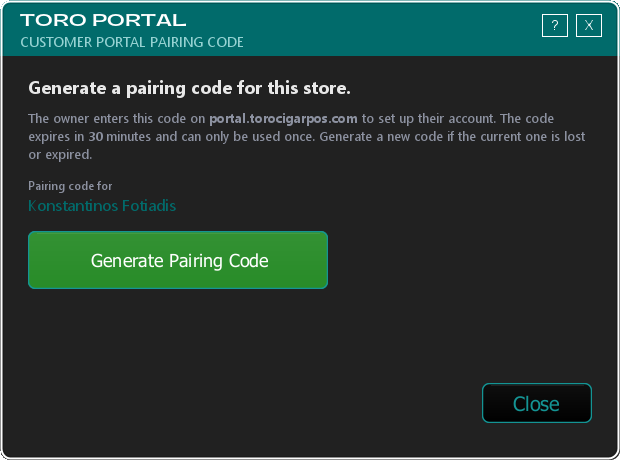
An 8-character code appears in large type, formatted like ABCD-EFGH, with a countdown ticking beside it. Click Copy to Clipboard, or just read it off the screen — the dash in the middle is only there to make it easier on the eyes.
The owner enters it on portal.torocigarpos.com and finishes setup on their own time. Redeeming it turns on all four portal features at once; trim them afterward with Edit User if you want to.
Three things worth knowing:
Codes are single-use. Once it's redeemed, it's dead.
Codes expire in 30 minutes. That's on purpose — a code written on a sticky note is only dangerous for half an hour. If it lapses, click Regenerate and hand over a fresh one.
Nothing happens at your end until they redeem it. Their account appears in the list the next time you open the TORO User Access screen.
Someone signed up on the web without a code
If an account was created on the portal (or by TORO support) with no employee attached to it, click Link Unlinked along the bottom. You'll see those loose accounts and can match each one to the right POS employee yourself. TORO never guesses.
Changing what someone can see
Select a person in the list and click Edit User on the right — or just double-click their row.
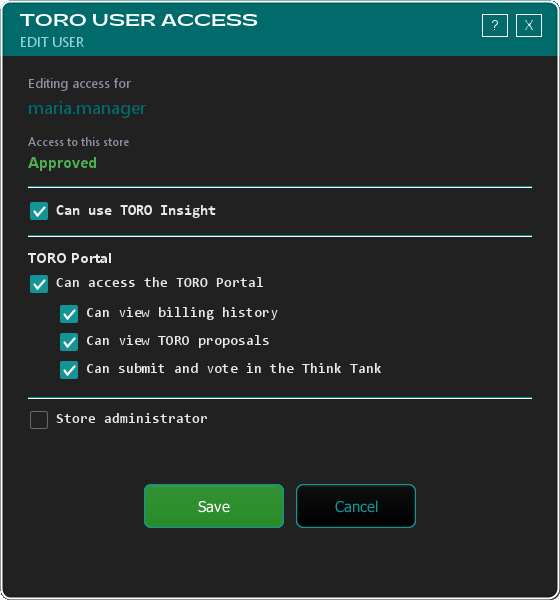
Their status sits at the top, then the switches:
- TORO Insight — choose None, Security code only (free) or Full dashboard (billed per user on paid plans).
- Can access the TORO Portal — the portal master switch. The three settings indented underneath it move with it: switch it off and they all switch off, switch it back on and they all come back on.
- Can view billing history — invoices and payment history.
- Can view TORO proposals — proposals the TORO team has sent (new modules, integrations, custom work) with the ability to accept or decline.
- Can submit and vote in the Think Tank — suggest features and vote on what other shops have asked for.
- Store administrator — shown here as Yes or No, not editable. It follows the employee's POS access level; change it on the employee's profile in Manage Employees.
Editing another administrator
If you're an administrator and you open Edit User on another administrator, some of the controls are locked and a note appears under their name:
[their username] is an admin. Only the store owner can reduce another admin's access.
You can still raise what they can see, but you can't take anything away. Any Insight level lower than the one they have now is locked, so Full dashboard stays available while None and Security code only are greyed out. Every portal switch that's already on — Can access the TORO Portal, Can view billing history, Can view TORO proposals, Can submit and vote in the Think Tank — is held on. Anything that's off can still be switched on.
This only applies to one administrator editing another. Nothing is locked when:
- the store owner edits an administrator — the owner can change anything;
- an administrator edits their own account;
- an administrator edits someone who isn't an administrator.
So an admin can always give a colleague more access, and can always manage ordinary staff. Removing another admin's access is the owner's call alone — which means one administrator can't quietly lock another one out.
Click Save. Nothing is sent until you do, so Cancel always backs out safely.
You can hand someone the portal from this window even if they've never had it, as long as their status is Approved — no pairing code needed. Codes are only for creating a brand-new account.
Approving someone
If a row shows a Status of pending, that account isn't active at this store yet. They can sign in, but they won't see your store in TORO Insight or the TORO Customer Portal until someone approves them. Pending isn't a halfway state — it's off everywhere, no matter what the other columns say.
Open Edit User on that person and click the green Approve User button at the top.
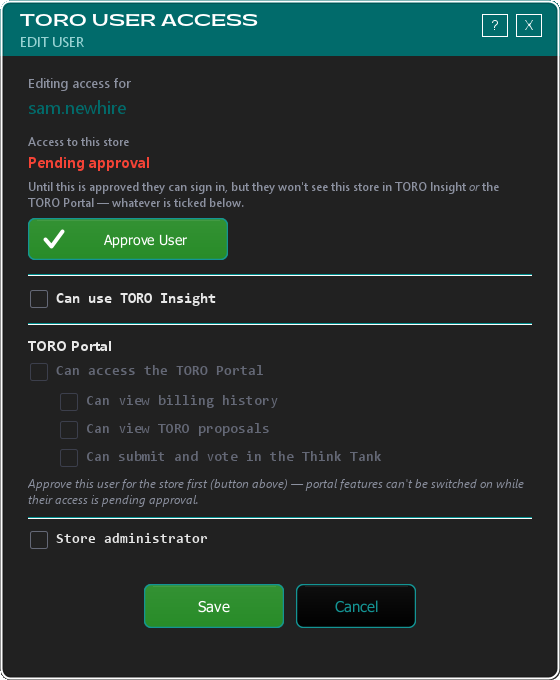
Notice the portal switches are greyed out until then. That's deliberate — there's no point turning features on for someone who can't get in yet. Approve them first, then tick what they need.
A pairing code does the same job in one step, if that's easier: redeeming one approves them and switches portal access on.
You won't see this often. Anyone you create from the POS is approved the moment you make them, and owners never sit pending. It shows up for someone who signed up on the web on their own, or for staff joining a store that already has an owner.
Cutting someone off
Employee left? Open Edit User and untick Can access the TORO Portal. TORO will tell you exactly what's about to happen:
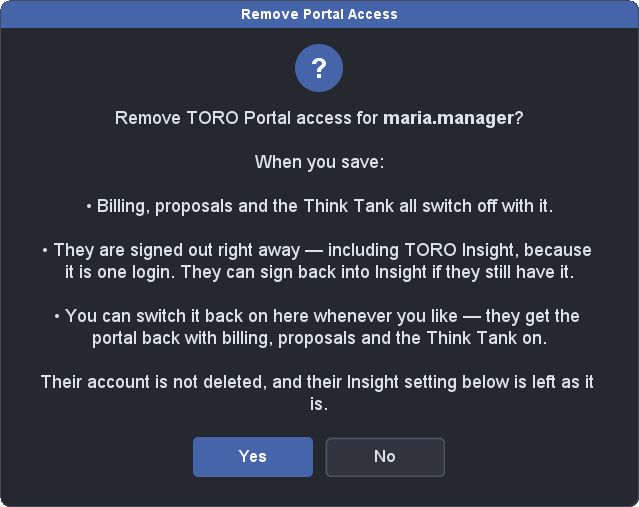
Say Yes, then click Save. Three things happen:
- Billing, proposals and the Think Tank switch off with it.
- They're signed out immediately. That includes TORO Insight, because it's the same login — if they still have Insight, they can sign straight back into that.
- Their account isn't deleted, and their Insight setting is left exactly as it was.
If you change your mind, tick the box again and save. They get the portal back with all three features on — no pairing code, no phone call to us.
To reduce Insight instead, choose Security code only or None. Lowering it signs them out immediately (TORO asks first), and you can raise it again here whenever you like.
What's inside the portal
Once someone's signed in at portal.torocigarpos.com, what they see depends on the switches above:
- Billing — invoice history, payment status, and downloadable statements.
- Proposals — custom-work and new-module proposals from the TORO team. Read them, ask questions, accept or decline.
- Think Tank — submit feature ideas and vote on what other shops have suggested. The most-requested ideas rise to the top of TORO's roadmap.
- TORO Issues — problems you've reported and where each one stands. Covered below.
More is coming, and the access switches already cover it — nothing extra to set up later.
Reporting a problem from the portal
You don't have to use WhatsApp to report something. There's a TORO Issues tile on the dashboard and a link in the navigation on every page — both show a count, and both turn amber when something is waiting on you.
The page has three parts.
Report a problem opens a short form:
- What's this about? — pick Credit Card (terminals, deposits, your merchant account) or TORO (the POS, reports, hardware — anything else). This decides which team it goes to, so it's worth a moment's thought — but if you pick wrong, say so in the thread afterward and TORO will move it.
- What's wrong? — one line, like "Receipt printer stopped working this morning."
- A longer optional box for the details that actually save time: when it started, what you've already tried, which register it's on.
When it goes through you'll see "Reported. We'll come back to you here." If it doesn't, you'll get "Couldn't send that just now. Try again in a moment, or message us on WhatsApp." — that's a real fallback, not a brush-off. Your WhatsApp group works exactly as well.
Waiting on you appears only when something needs your answer. It carries the same "We think this one's sorted. Is it?" panel as the issue page, so you can confirm a fix without opening anything.
Open lists everything still being worked. When there's nothing, it reads "Nothing open. If something goes wrong, report it above."
One thing worth knowing: the list is sorted by what's owed, not by date. Anything waiting on your confirmation sits at the top, so the row that needs a click never gets buried under newer ones.
For what happens after you report something — the statuses, the conversation thread, and confirming a fix — see Following an Issue You Reported.
Troubleshooting
The employee I want isn't in the picker. They already have a TORO account. Find them in the main list and use Edit User instead.
"That username is already taken. Choose a different username." TORO logins are shared across every store, not just yours, so common names go early. Add a store initial or a number.
"A TORO account already uses [email]." That email address is already attached to a TORO account. Either use a different address, or find the existing account in the list and edit it instead of making a second one.
They forgot their portal password. Open their employee record (Manage Employees → the employee), click SETUP SECURITY CODE ACCESS, then Reset Password, and type a new one for them. Nothing gets deleted and they keep the same username. Resetting needs the Reset Insight Password permission — if your access level doesn't have it, TORO asks for an override — and confirm who you're talking to before you reset anything.
The code expired before they used it. Generate a new one — codes are meant to be cheap and disposable.
They say the code didn't work. Almost always a typo. The dash is decoration, but every letter and number matters. Use Copy to Clipboard and paste it to them instead of reading it aloud.
TORO says "Only admin users can manage TORO Portal and Insight users." TORO User Access is admin-only. An admin can approve it for you when you click, or you can set up your own login with SETUP SECURITY CODE ACCESS on your employee profile.