Pop-Up Reminders for Your Staff (Notifications)
Want TORO to remind your staff to check the bathrooms every hour, empty the ashtrays, or take the trash out at close on Thursdays? That's what Notifications are: little pop-up reminders that appear on the register for your employees during the day. Each time someone answers one, TORO writes down who answered, when, and what they tapped, so you can see the jobs got done. Notifications are separate from your printed open and close checklist.
Where to find it: on the main screen, tap Admin in the side bar, then Dashboard, then TORO Configuration, then Set Up System, then the Employee Tasks tab, then Manage Notifications. The steps below walk you through it.
Opening the Notifications Window
- Go to the main screen of TORO.
- On the side bar, select the Admin menu item.
- Select the Dashboard menu item.
- On the side bar of the Dashboard, select TORO Configuration.
- Select the Set Up System tile. (Need help with this part?)
- On the side bar of the Setup window, select the Employee Tasks tab.
- Select the Manage Notifications tile.
You should now see a window called Notifications. It lists your reminders, with each one's name, type, days, timer and message.
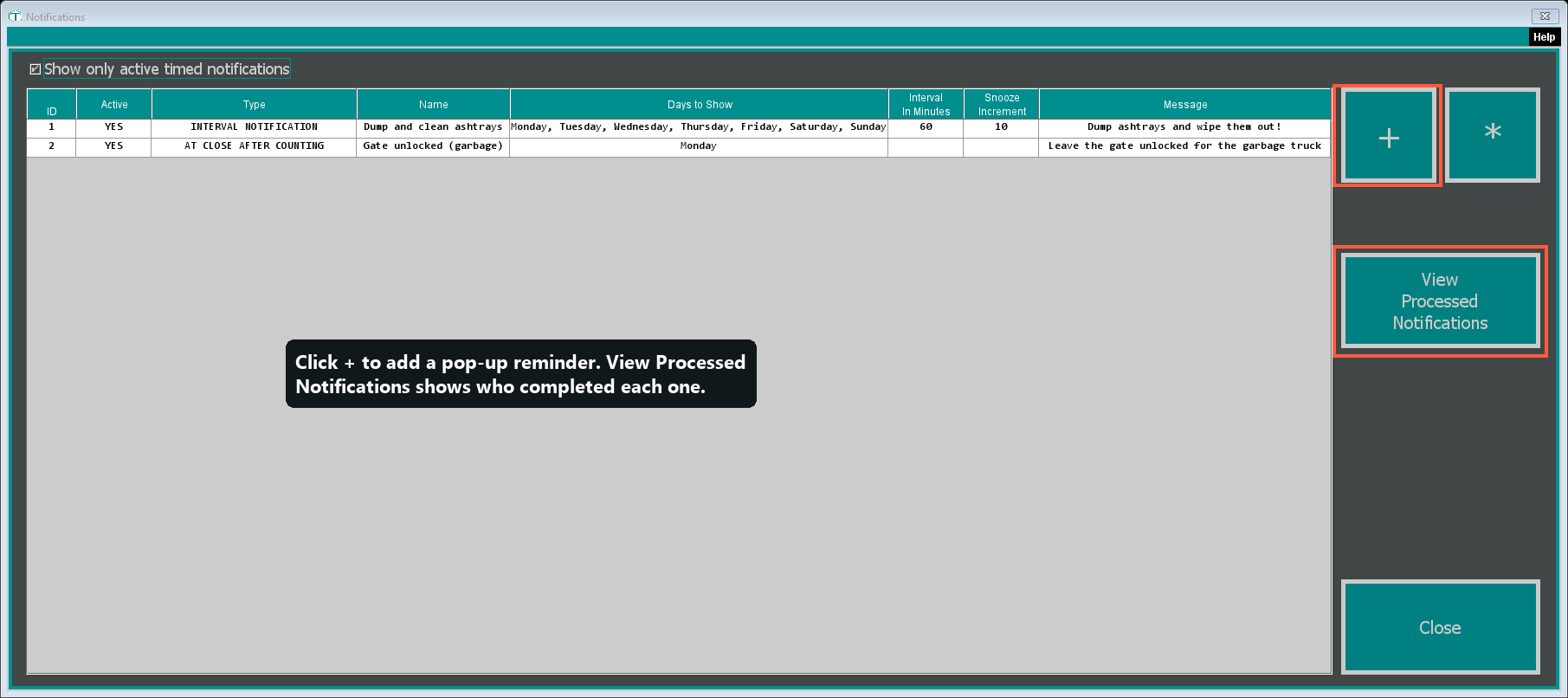
Adding a Reminder
- In the Notifications window, select the + button.
You should now see the notification editor, also called Notifications.
Select the Name box and type a short label just for you, for example Check bathrooms. It needs 5 to 100 characters.
Select the Message box and type the words your staff will see, for example Wipe the lounge tables and empty the ashtrays. Be specific. It needs 5 to 400 characters.
Choose when it pops up (see When a Reminder Pops Up below).
Under Days to Show Message, check each day it should appear. Every day? Check all seven. Trash goes out on Thursday? Check just Thursday. Once a day, not every hour? A Timed notification repeats all day. For a job done once on a day (water the plants on Friday), pick At Open of Business After Counting Cash Drawer (or an At Close choice) in step 4, and check only that day in step 5.
To see exactly how it will look, select Test Message. Close the preview with either button.
Select OK.
Active Notification is already checked for a new reminder. Leave it checked.
When a Reminder Pops Up
Pick one of these in the editor:
- Timed notification (picked for a new reminder): pops up again and again through the day, on a timer. Pick it for jobs that repeat, like check the ashtrays every hour. Two boxes set the timer:
- Remind every [ ] minutes. (starts at 60): how long between reminders.
- Snooze for [ ] minutes. (starts at 5): how long TORO waits before asking again when someone taps Snooze.
- At Open of Business Before Counting Cash Drawer or At Open of Business After Counting Cash Drawer: pops up once when the drawer is opened for the day, before or after the count.
- At Close of Business Before Counting Cash Drawer or At Close of Business After Counting Cash Drawer: pops up once when the drawer is closed for the day, before or after the count.
- At Open & Close of Business Before Counting Cash Drawer or At Open & Close of Business After Counting Cash Drawer: pops up at both.
For the open and close choices, the Remind every and Snooze for boxes grey out. That's expected: those reminders aren't on a timer.
Good to know about timed reminders:
- They pop up on your main register, when the main screen is showing. If another window is open when one comes due, it pops up as soon as you're back on the main screen.
- The timer counts from when TORO was started on the main register. A new or changed timed reminder starts working the next time TORO is started there.
What Your Staff See
The reminder pops up in a window called Notification, with your message and two buttons:
- A timed reminder has Snooze and OK. OK means done, and the next reminder comes after the Remind every time. Snooze brings it back after the Snooze for time.
- An open or close reminder has Ignore and OK.
After tapping a button, the employee enters their PIN. TORO then shows "Notification Processed" with the reminder's name, what they tapped, their name and the time. That's the record you can look back at.
Changing, Pausing or Stopping a Reminder
- Open the Notifications window (see the steps at the top of this guide).
- Tap the reminder in the list.
- Select the * button (or double-tap the reminder).
- Make your changes. To pause or stop the reminder without deleting it, uncheck Active Notification.
- Select OK.
A reminder you made inactive disappears from the list. That's because Show only active timed notifications at the top is checked. Uncheck it to see every reminder, including the inactive ones, and switch one back on.
Checking Who Answered (View Processed Notifications)
- Open the Notifications window.
- To see one reminder's history, tap it in the list first. To see every reminder, don't tap any.
- Select View Processed Notifications.
You should now see a window called Notification Status. The top line says which reminder you're looking at, or ALL NOTIFICATIONS. Each line shows the Timestamp, the User who answered and the Status (what they tapped, for example OK or Snooze).
- It starts with the last month. Change the start and end dates to look further back.
- To see one employee's answers, select Set under User Filter and pick the employee. Clear shows everyone again.
The same answers also show on the Store tab of TORO Insight, so you can check from your phone when you're away from the shop.
Common Questions
A reminder never pops up. Check that Active Notification is checked and that today is checked under Days to Show Message. For a timed reminder, check you're on the main register and that TORO has been restarted there since you added it.
Something here doesn't look right? Message TORO support in your store's WhatsApp group.