The Periodic Sales Report Text
Away from the shop but want to know how the day is going? TORO can send you (and anyone else you choose) a short sales update every so often while the store is open: sales so far, tips, transaction count and average, how customers paid, your top sellers, and the last few sales. Depending on how each person is set up, it arrives as a text message, an email, a Pushover notification or a TORO message.
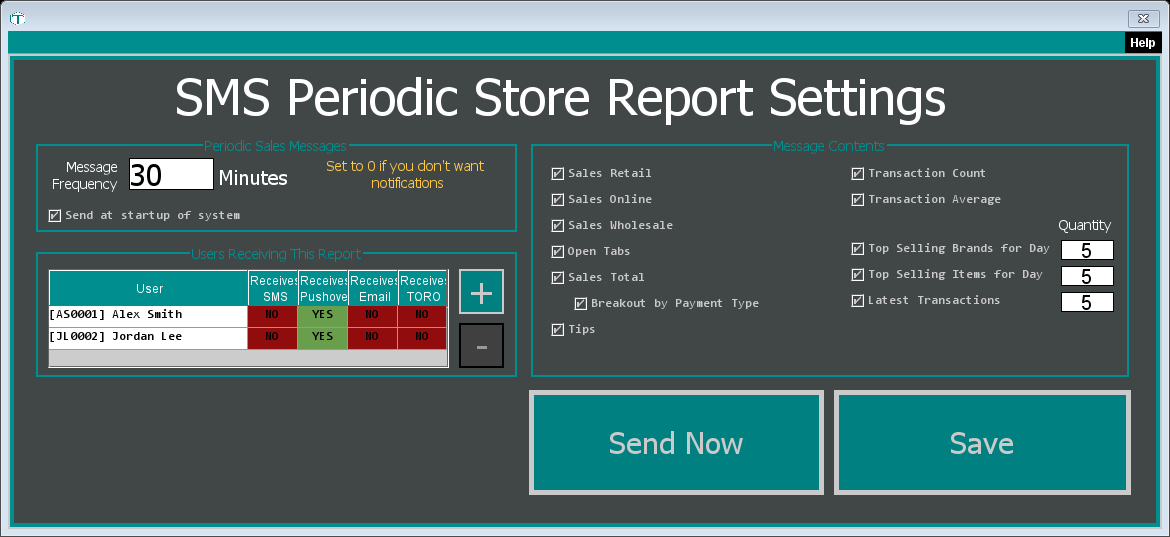
The SMS Periodic Store Report Settings window is where you choose how often it goes out and what's in it.
Finding It
- Open the Dashboard
- Click the Reporting tab on the left, then click the Store button across the top of the report area
- Click the SMS Periodic Store Report card (Can't find it? Type "sms report" in the search box at the top right.)
When It Sends
Message Frequency sets how many minutes apart the updates go out. It's 30 to start.
The update only goes out:
- from your main station,
- while the cash drawer is opened for sales (so not before you open up or after you close), and
- when that computer is connected to the internet. If it isn't, that update is simply skipped.
Send at startup of system also sends one each time TORO starts on a station. The Send Daily Total item on the Admin menu sends the same update on demand.
Turning it off: to stop the updates for one person, take them off this report in Messages From TORO (see Who Gets It below). The yellow note says you can set the frequency to 0 to stop notifications for everyone, but two things are worth knowing first. The same timer also runs TORO's background check that catches up any nightly report emails that didn't go out, so at 0 that catch-up only happens when TORO starts. And opening this window again puts a 0 back to 30.
What's in It
Tick what you want under Message Contents. Each box saves as soon as you click it.
- Sales Retail, Sales Online, Sales Wholesale: sales so far today from each side of the business
- Open Tabs: the total on open tabs, when there are any
- Sales Total: retail, online and wholesale added together
- Tips: credit card tips and gratuity so far, with their share of sales
- Transaction Count and Transaction Average
- Breakout by Payment Type: today's sales by payment type, with each one's share
- Top Selling Brands for Day, Top Selling Items for Day and Latest Transactions: today's best-selling brands and items, and the most recent sales. The Quantity next to each sets how many are listed (5 to start).
The update starts with your store name and the date and time. If there haven't been any sales yet that day, it says "No transactions yet." after the sales lines and stops there.
Click Save to keep a changed frequency or quantity.
Who Gets It
Users Receiving This Report lists everyone who gets the update. The Receives SMS, Receives Pushover, Receives Email and Receives TORO columns show YES for each way that person gets it.
To change who gets it, or how, use Messages From TORO in the setup window, the same place you choose who gets TORO's other alerts. An employee only receives it by email if they're active, have an email address on file, and have Send Reports turned on in their employee settings.
Sending One Right Now
Click Send Now to save your settings and send an update straight away, so you can see exactly what it looks like. It still needs an internet connection.