Selling a Box with the Box Discount
Many stores give a little off when a customer buys a whole box of cigars (or a whole case, tin or carton of anything else). TORO can do this for you. Once it is turned on for a product type, you just ring up the box like any other item and TORO takes the box discount off by itself. You don't press a discount button, and you don't have to remember the percent.
Where to find it: You ring up the box on the main screen of TORO, the same way you ring up anything else. The setting that turns it on is in the Product Type Editor, under Manage Product Types in the Setup window (see "Turning it on (Admin)" below).
Selling a box
In this example the box holds 20 cigars, the box price is $100.00, and the product type gives 10% off a box.
- Go to the main screen of TORO.
- Scan the barcode on the box.
You should now see the box on the sale. The line shows 1 (one box), not 20 cigars, and it says Box (20) next to the price.
TORO takes the box discount off straight away. On the box line:
- The full price, $100.00, is crossed out in red.
- The new price, $90.00, is right under it.
- A small tag next to the price shows −10%.

To see what came off, press and hold the tag. You should now see a small window headed Discounts that shows the 10% off. Close it with the X in its top right corner.
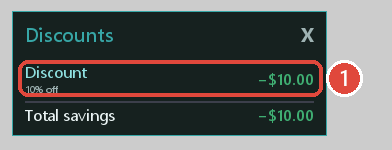
Take payment as usual. The customer pays $90.00 plus tax.
No barcode on the box? Find the cigar by typing in the search bar or by tapping its category button. If it goes onto the sale as a single, press and hold the line and tap Change to Box (20) (the number is however many come in that box). The box discount comes off as soon as the line turns into the box.
Two boxes? Tap the + button on the box line. The line shows 2, and each box gets the same 10% off.
Selling a single cigar
The box discount is only for the box. If the customer buys one cigar, or a 5-pack, they pay the normal price for it. No box discount tag appears on that line.
If the customer changes their mind and wants the whole box, press and hold the line and tap Change to Box (20). The discount comes off by itself.
When the box discount is different
The customer has their own discount. When a customer is on the sale, TORO gives them whichever is bigger: their own discount or the box discount. The two do not add together. For example, if a customer's discount level gives 15% and the box discount is 10%, they get 15% off the box.
You give the line a discount by hand. If you give the box line a discount yourself (or an employee discount), TORO uses that discount instead of the box discount.
The item has a max discount. The box discount never goes past the most that item is allowed to be discounted. If the box discount is 10% but the item can only be discounted 5%, the customer gets 5% off. (A customer whose account is allowed to go past item max discounts gets the full box discount.)
A coupon that can't be used with other discounts. If the sale has a coupon that says it can't be used with other discounts, the box discount does not come off while that coupon is on the sale.
The box is too small. Your store can choose to give the box discount only on boxes that hold at least a certain number of cigars. A box with fewer than that pays the normal box price.
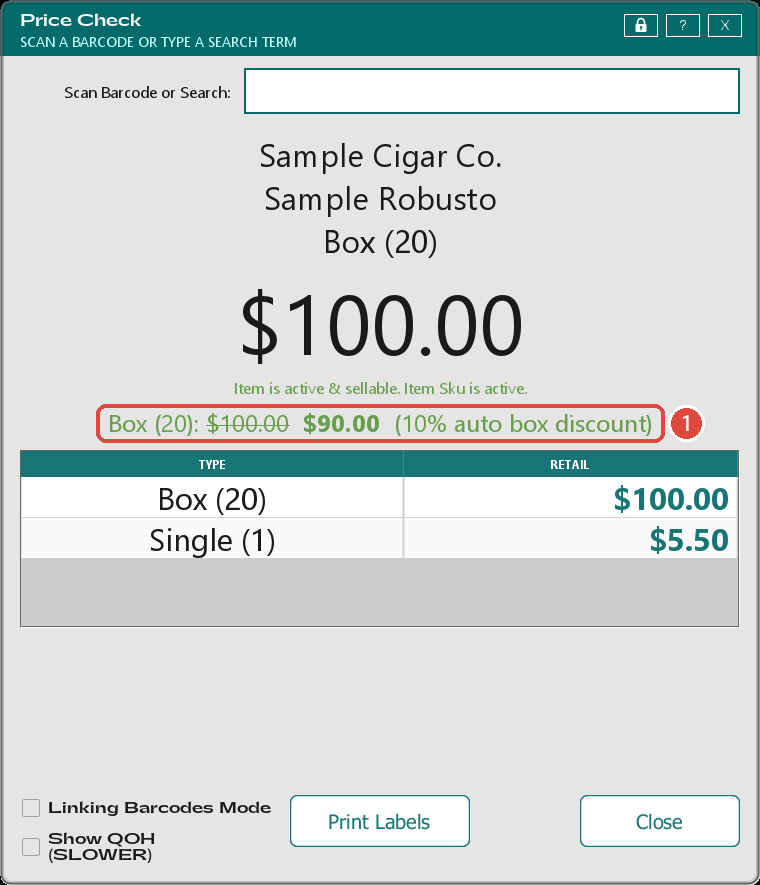
Price on the shelf label or the online store. The register always takes the box discount off. The shelf label and your online store can still show the full box price. If you want to check the box price before a sale, select Price Check on the side bar and scan the box. Price Check shows the regular box price crossed out next to the discounted box price, with the percent off.
Turning it on (Admin)
The box discount is set for a whole product type, for example all your cigars. You need Admin access to change it.
- Go to the main screen of TORO.
- On the side bar, select the Admin menu item.
- Select the Dashboard menu item.
- On the side bar of the Dashboard, select TORO Configuration.
- Select the Set Up System tile. (Need help with this part?)
- On the side bar of the Setup window, select the Setup tab.
- Select the Manage Product Types tile.
You should now see a window called Product Types.
- Tap the product type you want, for example Cigar.
- Tap Edit Product Type.
You should now see a window called Product Type Editor. Look in the Pricing & Discounts box.
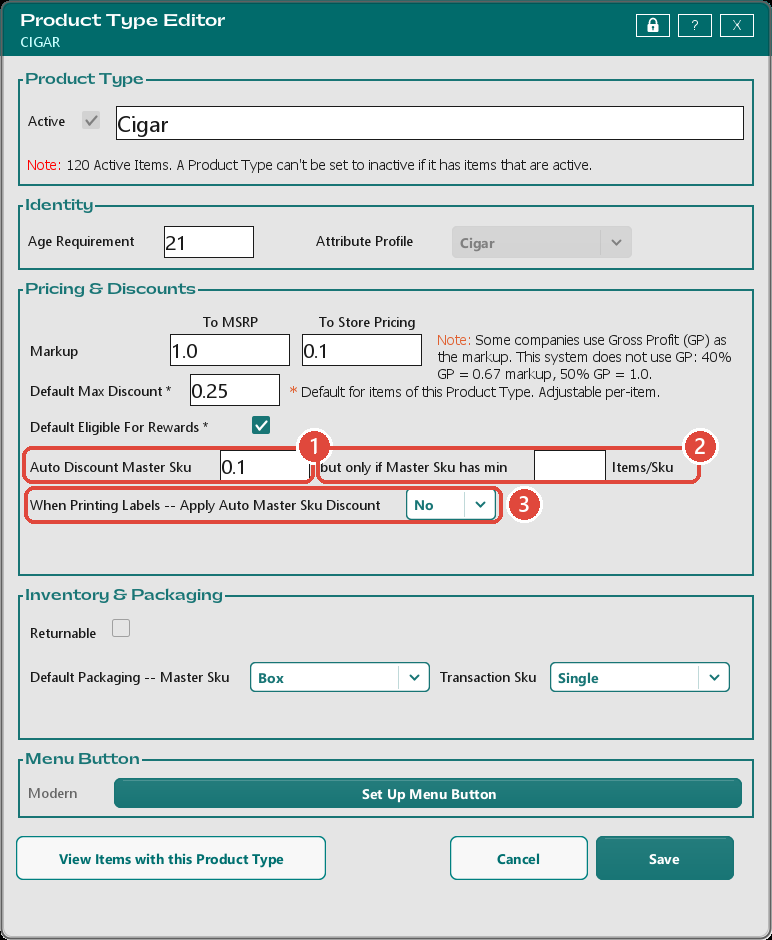
- In the box next to Auto Discount Master Sku, type the box discount as a decimal. Type 0.1 for 10%, or 0.15 for 15%. To turn the box discount off, clear the box.
- Next to it, after but only if Master Sku has min, you can type the smallest box that should get the discount, for example 20 for boxes of 20 or more. Leave it empty to give the discount on every box.
- Next to When Printing Labels -- Apply Auto Master Sku Discount, choose Yes if you want your shelf labels to show the discounted box price, or No to print the full price.
- Tap Save.
The next box you ring up in that product type gets the discount.
Good to know:
- The box discount can't go past the Default Max Discount in the same box, or a max discount set on the item itself.
- Shelf labels only show the discounted box price when When Printing Labels -- Apply Auto Master Sku Discount is Yes and the but only if Master Sku has min box has a number in it. With that box empty, the register still gives the discount, but the labels and the online store show the full box price.
Not sure the discount is set up right? Message TORO support in your store's WhatsApp group.