Creating Multi-Packs
TL;DR
Create Multi-Packs adds a pack size, like a 5-pack, to a whole list of items in one go. You build the list by brand or item by item, choose the packaging and how many go in each pack, then click Create Packs. TORO prices each new pack from the item's box, keeps its cost tied to the box cost, and can give every pack its own barcode. If an item already has a pack of that size, TORO skips it.
Why You'd Use It
Plenty of shops sell cigars in fives: a 5-pack of the house favorite, or a sampler deal at the counter. For TORO to ring up a 5-pack, each item needs its own 5-pack SKU, a packaging size with its own price and barcode.
You could add that SKU one item at a time. But when a whole brand line needs one, that's a lot of clicking. This screen does the full list at once.
If SKUs are new to you, How TORO Manages Your Inventory explains how the box and the single fit together. A multi-pack is just one more size sitting between them.
Where to Find It
Open the Dashboard, go to Items, and choose Create Multi-Packs ("Build 5-packs and bundles"). You can also search the Dashboard for "pack."
Step by Step
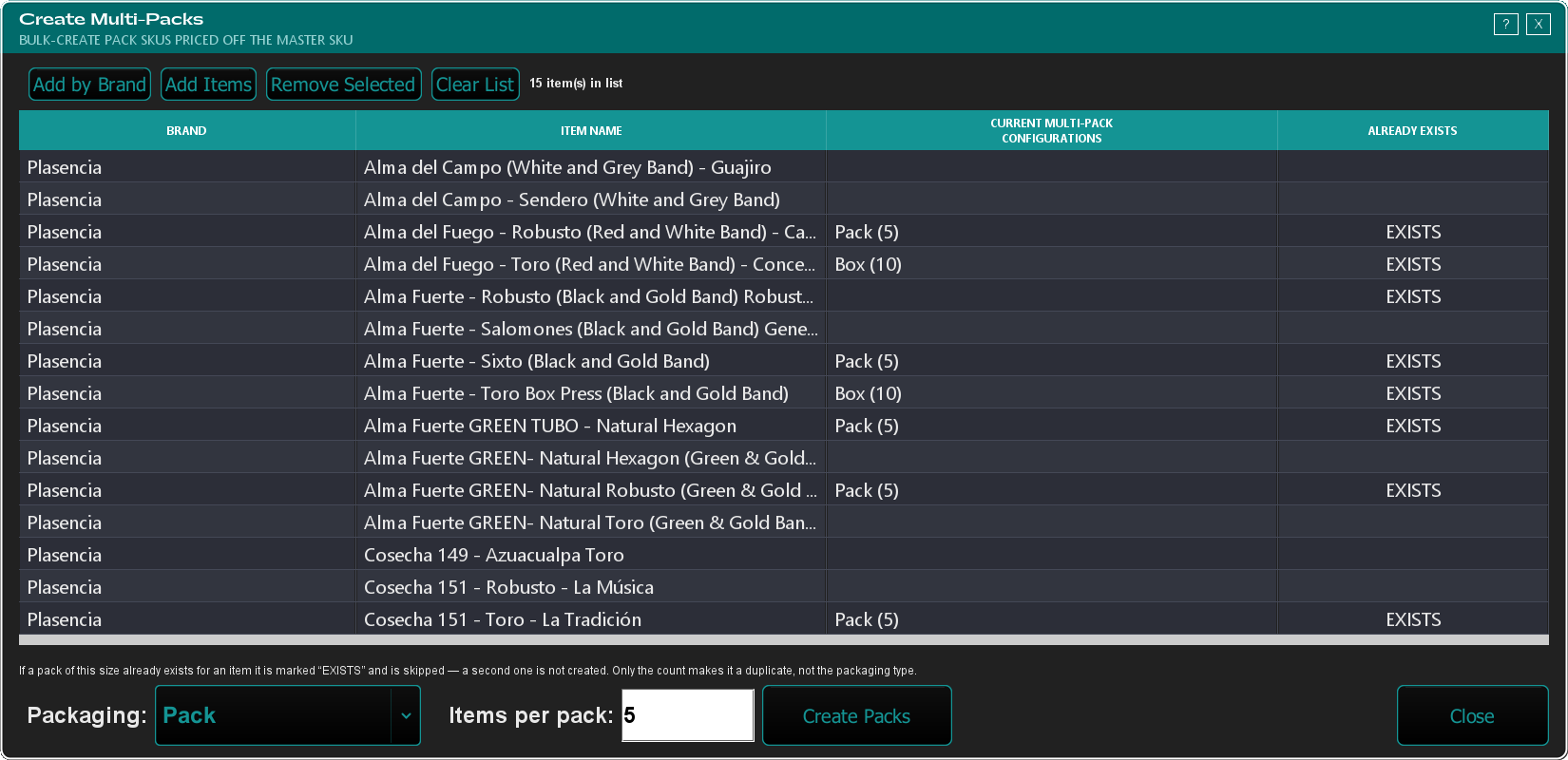
Build your list. Click Add by Brand and pick one or more brands. TORO adds every active item in them. Or click Add Items to pick items one at a time. You can mix the two, and an item already on the list won't be added twice.
Trim the list. Select any rows you don't want and click Remove Selected. Clear List empties it so you can start over. The count at the top tells you how many items are on it.
Pick the packaging. The Packaging box starts on Pack. Change it if these should be something else, like a tin or a bundle.
Set the size. Type how many go in each pack in Items per pack. It starts at 5.
Check the Already Exists column. Any item that already has a SKU of that size shows EXISTS and gets skipped. The column updates as you type the size, so you'll know before you create anything.
Click Create Packs. TORO asks you to confirm, for example "Create a 5-count Pack for 24 item(s)?"
Choose whether to add barcodes. If your login can create barcodes, TORO asks whether to generate one for each new pack. Say Yes if you'll scan the packs at the register or put labels on them.
When it finishes, TORO tells you how many packs it made, how many barcodes it generated, and how many items it skipped and why.
Reading the List
- Brand and Item Name show what's on the list.
- Current Multi-Pack Configurations shows the pack sizes each item already has, so you can spot gaps. The master SKU (the size you buy in) and the single aren't listed there.
- Already Exists shows EXISTS when the item already has a SKU of the size you typed. That includes the master SKU, so a row can show EXISTS even when its pack-size list is blank.
How the New Packs Are Priced
TORO starts from the item's box (its master SKU). It works out what one cigar in the box costs, multiplies that by the pack size, and prices the pack with the same markups as the box.
So a new pack is not discounted. A 5-pack starts out at about five times what one cigar in the box sells for. If you want the pack to be a deal, open the item in Item Details and adjust the pack's price. Setting Markups explains how TORO decides a price.
The pack's cost is tied to the box's cost. When the box cost changes, for example because you received it at a new price, the pack's cost moves with it, so your profit numbers stay right.
A Few Things Worth Knowing
- Only the count makes a duplicate. If an item already has a 5-count SKU, TORO skips it even if that SKU uses different packaging. The box counts too: with Items per pack set to 20, an item sold in boxes of 20 shows EXISTS.
- Items with no box SKU are skipped. The pack is built from the master SKU, so an item without one can't get a pack. The summary tells you how many were skipped for that. Adding a New Item covers setting one up.
- Inventory stays in single cigars. Selling a 5-pack takes five cigars out of your on-hand count, the same as selling five singles.
- Barcodes can be added later. If you said no, or your login couldn't create them, see Printing and Managing Barcodes.
- Nothing gets removed. This screen only adds pack sizes. To retire one, edit the item in Item Details.