Running a Customer Raffle
A raffle is a fun way to close out a promotion: everyone who took part gets a chance at a prize, and the more they bought, the better their odds if you want it that way. In TORO, a raffle is built from a punchcard. The customers who bought the punchcard's items become the contestants, TORO hands out the tickets, and it picks the winners at random.
If you haven't set up a punchcard yet, start with Setting Up Punchcards.
Finding It
Open the Dashboard
Click the Customers tab on the left, then click the Raffle Management card. (Can't find it? Type "raffle" in the search box at the top right.)
You can also start a raffle from a punchcard: View/Create Raffle in Punchcard Management, Create Raffle in the Punchcard Editor, or View/Create Raffle in the Punchcard Progress Viewer.
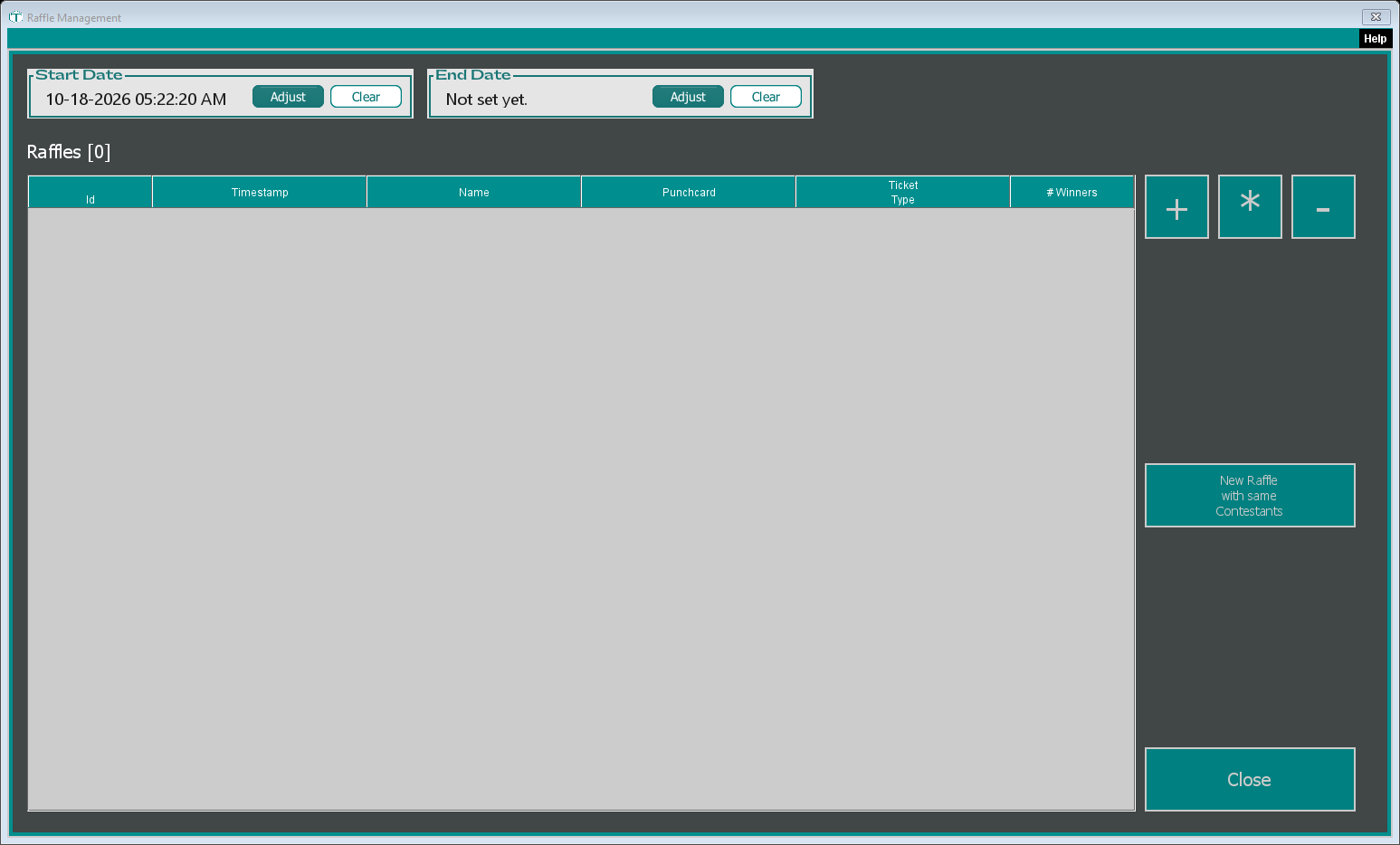
Raffle Management lists your raffles. The Start Date filter starts 30 days back, so older raffles are hidden until you Clear it or pick an earlier date.
Creating a Raffle
Click +
Pick the punchcard to build it from (Which Punchcard do you want to use to build your Raffle?) and click Select. If that punchcard already has raffles, TORO asks whether to load one of them or choose ** NEW RAFFLE **.
Type a name (What is the name for this raffle?). TORO suggests the punchcard's name followed by "Punchcard Raffle".
If the punchcard asks customers to buy a set number of items, TORO asks Do you want to load only those that completed the punchcard fully? Answer Yes to limit the raffle to customers who finished the card, No to include everyone who bought something on it.
Choose How to assign entries?
- 1 Entry Per Item: one ticket for each qualifying item they bought
- 1 Entry Per Dollar: tickets by how much they spent on the punchcard's items. TORO then asks How many dollars equal 1 ticket? (1 to start), and rounds down, so with $5 per ticket a $23 spend earns 4 tickets.
- 1 Entry Per Customer: everyone gets one ticket, however much they bought
TORO builds the tickets and opens the raffle.
Starting from a punchcard works the same way, except TORO already knows which punchcard you mean. From Punchcard Management or the Punchcard Editor, TORO first confirms that every customer on the punchcard goes in. To include only certain customers, start from the Punchcard Progress Viewer, make sure only that one punchcard is highlighted in its punchcard list, highlight the customers you want, and click View/Create Raffle; TORO asks whether to use just them or everyone.
Drawing the Winners
The raffle window (Store Raffle) shows your store name and the raffle name at the top, how many Accounts are in it, how many Tickets are still in the draw, and the winners so far.
Click Select Random Ticket to draw. TORO shuffles for a moment, then announces the winner ("Congratulations ...! You are the winner!"). The winning ticket moves to the winners list and comes out of the draw, so you can keep clicking to draw a second, third and so on. Only that one ticket comes out: a customer with several tickets keeps the rest, so they can win again. Each winner is saved straight away.
Managing Raffles
In Raffle Management:
- * (or double-click) opens the highlighted raffle so you can see its winners or draw more
- - deletes the highlighted raffle and all its tickets and winners, after you confirm. This can't be undone.
- New Raffle with same Contestants isn't available yet; it only shows an "Under Construction." message.