Setting Up Punchcards
A punchcard is the digital version of the paper "buy 10, get one free" card. You pick the items that count and the dates the promotion runs, and every time a customer buys one of those items, TORO punches their card for them. No paper, no stamps, nothing for the customer to lose.
Use one for a brand promotion ("Cigar of the Month"), a new line you want people to try, or a loyalty push on your house cigars.
What TORO does and doesn't do. TORO counts the punches. It doesn't give out the free item or a coupon when someone finishes; you check who's done and reward them yourself, or run a raffle for everyone who took part (see Running a Customer Raffle). And like all rewards, a purchase only counts when the customer is attached to the sale.
Finding It
Open the Dashboard
Click the Customers tab on the left, then click the Manage Punchcards card. (Can't find it? Type "punchcard" in the search box at the top right.)
The window is titled Punchcard Management and lists your punchcards with their Start and End dates.
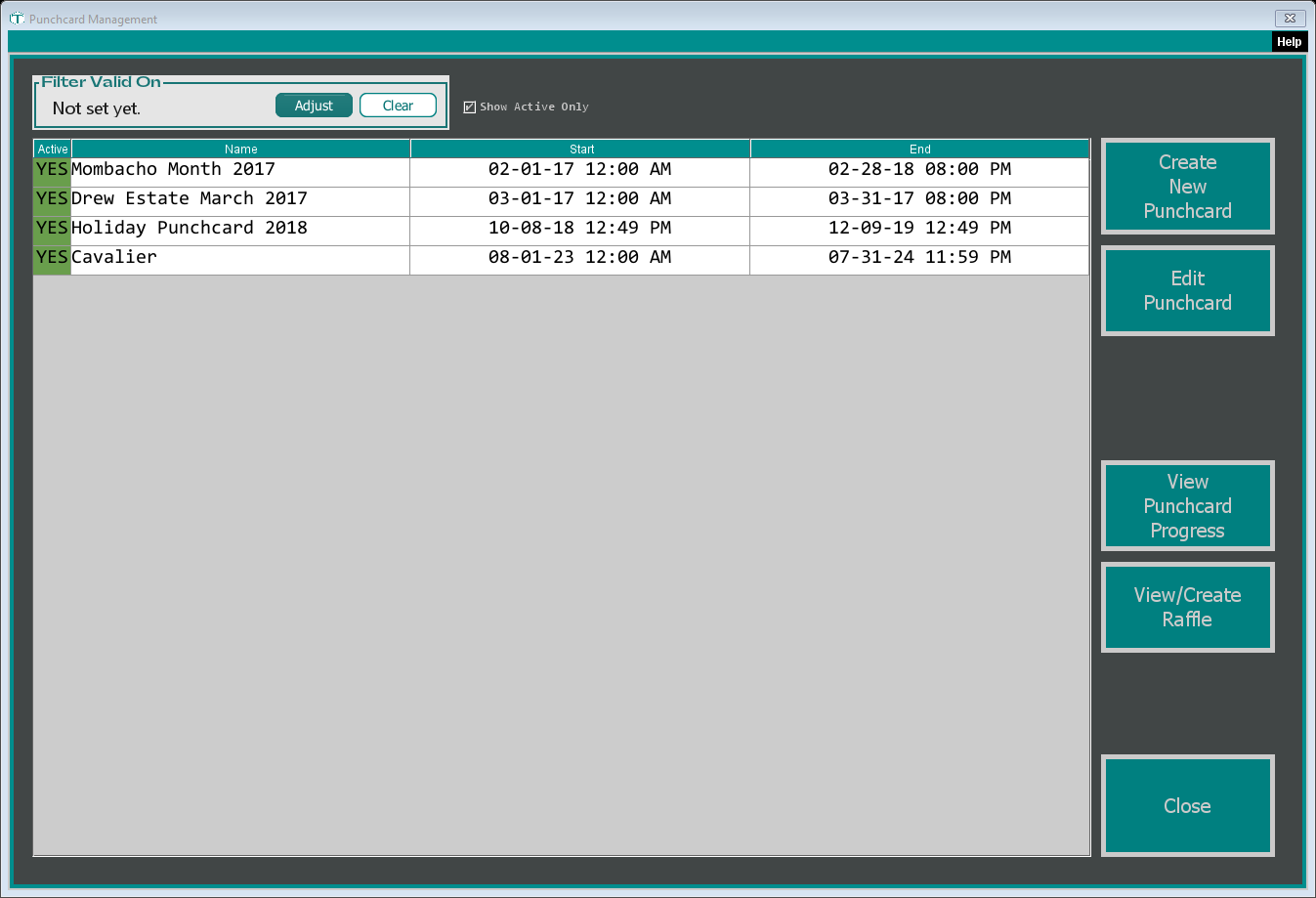
- Show Active Only (ticked to start) hides punchcards you've switched off. An active punchcard stays on this list even after its end date.
- Filter Valid On shows only the punchcards that run on the date you pick. Clear takes the filter off.
Creating a Punchcard
Click Create New Punchcard
TORO asks What is the name for the punchcard? Type a name your staff will recognise
Pick the Punch Card Start Date? (it starts on today) and then the Punch Card End Date? (it starts three months out)
The punchcard is saved and the Punchcard Editor opens so you can add items
Purchases only count between the start and end date and while the punchcard is active.
Adding Items (the Punchcard Editor)
To get here for an existing punchcard, highlight it and click Edit Punchcard, or double-click it.
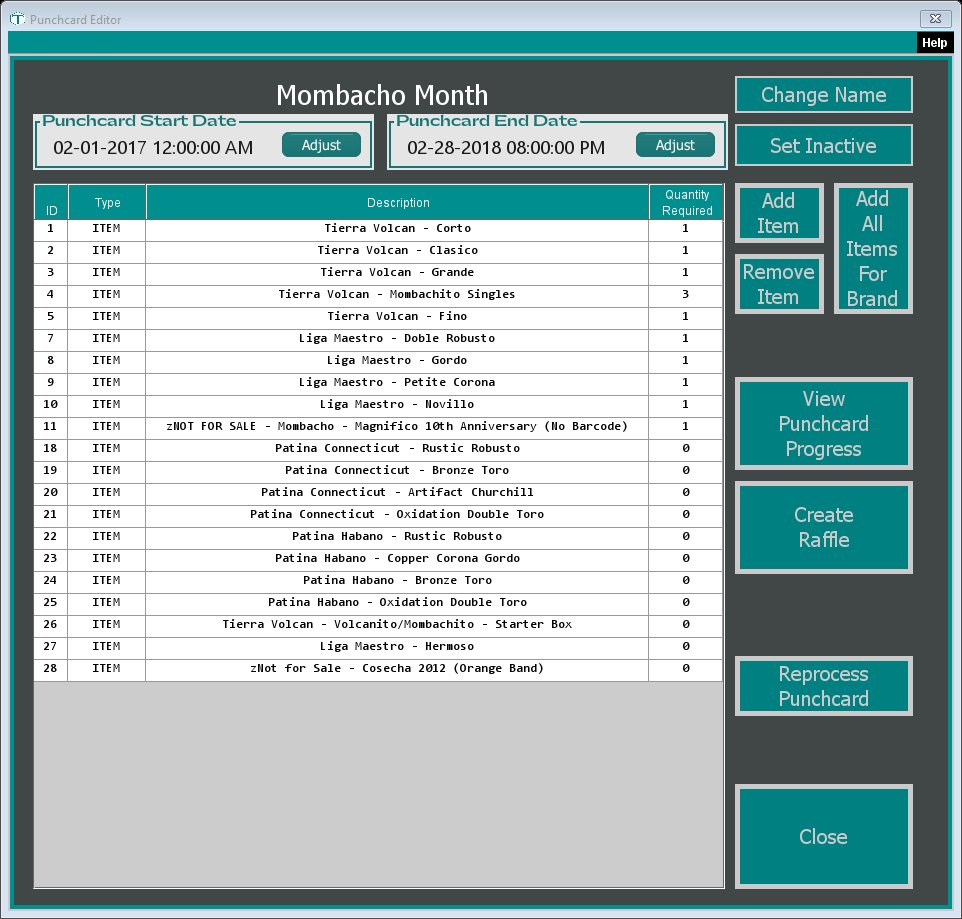
- Add Item opens the item finder. Pick an item, then answer How many are required? with how many of that item a customer needs to buy.
- Add All Items For Brand asks How many are required of each?, then lets you pick one or more brands, and adds every one of their items with that number.
- Remove Item takes the highlighted item off. If customers already have punches for it, TORO warns you first: removing it also deletes those punches, and that can't be undone.
The Quantity Required column shows the number you entered for each item.
How a card gets finished. A customer's card is complete (100% in % Complete) only when they've bought the required number of every item on the list. Buying extra of one item doesn't make up for another. So if you use Add All Items For Brand with 1 required of each, the customer has to buy one of every item that brand has. An item set to 0 still gets punched when it's bought, but isn't needed to finish the card.
The rest of the editor:
- Punchcard Start Date and Punchcard End Date: click Adjust to change them. The change saves straight away.
- Change Name renames the punchcard.
- Set Inactive switches the punchcard off, so purchases stop counting. The button then reads Set Active so you can switch it back on.
- View Punchcard Progress shows how customers are doing (below).
- Create Raffle builds a raffle from the customers on this punchcard. See Running a Customer Raffle.
- Reprocess Punchcard throws away this punchcard's punches and works them out again from your sales between the start and end dates. Use it after you add items or change the dates, so purchases made earlier in the promotion count too. TORO warns you it can take several minutes.
Everything in this window saves as you go; there's no separate save button.
Checking Progress
Highlight a punchcard and click View Punchcard Progress (in either window). The Punchcard Progress Viewer opens on that punchcard. Because it's about to load every customer, TORO asks you to confirm first ("It could take a while!"). You then get a row for each customer, showing Items Required, Items Purchased, Total Items, Total Spent and % Complete. Items Purchased counts only the purchases that go toward the requirement; Total Items counts every punch, including extras.
- Filter by Customer narrows the list to one customer; Clear Customer goes back to everyone.
- Refresh Punchcards loads the list again for the punchcards highlighted under Select the punchcard you want to see below.
- View Customer Punchcard opens the highlighted customer's card in detail.
- View/Create Raffle starts a raffle. If you've highlighted some customers first, TORO asks whether the raffle should include just them or everyone.
When you look up a customer, their lookup screen also has a Punchcard Status box showing their running punchcards and how far along they are (% Complete), so your staff can mention it at the register. The Punchcards button on that screen opens the Punchcard Progress Viewer for that customer.