Recording Your Humidor Readings
A humidor that drifts a few points too dry or too wet doesn't look any different from the outside. The easiest way to catch it is to read the hygrometer every day and write it down. TORO builds that habit into opening and closing: your staff type in each humidor's humidity (and temperature, if you track it), TORO warns them right away if a reading is outside the range you set, and the readings are saved so you can look back at them later.
Before You Start: Add Your Humidors
TORO only asks about the humidors and climate-controlled rooms you've added under Controlled Climate Environments in the Setup window. That's where you name each one, set its acceptable Minimum and Maximum humidity and temperature, and write the warning directions your staff see when a reading is off. Step-by-step: Set Up Controlled Climate Environments.
Until at least one active humidor is set up, the readings window doesn't open.
When TORO Asks for Readings
On your main register, the Humidors window opens on its own:
- right after the cash drawer is opened for the day, and
- when the drawer is closed for the day, before the drawer count.
To record readings at any other time, click Employee in the sidebar on the left of the main screen, then Record Humidity.
If you have more than one humidor, TORO first asks "Do you want to print a list for the humidors?" Say yes to print a checklist on your receipt printer, with a blank for each humidor's humidity (and temperature), to carry around while you take the readings. You can print it again any time with Print Humidor List.
Entering the Readings
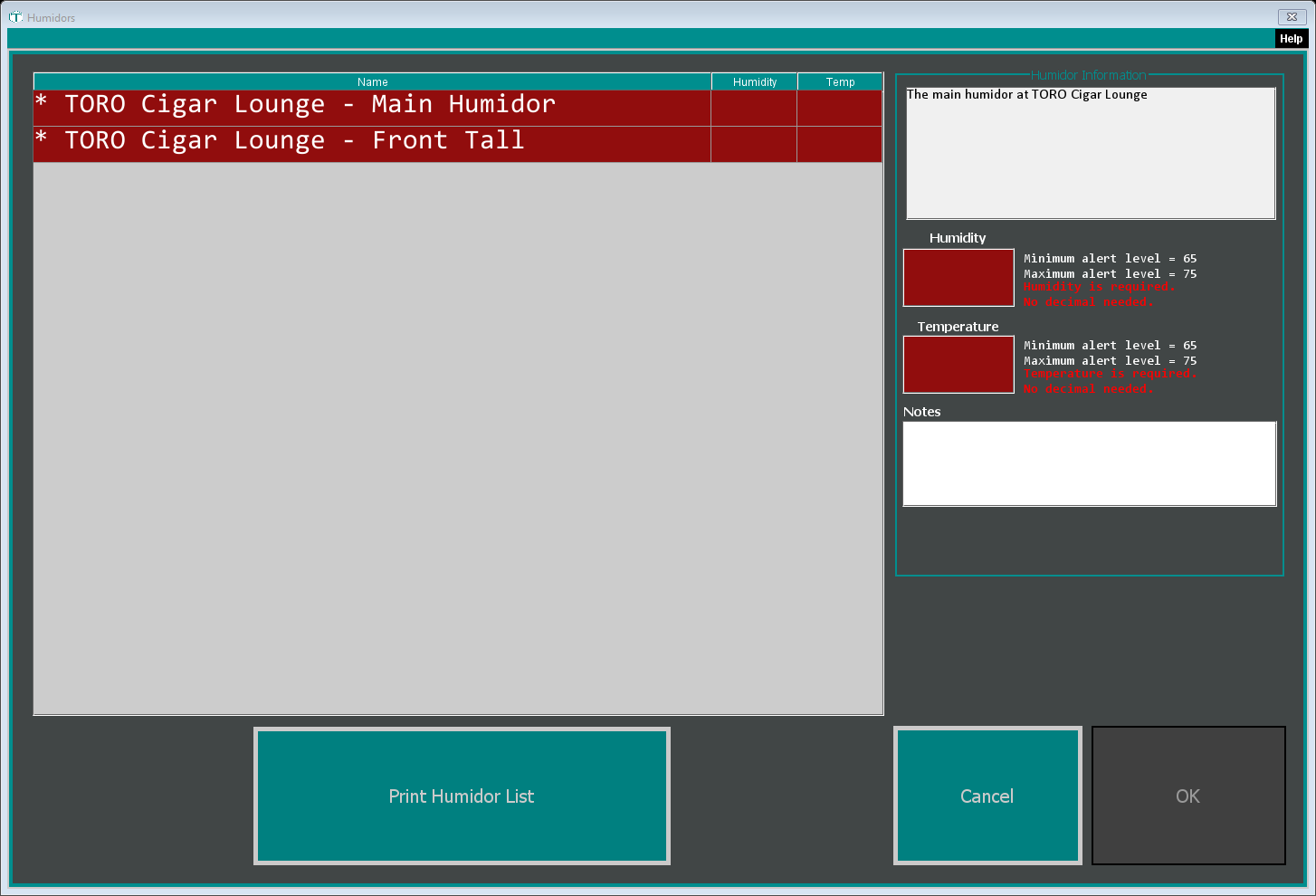
Each humidor is a row on the left, with its Humidity and Temp readings. A row stays red, with a * in front of the name, until its readings are in; then it turns green.
Click a humidor. Its description shows in Humidor Information, along with its Minimum alert level and Maximum alert level.
Type the Humidity reading, as a whole number. TORO doesn't need a decimal or a percent sign.
If you track temperature for this humidor, type the Temperature too. The box only appears for humidors set to capture temperature.
Add Notes if there's something worth mentioning, like "humidifier refilled".
Press Tab to jump to the next humidor that still needs readings, or click it.
When every humidor has its readings, OK lights up. Click it.
What happens when you click OK
A reading below 60 or above 78 gets a double-check: TORO says it's "way out of the norm" and asks "Are you sure this is correct?" The reading is saved either way. If it was a typo, record the readings again with the right number (Employee, then Record Humidity); the mistaken one stays in your history too.
A reading outside the range you set for that humidor pops up an ALERT! saying the humidity or temperature is low or high, what it should be, and warning directions from that humidor's setup. Whichever reading is off, the alert shows the directions written in the Warning Directions box beside the humidity Minimum.
TORO saves the readings with the date and time, and they show up in TORO Insight right away.
TORO sends a HUMIDOR STATISTICS message to the people in your store set up to get humidor messages, listing each humidor's readings, notes and any HUMIDITY IS LOW! or TEMPERATURE IS HIGH!-style flags. If a humidor has Only send SMS if out of Min & Max Ranges ticked in its setup, it's only included when a reading is outside its range or someone wrote a note.
Skipping the Readings
Click Cancel. TORO asks "Are you sure you want to skip this?", then "What is your reason?" After you answer, the window closes and no readings are saved for that check.
Looking Back at Your Readings
Your daily store report can include a Humidors section with every reading in the period, marked against each humidor's range. See Store Report Sections.
Common Questions
The OK button won't light up. Every humidor in the list needs its readings, so look for a row that's still red. Humidity is always required. If a humidor has Capture Humidity unticked in its setup, the window can't be finished at all: tick Capture Humidity again for that humidor under Controlled Climate Environments.
Nothing opens when I click Record Humidity. No active humidors are set up yet. Add one under Controlled Climate Environments (see the top of this article). Early in the month, TORO may also show a reminder that no Climate Controlled Environments have been set up.
Do I still need this if I have SensorPush sensors? They're two different things. These readings are typed in by your staff. The Humidor Tracking add-on reads SensorPush sensors in your humidor automatically, around the clock.