Importing Gift Card Balances
Switching to TORO from another system? Your customers still have physical gift cards in their wallets, and those cards still have money on them. The Import Gift Cards tool loads all of those card numbers and balances into TORO at once from a spreadsheet, so the cards work at your register from day one.
This is for physical gift cards (the barcode cards you scan). For virtual gift cards that live on a customer's account, use Import Customers & Gift Cards on the same tab instead.
Before You Start: Your File
You need a CSV file (most spreadsheet programs can save as CSV) with one card per row and two columns:
the gift card number, exactly as it's printed on or scanned from the card
the current balance on that card
For example:
| Card Number | Balance |
|---|---|
| 100000001 | 25.00 |
| 100000002 | $50.00 |
| 100000003 | 100 |
The balance can include a dollar sign. A heading row at the top is fine; TORO asks about it (see below). Other columns are fine too, as long as you tell TORO which two to use.
Finding It
Open the Dashboard
Click the TORO Configuration tab on the left, then click the Set Up System card. (Can't find it? Type "setup" in the search box at the top right.)
Click the Import Tools tab on the left side of that window
Click Import Gift Cards
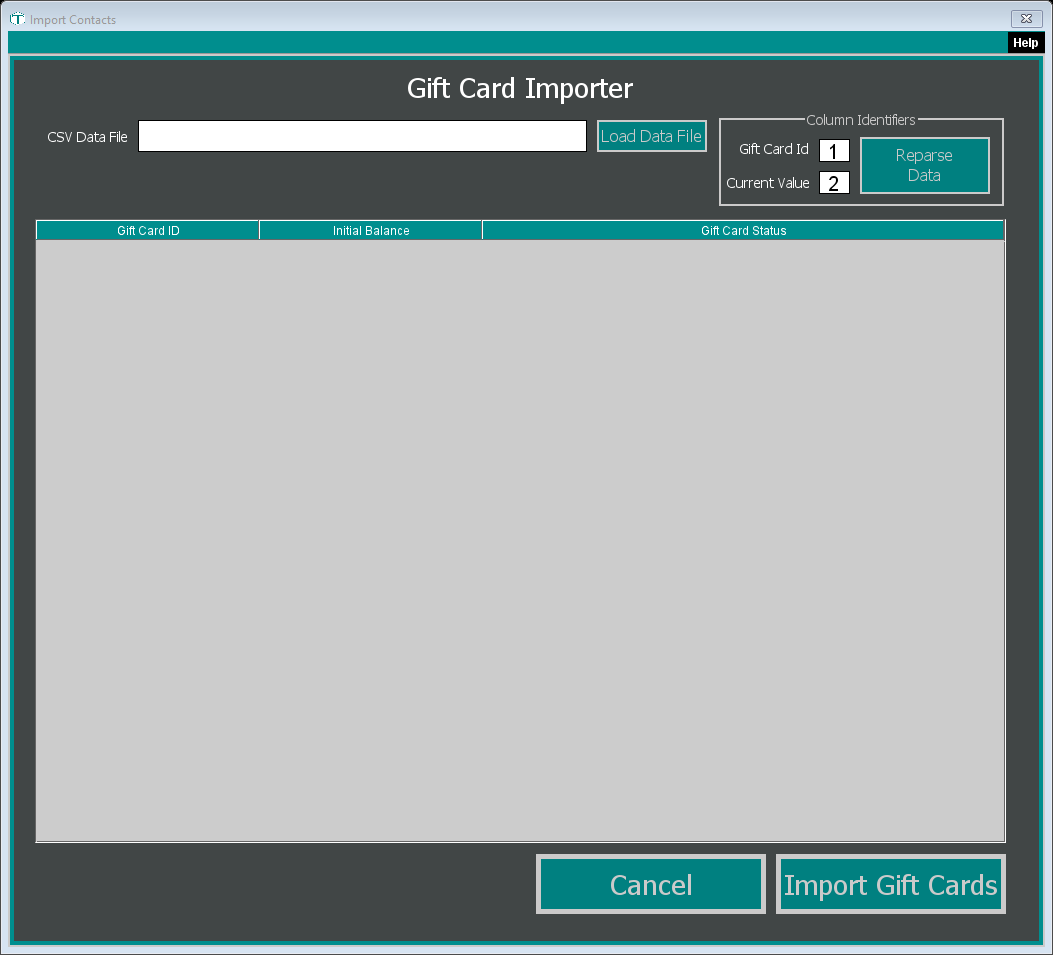
The window's title bar says Import Contacts, but the heading inside reads Gift Card Importer. You're in the right place.
Importing Your Cards
Tell TORO which columns to use. Under Column Identifiers, Gift Card Id is the column holding the card numbers and Current Value is the column holding the balances. The first column in your file is 1, the second is 2, and so on. They start at 1 and 2, which matches the example above.
Click Load Data File and pick your CSV file.
Answer the first-line question. TORO shows you the first line of your file and asks "Import the first line?"
- If that line is a heading (like Card Number, Balance), click No so it's skipped.
- If it's a real card, click Yes.
Check the preview. Each row of your file appears with its Gift Card ID, Initial Balance and Gift Card Status. A row that doesn't reach the column numbers you gave (for example, a short or blank line) is left out of the preview and isn't imported. Only rows marked READY FOR IMPORT will be loaded. Anything else tells you why not:
Status What it means READY FOR IMPORT This card will be imported. Missing Gift Card Id The card number cell is empty. Missing Initial Balance The balance cell is empty. Invalid Initial Balance The balance isn't a number TORO can read. DUPLICATE (row shown in yellow) The same card number appears more than once in your file. None of the copies are imported until you fix the file. Gift Card Already Exists TORO already has a card with this number, so it's left alone. If the balances or card numbers look wrong, you probably have the wrong column numbers. Change them and click Reparse Data.
Click Import Gift Cards. TORO shows its progress, then a message like "98 of 100 Gift Cards were imported! 2 Failed to Import." Rows that weren't READY FOR IMPORT (for example a card that already exists) count as failed.
After the import, every card that was READY FOR IMPORT should now show Gift Card Already Exists in the preview, which is how you can tell it's in.
If you leave Current Value empty, TORO warns you with No Current Value Column: every card would be imported with a balance of $0.00. Put the right column number in and click Reparse Data before importing.
Good to Know
It can't be undone from this screen. Check the preview carefully before you click Import Gift Cards. If a card's balance comes in wrong, fix it on that card (see Working with Gift Cards).
Running it again is safe. Cards that already exist are skipped, so if you fix a few rows in your file and import it again, only the new ones are added.
Each card is recorded as a comped sale. So that every imported card has a purchase on record, TORO records each one as a gift card sale dated the day you import, paid with a comp noted Comped from Import rather than cash or card. You'll see those sales in that day's records.