Looking Back at Drawer Counts and Shift Changes
Every time someone opens the drawer in the morning, closes it at night, or hands it over at a shift change, TORO keeps the count they entered. Two screens let you look those counts up later: Drawer Open/Close Reports for openings and closings, and Shift Change Reports for handoffs.
Reach for them when a drawer came up short and you want to see who counted it, what they counted and what TORO expected, or when you want to check how much cash went to the bank on a given night.
Finding It
Open the Dashboard
Click the Transactions tab on the left, then click the Drawer Open/Close Reports card or the Shift Change Reports card. (Can't find them? Type "drawer" or "shift change" in the search box at the top right.)
Both open showing the last 30 days, with no end date set, so everything up to now is included.
You can also get there from the Daily Report window (the View Daily Total card on the same tab): View Drawer Opening and View Drawer Closing open the drawer reports for the dates you're looking at, already filtered to openings or closings, and View Shift Change Reports opens the shift changes for those dates.
Drawer Open/Close Reports
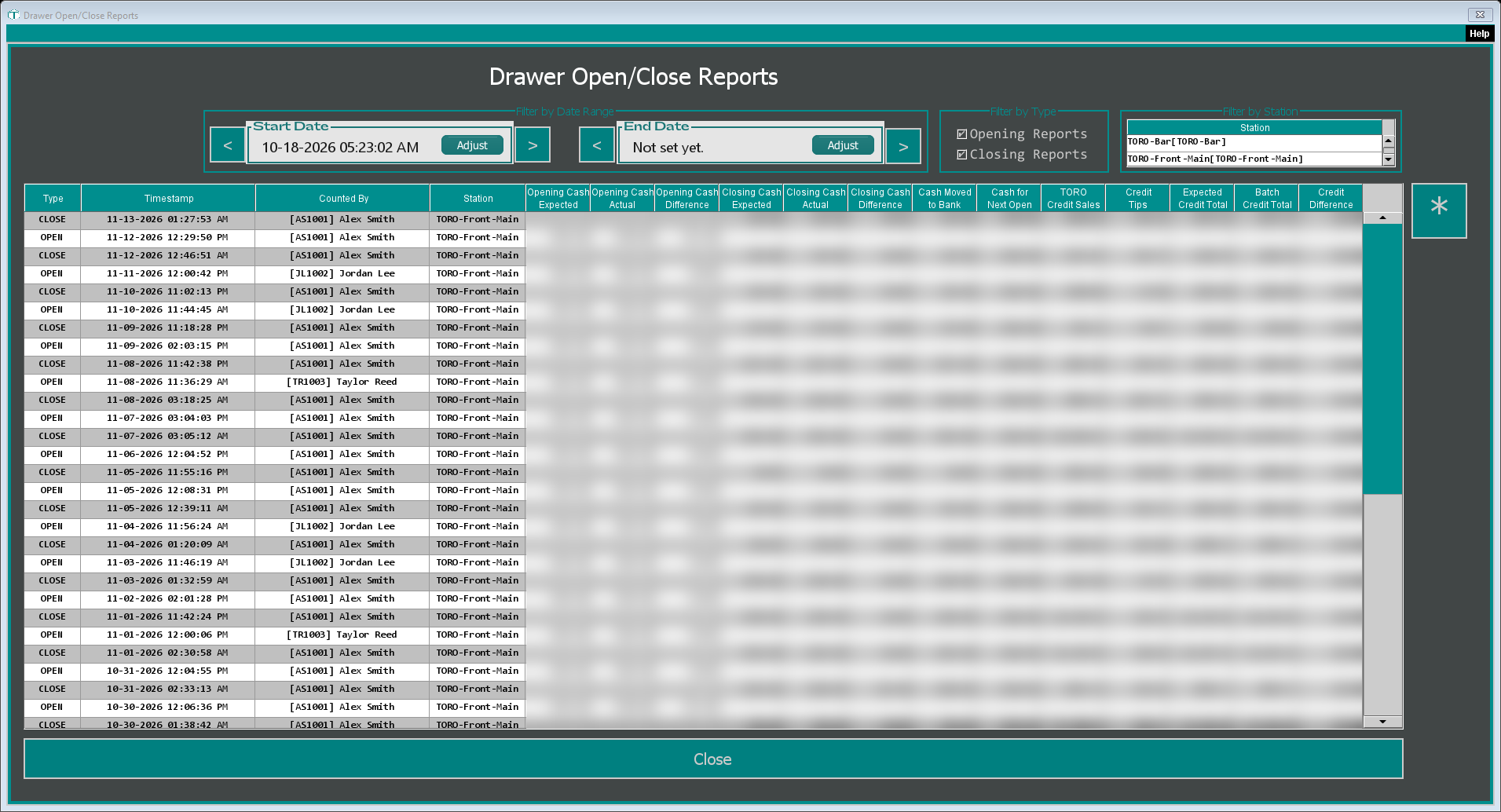
The filters
Filter by Date Range. Click Adjust to set a Start Date or End Date, or step a day at a time with <** and **>. The list reloads as soon as you change a date.
Filter by Type. Tick Opening Reports, Closing Reports, or both.
Filter by Station. The list starts on the register you're sitting at. Click another register to see its records instead. Only active registers are listed.
Reading the list
Each row is one count. Type says OPEN or CLOSE, followed by when it was counted (Timestamp), who counted it (Counted By) and the Station.
Opening rows fill in the opening columns:
Opening Cash Expected, what TORO expected to find in the drawer
Opening Cash Actual, what was counted
Opening Cash Difference, the gap between the two
Closing rows fill in the closing and card columns:
Closing Cash Expected, Closing Cash Actual and Closing Cash Difference
Cash Moved to Bank and Cash for Next Open, how the cash was split at close
TORO Credit Sales and Credit Tips, what TORO recorded for card sales and card tips
Expected Credit Total, those two added together
Batch Credit Total, what your card processor's batch reported
Credit Difference, the gap between TORO and the batch
Click a column heading to sort by it.
Opening a record
Select a row and press the * button at the right, or double-click the row.
An opening opens the Drawer Opening Report Viewer: who counted it, the bill and coin counts, Expected Cash, Opening Cash, the Difference and any notes.
A closing opens the Drawer Closing Report Viewer, laid out like the close screen itself: the Cash In Drawer counts, the Cash Sales box, the Credit Card Sales box, what was Moving Cash To Safe, and the Notes box with the day's tags and the closing notes. The counts can't be changed here.
The ? beside Manual Trans opens Drawer Transactions For This Close, every cash drop, payout or cash added between that drawer opening and this close.
Replay Edits shows how the count was entered, one change at a time, so you can see whether a number was typed once or changed several times. Step through with ◀ Prev and Next ▶; the line above them reads "Edit 3 of 12" and the time of that change. If nothing was recorded, TORO says "No edit history was recorded for this drawer close."
Open Drawer opens this register's cash drawer, for example to recount.
Shift Change Reports
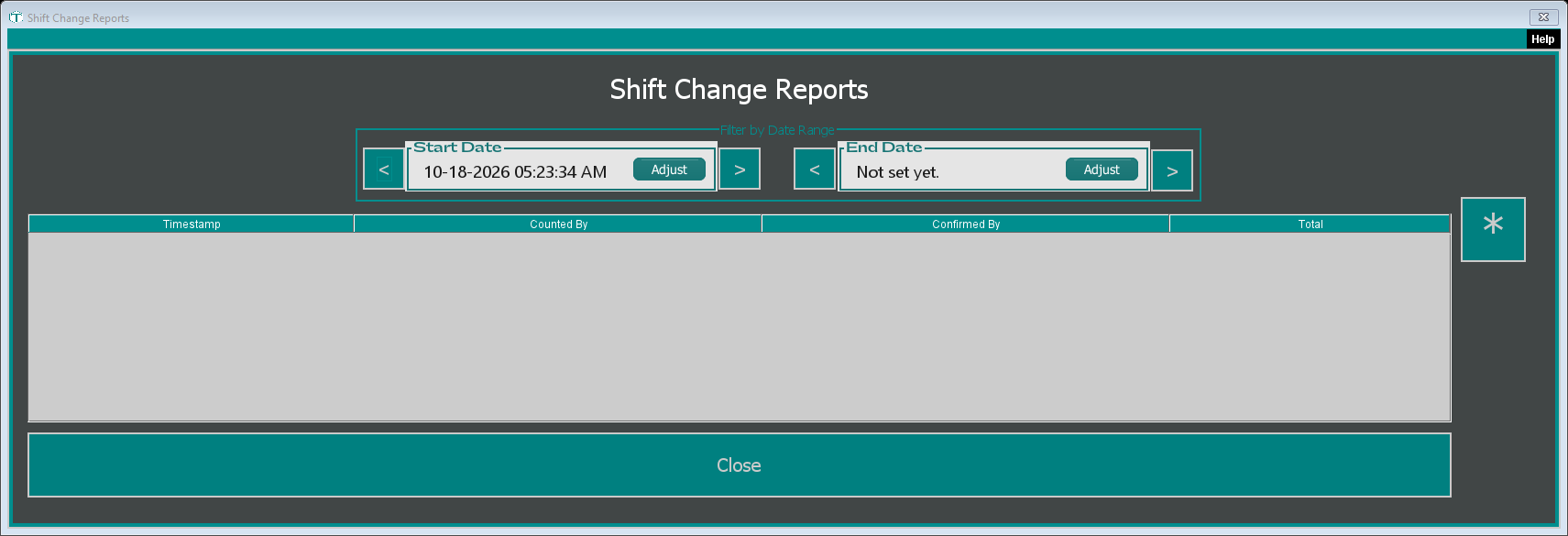
This list covers every register. Set the dates the same way as above. Each row shows when the count was done (Timestamp), who counted (Counted By), the employee who confirmed it by entering their PIN (Confirmed By), and the cash Total.
Select a row and press *, or double-click it, to open the Shift Change Viewer: the full bill and coin count, Counted by, Confirmed by (or NOT CONFIRMED if nobody confirmed it), the Count Timestamp and the Cash Total. It's view only.