Customer Birthdays
A birthday is the easiest excuse there is to reach out to a customer. The Customer Birthdays report gives you everyone whose birthday falls in a month you pick, with their phone number, email and membership level, ready to call, text, email or send a card to. You can narrow it to just your members if that's who you market to.
Finding It
Open the Dashboard
Click the Customers tab on the left, then click the Customer Birthdays card. (Can't find it? Type "birthday" in the search box at the top right.)
This report is part of the Advanced Reporting Module. If your store doesn't have Advanced Reporting yet, clicking the card shows you how to sign up instead, and if you do sign up, the report opens straight away.
Running the Report
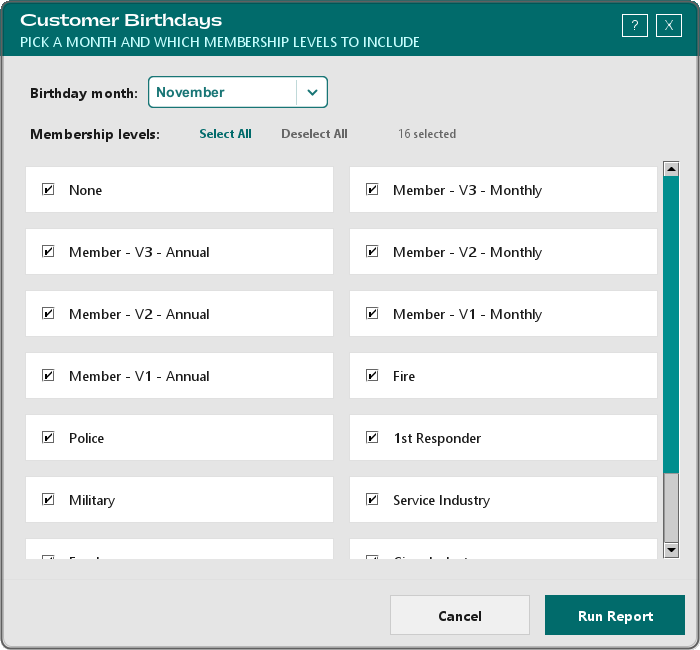
Birthday month opens on the current month. Pick another month if you're planning ahead.
Under Membership levels, tick the levels you want included. Click a card to tick or untick it, or use Select All and Deselect All. The count beside the buttons shows how many you've ticked. Leave every card ticked to include all your customers.
Click Run Report.
You have to tick at least one level, or TORO asks you to. Your choice of levels is remembered for you the next time you run it (each employee keeps their own). The month always starts on the current one.
TORO builds the report and opens it in your web browser. If nobody has a birthday in that month (among the levels you picked), you'll see No customers have a birthday in that month. instead.
Reading the Report
The report is headed with the month, for example November Birthdays, and starts with three boxes:
- Birthdays This Month: how many customers are on the list
- With a Phone Number and With an Email: how many of them you can actually reach each way
Under those is a count By membership level, then the list of Customers with these columns: Birthday, Age, Customer, Phone, Email, Membership Level and Account ID. Only active customers are included.
- Age is the age they turn this year, worked out from the birth year on file. Some customers may have a made-up year on their account, so give it a sanity check before you write it in a card.
- Click any column heading to sort by it. Sorting by Birthday puts the list in calendar order.
- Type in the Search by name, phone, email or level... box to narrow the list.
- Export to CSV saves the list as a spreadsheet you can open in Excel or load into a mailing tool.
The page prints cleanly too, without the search box and button, so you can print it and work through it by hand.