The Credit Card Information Window
When something goes wrong with card processing, or you just need your merchant ID or the number for your processor, the Credit Card Information window has it all in one place: your gateway and processor details, website links, who your credit card representative is, and how to reach TORO Support. It's also where you keep a record of your monthly processing statements so you can see what you're really paying in fees.
Finding It
Open the Dashboard
Click the Store tab on the left, then click the Credit Card Information card. (Can't find it? Type "credit card" in the search box at the top right.)
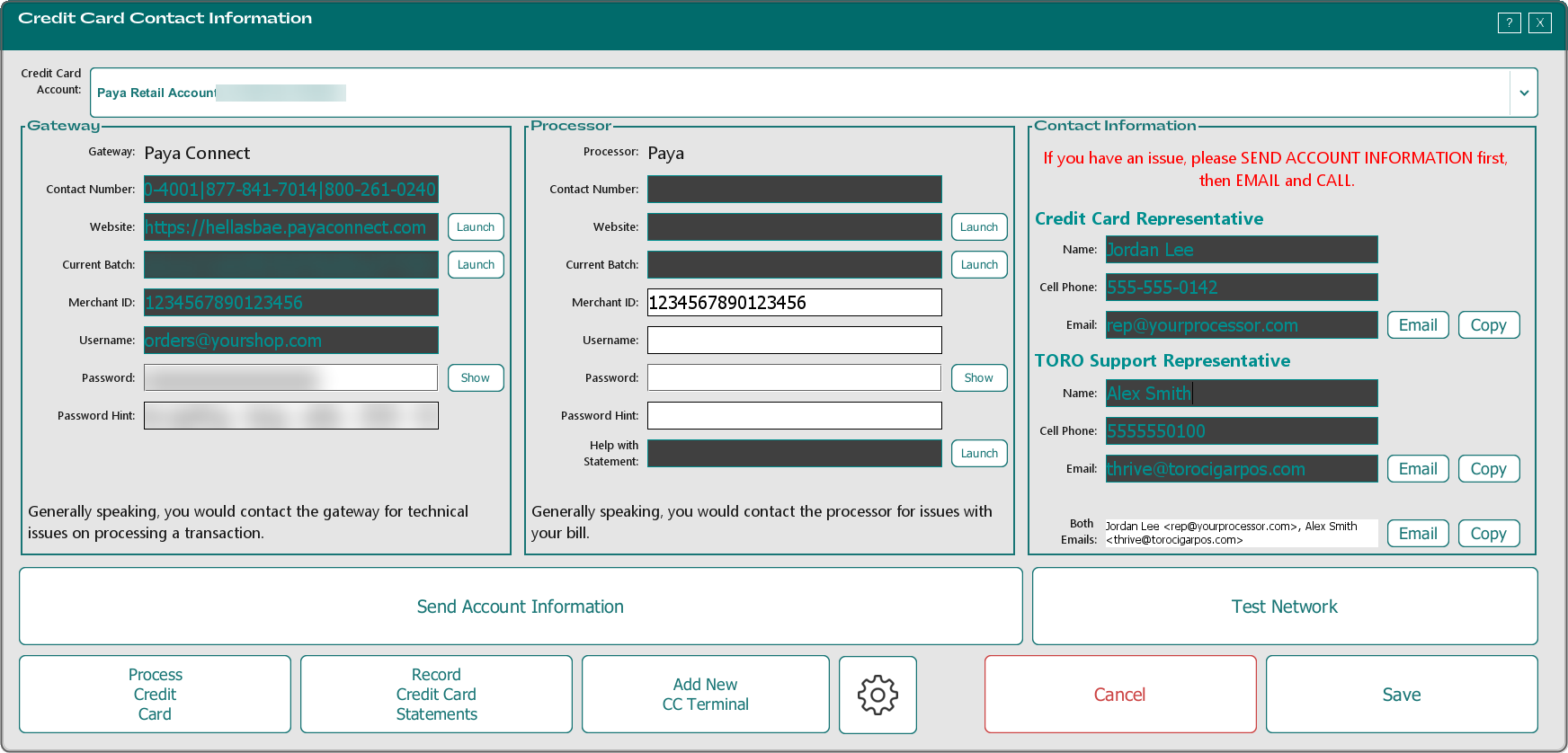
You can also open it from the sidebar of the main screen: tap Help, then Help with Credit Card Issues. The window is titled Credit Card Contact Information.
What's on the Screen
Credit Card Account at the top picks which of your card accounts you're looking at. Your in-store (card present) account comes first. Everything below changes to match.
Gateway is the company that carries each card payment to the processor. Contact the gateway for technical problems running a card. It shows the gateway's name, Contact Number, Website, a Current Batch link, your Merchant ID, Username, Password and Password Hint.
Processor is the company that settles the money and sends your statement. Contact the processor about your bill. It has the same kinds of details, plus a Help with Statement link.
- Launch next to a website opens it in your browser. TORO also puts the address on your clipboard. If you aren't signed in to that website, it won't take you straight to the right page: sign in, then come back and click Launch again (or paste the address with Ctrl+V).
- Show next to a password reveals it; click Hide to cover it again. Whether you can see or change the passwords depends on your access level.
Contact Information lists your Credit Card Representative and your TORO Support Representative, each with a Name, Cell Phone and Email. Both Emails holds both addresses together, so you can copy them into one email. Each Copy button copies that address, and each Email button opens a new email to it in your computer's email program.
The red note says what to do when there's a problem: send account information first, then email and call.
When You Have a Card Problem
Click Send Account Information. TORO asks "Do you also want to send it to the Admin Users?" and then "Do you also want to send your Password?" Answer each, and TORO emails your account details to your credit card representative and TORO Support. You'll see "Information was sent to your Credit Card Rep and Support."
Then email or call. When you use an Email button, TORO first asks whether to send support your account information as well, then opens a new email with the subject "Toro - (your store) - Credit Card Issue".
If cards aren't going through at all, click Test Network. It runs TORO's full network check, including a test of the connection to the card processor.
Changing the Saved Details
Some of the gateway and processor details can be typed in, depending on your access level; your gateway Merchant ID and Username can't be changed here. Click Save to keep your changes, or Cancel to close without saving.
Switching to another account in the Credit Card Account box saves what you've typed for the account you're leaving, so check your changes before you switch.
The Other Buttons
- Add New CC Terminal links a new card reader to the register you're standing at. See Setting Up a Credit Card Terminal.
- The gear button opens the Credit Card Account Editor for the selected account. It holds the keys and IDs your processor gave your store, under Vital Settings - BE CAREFUL!, and they're locked. If even one character is wrong, cards stop working on every register that uses that account, so only unlock them (Unlock, then YES, UNLOCK) when your processor or TORO Support has given you new values, and write down the current ones first.
- Record Credit Card Statements opens your statement history, below.
Recording Your Monthly Statements
Each month your processor sends a statement showing how much card revenue went through and how much you paid in fees. Typing those two numbers into TORO lets it work out your real fee percentage, month after month.
Click Record Credit Card Statements. The Credit Card Statements window lists every statement you've recorded, and Average Percentage at the top right is the average fee percentage across the statements listed. Use the box at the top left to look at one account or All Credit Card Accounts.
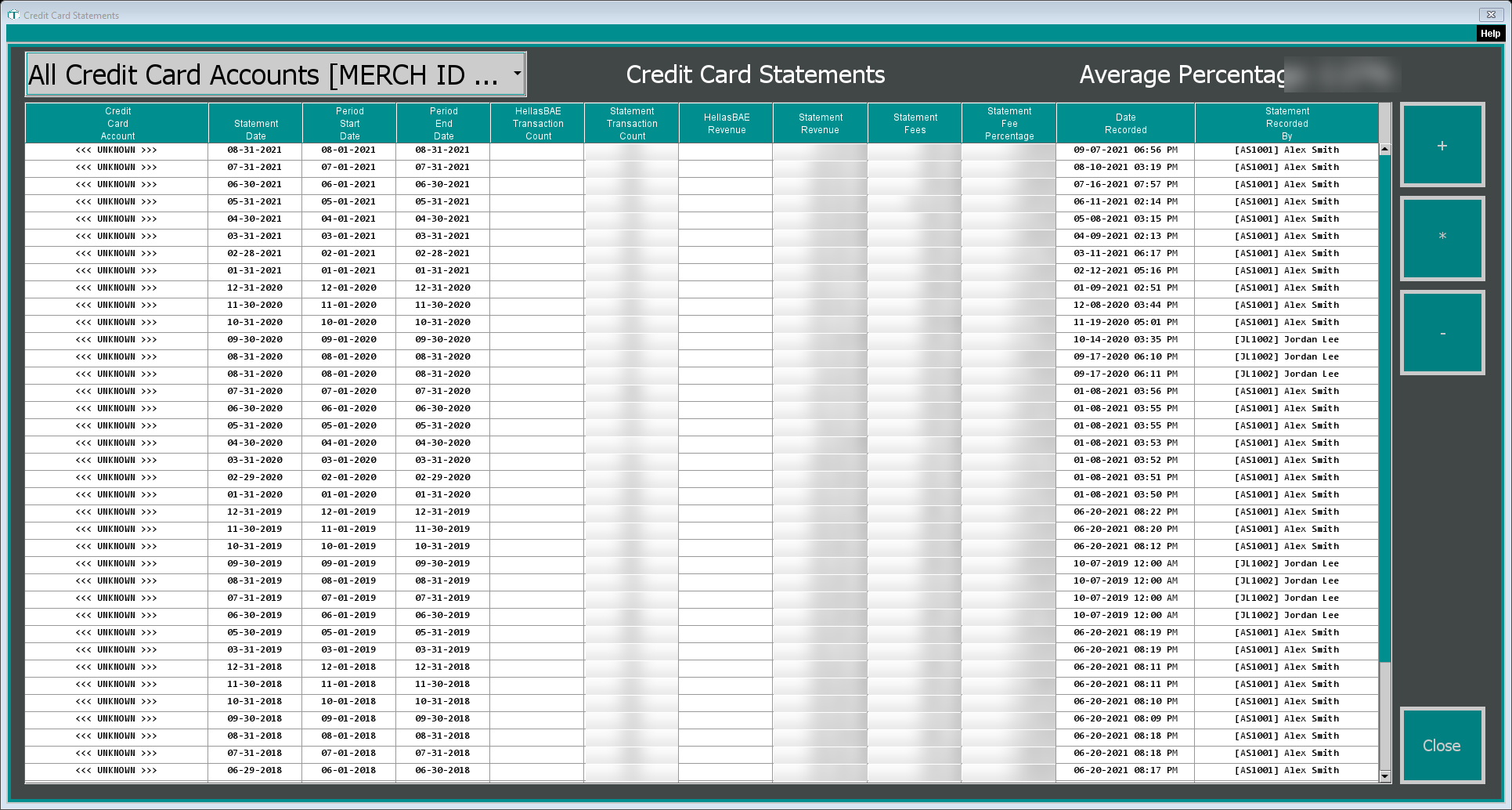
To add a statement:
Click +. If you have more than one card account, TORO asks which account the statement is for.
Set the Statement Date. TORO offers to fill in the Start Date and End Date as the first and last day of that month; click Yes, or set them yourself. None of the dates can be in the future.
Type the Statement Revenue, Statement Fees and Statement Transaction Count from the statement.
TORO works out the Statement Fee % (fees divided by revenue) as you type.
Click Save. (Close leaves without saving.)
To fix a statement, click it and click *. To delete one, click it, click - and confirm.