Network Diagnostics
When TORO is slow, won't update, can't reach the card processor or says it can't find the internet, the question is always which part is broken: this computer, your internet, TORO's servers, or the connection to your main register. Network Diagnostics checks every one of those in a few seconds and shows you the answer in green, yellow and red.
It only looks. Running the check doesn't change anything on your computer.
Finding It
Open the Dashboard
Click the Store tab on the left, then click the Network Diagnostics card. (Can't find it? Type "network" in the search box at the top right.)
The Test Network button in the Credit Card Information window opens the same check.
The check starts on its own as soon as the window opens.
Reading the Results
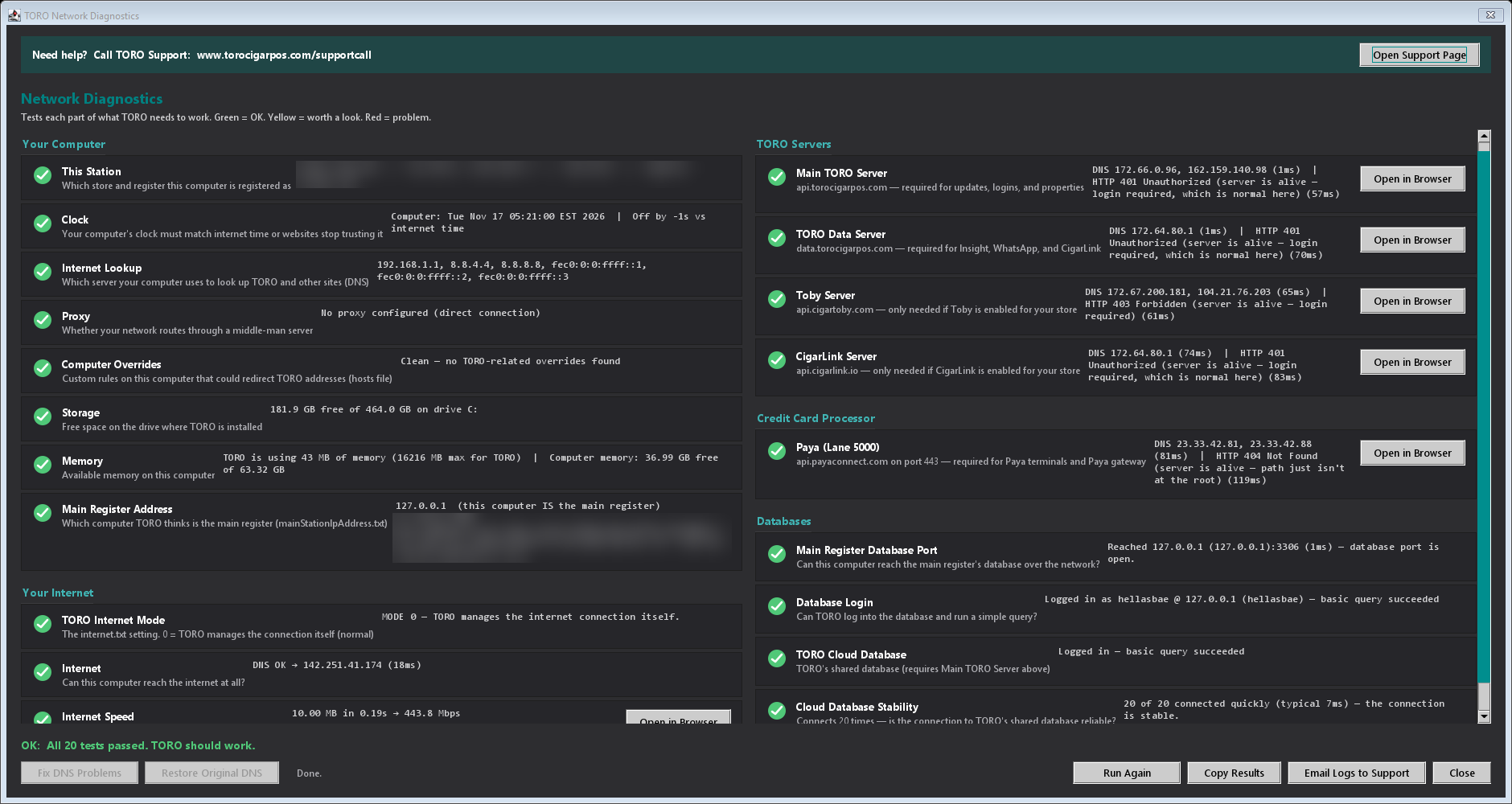
Each row has a coloured mark: green is fine, yellow is worth a look, red is a problem. Under each name is a plain-English line saying what that row checks, and on the right are the details TORO Support will ask about.
Your Computer
- This Station: which store and register this computer is set up as.
- Clock: whether the computer's clock matches internet time. A clock that's far off stops secure websites from trusting it.
- Internet Lookup: which DNS servers the computer uses to look up TORO and other sites.
- Proxy: whether your network sends traffic through a middle-man server.
- Computer Overrides: whether anything on this computer (the hosts file) redirects TORO's addresses.
- Storage: free space on the drive TORO is installed on.
- Memory: how much memory TORO and the computer are using.
- Main Register Address: which computer TORO thinks is your main register.
Your Internet
- TORO Internet Mode: whether TORO is managing the internet connection itself (normal) or has been set to work offline.
- Internet: whether this computer can reach the internet at all.
- Internet Speed: a 10 MB download test.
TORO Servers: Main TORO Server, TORO Data Server, Toby Server and CigarLink Server. The descriptions say what each one is for; Toby and CigarLink only matter if your store uses them.
Credit Card Processor: Paya (Lane 5000), which Paya terminals need.
Databases
- Main Register Database Port: whether this computer can reach the main register's database over your network.
- Database Login: whether TORO can sign in to its database and run a simple query.
- TORO Cloud Database and Cloud Database Stability: whether TORO's shared database answers, and whether it answers reliably when tried over and over.
The line above the buttons sums it up:
- OK: All ... tests passed. TORO should work.
- WARNING: ... TORO should still work — review yellow rows.
- FAILED: ... Call TORO Support, with the support address.
Rows that test a website have an Open in Browser button, so you or Support can try the same address in a web browser.
The Buttons
- Run Diagnostics (it says Run Again after the first run) runs every check again. Use it after you've restarted your router or fixed something.
- Copy Results copies a full report to the clipboard, ready to paste into a WhatsApp message, email or text to TORO Support.
- Email Logs to Support sends TORO's updater log, with the same report, straight to TORO Support. TORO shows you what it's about to send and asks before sending. It needs a working internet connection; if it can't send, use Copy Results instead.
- Open Support Page at the top opens TORO's support page in your browser.
- Close closes the window.
Fix DNS Problems and Restore Original DNS
Fix DNS Problems only lights up when the check shows the internet works but this computer can't look up TORO's servers. It switches the computer's DNS to Google's and Cloudflare's public DNS servers. Before it changes anything, TORO saves your current settings and shows you exactly which connections it will change and asks you to confirm. Click Run Again afterwards to test.
Restore Original DNS puts the DNS back exactly how it was before the last fix. It only lights up when there's a saved backup to restore.
Both need Windows administrator access. If TORO wasn't started as administrator, it tells you how: close TORO, right-click the TORO icon on your desktop, choose Run as administrator, click Yes, then open the diagnostics again and click the button.
INTERNET IS GOOD
This button only appears when TORO has been set to work offline. It lights up once a run shows the connection to TORO's servers is healthy. Clicking it (and then YES) puts TORO back to managing the internet connection itself and restarts TORO, so make sure no sale is in progress first. If TORO can't start itself again, it tells you to start it from the desktop icon.
Check Internet: The Quick Test
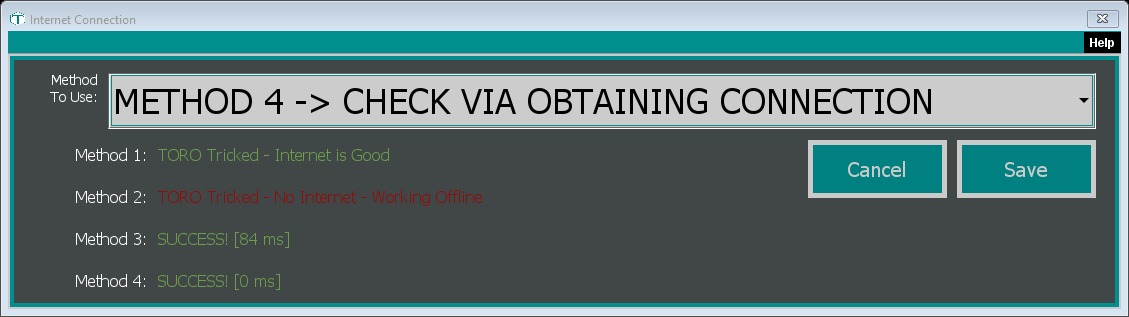
There's also a smaller, older test: open the Dashboard, click the TORO Configuration tab, then click the Check Internet card. (Can't find it? Type "internet" in the search box.)
The Internet Connection window runs two connection tests as it opens, which can take a few seconds. The Method 3 and Method 4 lines show the results:
- SUCCESS! means the connection worked.
- SUCCESS, BUT SLOW! means it worked but took 2 seconds or more.
- CONNECTION FAILED! means it couldn't connect.
The number in brackets is how long the test took, in milliseconds. The Method 1 and Method 2 lines are fixed text, not tests.
Close this window with Cancel. The Method To Use box at the top changes how TORO decides whether it's online, and some of its choices make TORO work offline on purpose. Clicking Save stores whatever that box shows, so only change it and save if TORO Support asks you to.