Adding Whole Brands from the Master Cigar Database (Set Up My Humidor)
Taking on a new cigar brand? You don't have to type its cigars in one at a time. TORO keeps a master cigar database with the cigars from hundreds of brands: names, sizes, box counts, costs and barcodes. In the Set Up My Humidor window you tap the brands you carry, and TORO copies every cigar in those brands into your store's item list. Then you set your prices and they're ready to ring up.
This is free. You are not ordering cigars and nothing gets shipped. You're only putting the cigar names into your register so you can sell them.
Where to find it: on the main screen, tap Admin in the side bar, then Dashboard, then Items, then Set Up My Humidor.
Step 1: Open Set Up My Humidor
- Go to the main screen of TORO.
- On the side bar, select the Admin menu item.
- Select the Dashboard menu item. (Need help with this part?)
- On the side bar of the Dashboard, select Items.
- Select the Set Up My Humidor tile. (Can't find it? Type "humidor" in the search box at the top right.)
You should now see a window called Set Up My Humidor, on its Welcome! screen.
- Select Build My Humidor.
(The other big button, Set Up Store, opens the Setup window for your store settings. You don't need it to add brands.)
You need an internet connection. The master database lives online, so without one there's no brand list, and the window says so.
Step 2: Tap the brands you carry
You should now see a wall of brand buttons with Tap every brand you carry at the top.
- Tap each brand you want to add. It turns green and says ADDED. Tapped the wrong one? Tap it again to take it back off.
- There are a lot of brands, so use the or type a name to jump to it box. Type a few letters and the wall narrows down as you type.
- When you've tapped them all, select Review My Brands.
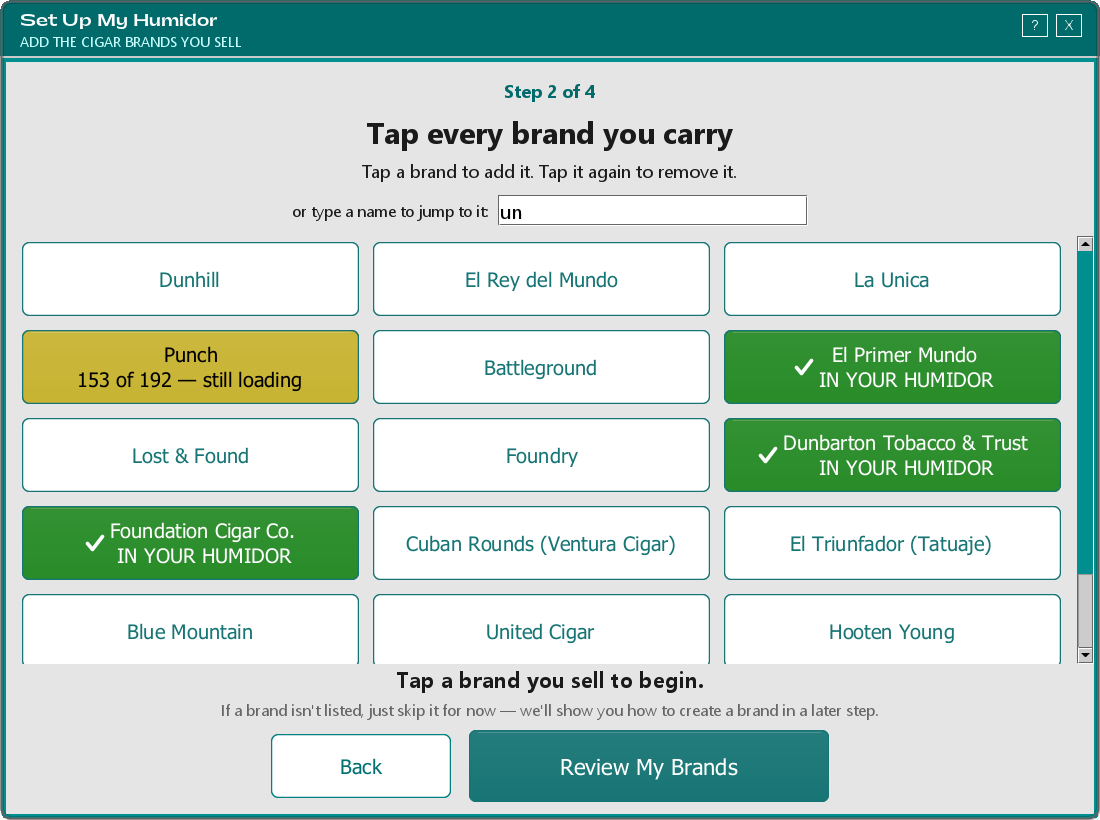
The colour of a brand button tells you where it stands:
- Plain: you don't carry it yet. Tap to add it.
- Green, "ADDED": you just tapped it.
- Green, "IN YOUR HUMIDOR": already fully in your store. You can't tap it, because there's nothing left to add.
- Yellow, "153 of 192 — still loading": you picked it before and not all of its cigars have arrived yet. Tap it to carry on where it stopped. It never starts over and never makes duplicates.
- Yellow, "not loaded yet — tap to load": you picked it once when TORO couldn't reach the master database, so nothing came down. Tap it to try again.
Can't find a brand? Try a different spelling first. House brands and smaller lines are often filed under the maker's name, like El Triunfador (Tatuaje). If it's really not there, skip it for now. You can make the brand yourself with the Manage Brands tile (on the same Dashboard Items side bar) and add its cigars by hand, as shown in Adding a New Item.
Step 3: Review and add
You should now see Here are the brands you picked, with a Remove button beside each one. This is your last look before anything downloads.
- Read the list over. Select Remove beside any brand you don't want, or Back to go back to the wall.
- Select Add These Brands to My Store.
Step 4: Let it load
Each brand gets its own line with a running count, like "Rocky Patel — loading… 118 of 192 cigars", and a green tick when it's finished. Big brands take a while.
You don't have to sit and watch. Select Close (keeps working) and the cigars keep downloading in the background while you use the register. Want more brands? Select Select More Brands to go back to the wall while these load.
What the lines mean:
- "loading… 118 of 192 cigars": working normally.
- "done (192 cigars)" with a green tick: finished.
- "no cigars to add": that brand has no cigars in the master database yet. Nothing is wrong.
- "we'll keep trying": TORO couldn't reach the master database for that brand just then. It tries again by itself.
If your internet drops, the line under the headline says "Waiting for internet… we'll keep trying on our own."
"This is taking longer than usual." Nothing new has arrived for about a minute. Usually it's a slow connection. Sometimes a few cigars can't be added, most often because you already have that exact cigar filed under a different brand, so a brand can stay a few short of its full count. TORO keeps working in the background and gives you Set Prices Now so you're not stuck waiting.
Closed TORO before it finished? Your picks are saved. The next time your main register starts up, TORO picks up the unfinished brands where they stopped. That only happens on the main register. On any other station, open Set Up My Humidor again and tap the yellow brand yourself. If a brand has sat unfinished for a couple of weeks, TORO stops retrying it by itself, so tap it on the wall to start it again.
What gets added
For every cigar in the brands you picked, TORO adds:
- The cigar name and its brand
- The size and details from the master database
- The box count (how many cigars come in a box) and the box cost from the master database
- The barcodes for the box and the single, where the master database has them
Two things are not done for you:
- The cigars come in switched off, so they don't show up for sale yet.
- They have no retail price. TORO won't ring up an item without one.
Cigars you already have aren't added again. TORO only adds the cigars from that brand you don't have yet, so you never get duplicates.
Step 5: Set your prices, and check your costs
When the headline says All done!, select Set Prices Now. Or select I'll do this later; the cigars are safely in your item list and you can price them any time.
Set Prices Now opens a window called Select a Brand. Pick a brand, and you should now see a window called Quick Add New Items for that brand. For each cigar:
- Select the cigar in the list.
- Check the cost. Box Manf. Cost and Cigars/Box come from the master database. Your distributor may charge you a different price, so compare them with your last invoice and change them if they're different.
- Type your retail price.
- If you're counting stock as you go, type the quantity on hand.
- Select Save.
Making a change switches the cigar on, so it's ready to ring up, while Automatically activate Item when any information is modified is checked. It's checked to start with.
Do this brand by brand. To come back to it later:
- Go to the main screen of TORO.
- On the side bar, select the Admin menu item.
- Select the Dashboard menu item.
- On the side bar of the Dashboard, select Items.
- Select the Quick Add New Items tile.
You should now see a window called Select a Brand. If your new brand isn't in the list, uncheck Only Show Brands with Active Items at the top. Cigars you just downloaded stay switched off until you price them, so that box hides them.
Later on, when a manufacturer changes its prices or box counts, Compare to Master Database shows you which of your cigars are different from the master database and lets you update them.
Good to know
- Come back whenever you take on a new brand. The wall shows the brands you already have in green, so you only tap what's new.
- Price before you count. Get the cigars in and priced first, then your inventory count has something to count against. See Taking Inventory.
- The window opens by itself on a brand-new store. While your store has never rung up a sale, TORO opens Set Up My Humidor at startup. After your first sale it stops, and the Dashboard tile is how you get back to it.