Comparing Your Items to the Master Database
TORO keeps a master catalog of cigars and other products, with box counts, costs, manufacturer SKUs and barcodes. Items you brought in from that catalog stay linked to it. Compare to Master Database checks those linked items against the catalog and lists every one where your store's details are different or the catalog has something you're missing, like a barcode for the box or the single.
It's handy after a manufacturer changes its pricing or box sizes, or when you want to fill in barcodes so more of your shelf scans at the register.
This changes costs and prices. Applying an update replaces your cost with the catalog's cost and can change your retail prices. Read the list carefully before you apply anything.
Finding It
Open the Dashboard
Click the Items tab on the left, then click the Compare to Master Database card. (Can't find it? Type "master" in the search box at the top right.)
TORO asks "Do you want to filter on a Brand?" Click Yes to check one brand, then pick it in the Select a Brand window. Click No to check every brand.
If the brand you picked isn't linked to a brand in the master catalog yet, TORO helps you link it first. It either asks "One brand was found with a match. Is this it?" or opens a list of catalog brands to choose from.
The View Pricing Updates window opens empty. Click Search to run the check. It looks at every active item that's linked to the catalog (in that brand, if you picked one), so give it a moment.
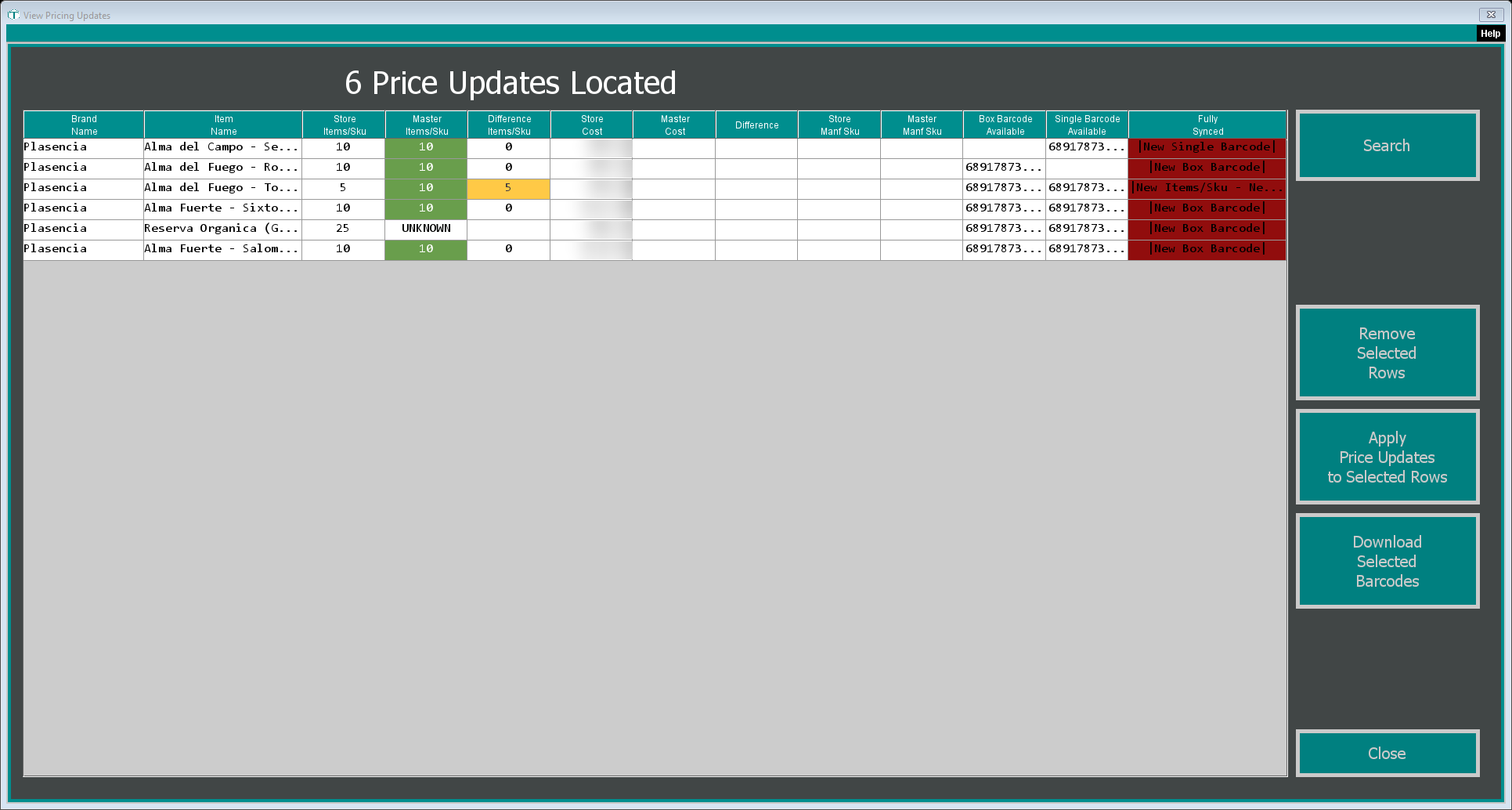
Reading the List
The headline counts the items found, for example 6 Price Updates Located. Each row is one item, compared on its box (its master SKU):
- Brand Name and Item Name
- Store Items/Sku and Master Items/Sku: how many come in your box, and in the catalog's box. Difference Items/Sku is the gap. UNKNOWN means the catalog doesn't have a count for it.
- Store Cost and Master Cost: what your box costs now, and the catalog's cost. Difference is the gap.
- Store Manf Sku and Master Manf Sku: the manufacturer's SKU on your box, and in the catalog
- Box Barcode Available and Single Barcode Available: the barcode the catalog has for the box and for the single. A blank cell means the catalog has no barcode for it. The barcode shows here even when your item already has it; Fully Synced tells you which ones are new to the item.
- Fully Synced: what's different, for example New Cost, New Items/Sku, New Manf Sku, New Box Barcode or New Single Barcode
An item only shows up when something is different. If a search finds nothing, your linked items already match the catalog.
Choosing Rows
Highlight the rows you want to update. To take rows off the list, highlight them and click Remove Selected Rows. That only removes them from the list; nothing is saved, and they come back on your next Search.
If you click Apply or Download with nothing highlighted, TORO asks "Update all N items in the list?", with N being how many rows are on the list. Click Yes to update every row on the list, or No to go back and highlight the ones you want. On an empty list (before you click Search, or after a search that found nothing), TORO tells you to click Search first.
If every row on the list is highlighted (or you said Yes to updating them all), TORO goes straight ahead. If only some are highlighted, it asks first.
Apply Price Updates to Selected Rows
This brings the highlighted items in line with the catalog. For each item, TORO:
- Changes the box count to the catalog's Master Items/Sku. If the box size can't simply be changed, TORO makes a new box SKU with the catalog's count, moves the old box's barcodes onto it, and makes the old box SKU inactive. Fully Synced warns you about this with New Items/Sku - New Master Sku.
- Replaces your box cost with the Master Cost. The other sizes of the item (like the single) pick up the new cost from the box.
- Recalculates retail prices from the new cost with your markups, for every size of the item that TORO prices automatically. A size whose retail you set by hand keeps its price; only its cost changes. Updated items are flagged as needing new price tags.
- Fills in the manufacturer SKU on the box, but only if yours is blank. TORO never overwrites a manufacturer SKU you already have, so a row that only shows New Manf Sku stays on the list.
- Adds the catalog's barcodes, exactly as Download Selected Barcodes does below.
When TORO asks before it starts, it reminds you that this will change your retail prices, and that updating the box also gives the single a new cost and retail. When it's done, the list searches again, so the rows you updated drop off.
There's no undo. The new costs and prices are live straight away. Price changes are recorded in each item's pricing history with the source Auto Pricing, so you can see what a price was before. See Item Pricing History.
Download Selected Barcodes
This adds barcodes without touching your costs or prices. For each highlighted item, TORO:
- adds the catalog's box barcode to the item's box,
- adds the catalog's single barcode to the item's single (if the item doesn't have a single yet, TORO creates one to hold it),
- fills in the manufacturer SKU on the box if yours is blank.
If one of the catalog's barcodes is already on a different item in your store (or on another size of this item), TORO leaves it where it is and doesn't add it here.
Once barcodes are on your items, they scan at the register. Printing and Managing Barcodes covers the rest.