Using TORO Messages
TORO has its own inbox, called Messages. Your staff can leave each other notes there ("the Padron order came in short, I called the rep"), and TORO itself drops notices there too, like update announcements. It works a lot like email, but it lives inside TORO and every message stays tied to the employee who sent it.
Finding It
Open the Dashboard
Click the Messages button at the top, next to Clock In/Out
When you have unread messages, that button reads Messages (3) (with your count) and blinks so you notice it.
You can also open it from the main screen: tap Employee in the left sidebar, then View Messages. During a sale, a Messages chip shows up in the teal header across the top, and tapping it opens the same inbox.
Messages always opens for one person, so TORO asks for your PIN first if nobody is signed in. The window's subtitle shows whose inbox you're looking at.
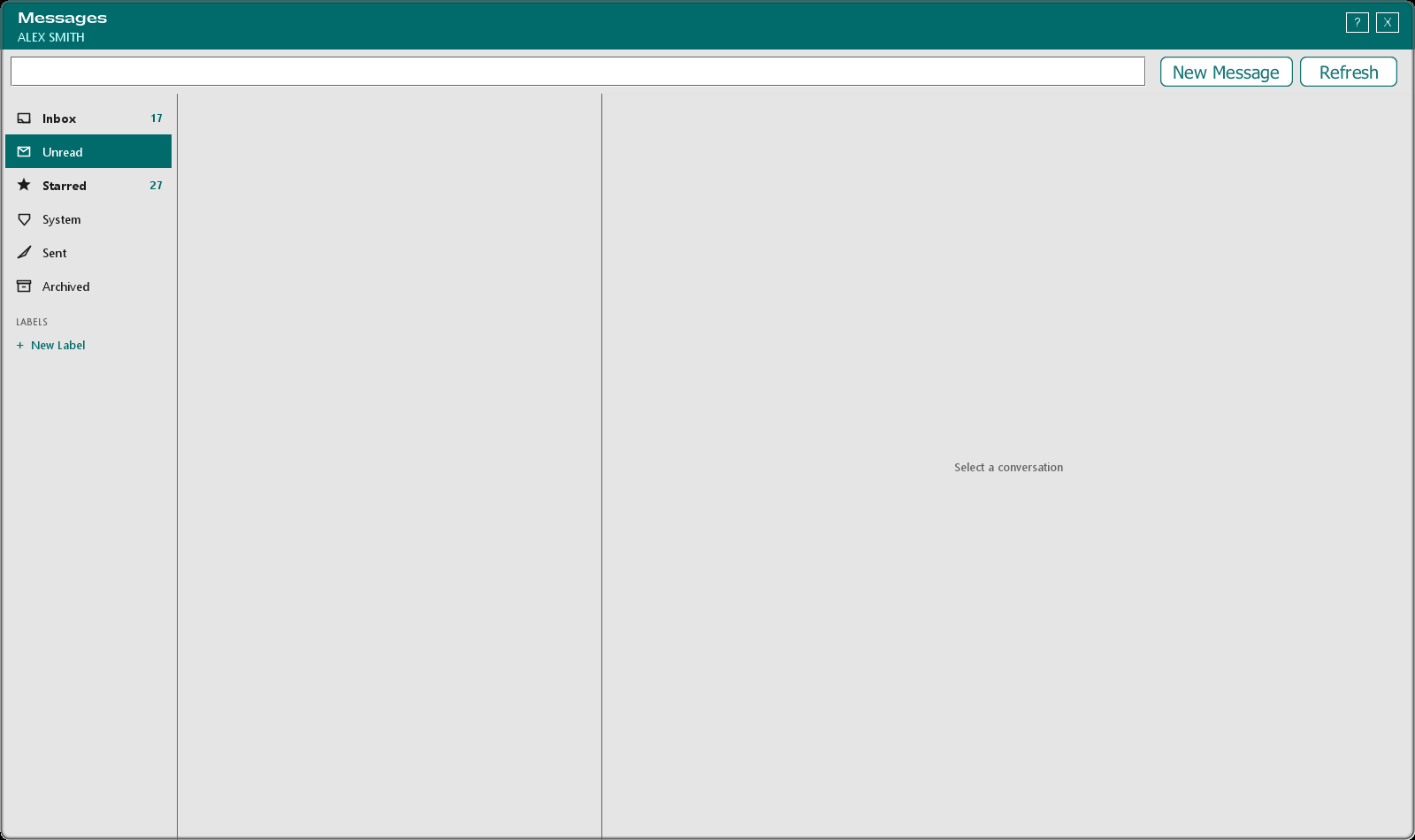
The Folders
The window opens on Unread, so the first thing you see is anything you haven't read yet. Click a folder on the left to switch:
- Inbox — all your conversations, except ones you've archived
- Unread — only conversations with something you haven't read
- Starred — messages you've starred
- System — messages TORO sent, like update notices, rather than ones a person typed
- Sent — conversations where you sent the latest message
- Archived — conversations you've archived
To find something, type in the search box at the top. The list narrows as you type. Refresh reloads the folder you're in.
Reading a Conversation
Click a conversation in the middle list and it opens on the right. Opening it marks its unread messages as read.
Each message shows who sent it and when. On messages you sent, you'll also see who has read it so far and who hasn't yet (for example "Read by Maria, Tom · Not yet: Luis"). Each message has:
- Star, to add it to your Starred folder (click again to unstar)
- Mark Unread, to flag it as unread again so it comes back to you later (it reads Mark Read once it's unread)
Along the top of the conversation:
- Reply answers everyone in the conversation
- Forward sends a copy of the latest message to someone new
- Archive moves the conversation to Archived. Nothing is deleted, and Move to Inbox brings it back
- + Add Label tags the conversation with one of your labels
Some notices from TORO come with a button of their own, such as View Release Notes on an update notice. Update notices like that one don't have Reply or Forward.
Sending a Message
Click New Message
Click Add People and choose who should get it. You can pick more than one person.
Type a Subject and your message
Click Send
Everyone you picked shares one conversation, so when anyone replies, the whole group sees it. TORO won't send until you've added at least one person, a subject and some text. If you close the window with a message half-written, TORO asks before throwing it away.
Labels
Labels are your own colored tags for sorting conversations, like "Vendor issues" or "Schedule".
- To make one, click + New Label under LABELS on the left. Give it a Label name, pick a Color and, if you like, an Icon, then click Save.
- To tag a conversation, open it and click + Add Label, tick the labels you want, then click Done.
- To see everything with a label, click the label on the left. The number on it is how many conversations carry it.
- To change or delete a label, right-click it on the left. Deleting a label doesn't delete any messages; they just lose that label.
Labels belong to you. Other employees don't see yours.