TORO Remote Support
TL;DR
TORO Support is moving from TeamViewer to our own tool, TORO Remote Support. It's faster and more secure, and every connection is approved by TORO and logged. Your TORO update installs the window that sets it up. When it pops up, click Install Now, click Yes when Windows asks to make changes, and wait about 2 minutes. Do this on every register computer. Leave TeamViewer alone for now; we'll remove it later. If something ever goes wrong, the TORO Remote Support tile on the Dashboard's Store tab puts it back.
This arrives with your next TORO update. Until then, you won't see the window described here.
When something goes wrong at the register, the fastest fix is usually for us to look at your screen. For years that's meant TeamViewer: someone at the counter opens it, reads us a long ID and a password, and hopes they read it right while a customer waits.
We've built something better, and it's ours. TORO Remote Support runs on TORO's own servers rather than a third party's. Nobody has to read us a code, and every connection is approved by TORO and written to a log, so there's always a record of who connected to your computer and when.
You set it up once on each computer. It takes about two minutes, and you only press two buttons.
When you'll see it
After your TORO update, a window titled TORO Remote Support pops up when someone logs in to TORO.
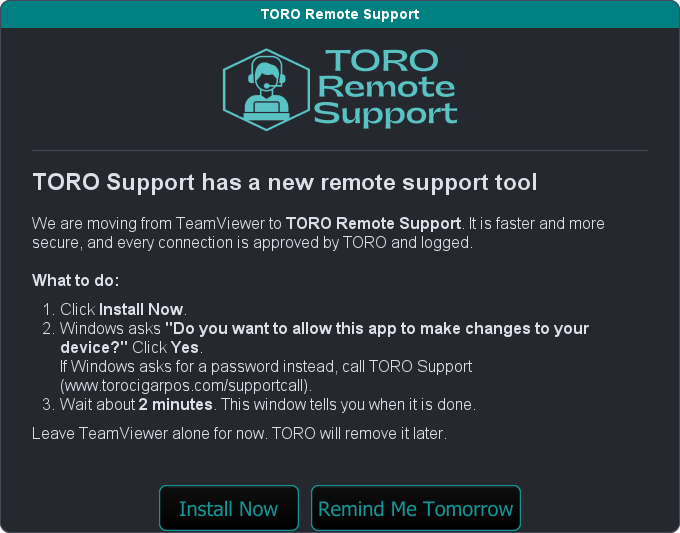
Anyone can do the install. It doesn't have to be the owner or a manager. The only part that may need a manager is Windows itself (see If Windows asks for a password).
It's per computer, not per store. If you have three registers, the window shows up on each of the three, and each one needs its own install. Once a computer has it, that computer stops asking.
Installing it, step by step
- Click Install Now.
- Windows shows its own box asking "Do you want to allow this app to make changes to your device?" Click Yes.
- Wait. The window counts the time so you can see it's still working. It usually takes about 2 minutes.
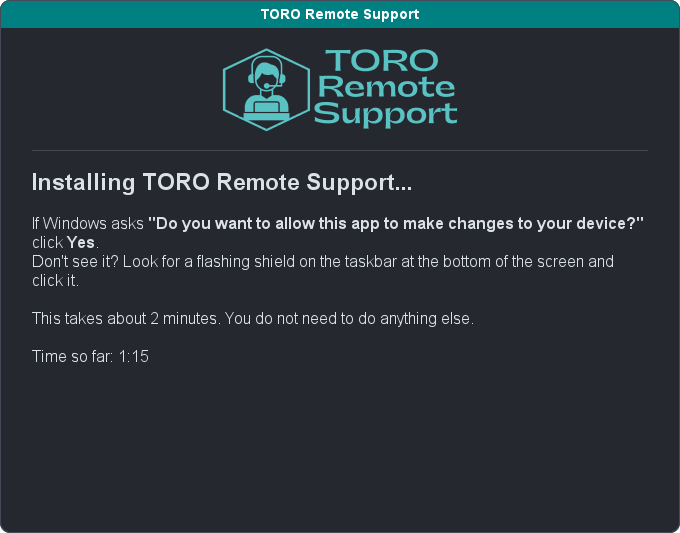
That Windows box is the one thing to watch for. It sometimes opens behind other windows, or makes the rest of the screen go dark until you answer it. If the installing screen just sits there and you never saw the box, look at the taskbar along the bottom of the screen for a flashing shield icon and click it.
You can't close the TORO window while it's installing. That's deliberate: stopping halfway is how you end up with something half-installed.
When it's finished, you'll see this:
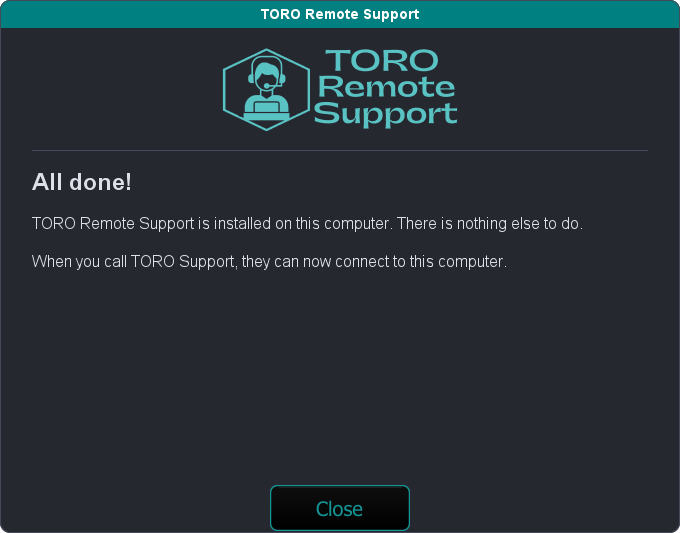
Click Close. That's it for this computer.
If you're busy right now
Click Remind Me Tomorrow. The window goes away for the rest of the day on that computer and comes back tomorrow. Closing the window does the same thing.
There's no "never ask again" button. We need to be able to reach every computer when you call us. Once it's installed, it stops asking for good.
If it says "Nothing was installed"
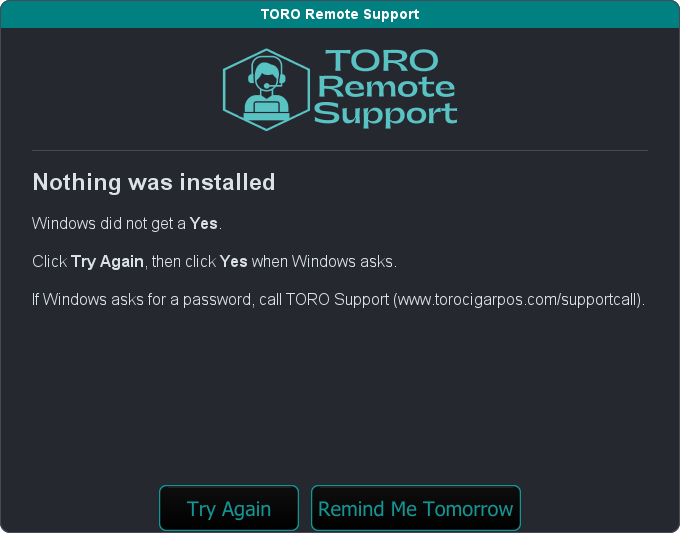
This means Windows asked for permission and didn't get a Yes. Maybe someone clicked No, or the box got closed. Nothing was changed on your computer.
Click Try Again, then click Yes when Windows asks.
If Windows asks for a password
Some computers are set up so only a Windows administrator can install anything. On those, instead of a simple Yes button, Windows asks for an administrator's user name and password.
That's a Windows password, not your TORO login. If you know it, enter it. If you don't, don't guess. Click Remind Me Tomorrow and contact TORO Support at www.torocigarpos.com/supportcall, and we'll sort it out with you.
If it says "The install did not finish"
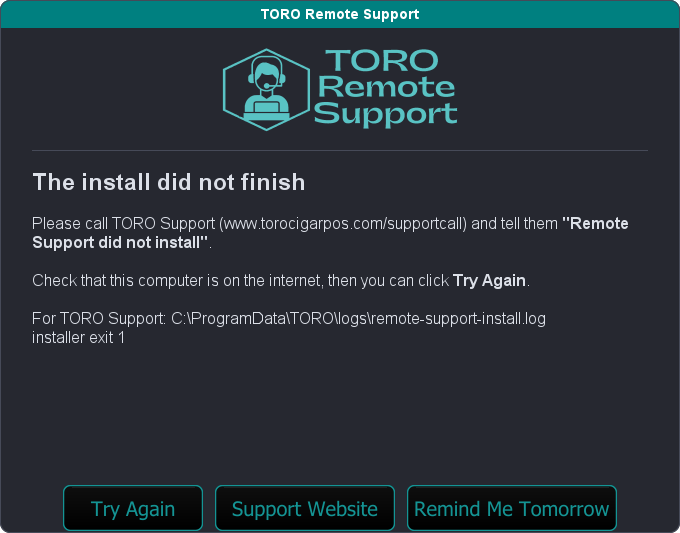
The most common cause is the internet. The install downloads the program from TORO, so the computer has to be online. Check that you can open a website on that computer, then click Try Again.
If it fails a second time, contact TORO Support (Support Website opens the page for you) and tell us "Remote Support did not install." The small print at the bottom of the window is for us: it says where the computer wrote down what went wrong, so we can see exactly what happened.
Trying again is always safe. You can't break anything by running it twice.
Reinstalling it later
If TORO Support ever tells you we can't connect to a computer, or we ask you to reinstall, you can run the same install any time from that computer:
- On the Dashboard, open the Store tab and click the TORO Remote Support tile (the one with the headset logo, right next to View Security Code), or
- Help ▸ Reinstall Remote Support in the menu along the top.
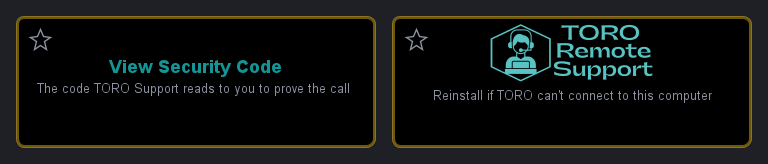
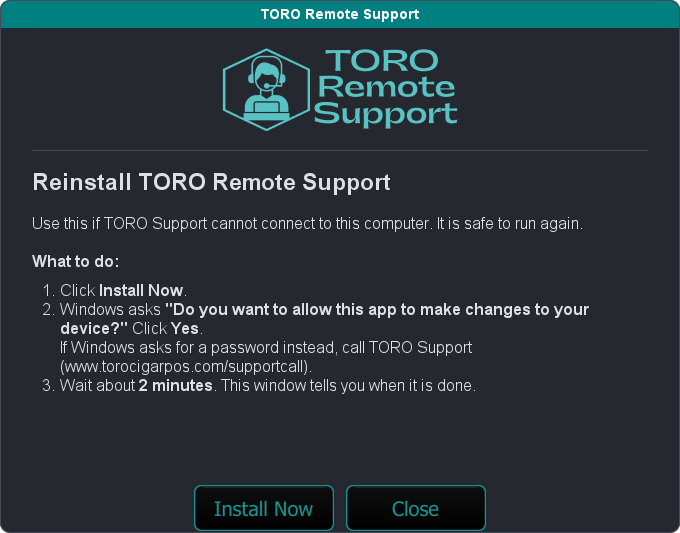
It's the same three steps: Install Now, Yes, wait about 2 minutes. Running it on a computer that already has Remote Support is completely fine. It refreshes everything and gives that computer a brand-new password on TORO's side. The old one stops working.
What about TeamViewer?
Leave it installed for now. Don't uninstall it yourself. Once every store is running TORO Remote Support, we'll remove TeamViewer for you. Until then, the two sit side by side, and nothing about how you use TORO changes.
Is it safe?
That's the right question to ask about anything that lets someone see your computer, so here's the straight answer.
- Only TORO can connect. Remote Support only talks to TORO's own servers. Each computer gets a long random password that nobody at your store ever sees or needs. It's stored encrypted, and only TORO's support system can use it.
- Every connection is approved and logged. There's a record of every time someone connects, and who it was.
- You'll see it happen. When TORO is connected, a window on the screen says so. Nobody can watch your screen without it showing.
- It's locked down. It's set up only for looking at and fixing your screen. Things a support session doesn't need, like your webcam, remote printing and a command window, are switched off. A connection that sits idle for 15 minutes disconnects on its own.
- Nobody can talk you into giving it away. With TeamViewer, a scammer could call, pretend to be us and ask you to read out the code. With Remote Support there's nothing to read out.
One habit still matters. If someone calls saying they're TORO and asks you to install a remote program, or to open anything other than the window on this page, check them with your store security code first. TORO Support tells you the code; you never read it to anyone.
For TORO Support
Each install writes a log on that computer at C:\ProgramData\TORO\logs\remote-support-install.log. The failure screen shows that path and a short technical line, for example installer exit 1 or enroll ticket: HTTP 401 Invalid API key.
- "Nothing was installed" means the Windows permission box was refused (exit 97). Nothing ran.
- A finished install that we can't connect to yet is usually a station-name clash: a different PC already held that name. It's waiting for approval in TORO Support Jawn. Nothing for the store to do.
- Main station: the computer holding the store database marks itself as the main station automatically.
- Re-running on the same PC rotates its password.