Store Notes
Every shop has things people need to know but nobody remembers: how to reset the Wi-Fi extender, what to do when the receipt printer jams, who to call about the humidor, how you want customers greeted. Store Notes is a place inside TORO to write those down, so anyone at the register can look them up.
Notes are sorted into groups you make yourself, like Maintenance, Opening Checklist or Vendors. Each note has a title and as much text as you want to write.
Finding It
Open the Dashboard
Click the Store tab on the left, then click the Store Notes card. (Can't find it? Type "store notes" in the search box at the top right.)
You can also open it from the sidebar of the main screen: tap Help, then Store Help Documents. It opens the same window, which is titled Store Notes.
Reading a Note
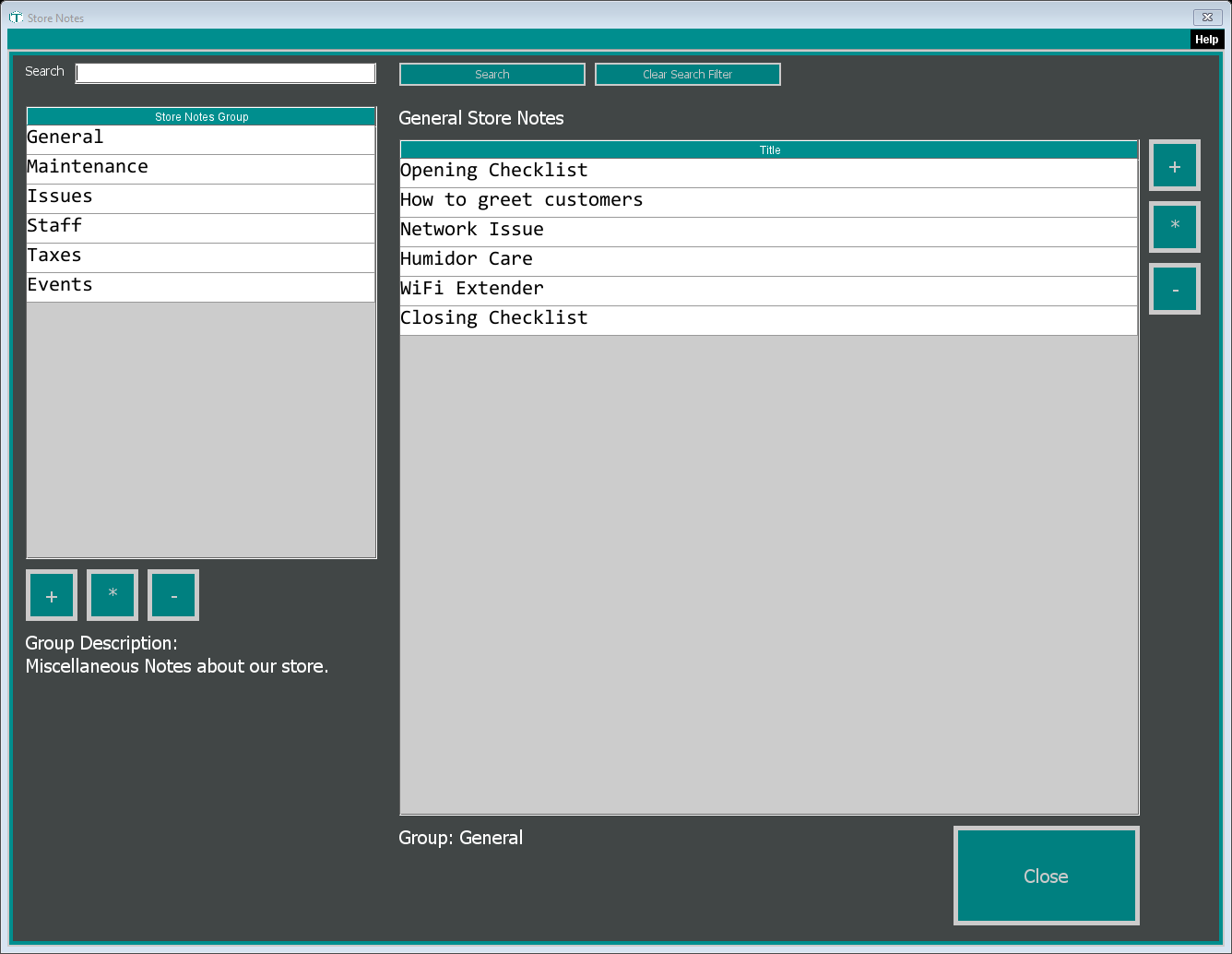
Click a group in the Store Notes Group list on the left. Its description shows underneath, and its notes are listed on the right by Title.
Double-click a note, or click it and then click the * button to the right of the list. The note opens in its own window.
Click Close when you're done.
Searching
To find a note without knowing its group, type a word in the Search box at the top and press Enter or click Search. TORO looks through note titles in every group and lists the matches under Store Notes containing: .... The group list is hidden while you're searching. Click Clear Search Filter to go back to browsing by group.
Writing a Note
Click the group the note belongs in.
Click the + button to the right of the notes list. The Store Note window opens.
Type a Title. The box stays red until you do, and TORO won't save a note without one.
Check the Group box. It starts on the first group in your list, not necessarily the one you clicked, so pick the right one.
Type the note in the big box underneath.
Click Save.
To change a note, open it, make your changes and click Save. You can move a note to another group by changing its Group. Clicking Close without saving leaves the note as it was.
Setting Up Groups
The +, * and - buttons under the group list manage the groups themselves.
- + makes a new group. Type its name in Title and a short description in the big box (it shows under Group Description when the group is selected), then click Save. Two groups can't have the same name.
- * (or double-clicking a group) opens it so you can rename it or change its description.
- - removes the selected group. A group has to be empty first; if it still holds notes, TORO tells you "Must remove all the store notes from a group before removing the group." An empty group is removed straight away, without asking you to confirm.
Who Can Change Notes
Anyone who can open the window can read the notes. Adding and changing notes and groups depends on each employee's access level. If someone's access level doesn't allow editing, notes open read-only for them, without a Save button.