Why Does TORO Show This Many? (QOH Details)
TORO doesn't just remember a number for how many of an item you have on hand (your QOH, quantity on hand). It works the number out fresh: it starts from the last time someone counted the item, adds what came in since, and takes away what went out. The QOH Details window shows you that sum, line by line, so when the shelf and TORO disagree you can see exactly why.
Where to find it: open the item in Item Details, then tap View Transactions & QOH/PO History.
Finding It
- Go to the main screen of TORO.
- Open the item so you see its Item Details window.
- Select the View Transactions & QOH/PO History button.
You should now see a window called QOH Details.
Reading the Window
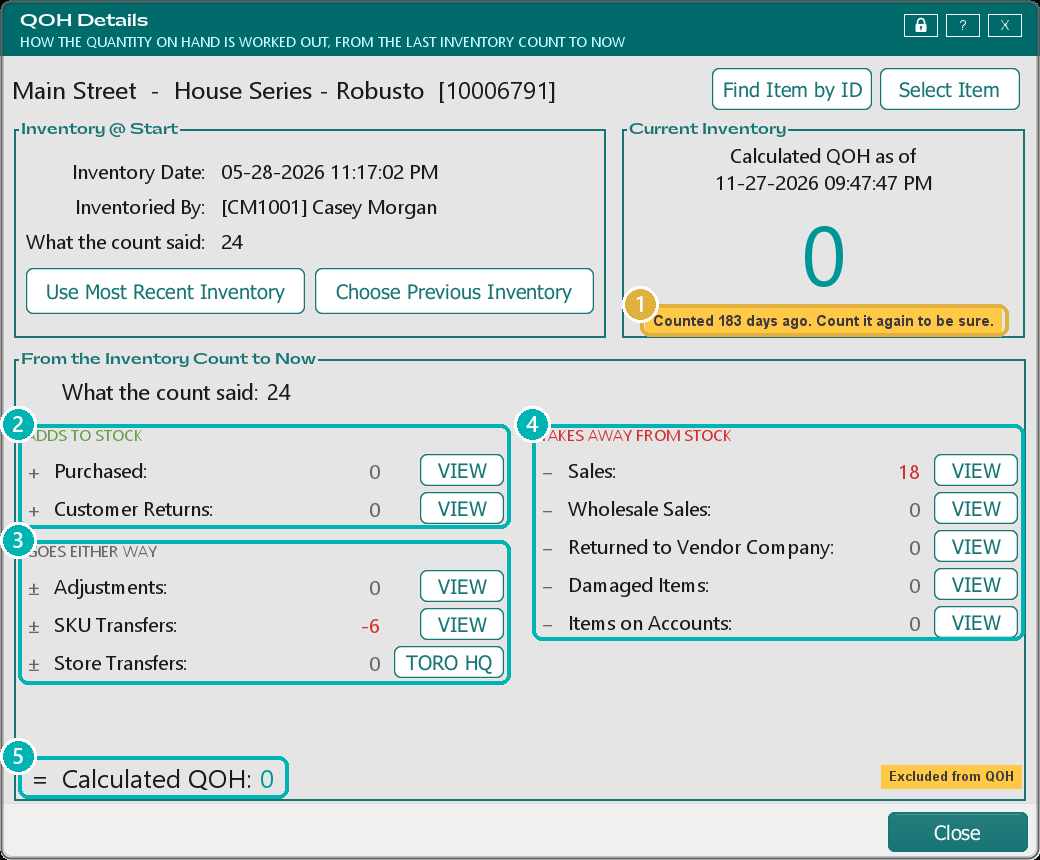
The top of the window shows the item, the count TORO starts from (Inventory @ Start: when it was counted, who counted it and What the count said) and, on the right, the big number: how many TORO thinks you have right now.
1. The yellow note. If the count TORO starts from is more than 90 days old, a yellow note under the big number says so, for example Counted 183 days ago. Count it again to be sure. The older the count, the more chances for a sale that wasn't rung up or a box that went missing. Counting the item again is the quickest fix. See Taking Inventory. If the item has never been counted, the note says Never counted.
Below that, From the Inventory Count to Now is the sum itself. It starts with What the count said, then:
2. Adds to Stock. These only ever add.
- Purchased: purchase orders you received.
- Customer Returns: items customers brought back that went back on the shelf.
3. Goes Either Way. These can add or take away, so the number shows its own sign: +12 in green when stock came in, -6 in red when it went out.
- Adjustments: changes from counts and quick adjustments after the starting count.
- SKU Transfers: stock moved out of this item into another one, or into it, with Transfer Skus.
- Store Transfers: stock sent to or received from another store in your TORO HQ.
4. Takes Away from Stock. These only ever take away.
- Sales: sold at the register.
- Wholesale Sales: sold on wholesale invoices.
- Returned to Vendor Company: sent back to the vendor. See Returning Product to a Vendor.
- Damaged Items: written off as damaged.
- Items on Accounts: put on a customer's account and not paid yet. When the customer pays, the item moves to Sales, still counted on the day it went on the account. See The Sales List.
5. = Calculated QOH. The answer: the count, plus everything that came in, minus everything that went out. It is the same number as the big one at the top.
A zero is shown in grey, so the lines that actually changed your stock stand out.
What's a yellow "Excluded" box? Purchase orders, wholesale invoices and vendor returns that aren't finished yet (for example, a purchase order still being received) don't count toward your stock. When there are some, a yellow box under that line shows how many, for example Excluded: RECEIVING: 2.
Seeing What's Behind a Number
Every line has a VIEW button right beside its number. Tap it to see the list that makes up that number, for the same dates:
| Line | VIEW opens |
|---|---|
| Purchased, Wholesale Sales, Returned to Vendor Company | View Purchase Orders & Wholesale Invoices, showing just that kind |
| Customer Returns | Customer Returns: each return, the sale it came from and the reason |
| Adjustments | Inventory History for this item. See Inventory History |
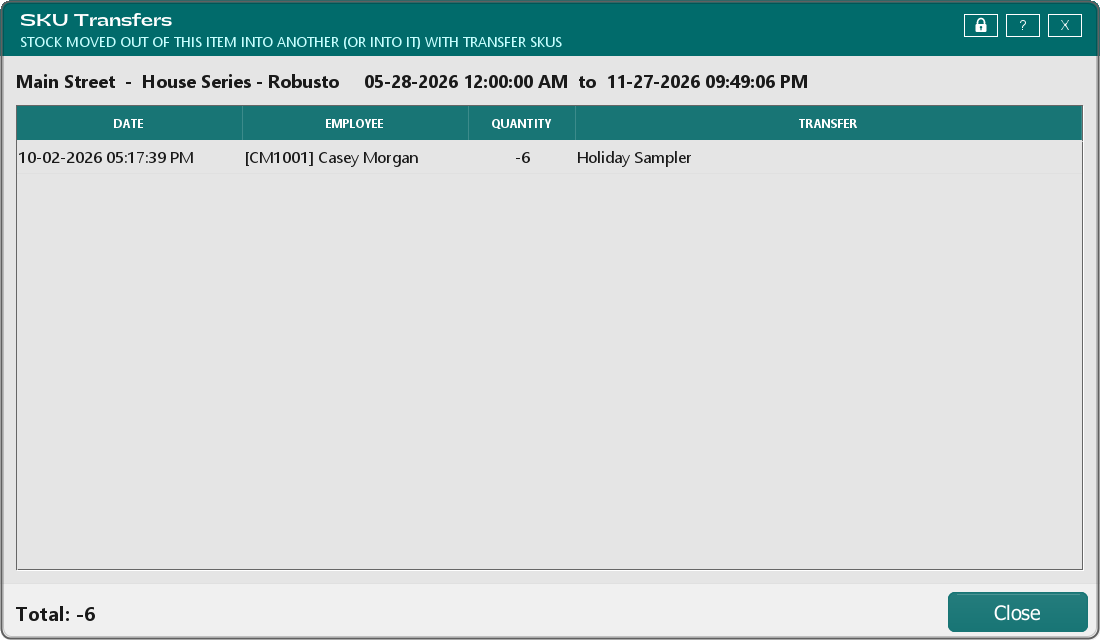
| SKU Transfers | SKU Transfers: each transfer and its name |
| Store Transfers | Store Transfers: each transfer, and whether it was sent, received or came back |
| Sales | Transactions For Item Viewer: every sale of this item. See The Sales List |
| Damaged Items | Damaged Items: each one, who wrote it off and what was wrong |
| Items on Accounts | Account Items: what's on customers' accounts |
The SKU Transfers, Customer Returns, Damaged Items and Store Transfers lists show the date, the employee, the quantity and what happened, with a Total at the bottom that matches the number on QOH Details.
The TORO HQ button
Store Transfers only happen between stores in a TORO HQ. If your store isn't in one, the button beside Store Transfers says TORO HQ instead of VIEW. Tap it to learn about TORO HQ and sign up. Once your store is in a TORO HQ, the button says VIEW. See TORO HQ.
The Sales List
VIEW beside Sales opens Transactions For Item Viewer: every sale of the item for the same dates. Sometimes it lists more sales than the Sales number on QOH Details. That's because a sale comes out of your stock on its inventory date, and that isn't always the day it was paid:
- An item put on a customer's account leaves your stock the day it went on the account, even if the customer pays it off months later. So an account paid off this month, for a box they took last year, counts toward last year.
- A sale made after the time QOH Details counts up to doesn't count yet.
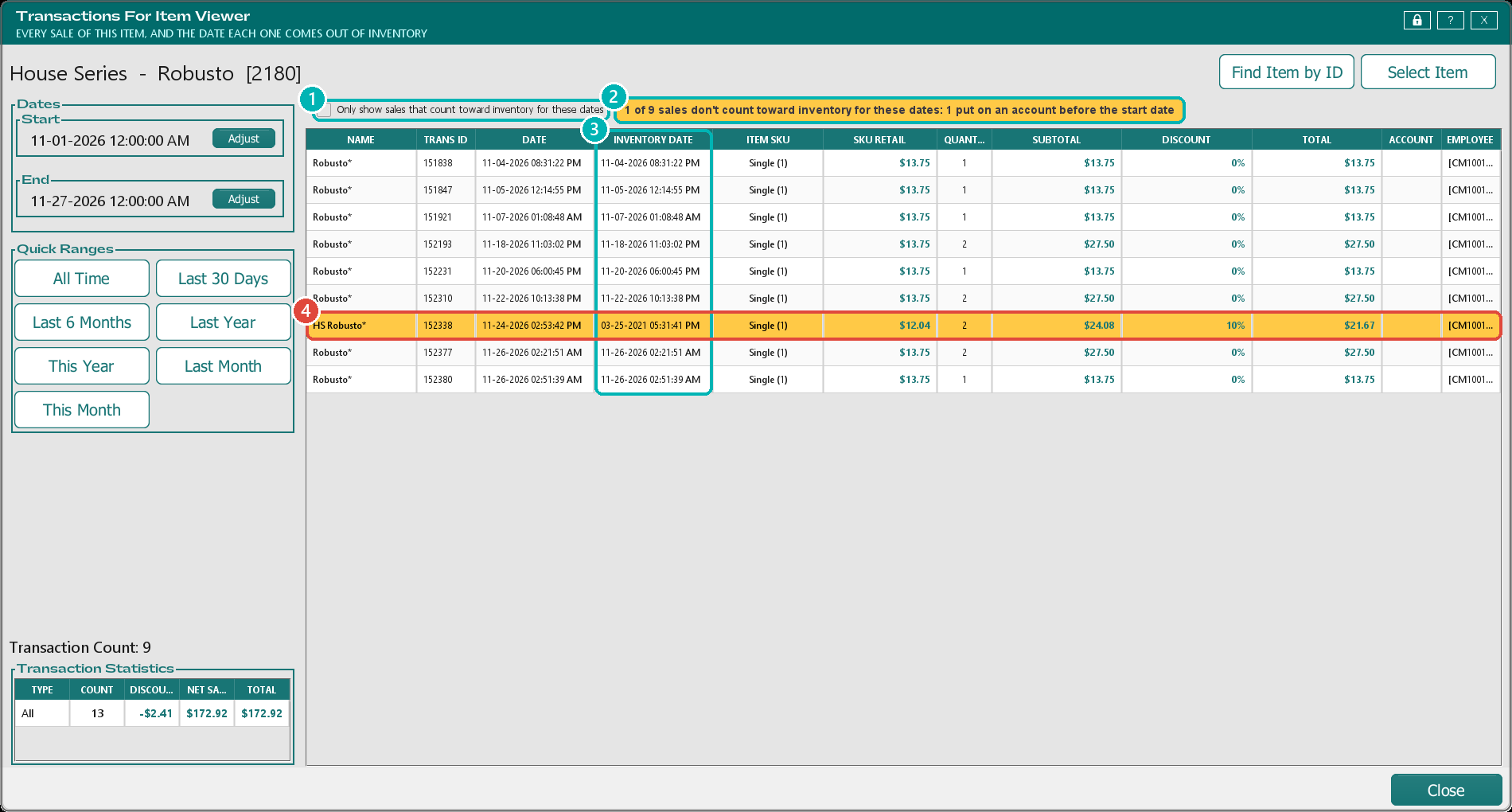
1. Only show sales that count toward inventory for these dates. Unticked to start, so you see every sale. Tick it to see only the sales QOH Details counts. The list then matches the Sales number.
2. The yellow note. When some sales don't count, it says how many and why, for example 1 of 9 sales don't count toward inventory for these dates: 1 put on an account before the start date.
3. Inventory Date. The day the sale came out of your stock. For most sales it's the same as Date. For an account item it's the day the item went on the account.
4. Yellow rows. The sales that don't count toward these dates.
To look at other dates, change Start and End with Adjust, or tap one of the Quick Ranges such as This Month or Last Year.
Starting From a Different Count
TORO starts from the most recent count. To see the sum from an older count instead:
- Select Choose Previous Inventory.
- Pick the count you want.
The whole window works the sum out again from that count. Use Most Recent Inventory puts it back.
To look at a different item without closing the window, use Find Item by ID or Select Item at the top right.
Common Questions
The shelf has more (or fewer) than TORO says. What do I do? Look for the line that doesn't match what you remember, and tap its VIEW to check the list. Common causes are a sale rung up as the wrong item, a delivery that wasn't received on its purchase order, or a count that's months old. If you can't find it, count the item again: that becomes TORO's new starting point.
The sales list shows more sales than the Sales number. Which is right? Both. The list shows every sale paid in those dates. The Sales number only counts sales whose inventory date falls in them. The usual difference is an account item that went on the account earlier. See The Sales List.
Why does my item show 0 no matter what? If an item isn't set to track inventory, TORO always shows 0 for it. See Items That Always Show a QOH of 0.
Can I change a number here? No. QOH Details only shows the sum. To fix stock, count the item (Taking Inventory) or fix the purchase order, sale or return behind the number.