Importing Wholesale Accounts from a Spreadsheet
Moving your wholesale book into TORO used to mean typing every account by hand. Now you can hand TORO a spreadsheet — the one your old system exported, or the one you keep on the office computer — and it'll bring the whole list in at once, showing you exactly what's going to happen before it does anything.
Before you start
Save your list as a CSV file. Every spreadsheet program does this: File → Save As (or Export) and pick CSV.
You need one thing and one thing only: a column with the account name. Everything else — contacts, phone numbers, addresses, license numbers, balances — is optional. Bring what you have.
Take a moment to note which column number each piece of information lives in. Counting starts at 1, so column A is 1, column B is 2, and so on. You'll type those numbers in shortly.
Opening the importer
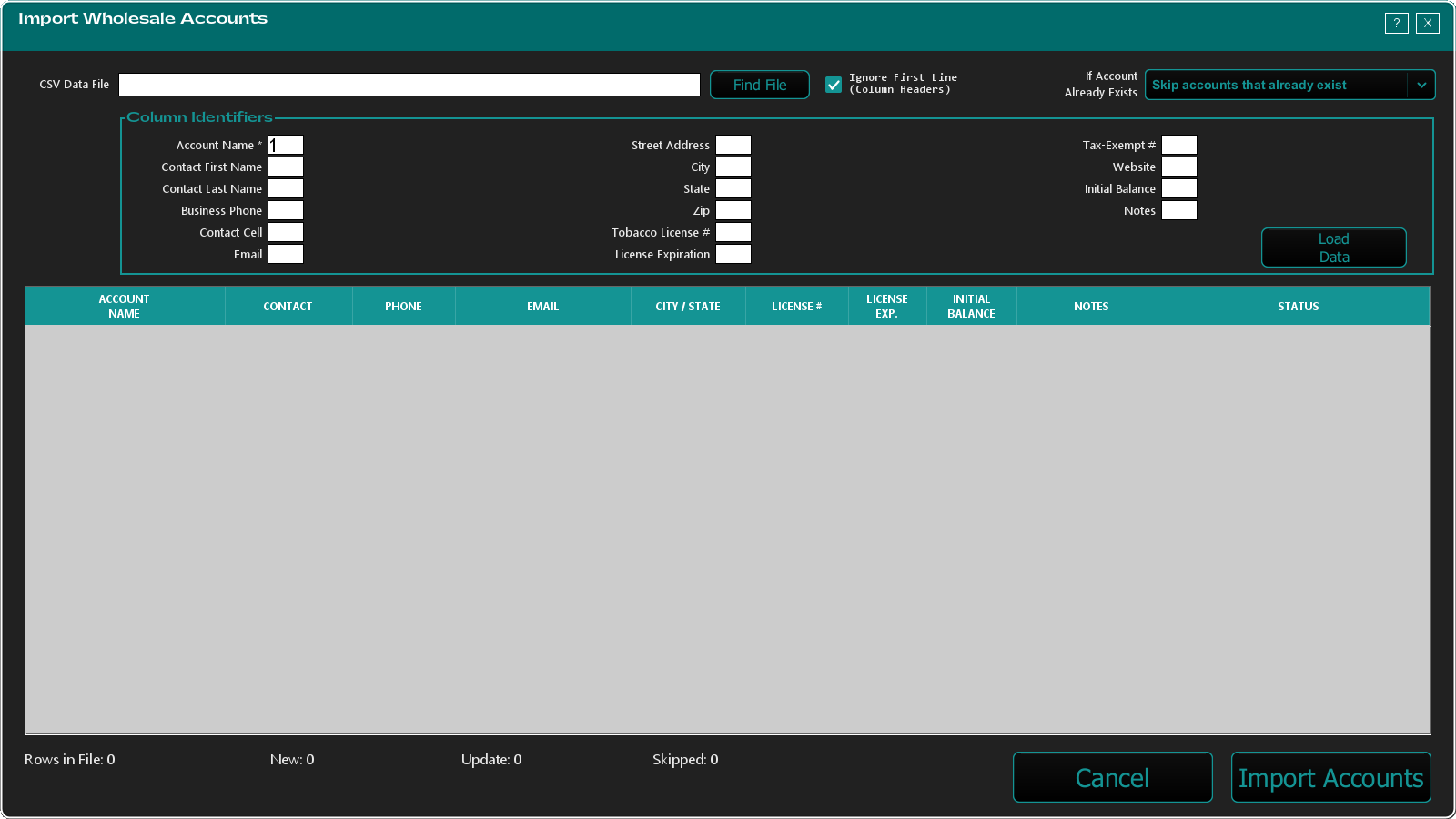
There are three ways in. They all open the same window, titled Import Wholesale Accounts.
From your wholesale account list:
- Open the Dashboard.
- Click the Wholesale tab in the list down the left side.
- Click the Wholesale Accounts card.
- Click Import.
From the setup screens:
- Open the Dashboard.
- Click the TORO Configuration tab.
- Click the Set Up System card.
- Click the Import Tools tab along the top.
- Click the Import Wholesale Accounts tile.
From the Wholesale module home screen: click the Import Accounts button.
Step 1 — Point TORO at your file
- Click Find File next to CSV Data File.
- Pick your
.csvfile. - Leave Ignore First Line (Column Headers) ticked if your first row is headings like "Account Name, Phone, Email" — which it almost always is. Untick it only if your very first row is real data.
Step 2 — Tell TORO which column is which
The Column Identifiers panel has a small box for each field. Type the column number — not the letter, and not the heading — into each one.
The boxes are laid out in three groups:
| Left group | Middle group | Right group |
|---|---|---|
| Account Name * | Street Address | Tax-Exempt # |
| Contact First Name | City | Website |
| Contact Last Name | State | Initial Balance |
| Business Phone | Zip | Notes |
| Contact Cell | Tobacco License # | |
| License Expiration |
Account Name is marked with a * because it's the only required one. If you try to load the file without it, TORO stops you: "Please set the column number that holds the Account Name — it is required."
Leave any box empty for information you don't have.
A couple of notes on formats. License Expiration reads dates like
03/15/2027or3/15/27, with slashes or dashes. Initial Balance ignores dollar signs, commas and parentheses, and always reads the amount as what the account owes you — so$1,250.00,1250, and(1250.00)all come in the same way.
Step 3 — Choose what happens to accounts you already have
Use the If Account Already Exists dropdown:
- Skip accounts that already exist — leave your existing accounts completely alone. This is the default and the safe choice.
- Update matched accounts — fill in the existing account with what's in your file.
- Create anyway (may duplicate) — bring everything in, even where the name already exists. Use this only when you know your file has no overlap.
You can change this after loading the file — the preview and counts update instantly without re-reading the spreadsheet.
Step 4 — Load the data and read the preview
Click Load Data (right-hand side of the Column Identifiers panel).
The table below fills with a preview — one row per line in your file — and a Status column tells you what will happen to each one:
- New account (green) — will be created.
- MATCHED - will update (green) — an existing account that will be filled in. You only see this on Update matched accounts.
- Yellow background — the account already exists, or the same name appears more than once in your file. Read these before importing.
- Missing Account Name (red) — this row will be skipped. Nothing junk gets created.
Underneath the table, four counts tell you the whole story at a glance:
Rows in File · New · Update · Skipped
They should add up to what you expect. If Skipped is high, your column numbers are probably off by one — check them and click Load Data again.
If some lines couldn't be read at all, TORO shows a warning listing the first ten and how many more there were. This usually means a stray line in the export, and it's harmless — those rows are simply left out.
Step 5 — Import
- Click Import Accounts.
- TORO asks Import Wholesale Accounts? and tells you exactly how many. Click Yes.
- A progress bar runs.
- TORO reports back — for example, "48 of 48 wholesale account(s) were imported." If any failed, it says how many.
The window closes and your wholesale account list reloads with the new accounts on it.
Every imported account gets a note recording where it came from — the file name, and who ran the import — so months later you can still tell what came in from where.
Running it again
Your file path and all your column numbers are remembered. Import a second batch next month and everything is already filled in — just pick the new file and click Load Data.