Disk Cleanup
When a computer's main drive fills up, things start breaking in odd ways: printing fails with "There is not enough space on the disk", updates don't install, and everything gets slow. TORO's Disk Cleanup shows you how full the drive is and clears out the usual space-wasters for you, without you having to dig around in Windows.
Nothing is deleted until you tick something and confirm. Most of what it clears goes to the Recycle Bin, so you can get it back.
Finding It
Open the Dashboard
Click the Store tab on the left, then click the Disk Cleanup card. (Can't find it? Type "disk" in the search box at the top right.)
It cleans the computer you open it on, so open it on the computer that's full. It starts scanning drive C: as soon as the window opens; give it a moment to fill in the sizes.
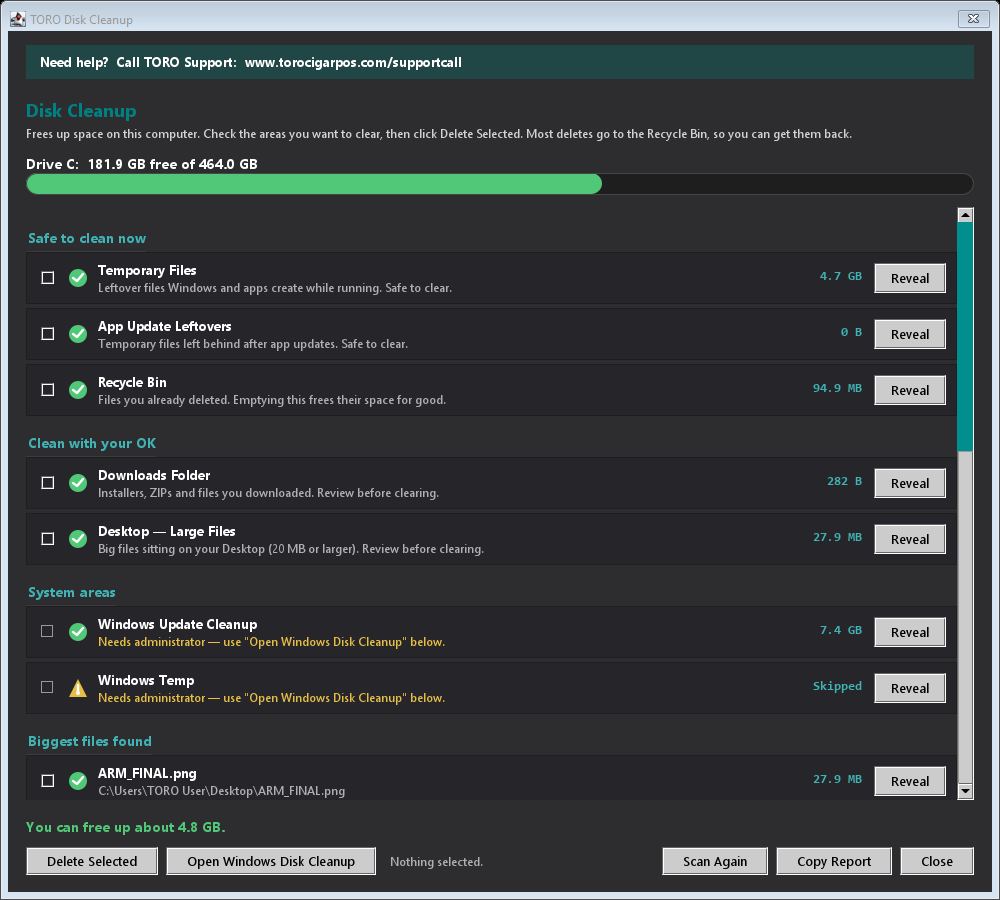
What It Looks At
The bar at the top shows how much of drive C: is free. Below it, each area has a checkbox, its size, and a Reveal button that opens that folder in File Explorer so you can see what's in it.
Safe to clean now
- Temporary Files: leftovers Windows and your programs create while running.
- App Update Leftovers: files left behind after app updates.
- Recycle Bin: files you've already deleted. Emptying it frees their space for good, so these can't be brought back.
Clean with your OK
- Downloads Folder: installers, ZIP files and anything else you've downloaded. Clearing it empties the whole Downloads folder, so click Reveal and look first.
- Desktop — Large Files: files of 20 MB or more sitting on the Desktop.
System areas
- Windows Update Cleanup and Windows Temp: old Windows update files and system temporary files. These need Windows administrator access. If TORO wasn't started as administrator, they show Needs administrator — use "Open Windows Disk Cleanup" below. and can't be ticked. When they can be cleaned here, they're removed permanently rather than sent to the Recycle Bin.
Biggest files found lists the largest files in your Downloads folder and on your Desktop, one per row, so you can clear just the big ones. Biggest folders lists folders taking up a lot of space; these are shown for information only, so use Reveal to open one and decide for yourself.
The line above the buttons says roughly how much you could free up.
Clearing Space
Tick the areas or files you want to clear.
Click Delete Selected.
TORO lists what you picked, how big each one is, and whether it goes → Recycle Bin or is → removed permanently. If any of it is synced to OneDrive, it warns you that clearing it removes it from OneDrive and your other devices too. Read it, then click Delete Selected to go ahead, or Cancel.
Files that are in use or protected are skipped, and TORO tells you how many it couldn't remove. Nothing TORO needs to run is touched.
Anything sent to the Recycle Bin still takes up room on drive C: until the Recycle Bin is emptied. Once you're sure you don't need it back, click Scan Again, tick Recycle Bin and click Delete Selected to free that space for good.
The Other Buttons
- Open Windows Disk Cleanup opens Windows' own cleanup tool, which can clear the system files that need administrator access.
- Scan Again re-checks the drive, for example after you've emptied something by hand.
- Copy Report copies the sizes to the clipboard, ready to paste into a message to TORO Support.
- Close closes the window.