Logging Damaged Items
A cracked wrapper, a box that got wet, a lighter that came out of the case broken. When something can't be sold anymore, log it as a damaged item. That takes it out of your quantity on hand, keeps a record of who reported it and why, and gives you a slip to send with your claim to the vendor.
The log also tracks what you got back for it. Once the vendor swaps the product, credits your account or sends something else, you mark the damage as compensated, so you can always see which claims are still open.
Finding It
There are two ways in.
To report something quickly from the register:
On the main screen, click Transactions in the sidebar on the left.
Click Report Damaged Item. TORO may ask an employee to sign in first.
To see the whole log:
Open the Dashboard.
Click the Inventory tab on the left, then click the View Damaged Items card. (Can't find it? Type "damaged" in the search box at the top right.)
The same View Damaged Items card is also on the Reporting tab, under Companies.
Reporting a Damaged Item
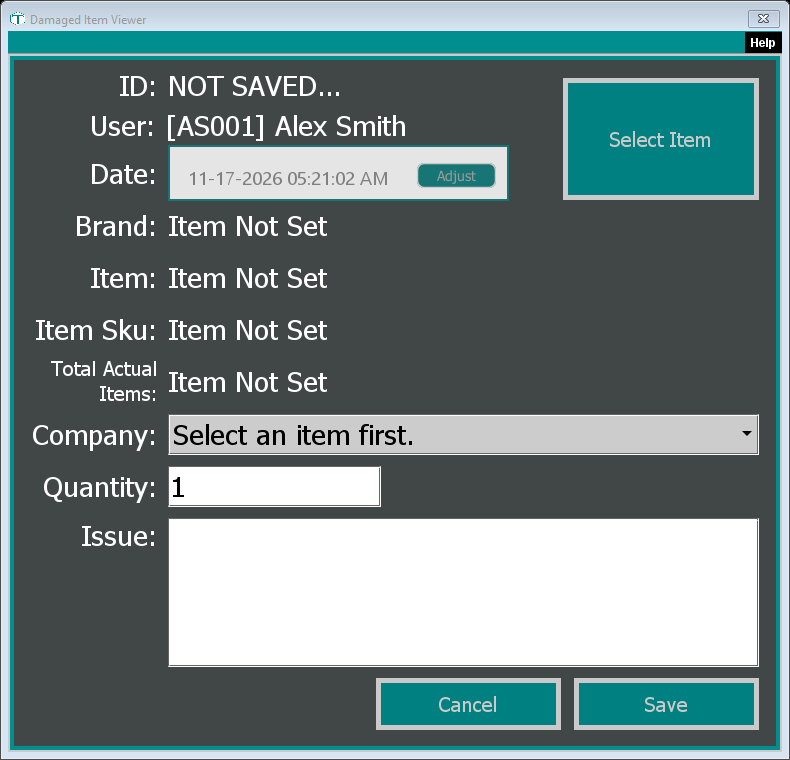
Click Select Item, find the item in the Item Catalog, then pick which SKU was damaged (the box or the single, for example). The Brand, Item and Item Sku fill in.
Pick the Company you'll be claiming from. The list shows the vendors linked to that item's brand, and if there's only one, TORO picks it for you. If it says "Must setup companies for" the brand, link the brand to its vendor first (see Linking Brands to Vendors). You can't save without a company.
Enter the Quantity: how many of that SKU were damaged, as a whole number. Total Actual Items shows what that comes to in single units. One damaged 20-count box is 20 actual items.
In Issue, describe what's wrong. TORO asks for at least 10 characters, because this is what you'll use to get reimbursed by the manufacturer.
Click Save.
TORO saves the report with today's date and the signed-in employee, and prints a Damaged Item slip on your receipt printer. The slip lists the damage ID, who reported it and when, the company, the item, the quantities, the details you typed, and your cost, so keep it in the back office rather than handing it to a customer.
What it does to your stock
The Total Actual Items are subtracted from the item's quantity on hand. Like a sale, it counts from your last inventory count forward, so a damaged item logged before an item's most recent count is already reflected in that count.
Refunds are separate. When a customer returns something and you choose Damaged on the refund, it simply doesn't go back on the shelf. It isn't added to this log. See Giving a Refund.
The Damaged Item Log
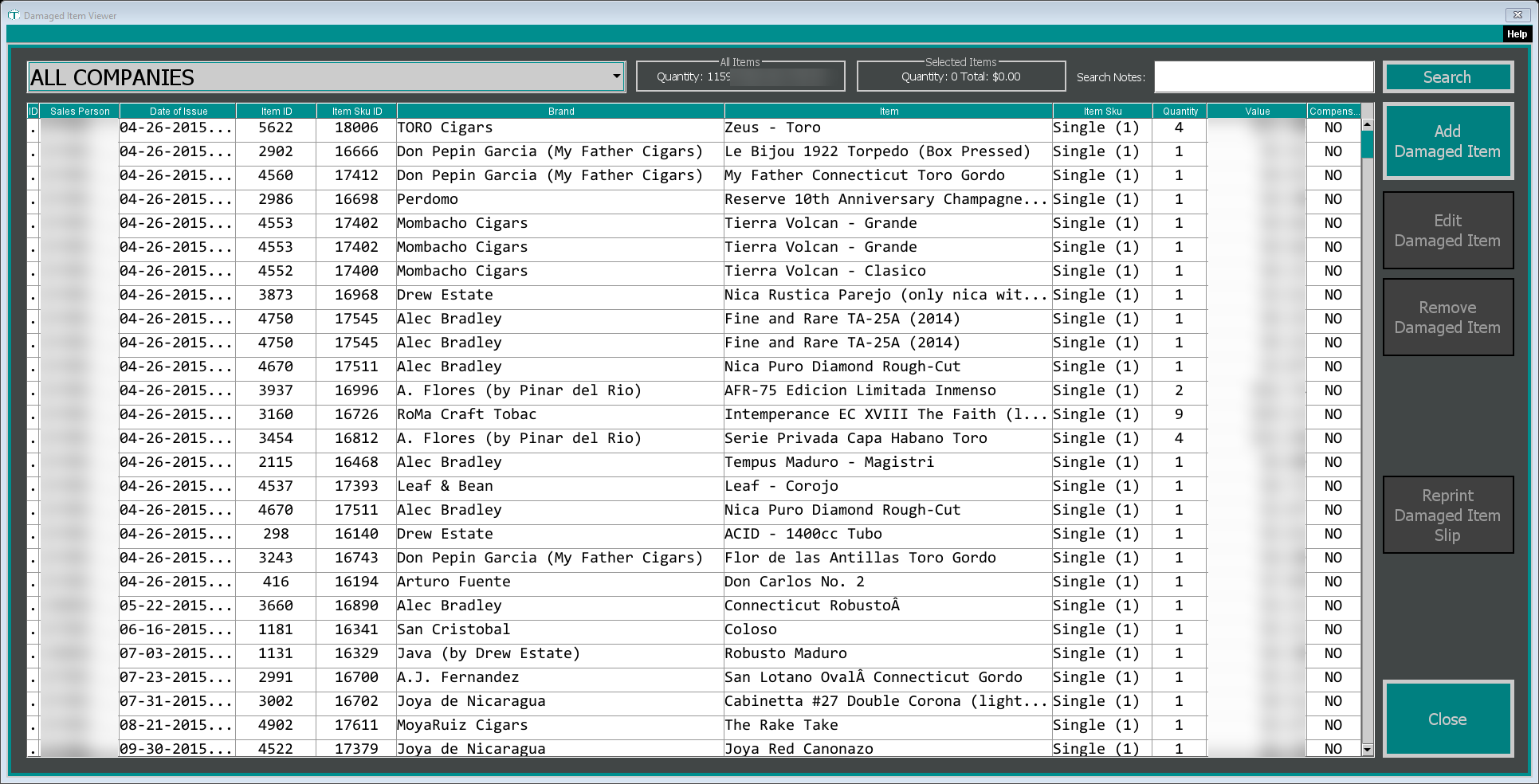
Each row is one report:
- Sales Person is the employee who reported it, with the Date of Issue
- Item ID, Item Sku ID, Brand, Item and Item Sku say what was damaged
- Quantity is the number of single units
- Value is worked out from your cost. For a SKU that holds more than one unit, such as a box, it multiplies the whole SKU's cost by the number of single units, so it reads far higher than the real loss. Use the SKU cost on the slip times the number you reported for the actual figure
- Compensated turns to YES once you've recorded what the vendor gave you
Use the dropdown at the top left to see one company's damage, or ALL COMPANIES for everything. The All Items box totals the quantity and value of every row showing, and Selected Items totals the rows you've highlighted, which is handy when you're putting together one claim.
To find a report by what was written about it, type at least four characters in Search Notes and click Search. It looks through the Issue text.
The buttons on the right:
Add Damaged Item opens the same form as Report Damaged Item.
Edit Damaged Item (or double-click a row) opens the report so you can change it or record compensation.
Remove Damaged Item deletes the highlighted reports straight away, with no "are you sure?" step. The items go back into your quantity on hand. Use it for a report that was entered by mistake, not for one that's been settled.
Reprint Damaged Item Slip prints the slip again for each highlighted report.
Recording What the Vendor Gave You
When the claim is settled, open the report with Edit Damaged Item. Editing shows a Compensation Information section that a new report doesn't have.
Set Complete to Yes.
Pick the Type: Swap Inventory, Credit, Swag or Other.
Set the Date and the Amount. Type the amount as a plain number, without a dollar sign.
Add Notes about what happened. TORO asks for at least 10 characters.
Click Save.
The report now shows YES under Compensated. The Quantity box opens with the number of SKUs you reported, for example 1 for one box. If you change it while you're editing, your quantity on hand changes with it.