Changing Your Store Hours and Holiday Hours
New closing time? Closed for Thanksgiving, open late on Christmas Eve, or shutting early for an inventory count? Your store hours live in one window in TORO, the Set Store Hours window. Change your weekly opening and closing times there, add one-off holiday hours and closures as Special Days, and choose what the banner on your website says. TORO uses your hours on your public website, on the banner, and in your reports, so they're worth keeping up to date.
Where to find it: on the main screen, tap Admin in the side bar, then Dashboard, then TORO Configuration, then Set Up System, then the Store tab, then Set Up Store Hours. The steps below walk you through it.
Opening the Set Store Hours Window
- Go to the main screen of TORO.
- On the side bar, select the Admin menu item.
- Select the Dashboard menu item.
- On the side bar of the Dashboard, select TORO Configuration.
- Select the Set Up System tile. (Need help with this part?)
- On the side bar of the Setup window, select the Store tab.
- Select the Set Up Store Hours tile.
You should now see a window called Set Store Hours. It has two tabs at the top: Opening Hours and Website & Banner.
Changing Your Weekly Hours
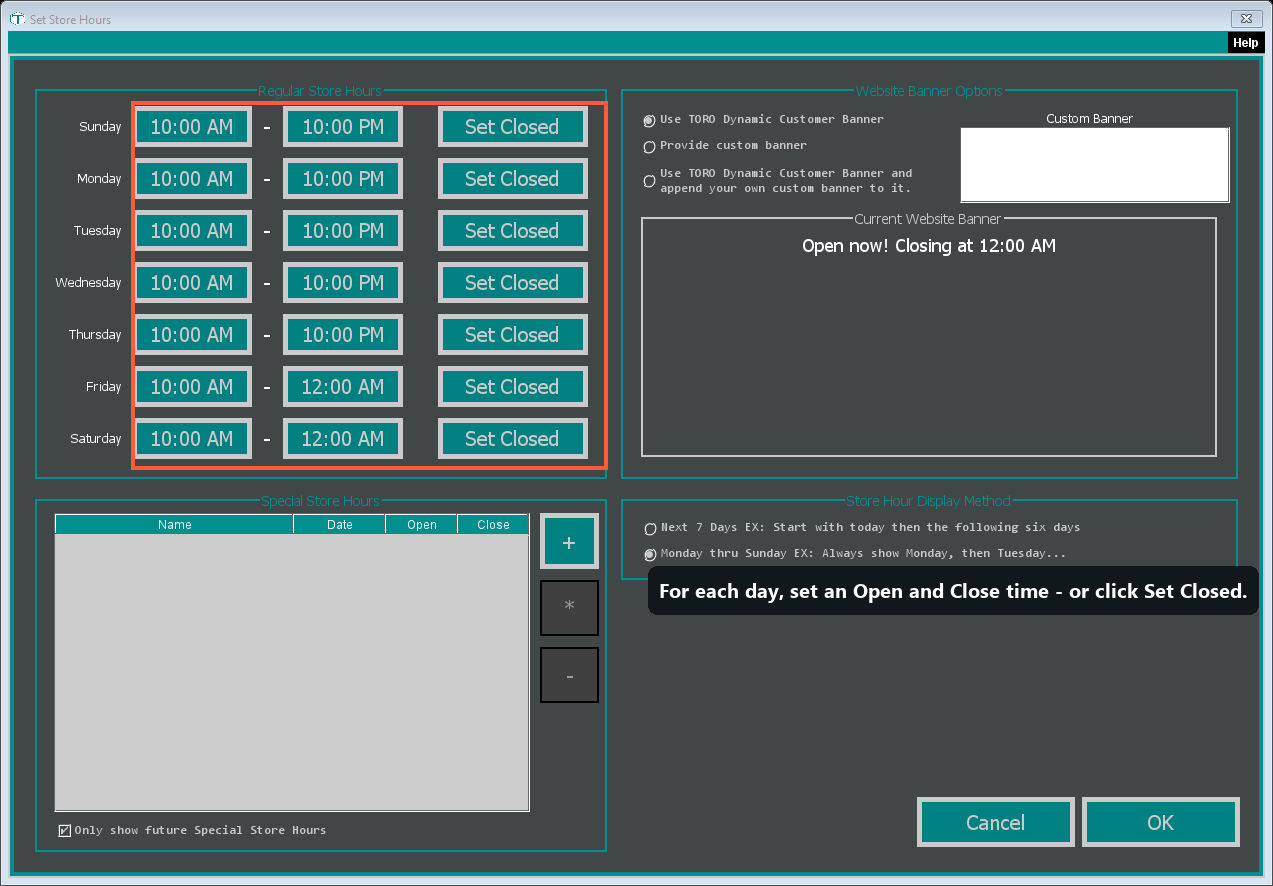
The Opening Hours tab shows your Weekly Hours: one line per day, Monday to Sunday.
- Find the day you want to change.
- Select Open or Closed for that day. A closed day says "Closed all day."
- On an open day, select the Opens box and pick a time from the list.
- Select the Closes box and pick a time from the list.
- Do the same for any other day that's changing.
- Select Save.
Nothing is saved until you select Save. If you change your mind, select Cancel. When you have unsaved changes, TORO asks before throwing them away: Leave Without Saving closes the window, Keep Editing takes you back.
Good to know:
- Times come in 15-minute steps. Noon and midnight are spelled out in the list, so you can't mix them up.
- Open past midnight? Just pick the closing time, for example 2:00 AM. The line then says "Closes the next morning."
- Same hours Monday to Friday? Set Monday, then select Copy Monday's hours to Tue - Fri.
- A day says "Pick this time again"? TORO couldn't read the time saved for that day, so it left the box empty instead of guessing. Pick the right time and select Save.
- A day says "Pick a different closing time"? The opening and closing times are the same. Pick a different closing time.
If something still isn't right when you select Save, TORO shows a list starting "Please fix these before saving" with the day and what to fix.
Adding Holiday Hours and Closures (Special Days)
A Special Day is a one-off change for a single date: a holiday, a day you're closed, a half day for inventory, or an early close for an event. On that date, the special day replaces your weekly hours. The next day, your regular hours are back on their own.
Special days are under your weekly hours, in the panel called Special Days (holidays, early closings). Unlike your weekly hours, special days save as soon as you add, change or remove them. You don't need to select Save for them.
Adding a special day
- Open the Set Store Hours window (see the steps at the top of this guide).
- Select Add Special Day.
You should now see a window called Special Store Hours.
- Select the Name box and type a name for the day, for example Thanksgiving.
- Select the Customer Banner box and type what customers should see on that day, for example Closed for Thanksgiving. See you Friday!
- Select the Date and pick the date.
- Set the hours for that day:
- Closed all day? Select Set As Closed.
- Open different hours? Select the button beside Open Time (it says Set Time) and pick the opening time. Then do the same for Close Time.
- If you like, type a note for yourself in the Notes box.
- Select OK.
- TORO asks "Is the customer banner something that is appropriate? This will be displayed on your website." Read your banner words once more, then select Yes.
The special day now shows in the list.
A few things TORO checks before it saves:
- The Name and the Customer Banner each need at least a few letters.
- You need both an opening and a closing time, or Set As Closed for both.
- The opening and closing times can't be the same. A closing time earlier in the day than the opening time is fine for late nights, for example open 5:00 PM and close 2:00 AM.
Changing or removing a special day
- Open the Set Store Hours window.
- In the Special Days list, tap the special day.
- To change it, select Change (or double-tap the day). Make your changes in the Special Store Hours window, then select OK.
- To remove it, select Remove. TORO asks if you want to remove it and reminds you that your regular hours will apply that day. Select YES.
Can't find a special day? Only show upcoming special days is checked when the window opens, so days that already passed are hidden. Uncheck it to see them all.
Your Website Banner
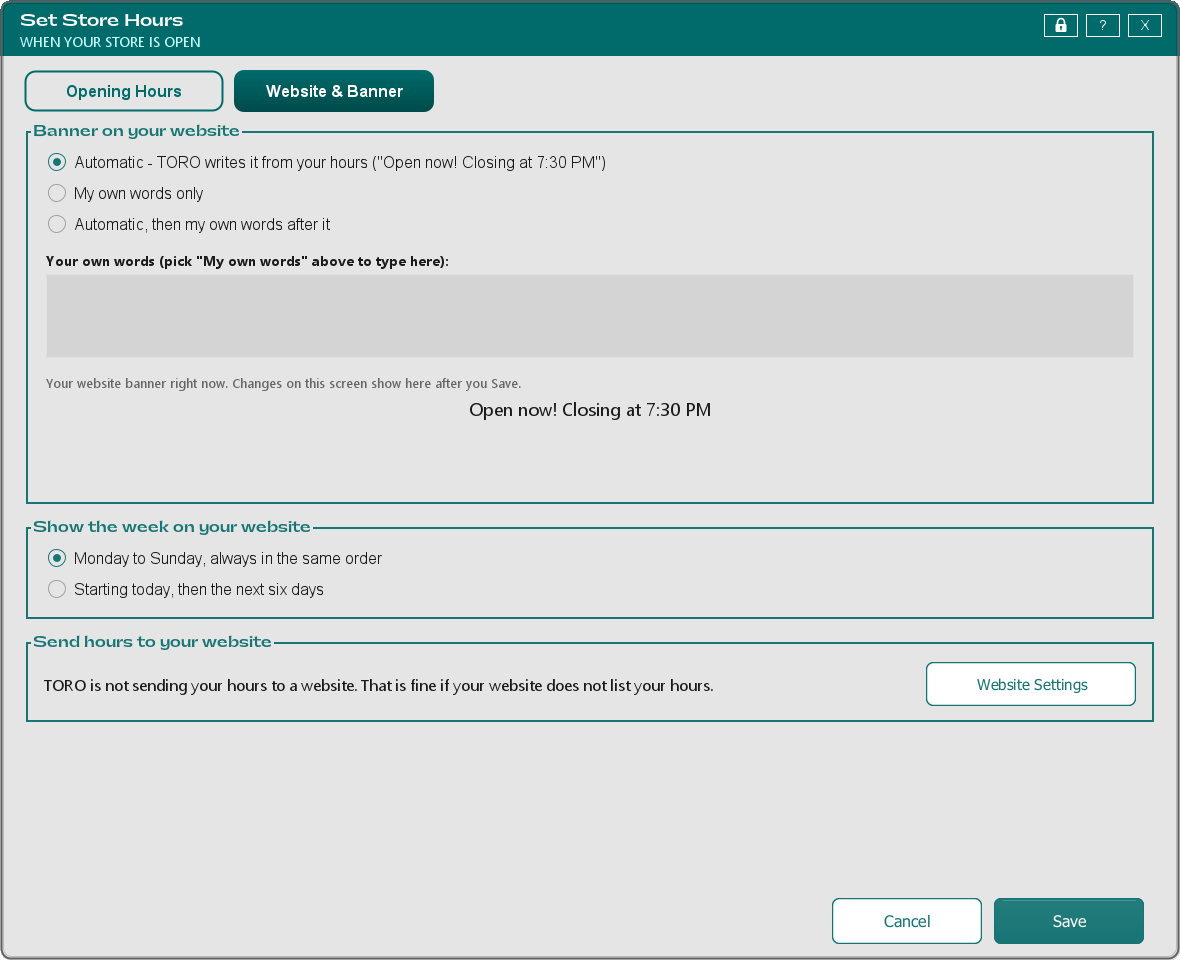
The banner is the message strip on your website, like "Open now! Closing at 7:30 PM." You choose what it says on the Website & Banner tab.
- Open the Set Store Hours window.
- Select the Website & Banner tab at the top of the window.
- In the Banner on your website panel, pick one:
- Automatic - TORO writes it from your hours (the usual choice): TORO writes the banner for you and keeps it up to date all day, for example "Open now! Closing at 7:30 PM."
- My own words only: only the words you type show. Good for something like "Now serving espresso!"
- Automatic, then my own words after it: TORO's live hours line, then your note after it.
- If you picked one of the own words choices, type your message in the Your own words box. (The box is greyed out while Automatic is picked.)
- Select Save.
Under the box, TORO shows your website banner as it is right now. Your changes show there after you select Save.
Special days on your banner: with either Automatic choice, the banner also lists any special days in the coming week under "Upcoming Special Store Hours", with each one's date, hours and the Customer Banner words you typed for it. The "Open now" or "Sorry, we are closed" line follows your special day's hours on that date. With My own words only, only your words show, so add the holiday to them yourself.
Show the week on your website
The Show the week on your website panel sets the order your website lists the week in:
- Monday to Sunday, always in the same order: fixed calendar order, like a printed sign on your door. No dates are shown.
- Starting today, then the next six days: always starts with today and shows the date beside each day.
If your website's hours table has a date column that suddenly looks empty, you're on Monday to Sunday. That's the setting, not a fault.
Select Save after changing it.
Sending your hours to your website
The Send hours to your website panel says where your hours go: "Your hours are sent to yourstore.com", or that TORO is not sending them to a website. Setting that up, and the Send Hours Now button, are explained in Publishing Your Hours to Your Website.
Common Questions
I changed my hours but the website still shows the old ones. First check that you selected Save on the Set Store Hours window. If you did, see Publishing Your Hours to Your Website: it covers checking where your hours are sent and what to do when your website is showing an old saved copy of the page.
Do I have to change my weekly hours for a holiday? No. Add a Special Day for that date instead. Your weekly hours stay as they are, and the next day everything goes back to normal on its own.
Something here doesn't look right? Message TORO support in your store's WhatsApp group.