Let’s finish your TORO update
An update stopped before it finished. Nothing is broken. You can fix this yourself in about a minute by following the steps below.
You only need to open one file. It is already on this computer:
The steps below walk you there, one click at a time. Take your time.
- 1
If TORO is open on the screen, close it.
Look at the very top-right corner of the TORO window for a small X. Click it one time to close TORO. Not sure if it is open? That is okay — just keep going. - 2
Find the yellow folder at the bottom of the screen.
Along the very bottom of your screen is a row of small pictures. Find the one that looks like a yellow folder and click it one time — a window will open.Do not see a folder down there? On your keyboard, hold the Windows key(the key with the four-square window picture to the left of your space bar) and press the letter E — that opens the same window. Or click the search box, type File Explorer, and press Enter.
- 3
Click the address bar at the top, then type this.
Near the top of that window is the address bar. In the picture below it has a red box around it. Click inside it one time — it turns into an empty box you can type in.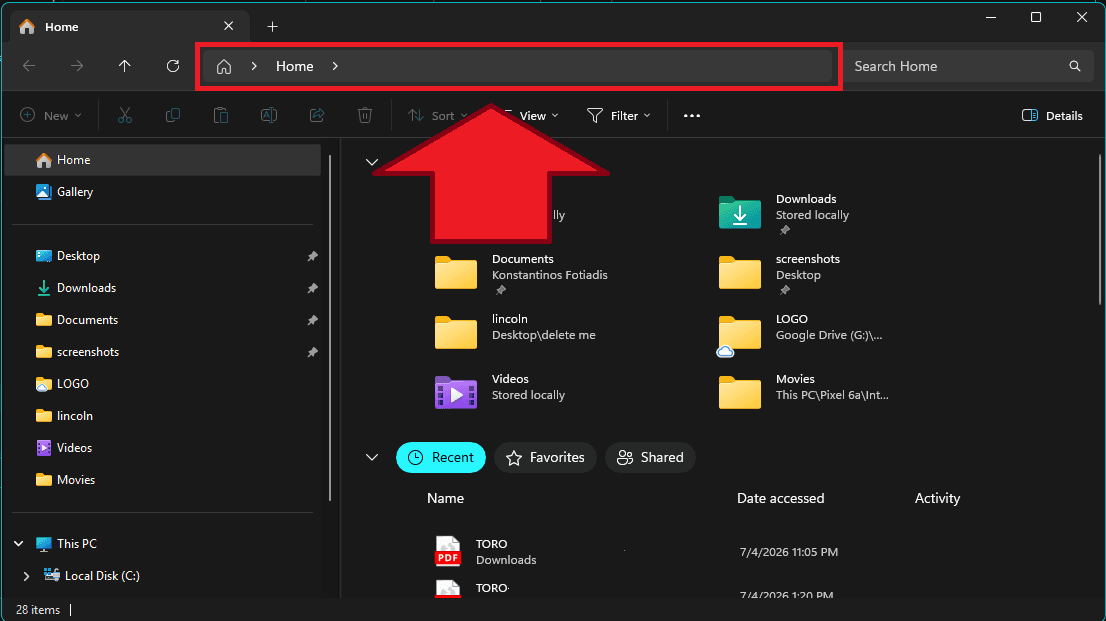
Now type these exact letters, then press the Enter key (the big key on the right side of the keyboard):
c:\hellasbaeType it slowly, exactly as shown. The \ is the leaning line above the Enter key.
- 4
Find “toroupdater” and click it twice, fast.
A list of items appears. Find the one named toroupdater. Point your mouse at it and click twice quickly (this is called a double-click).It may show as ToroUpdater or toroupdater.exe — those are all the same thing.
toroupdater - 5
If the computer asks a question, say Yes.
The computer may ask “Do you want to allow this app to make changes?” — click Yes. If you see a blue screen that says “Windows protected your PC,” click More info, then click Run anyway. This is normal and safe — it is your own TORO updater. - 6
Wait. Let it finish by itself.
A window opens and words scroll by. That is the update working. Do not touch the computer and do not turn it off. It may take a few minutes. When it is done, TORO will open back up on its own. That is it — you are finished.
You cannot break anything by running the updater.
It is safe to run it again if you are unsure whether it finished.
A faster way (once you have done it before)
This skips the folder. If it feels confusing, ignore it and use the steps above.
- Hold down the window key (shown here) and, while holding it, tap the letter R. A small box appears in the corner.
- Type this exactly, then press Enter:c:\hellasbae\toroupdater.exe
- If it asks to allow changes, click Yes. Then wait for it to finish.
Stuck, or it still is not working?
Do not worry — we will finish it with you. Send a message in your Store WhatsApp Support Group and we will walk you through it.
That is all there is to it
Run the updater, let it finish, and TORO comes right back. We are one message away if you need us.